
Printer Profiles
- 15 Apr 2026
- 3 Minutes to read
- Contributors

- Print
- PDF
Printer Profiles
- Updated on 15 Apr 2026
- 3 Minutes to read
- Contributors
- Print
- PDF
Article summary
Did you find this summary helpful?
Thank you for your feedback
Applies to: Lasernet Core 11
Printer Profiles are used to configure and set up printer settings. The Printer Profiles system has been carefully designed to interact with any printer driver that works with the Microsoft Windows printing subsystem.
Note
Printer profiles are relevant only to workflows that use output printers.
Internally, Windows operates with a device setup description structure called the Device Mode structure, or DEVMODE for short. The DEVMODE describes everything that can be configured on a printer, such as the paper format, orientation, duplex mode, substitution of TrueType fonts with device fonts, quality mode, and more.
The DEVMODE structure is split into two distinctive parts. Some settings are very common amongst printers, and so Microsoft created a standardized method of configuring those settings. Other settings are device-specific and require a more complex setup. From a user perspective, the DEVMODE structure cannot be built using JobInfos. It has to be set up using the dialogs displayed by the printer driver. DEVMODE structures are also specific to each individual printer and cannot be shared between different printers.
To address these issues Lasernet Core uses the Printer Profiles system. A printer profile is a specific setup for a printer. Each output printer in Lasernet Core can have as many profiles created for it as needed. However, there is one special profile called “Default”. The default printer profile is the configuration setup in the Printers control panel in Microsoft Windows.
Printer Profiles are managed in the Lasernet Developer > Printer Profiles section.
Note
Printer profiles are not objects and, therefore, cannot be seen in the object list when using File > Export Objects. However, printer profiles are linked to the Printer Output objects for which they were created. When you export a Printer Output object, any associated printer profiles will be included with that object, making them available when you import the printer into another configuration. Printer profiles that are created by the Printer Service application are stored on the Config Server.
You cannot select individual Printer Profiles under the printer object when exporting. All associated printer profiles will be included in the .lnobjectx export file.
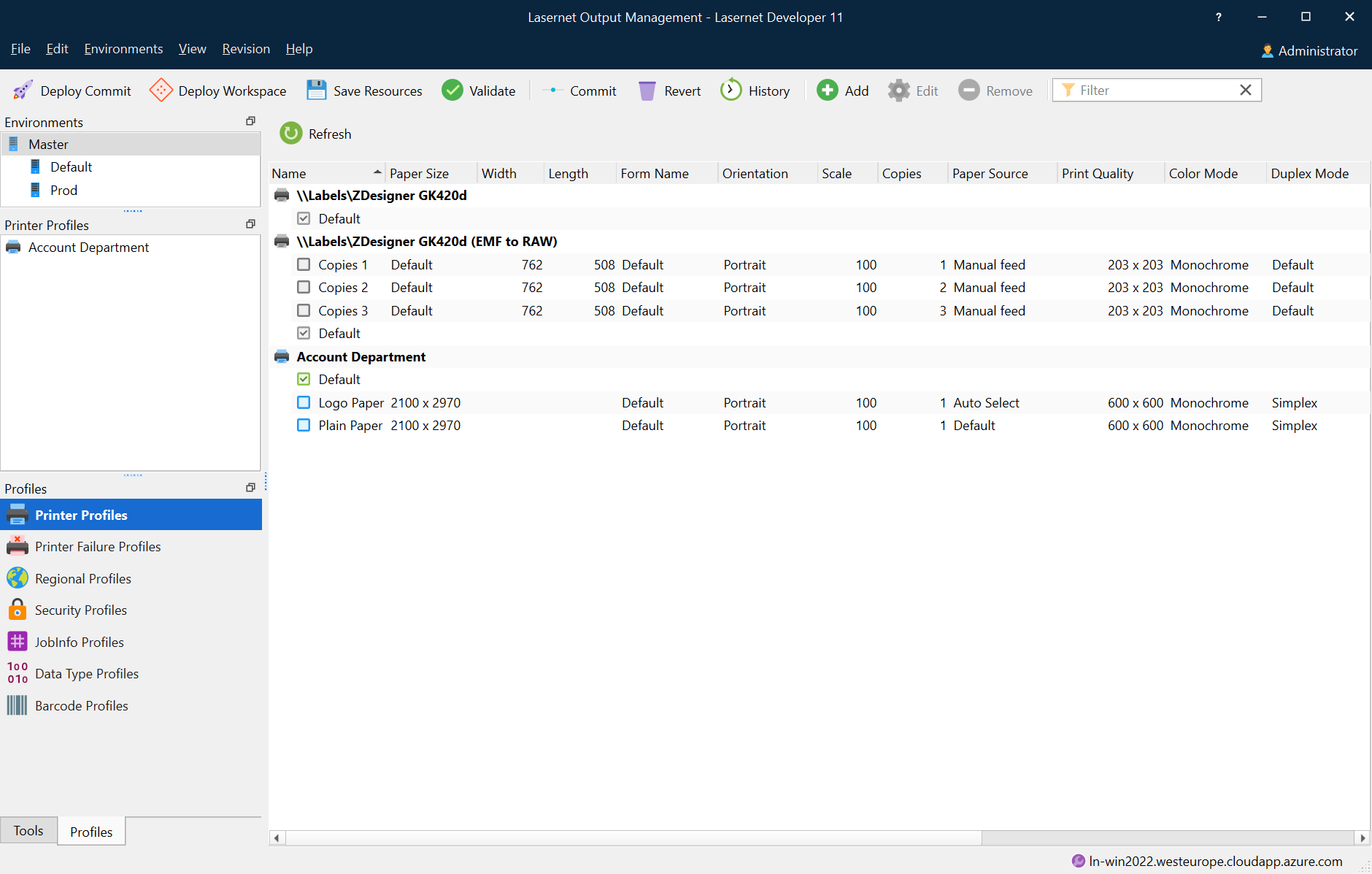
To create a new profile, click the Add button. Then click Edit on a profile to edit it. A dialog showing the settings that are common amongst all printers will be displayed.
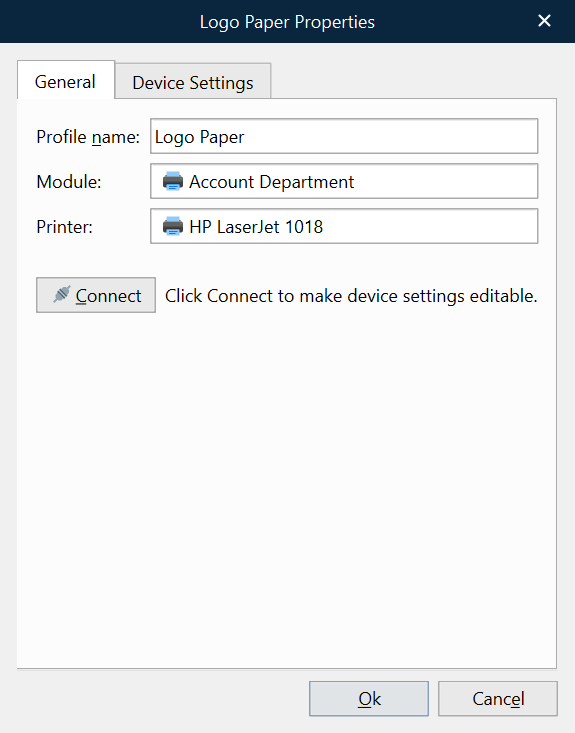
Editing a printer profile requires Lasernet Developer to be able to connect to a specific printer. Due to the design of the Windows DEVMODE structure, the printer driver has to be an exact match. If the versions do not match, all settings in the printer profile will be lost. To avoid accidentally altering a profile, first click the Connect button.
All the settings directly viewable in the dialog are part of the DEVMODE structure and can be changed using JobInfos or scripting. Special care has to be taken when handling the Paper Source setting: the displayed names are localized, which means that they are written in the language set by the regional settings and the printer driver. When specifying the paper source in a JobInfo it must match the language given in the regional settings/printer driver. This can become a problem in environments where mixed languages are used. This limitation is only specific to JobInfos, not if a paper source is selected in the dialog.
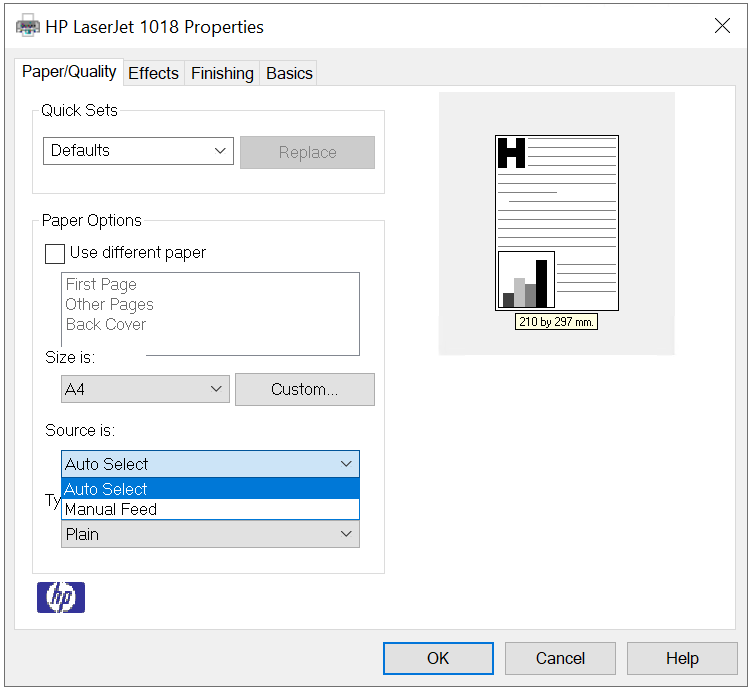
By clicking the Additional Settings button, printer-driver-specific settings can be altered. This dialog will look different depending the selected printer driver. The following image is an example of the settings for a HP LaserJet printer driver.
When a job is being printed in Lasernet Core, one printer profile is selected for the print. If the job itself does not select a printer profile, the selected radio button on the Printer Profiles page specifies it.
A profile can be selected for each printer. If a form is to be printed on this printer, then the selected profile will be used. For each page, different profiles can be used.
For example, it is possible to take all pages except the last one from the Upper Paper Tray then take the last page from the Lower Paper Tray, assuming the printer supports this configuration. Another printer may allow paper to be taken from the Lower Paper Tray, use duplex mode and use Draft quality printing.