
PDF Stamp Modifier
- 30 Jan 2026
- 1 Minute to read
- Contributors

- Print
- PDF
PDF Stamp Modifier
- Updated on 30 Jan 2026
- 1 Minute to read
- Contributors
- Print
- PDF
Article summary
Did you find this summary helpful?
Thank you for your feedback
Applies to: Lasernet Core 11
You can apply one or more text strings and images as stamps to pages in a PDF document.
Images must be loaded into a JobInfo as binary graphics in PNG, JPEG, or TIFF format before the modifier is executed. Similarly, if the stamp data is in PDF format, the PDF data must be loaded into a JobInfo.
Notes
The sheet design must be processed before using the PDF Stamp modifier.
The modifier can be applied at sheet or module level.
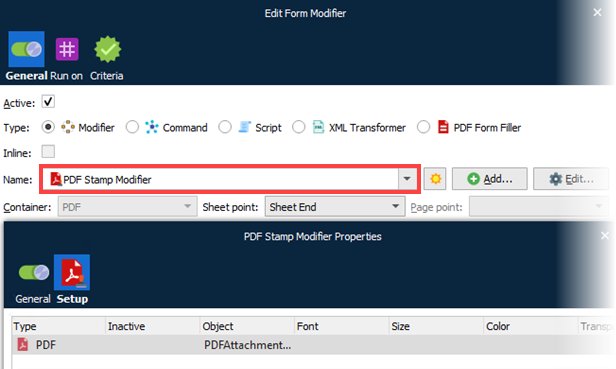
Add and Edit
Click Add to configure a new stamper item.
Click Edit to edit an existing stamper item.
The modifier inserts the items in the specified order, as layers in the PDF document.
Settings
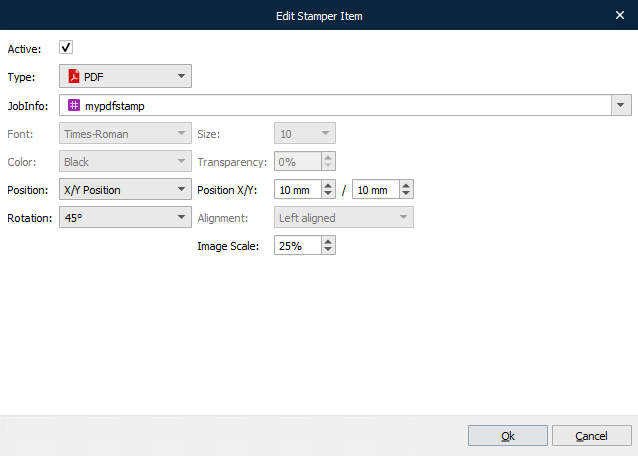
Text: Stamp the PDF with the text provided in the Text box. Image: Stamp the PDF with the image data carried by the specified JobInfo. PDF: Stamp the PDF with the PDF data carried by the specified JobInfo. | |
Text | A fixed text string with or without parameters for inserting page numbers. Type %P for current page and %T for total number of pages; for example: Page %P of %T |
JobInfo | Insert the contents of a JobInfo (binary graphics or PDF data). Supported binary graphic formats: PNG, JPEG and TIFF. |
Font | Times, Helvetica, Courier, Symbol and ZapfDingbats. |
Size | Font sizes available: 4-12, 14, 16, 18, 20, 22, 24, 26, 28, 36, 48, 72 & 96 pt. |
Color | Available values: Black, White, Red, Green and Blue |
Transparency | Set a transparency value for the text where 0 % is opaque (darkest) and 100 % is fully transparent. Recommended for text inserted in the background. |
Position | Set the position of the text. The value of the X/Y Position will insert the text in a position relative to the upper left corner of the paper. Top, Center and Bottom positions are relative to the X/Y margins. |
Rotation | Rotate the text by the following degrees: 0, 45, 90, 135, 180, 225, 270, 315 |
Image Scale | Scale the image. Values below 100% will reduce the image size and higher than 100% will enlarge the image (compared to the original). |