
PDF Merger
- 30 Jan 2026
- 1 Minute to read
- Contributors

- Print
- PDF
PDF Merger
- Updated on 30 Jan 2026
- 1 Minute to read
- Contributors
- Print
- PDF
Article summary
Did you find this summary helpful?
Thank you for your feedback
Applies to: Lasernet Core 11
This module can combine multiple PDF documents into a single job, as well as merge a list of additional PDF documents with the combined job.
The JobInfo named JobData will contain the data for all the combined jobs. It will be attached to the JobInfos that were created in the first job. JobInfos for all other Jobs expect that the first job will be deleted.
You can add a criteria to each additional document as well as documents whose criteria are true, to be merged with the job. If no additional documents are added, it will only combine jobs from the combiner.
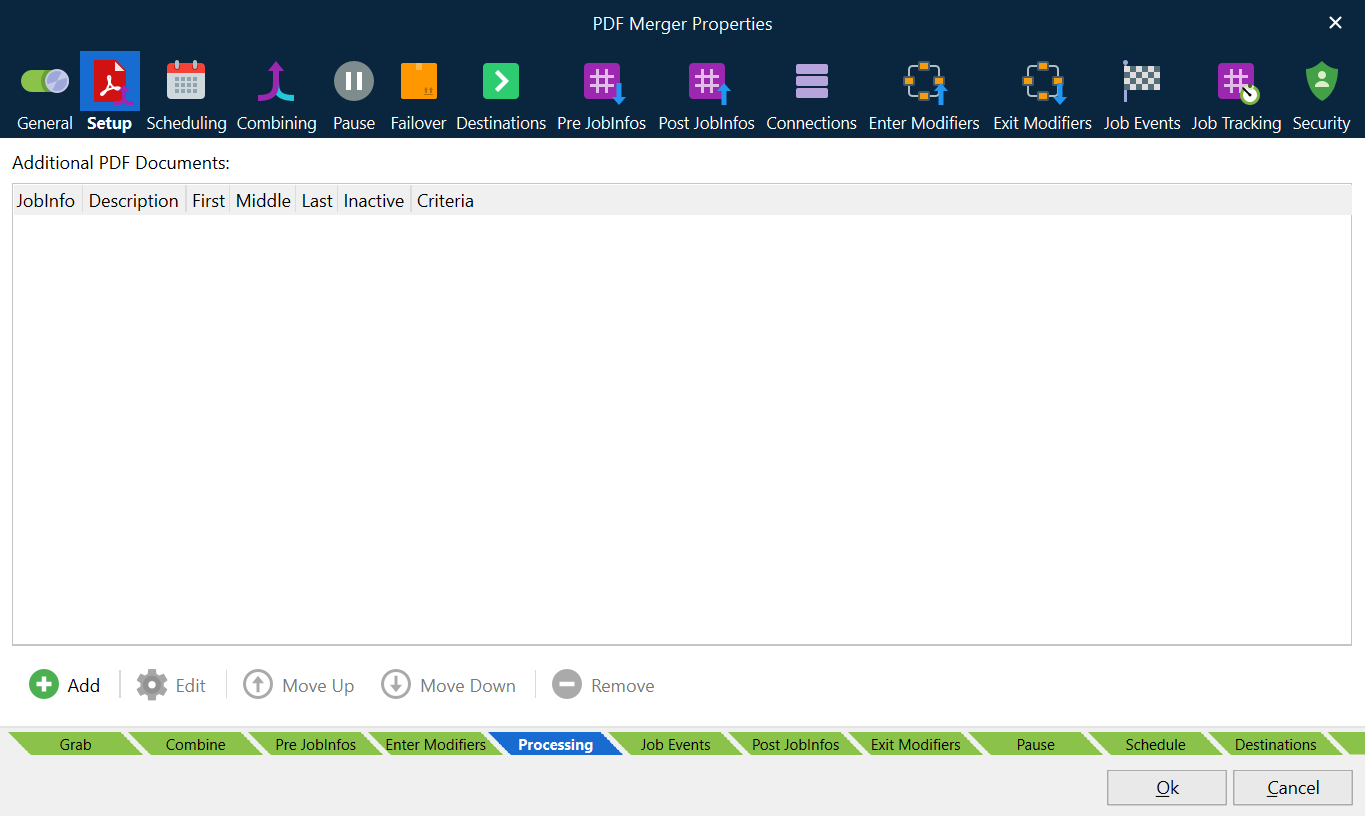
Settings
The PDF Merger has the following settings:
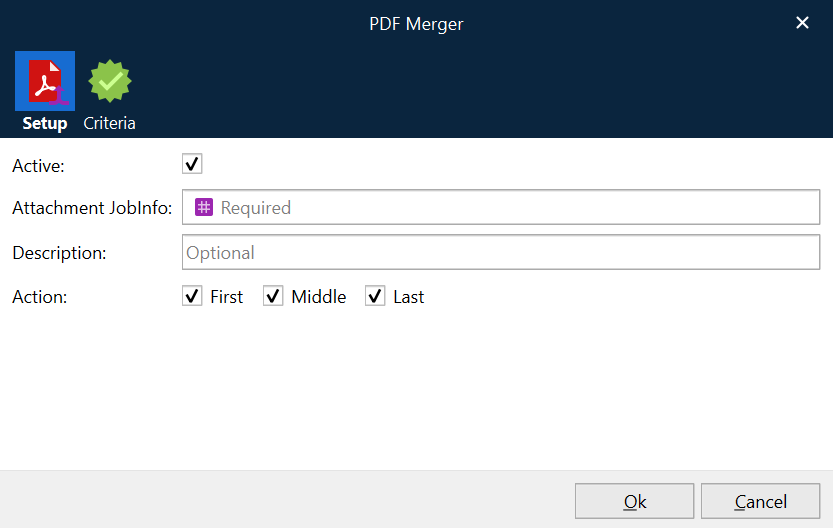
Active
Turn item on/off.
Attachment JobInfo
Name of the JobInfo that contains PDF data to insert at the specified location (or locations). PDF document data is read from the first job.
Description
User-defined description field.
Action
Select where to insert an attachment in JobData.
First: Before first job
Middle: Between jobs
Last: After the last job
Non-valid/Existing PDF Data
If invalid or existing PDF data is added in JobInfos listed to be merged with JobData at First, Middle and Last page, the engine will behave as follows:
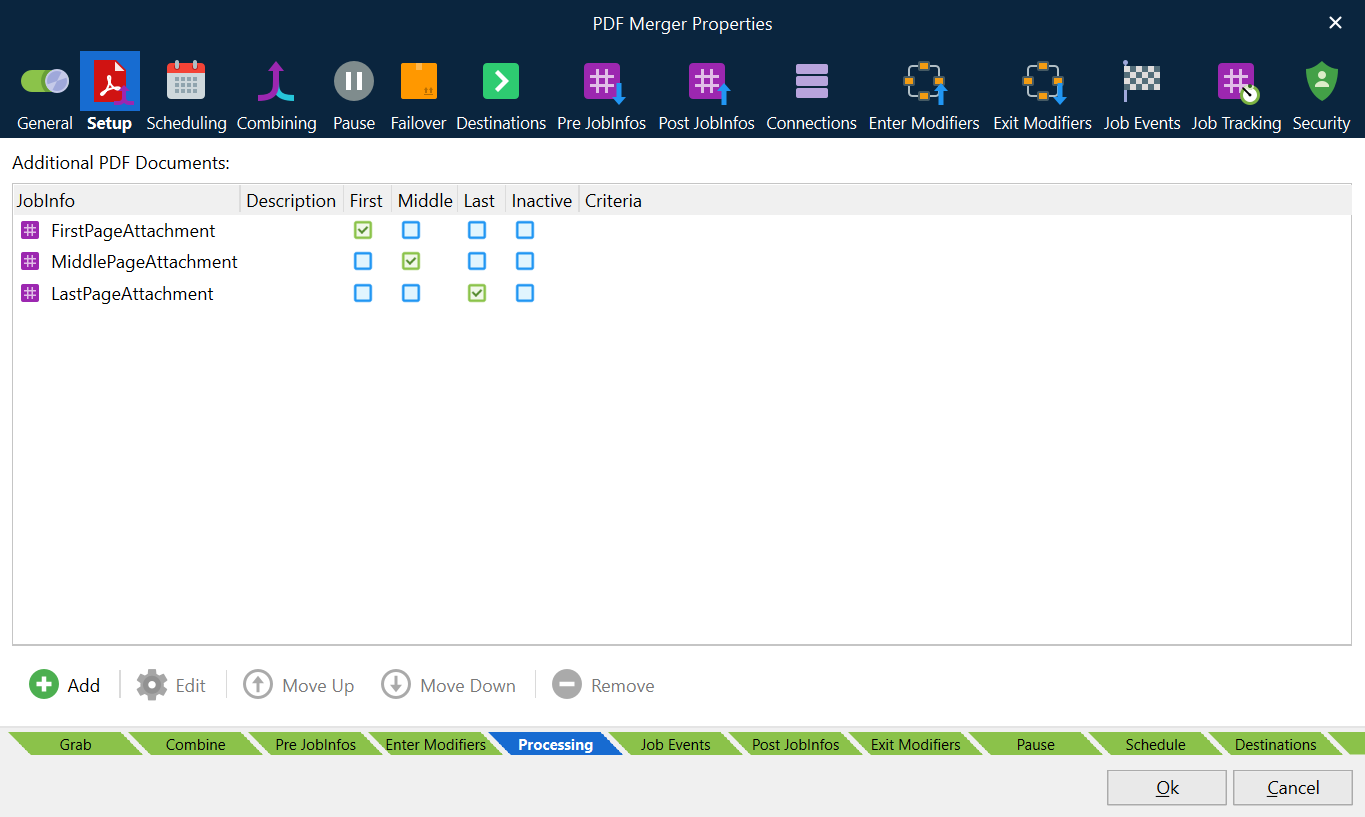
If the listed JobInfo exists in the job but contains invalid PDF data, the engine will fail the job.
If the listed JobInfo exists in the job but contains null data, the engine will not fail the job.
If the listed JobInfo does not exist in the job, the engine will not fail the job
Combining
Select the Combining tab and activate Enable Job combining to merge multiple PDF documents into a single PDF document. For more information about combiner settings, see Combining Jobs.