
Mail Output
- 14 Apr 2026
- 3 Minutes to read
- Contributors

- Print
- PDF
Mail Output
- Updated on 14 Apr 2026
- 3 Minutes to read
- Contributors
- Print
- PDF
Article summary
Did you find this summary helpful?
Thank you for your feedback
Applies to: Lasernet Core 11
Used for sending a job as email via the SMTP protocol.
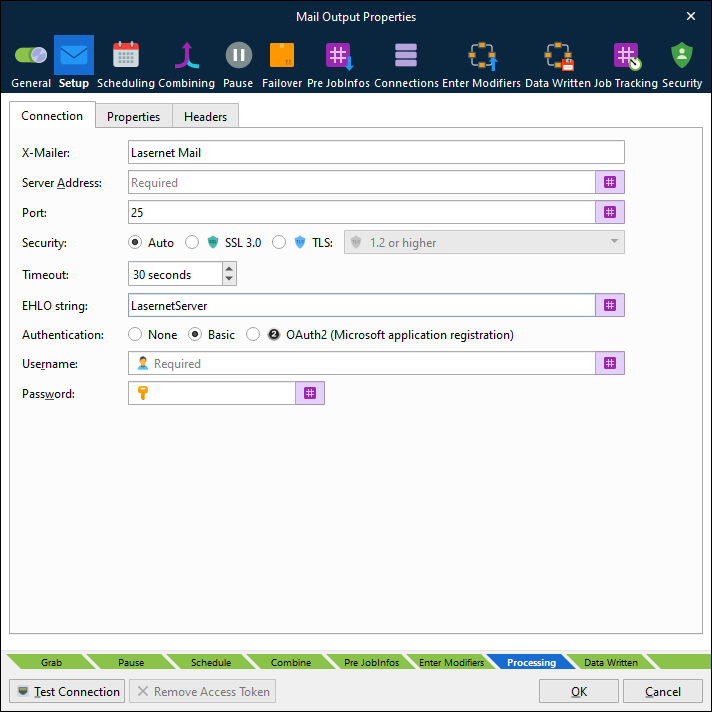
Connection
OAuth2 Configuration
To set up OAuth2 authentication, you must complete tasks in Microsoft Entra ID and Exchange in addition to configuring this Lasernet Core module.
Follow this overall process:
In Entra ID, create an application registration for Lasernet Core and then grant it the following permissions:
For POP access:
POP.AccessAsAppFor IMAP access:
IMAP.AccessAsAppFor SMTP access:
SMTP.SendAsApp
In Entra ID, get tenant admin consent for the Lasernet Core application registration to access Exchange mailboxes through POP, IMAP, or SMTP.
In Exchange, use the
New-ServicePrincipalcmdlet to register the service principal.Note: This step must be completed by an Exchange administrator.
In Exchange, use the
Add-MailboxPermissioncmdlet to grant the application the necessary access to specific mailboxes.For example:
Add-MailboxPermission -Identity "john.smith@example.com" -User 3f2504e0-4f89-11d3-9a0c-0305e82c3301 -AccessRights FullAccess
Note
The process above summarises the following Microsoft documentation. For full instructions and accompanying examples, go to https://learn.microsoft.com/en-us/exchange/client-developer/legacy-protocols/how-to-authenticate-an-imap-pop-smtp-application-by-using-oauth#use-client-credentials-grant-flow-to-authenticate-smtp-imap-and-pop-connections
Properties
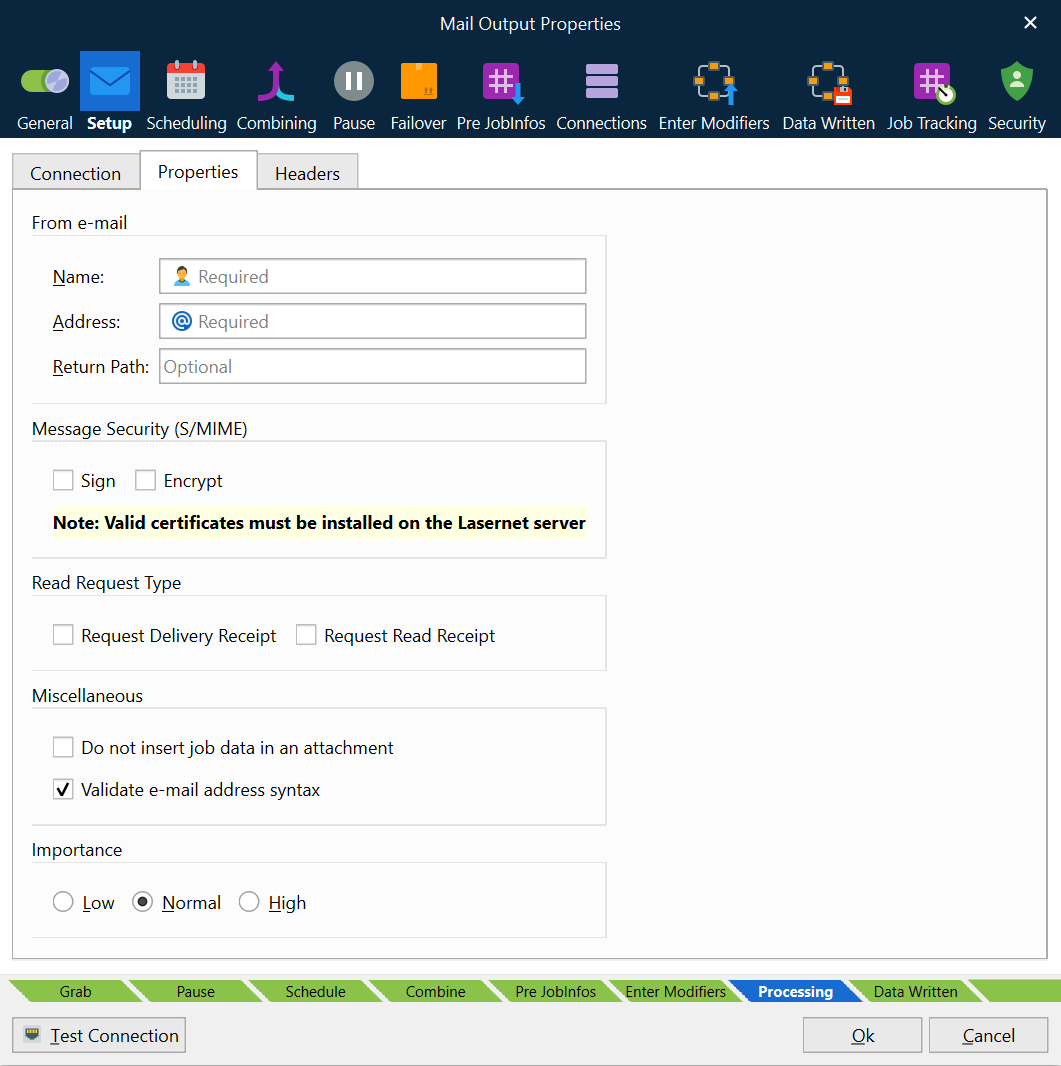
Name | From e-mail name. |
Address | From e-mail address. |
Return Path | The mail address to bounce back the mail to in case of failure. |
S/MIME: Sign | Signs the email with the S/MIME certificate associated with the Address in the From E-mail area. (This requires that the certificate is imported into Microsoft Windows on the machine running the Lasernet Core service.) |
S/MIME: Encrypt | Encrypts the email with each S/MIME certificate associated with each recipient’s addresses. (This requires that the certificate for each receiver is imported into Microsoft Windows on the machine running the Lasernet Core service.) If not, all receiver certificates are available, no e-mail is sent. |
Request Delivery Receipt | If selected, a delivery receipt will be sent to the e-mail address when the message is successfully delivered to the recipient. |
Request Read Receipt | If selected, a receipt will be sent to the e-mail address when the recipient has opened the e-mail. |
Do not insert job data in an attachment | If selected, job data will not be inserted as an attachment in the e-mail. Used if you only want a mail body to be presented (other attachments can still be added via the MailAttachment functionality; see information in JobInfos about MailAttachment and MailAttachmentFileName). |
Importance | Set the category of importance to Low, Normal (default) or High. |
Headers
Optionally, you can add custom MIME headers to the emails sent by a Mail Output module. Some possible uses for custom headers are to enable the sending organization to troubleshoot delivery issues by examining unique codes in the header data in bounced emails, and to enable enhanced workflow visibility by enabling the organization to track emails back to their originating Lasernet Core process or job.
The Mail Output module will add the configured custom headers to outgoing email and give each header the specified value.
You can specify a static value for a header; for example, Lasernet Core Mail. Else you can use JobInfo substitution if you want header values to be dynamic. For example, you could enter a JobInfo reference (like #InvoiceNumber#) as the header’s Value.
If a mail is bounced back to the sender and is read by Lasernet Core’s Mail Input module, Lasernet Core creates JobInfos that have names and values corresponding to the custom headers in the bounced email.
.png)
Name | The name of the custom header added to email. |
Value | Set a value for the header. Supports JobInfo substitution. |