
How Do I Use Lasernet Cloud Print Connector with Multiple Configurations?
- 05 Feb 2026
- 1 Minute to read
- Contributors

- Print
- PDF
How Do I Use Lasernet Cloud Print Connector with Multiple Configurations?
- Updated on 05 Feb 2026
- 1 Minute to read
- Contributors
- Print
- PDF
Article summary
Did you find this summary helpful?
Thank you for your feedback
This article introduces the use of Lasernet Cloud Print Connector with multiple configurations.
Lasernet Cloud Print Connector is used when printing to a printer to which Dynamics 365 does not have direct access. Lasernet Cloud Print Connector can also be used for printing from Lasernet FO Connector. A hybrid is also supported in which printers are loaded from Lasernet Cloud Print Connector, and printing is from the Lasernet server.
Lasernet Cloud Print Connector – Multiple Configurations
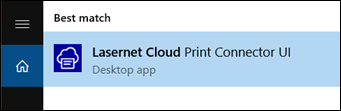
Click the Lasernet Cloud Print Connector UI icon.
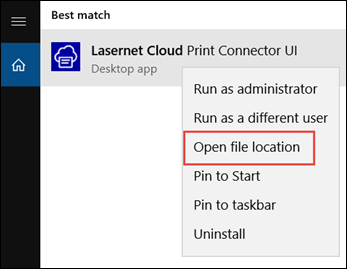
Click Open file location from the dropdown and click Properties.
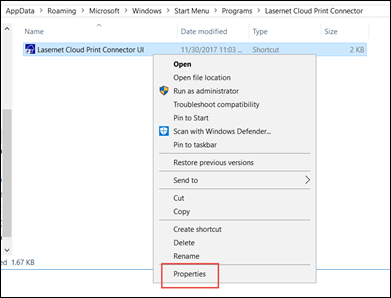
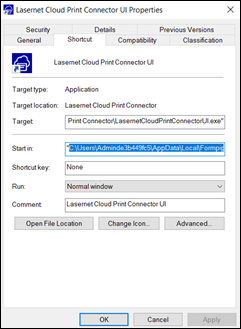
Make a copy of the existing folder containing Lasernet Cloud Print Connector, then copy this folder into another location.
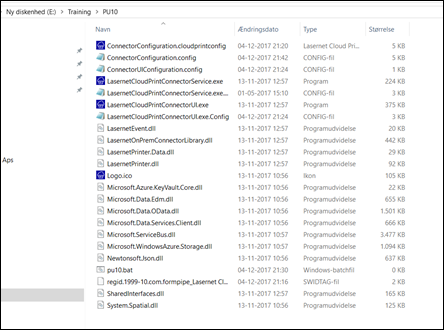
Download the configurations file for the Lasernet Cloud Print Connector
ConnectorConfiguration.cloudprintconfig.
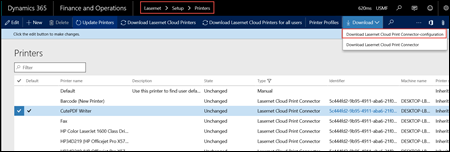

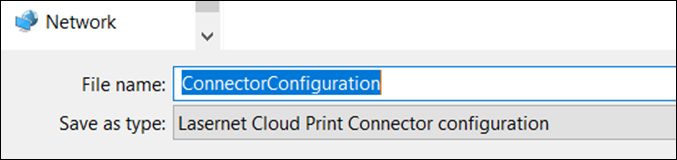
Once the file is downloaded, open the file in Notepad.
Replace the context of the file
ConnectorConfiguration.configexcept for the first line with the context in the fileConnectorConfiguration.cloudprintconfig.Open
ConnectorConfiguration.cloudprintconfigin Notepad.
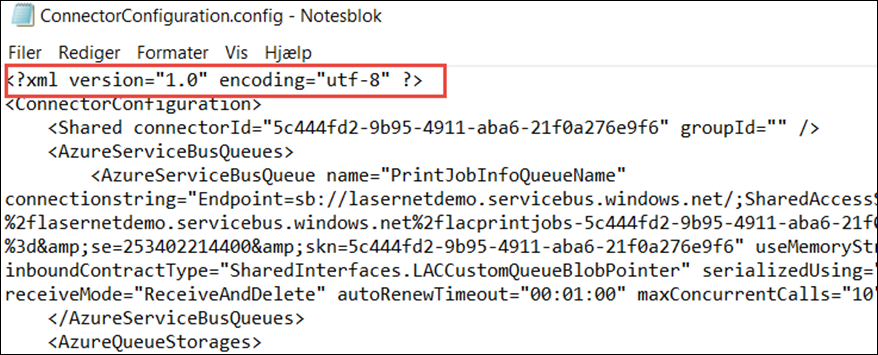
Use the following command to create a new service hosting the configuration. Repeat for UAT and DEV:
sc create "<Unique Service-name>" binPath= "<Service path>\LasernetCloudPrintConnectorService.exe" DisplayName= "<Display name>"
Example:

sc create “CloudPrintConnector_DEV” binpath=”C:\Lasernet\LasernetCloudPrintConnectorService.exe” DisplayName=”CloudPrintConnector_DEV”
Locate the service, enter the credentials for the printers' locations, and then start the service.
It is now possible to load the printers from Lasernet Connector using the config/Guid Id.