
Keep Upload
- 01 May 2026
- 6 Minutes to read
- Contributors


- Print
- PDF
Keep Upload
- Updated on 01 May 2026
- 6 Minutes to read
- Contributors
- Print
- PDF
Article summary
Did you find this summary helpful?
Thank you for your feedback
Applies to: Lasernet Core 11
This module is designed to provide a simple yet effective method for archiving documents and associated metadata to Lasernet Keep or Autoform DM. So, the configuration process is relatively straightforward. There are two different ways that you can use the Keep Upload Module. The first, and most common way, is as an output module, to archive a finished (processed) document. The second way is as an engine to retrieve the DocumentID and DocumentRevision.
For more information on migrating your forms and builds from using JFinder to the Keep Upload Module, see the separate Migration Guide document which is available upon request. Users creating new forms from scratch may also find this document useful as it runs through some basic set up and configuration steps for archiving to Keep or Autoform DM.
Note
In earlier versions of Lasernet Core, this module was named DM Upload.
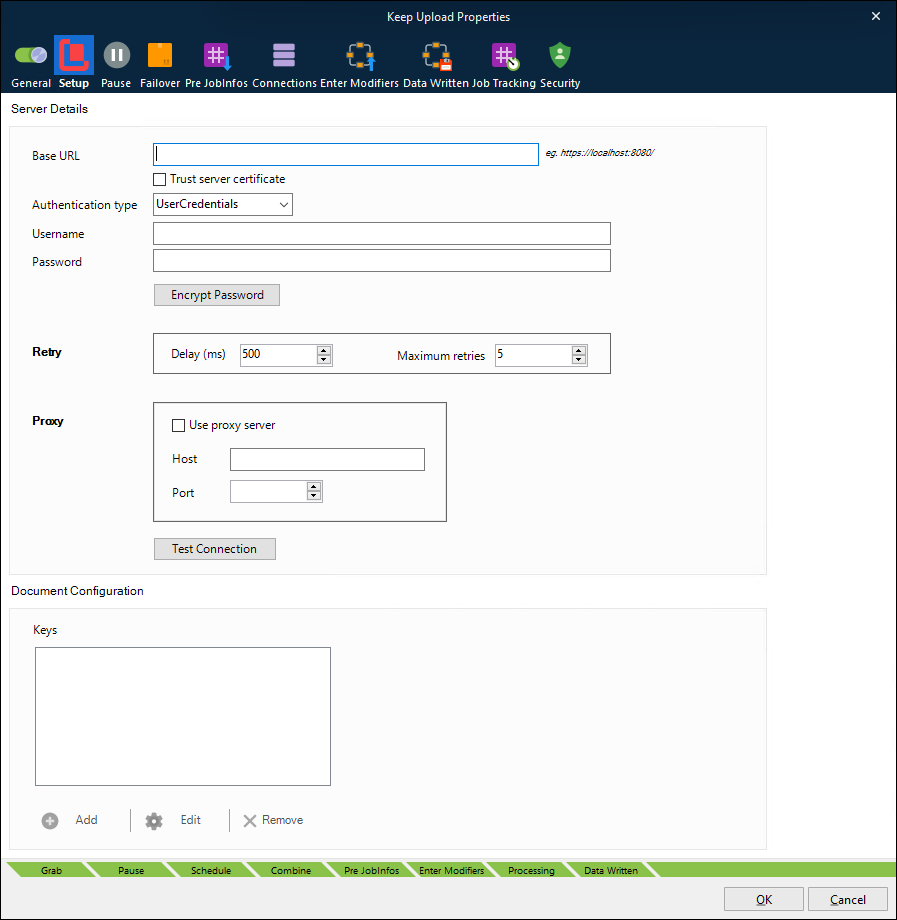
Server Configuration
Authentication Type
Note
Some dialog fields will change depending on the selected option.
There are three authentication options to choose from.
UserCredentials | The default option. Authenticate requests using a username and password. |
OAuth | For use when Keep or Autoform DM is configured for SSO. Use a token obtained via a modifier to authenticate the request. This method requires no direct configuration in the module. See the OAuth section for more detail.
|
Apikey | Authenticate requests using an API Key generated by Keep or Autoform DM. This is the preferred option unless using SSO.
|
Depending on authentication scheme selected, the following configuration is available:
Scheme | Option | Description |
|---|---|---|
All | Base URL | URL of the Keep or Autoform DM server. Can either be specified using servername, IP Address, or environment variable (for more information, see the Environment Variables section). |
All | Authentication type | Select an option from the drop-down menu. |
UserCredentials | Username | User with access to Keep or Autoform DM Server. |
UserCredentials | Password | Password for the user. |
UserCredentials | Encrypt Password | Encrypt the provided Keep or Autoform DM server password in the environment. For more information see the Encryption section. |
Apikey | API Key | Enter the API key generated by Keep or Autoform DM. |
Apikey | Encrypt API Key | Encrypt the provided Keep or Autoform DM API key in the environment. For more information see the Encryption section. |
Proxy Configuration (if required): For proxy configuration details, please consult your IT systems administrator.
Use Proxy Server | Select the checkbox if you use a proxy server to connect to Keep or Autoform DM. |
Host | IP or Hostname of your proxy server. |
Port | Port number to connect to your proxy server. |
Environment Variables
If you have a number of different environments (such as SIT, UAT & Live) which all archive to different Autoform DM Servers, you can use operating system environment variables (ENV) instead of fixed values for Base URL, Username and Password, so that you do not have to change these settings’ values every time a build is moved between environments. To make use of this feature, use these special values for the following settings in the Server Details panel of the Keep Upload module’s Setup tab, to make Lasernet Core refer to values stored in the server’s environment variables table.
Base URL |
|
Username |
|
Password |
|
Ensure that the system environment variables defined by the servers’ operating system contains the corresponding entries from which the Keep Upload module can extract these values. They should be added in the following format:
DM_BASEURL=
DM_USERNAME=
DM_PASSWORD=
For example:
DM_BASEURL=http://testserver
DM_USERNAME=admin
DM_PASSWORD=thisisapassword
OAuth
This section applies if you selected OAuth as the Authentication type. This authentication type is only applicable when Keep or Autoform DM is configured for SSO (Single Sign-On) and authentication is performed against an external system rather than Keep or Autoform DM directly.
When selected, no further configuration related to authentication is done in the module. Instead, the Lasernet Core OAuth2 modifier is used to obtain the required token which the Keep Upload module will then use when making requests.
Failure to correctly add the modifier will result in the Keep Upload module showing an error indicating this.
Note
The Test Connection button will not work when OAuth is selected.
Follow the steps to enable the OAuth modifier. In order to complete this you will need a Client ID, a Client Secret, and a Token endpoint URL. These will be available from the Keep or Autoform DM SSO configuration:
Click the Enter Modifiers tab in the Keep Upload module’s Properties window.
Click Add.
Click Add in the Choose modifier window.
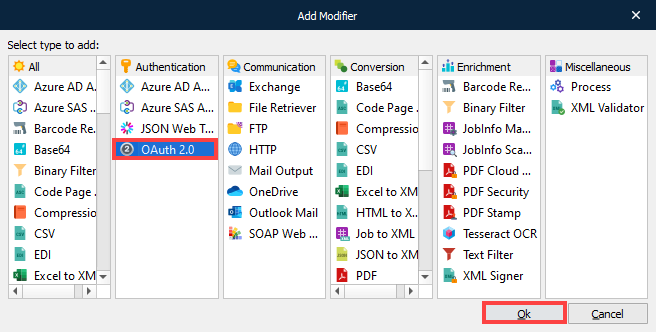
Select OAuth 2.0 in the Add Modifier window’s Authentication column, then click Ok.
Click the Setup tab in the Modifier Properties tab.
Click the Application Authentication (Client Credentials) radio button.
Enter the Client identifier into the Client ID (iss) field. For example:
autoform-dmType the Client secret into the Client Secret field.
Type the endpoint URL into the Token Endpoint field. For example:
https://some.auth.server/realms/some-realm/protocol/openid-connect/token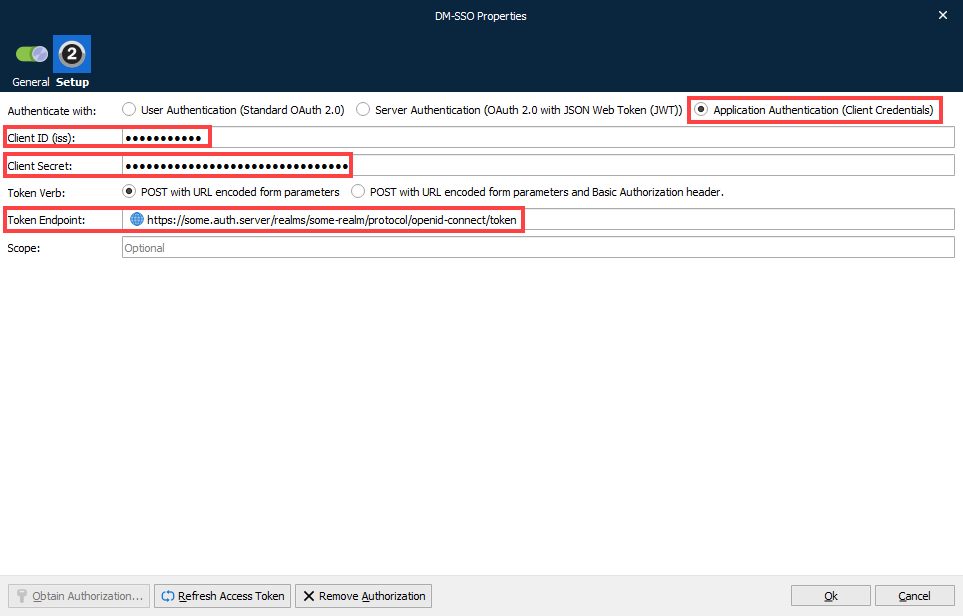
Click Ok.
To verify the entered configuration is correct, click the Refresh Access Token button.
Note
To edit the properties, double-click the modifier, then click Edit in the Choose modifier window.
Encryption
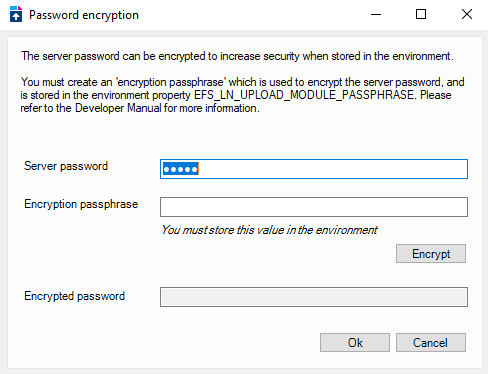
Although Lasernet Core stores the Keep or Autoform DM credentials in an encrypted form within the configuration, if you are using the Environment Variables functionality, we recommend that you encrypt the Keep or Autoform DM password before storing it in the environment. To encrypt the password within the module, follow the instructions below:
Make sure the Password field in the Keep Upload module’s Setup tab contains the correct server password (and not an environment variable reference).
Click Encrypt Password. The Password encryption window opens.
Add an Encryption passphrase to encrypt the server password.
Follow the instructions on the screen and store the passphrase in the environment.
Click Ok to encrypt the value and close the dialog.
Now reveal the password field - you can see that it is encrypted. You can now put that value in the
DM_PASSWORDenvironment variable and replace the value in the server password field withENV[DM_PASSWORD]
Note
When adding the encrypted password to the environment, ensure that it is enclosed with
ENC[ … ](see example below) to signify that it has been encrypted.
DM_PASSWORD=ENC[]
EFS_LN_UPLOAD_MODULE_PASSPHRASE=
For example:
DM_PASSWORD=ENC[rL+pR2yVTfUwXczqMwG10g==]
EFS_LN_UPLOAD_MODULE_PASSPHRASE=ln_test_passphrase
Document Configuration
The keys provided in the document configuration box represent the JobInfos on the form that will be picked up by the module and used for archiving. The module will also check the document definition in Keep or Autoform DM to ensure the keys are valid (bound) for that particular definition. If the key does not exist or is not bound, the upload will fail.
For the Keep Upload module to run successfully the required keys must:
Be defined on the form.
Be listed in the Document Configuration area in the Keep Upload module’s Setup tab.
Be configured in Keep or Autoform DM and bound to the correct document definition.
Connect
To make use of the newly configured Keep Upload module, set it as the destination from the appropriate Lasernet Core engine.
Keep Upload JobInfos
The following new JobInfos have been created to give greater control over the Keep Upload functionality.
JobInfo | Example JobInfo value | Default value | Description |
|---|---|---|---|
DocumentDefinition | account-statement | (None) | Document definition name in Keep or Autoform DM. |
DocumentDateFormat | yyyy-MM-dd | System locale | Date format for the metadata keys to be archived with this document. This is the same as JFinder's PDMDFMT |
DocumentUpdate | true | false | Determines whether to update a document based on matching Keep or Autoform DM ID or CUK (Customer Unique Key). If set to
|
DocumentAttach | false | true | This controls whether the document is archived, or just the metadata. This is the same as JFinder's PDMATT |
DocumentID | 8458941655 | (Empty) | Keep or Autoform DM Document ID for an existing document to update |
DocumentCUK | customer-123-stmt-2025-06 | (Empty) | Keep or Autoform DM Document CUK (Customer Unique Key) for an existing document to update |