
How Do I Delete Revisions From Configurations Stored in The Lasernet Config Server Database?
- 01 May 2026
- 3 Minutes to read
- Contributors


- Print
- PDF
How Do I Delete Revisions From Configurations Stored in The Lasernet Config Server Database?
- Updated on 01 May 2026
- 3 Minutes to read
- Contributors
- Print
- PDF
Article summary
Did you find this summary helpful?
Thank you for your feedback
Applies to: Lasernet Core 10, Lasernet Core 11
You can delete old configuration revisions from the Lasernet Config Server database as part of your housekeeping routine.
We recommend reducing the size of the database by removing old revisions, particularly if Lasernet Developer takes a long time to read configurations, or if the software often times out before it fully loads.
This process uses the clean command provided by LnConfig.exe. The steps differ depending on whether Config Server uses a LocalDB database or SQL Server.
Note (Lasernet 11 only)
The Config Server in Lasernet 11 supports only SQL Server. For Lasernet 11 instructions, see SQL Server.
Tip (Lasernet 10 only)
To find information about the Lasernet Config Server database (including its type):
Start Lasernet Server License Manager 10.
Click the Lasernet Config row in the instance table.
Click Edit in the toolbar.
Refer to the information in the SQL Server properties for Lasernet Config service window.
Note
This is more likely to affect your User Acceptance Testing (UAT) or Development (DEV) environments, where you edit forms and modules regularly and usually have grab mode turned on.
To prevent configurations from unnecessarily growing in size, click Patch (Lasernet Core 10) or Deploy Workspace (Lasernet Core 11) in Lasernet Developer to test changes on DEV and UAT environments. Doing this transfers the configuration to the environment without creating a new revision.
To send the configuration to the Production (PROD) environment, click Commit to create a new revision, and then click Deploy (Lasernet Core 10) or Deploy Commit (Lasernet Core 11) to send the new revision to the PROD environment.
The clean Command
Lnconfig.exe has a clean command, which removes old revisions from all Lasernet configurations. This command has a <RevisionsToKeep> parameter to specify how many revisions to retain. The most recent revisions are retained, and all older revisions are deleted.
For example, LnConfig.exe -clean 100 retains the most recent 100 revisions of every Lasernet configuration and deletes all others.
Warning
The
cleancommand affects all configurations. You cannot remove revisions from only selected configurations.
Clean the Lasernet Config Server Database
The steps differ depending on whether Lasernet Config Server is using a LocalDB database (Lasernet 10 only) or SQL Server database (Lasernet 10 or Lasernet 11).
LocalDB
If Lasernet Config Server is using a LocalDB database, follow these steps:
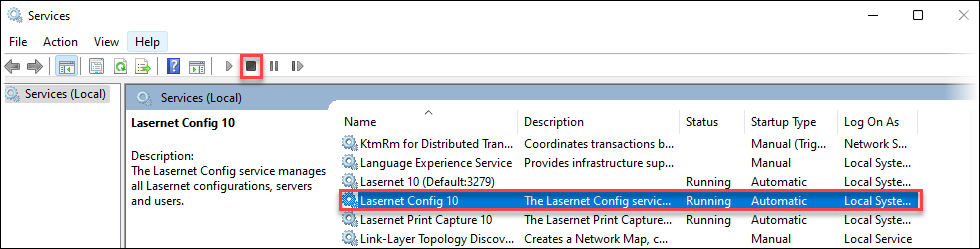
Click the Services icon in the Windows Start menu. In the Windows Services window, stop the Lasernet Config service.
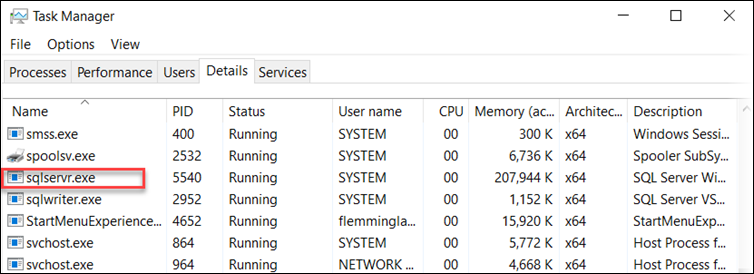
Start the Windows Task Manager, right-click sqlservr.exe, then click End task.
Note
This process handles LocalDB for the service instance and the config instance. Because it is not a service, you cannot stop it through the Windows Services window.
Run File Explorer and back up the existing database. This database is in
C:\ProgramData\Formpipe Software\Lasernet <version number>\Config\Default\Databases.Right-click the Command Prompt icon in the Windows Start menu, then click Run as administrator. In the Command Prompt window, navigate to
C:\Program Files\Formpipe Software\Lasernet <version number>.Run
LnConfig.exe -clean <number of revisions to keep>. For example, to keep the last 100 revisions, runLnConfig.exe -clean 100. The following image shows the documentation forLnConfig.exe; a red box indicates the description of the-cleanparameter.
Note
A log will be shown containing the following information:
Trimming excess revisions in configuration ‘NAME OF CONFIGURATION’... <rows affected> number of rows affected by trimming.
Click the Services icon in the Windows Start menu. In the Windows Services window, start the Lasernet Config service.
SQL Server
If Lasernet Config Server is using a SQL Server database, follow these steps:
Click the Services icon in the Windows Start menu. In the Windows Services window, stop the Lasernet Config service.
Start SQL Server Management Studio and back up the existing database.
Right-click the Command Prompt icon in the Windows Start menu, then click Run as administrator. In the Command Prompt window, navigate to the following folder:
Lasernet Core 10 and 11.0:
C:\Program Files\Formpipe Software\Lasernet <version number>Lasernet Core 11.1 and later:
C:\Program Files\Lasernet\Lasernet <version number>
Run
LnConfig.exe -clean <number of revisions to keep>. For example, to keep the last 100 revisions, runLnConfig.exe -clean 100. The following image shows the documentation forLnConfig.exe; a red box indicates the description of the-cleanparameter.
Note
A log will be shown containing the following information:
Trimming excess revisions in configuration ‘NAME OF CONFIGURATION’... <rows affected> number of rows affected by trimming.
Click the Services icon in the Windows Start menu. In the Windows Services window, start the Lasernet Config service.