
Form Engine
- 13 Apr 2026
- 13 Minutes to read
- Contributors

- Print
- PDF
Form Engine
- Updated on 13 Apr 2026
- 13 Minutes to read
- Contributors
- Print
- PDF
Article summary
Did you find this summary helpful?
Thank you for your feedback
Applies to: Lasernet Core 11
This page contains in-depth technical information about how the Form Engine works. For information about designing forms and rearranging text, see the Lasernet Form Editor Guide.
Forms
Each form engine’s forms are listed in the Forms area of Lasernet Developer. To access this area, click Forms on Tools tab of the Tools pane.
To add a form to a form engine, select the form engine from the list in the left-side panel, and then click the Add in the toolbar. The Create a Form page of the Lasernet Form Editor Guide (in the Lasernet Knowledge Base) contains full form creation and design instructions.
The right-click menu for an existing form provides access to generally self-descriptive form actions such as Toggle Inactive, Duplicate, and so on. The menu also provides access to the Templify feature.
Templify
The Templify feature creates a template form from the selected form:
Right-click a form.
Click Templify.
Click Yes to confirm that you want to create a template.
In the Form Properties window, modify the template’s properties (if necessary), then click Ok.
Lasernet Developer displays the template in a pane below the form list.
If a Lasernet Core configuration contains one or more templates, Lasernet Developer displays an Add Form using Template window when you select a form engine and then click Add (to create a form). In the Add Form using Template window, you can select one of the available templates or Blank form. If you choose a template, its form design is used for the new form, which you can then modify.
Alternatively, right-click a template, click Instantiate in, and then select a form engine. Lasernet Developer uses the template to create a new form in the selected form engine.
Entering the Form Engine
To make it possible to distinguish spool jobs from each other, the Form Engine adds a JobInfo SpoolJobID to the job the moment it arrives at the Form Engine. The SpoolJobID is unique and can be used for combining in the engines that follow, since it is automatically inherited by all derived jobs.
Since the Form Engine handles both XML and text input, it first checks whether the JobData is in XML format. It does this by trying to load the XML DOM. If it succeeds, then it continues by matching XML forms. If not, it will start to break the JobData into text pages. Additional input formats like CSV and XLSX are processed as XML.
Note
There is not a guaranteed one-to-one relationship between input pages and output pages. It depends on how the form is configured.
Text Pages
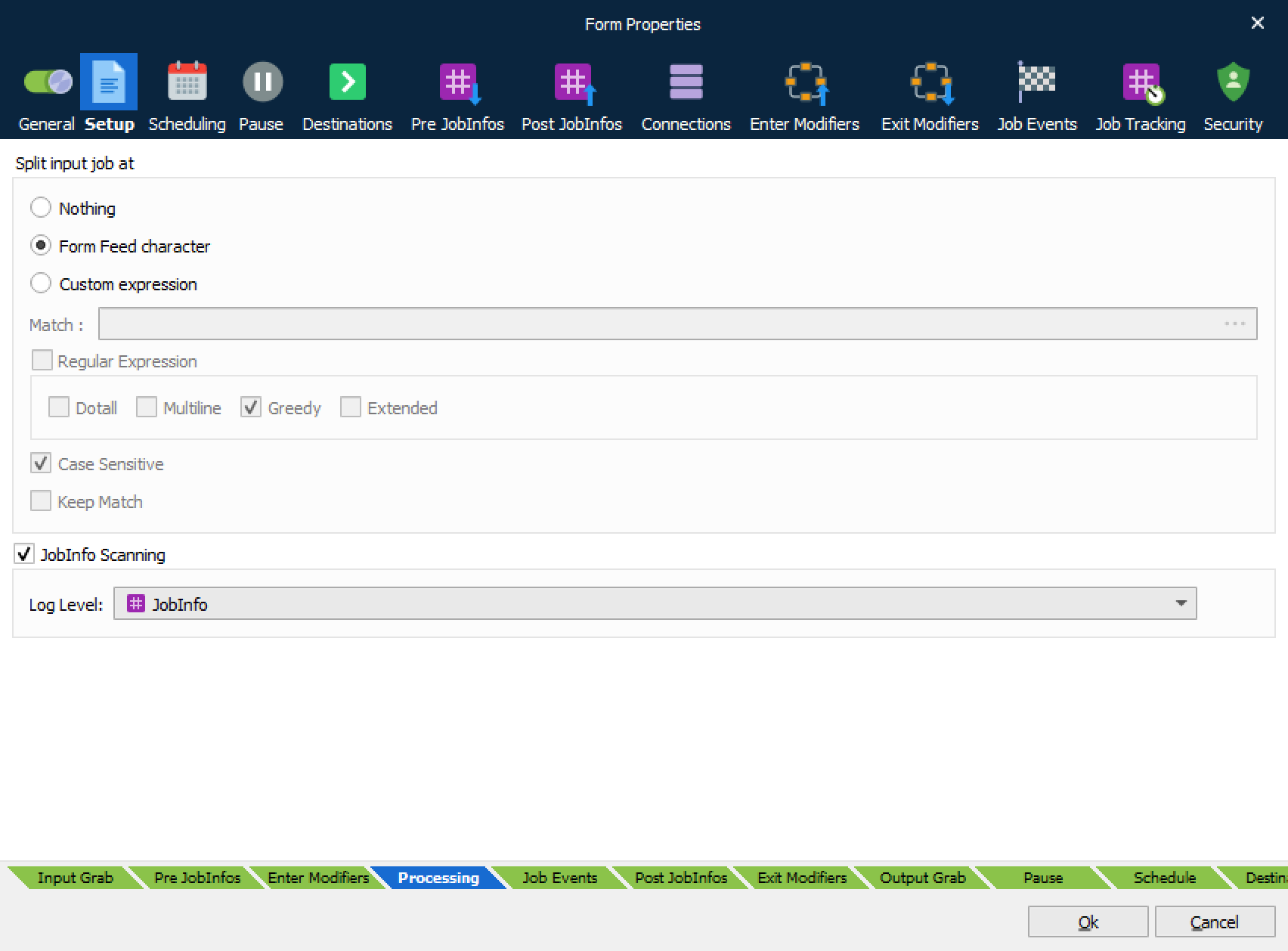
By default, the Form Engine assumes that each page is divided by a Form Feed (FF, ASCII 12, HEX 0C). To obtain this division use a Filter Engine or a Filter Modifier. The Form Engine searches through the JobData and for each Form Feed it finds it creates a Text Page that can be used in the Form Recognition process. It is configurable in the Form Engine properties.
Split input job at: You can customize the expression for which characters to match for splitting pages. This can be defined as a text string or a regular expression. Only one splitter is supported per Form Engine.
Line Printer Compatibility
When building the text pages the Form Engine emulates some line printer facilities. It uses CR + LF to separate lines, but when CR and LF are presented individually they are treated as if it was a real line printer.
CR (Carriage Return) returns to the beginning of the line and starts “printing” on the same line again. In this situation spaces are ignored but new characters overwrite existing characters.
LF (Line Feed) moves the “print head” to the next line, but does not return to the beginning of the line.
Examples
This is a Test[LF]Next Line
Results in:
This is a Test
Next Line
This is a Test[CR]Next Line
Results in:
Next Line Test
This is a Test[CR][LF]Next Line
Results in:
This is a Test
Next Line
Form Recognition
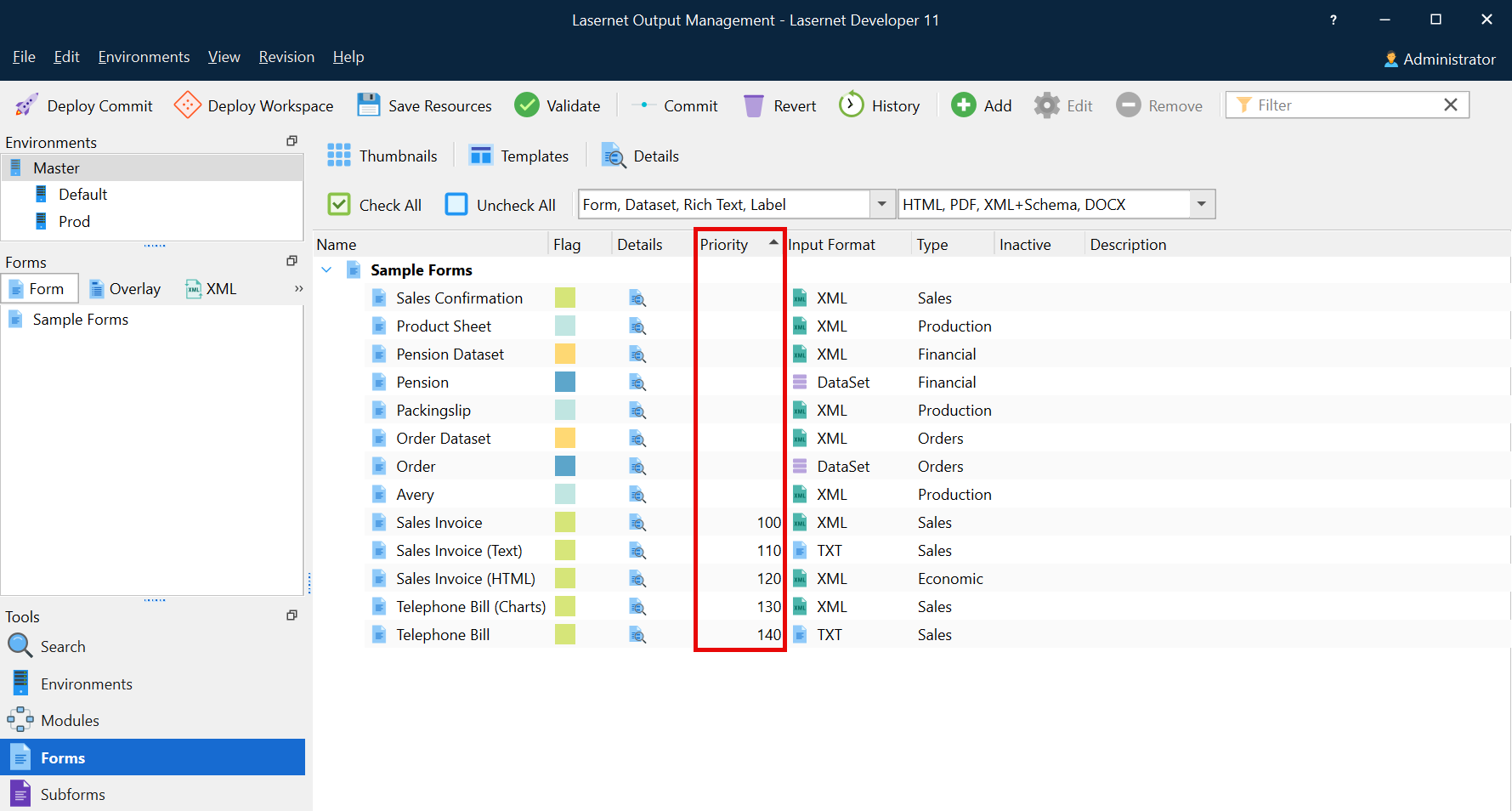
Lasernet Core has a list of rules for how to recognize forms. As the basis for this process, to ensure that the appropriate form is recognized for each incoming job, add unique form criteria to each of the forms in a configuration. Alternatively, if form criteria cannot be unique, add a priority value to the properties of each form to enable Lasernet Core to select the appropriate form.
Note
Forms that do not have form criteria will never be recognized when Lasernet Core processes jobs.
The rules are similar for forms with XML and text as the input format:
If no form is recognized for an incoming job, no form is processed.
If multiple forms are recognized (according to their form criteria), the form with the lowest priority number is processed. If no priority is added to a form, the default priority of 0 (zero) is used.
If multiple forms are recognized and have the same priority, the forms are prioritized alphabetically.
When all the incoming jobs are matched, the Form Engine loops through the pages and for each page determines which form it matches. If the form is not in combining mode, it is analysed and processed. When testing each page, a JobInfo PageWidth is set. This contains the number of characters in the widest line on the page. This can be used in the recognition.
When a form is recognized, two JobInfos are set: RecognizedForm, which contains the name of the form matched, and RecognizedSubjob, which contains the number of the sub jobs/pages in the entire job.
Combining Input Documents
To support the concatenation of several individual, but related documents, into one big document, the Form Engine uses the combining mode. This mode is configured separately for each form. The Form Engine combines individual documents (with the option of including their own header(s)/footer(s)) into one big document with (usually) one header/footer.
The Form Engine has several internal document buffers, one for each Form Engine/Input module combination. Each Form Engine (normally there is just one) has a single document buffer for each Input module. This buffer is used for storing the documents temporarily while collecting them.
The rules for concatenating the documents and entering them into the queue are somewhat complicated. This description will focus on the rules that make the Form Engine stop concatenating the documents and then processing them. Since only documents that directly follow each other are concatenated, the criteria for stopping proves more useful to study. Please remember that the rules for a document, are the rules that are defined on the form that the document matches.
Forms Different Rule
The Forms different rule is the most authoritative of the rules. It simply means that if the current document being processed is found to have another form, aside from the documents currently in the buffer (all jobs in the document buffer will always be recognized as the same form), Lasernet Core processes the document buffer and continues to check the current documents against the Stop criteria. You should not fully rely on the Forms different rule. Use Stop or Link criteria instead.
Stop Criteria
Stop criteria are preferred over link criteria since they do not need to rely on the time-out. (Recommended)
Stop criteria are used when the documents do not have much in common, but where the last document always contains something recognizable e.g., invoice totals.
When a stop criterion is fulfilled, it means that the current document is the last in the sequence and must be processed together with all the other documents in the corresponding document buffer.
In some situations, there might be both a Stop criterion and a Link criterion. In this situation, the Link criterion must also be fulfilled to have the current document processed together with the documents in the document buffer.
Link Criteria
If a link criterion is specified, then two documents are concatenated if, and only if, the link criterion is fulfilled. Usually Link criteria will be invoice numbers, for example, that are common on the documents.
If a Link criterion is not fulfilled, Lasernet Core will process the documents in the buffer and check the current document against the stop criteria, if any.
Time Out
The time out rule is a safety precaution. It is needed if there is no stop criterion, so that the buffer for the last job is emptied. If, for any reason, no other rules work, Lasernet Core will process the document buffer after a time-out (usually 10 seconds). This should not be relied upon for processing the document buffer. Always make sure that at least one of the other rules applies.
Rules Overview
This table shows the possible combinations of stop and link criteria and what actions Lasernet Core performs when they are available, fulfilled or not fulfilled. The position of the current document in the job is shown as it has a direct impact on the actions that are taken.
For document 1 there are not as many possibilities, since neither link criteria nor the forms different rule can be applied.
N/A = Not available/defined
N/C = Not checked in this combination
- = Not fulfilled
+ = Fulfilled
In the first rule for document 1, the Forms different rule is not checked, the Stop criteria is not fulfilled and the Link criteria is not checked (as there are no other documents to check the Link criteria against). Because of this, the Form Engine simply enters document 1 into the document buffer and continues with the next document, if it exists.
In the first rule for document X, the forms are not different, the Stop criterion is not fulfilled and the Link criterion is not fulfilled. In this situation the Form Engine processes all the documents in the buffer and enters the current document (X) into the document buffer, where it will await further processing.
It should be noted that that if the Form Engine runs out of documents the time-out facility allows it to process the buffer after a certain time – usually 10 seconds. This is a fail-safe function and should not be relied upon for processing the document buffer. The Forms different rule, stop criteria or link criteria should be used instead.
Document | Forms different | Stop criteria | Link criteria | Action | Resulting documents in buffer |
|---|---|---|---|---|---|
1 | N/C | - | N/C | Put 1 into buffer | 1 |
N/C | + | N/C | Process document | 0 | |
N/C | N/A | N/C | Put 1 into buffer | 1 | |
X (2,3 etc.) | - | - | - | Process buffer. Put X into buffer | 1 (X) |
- | - | + | Put X into buffer | X | |
- | - | N/A | Put X into buffer | X | |
- | + | - | Process buffer. Process document X. | 0 | |
- | + | + | Put X into buffer. Process buffer. | 0 | |
- | + | N/A | Put X into buffer. Process buffer. | 0 | |
- | N/A | - | Process buffer. Put X into buffer | 1 (X) | |
- | N/A | + | Put X into buffer | X | |
- | N/A | N/A | Put X into buffer | X | |
+ | - | N/C | Process buffer. Put X into buffer. | 1 (X) | |
+ | + | N/C | Process buffer. Process document X. | 0 |
The Concatenation Processes
Basic concatenation simply concatenates the data from each page, one after another and returns the result. However, when using the combining mode, it is also necessary to select whether the header and footer should be kept and in which lines the header stops and footer begins. The Keep Header setting influences the middle and last pages only. The header on the first page is always kept. Correspondingly the Keep Footer setting has an effect only on the first and middle pages. The footer on the last page is always kept.
If you choose not to keep the header on the middle and last pages, the Form Engine cuts the number of lines given from the top of each page before concatenating. This is similar to when the footer on the first and middle pages are not kept. Here, the number of lines given is cut from the bottom of those pages before concatenating.
The result is that the Form Engine now has one large text job ready for processing.
Processing the Page
This description is for both job mode and combining mode.
The first step in processing a page is to add some JobInfos to describe where in the job it is located.
FirstPageInJob | Set to 1 if the first page is the first page in the whole job. Otherwise, it is set to 0. |
LastPageInJob | Set to 1 if the last page is the last page in the whole job. Otherwise, it is set to 0. |
PagesCombined | In Page to Job mode how many pages have been concatenated. Otherwise set to 1. |
The second step is to create the grab (internally) and add a JobInfo GrabWidth, which contains the number of characters in the widest line in the grab area. At this stage the Form Engine scans the page for #JobInfo name=value# entries. The key thing to remember here is that if the name of the JobInfo is overlay (case-insensitive) the value is considered as a name of an overlay.
Any Form Start Modifiers are then run. Finally, it saves the grab to a file, if selected. When saving the grab file, it sets two JobInfos: GrabFilename and GrabDirectory.
The Form Engine then moves on to processing the individual sheets. It starts with the first sheet (the leftmost one in the Form Editor) and continues through to the last. For each sheet, the Form Engine creates a copy (clone) of the current job, to make sure that the processing of each sheet does not affect the following ones.
For each sheet, three JobInfos are set: SheetName and Sheet, which both contain the name of the sheet being processed and finally DataFormat which contains the output type of the sheet. Known values for the DataFormat are CSV, DOCX, EDI, EMF, JSON, PDF, TIFF, XLSX and XML.
Note
Rich Text Editor and Spreadsheet plugins that process sheets differently compared to other formats, since they rely on the DOCX and XLXS standards and a DataSet as input format.
After processing a sheet, the job that has been generated is passed to the engines that follow. Once all the sheets have been processed, the Form End modifiers are run. It is important to note that the Form End modifiers cannot affect the job in any way. An example of Form End modifiers could be some custom statistics.
Processing a Sheet
There are many different functions at work when processing a sheet. Most of the actions taken apply to both XML and text processing. There is little difference between XML and text input, but the output does differ somewhat.
Firstly, the early script objects are created and made available for the script. These are the grab and sheet objects. The scripting environment is then ready for the First pass scripts.
Next, the On Sheet Start Modifiers are run.
Then the actual analysis begins. All input patterns are found, both for XML and text. After the analysis, the Form Engine begins the Page Fitting routine for text output and XML generation for XML output. During this process, all First Pass scripts are run. When the fitting/generation has finished, the Late Script objects are created. They consist of all named rearranges as well as the pages array for the text output.
Then the On Before Recalcs modifiers are run. The scripting environment is made ready for the Second Pass scripts. The recalcs are then run. This is done in a different way for text and xml output. See the description below. After the recalcs, absolute rearranges are fitted for text output. XML output does not have absolute rearranges as such.
After all, recalcs have been calculated, the fitting process is done, the Form Engine generates the output in JobData and the After Analysis Modifiers are run. This means that the After Analysis modifiers can be used to replace JobData.
The final step in processing is running the On Sheet End Modifiers. The job is then passed on to the receivers.
Recalcs
Recalcs is short for recalculable and is a term used for rearranges that should be “recalculated” once the fitting process has finished. The primary reason for having recalcs is to make the calculation of subtotals and page x of y expressions possible. The execution of recalcs is interleaved with the execution of On Single/First/Middle/Last Page Start/End Modifiers.
For each resulting page, the corresponding Page Start Modifiers are run. Then the recalcs for that page are executed and finally the Page End Modifiers. If there is only one resulting page, then only On Single Page Start/End Modifiers are run. For two pages, only First Page Start/End and Last Page Start/End are run. For three and more pages First/Middle/Last Modifiers are run.
The Fitting Processes
When fitting all the rearranges to result pages, the Form Engine follows a strict pattern. First it tries to see if it can fit everything onto a single page. If this fails it moves on to a first page, which it fills with as much as it can. It then tries to see if the rest fits on a last page. If it does, the fitting process is finished. If not, it fills a middle page with as much as it can. It then tries again to see if the rest fits on a last page. If yes, the fitting process is finished. If not, it continues trying alternate middle and last page fittings until all rearranges have been fitted.