
Find Your Way Around the Lasernet XML Transformer
- 30 Jan 2026
- 1 Minute to read
- Contributors

- Print
- PDF
Find Your Way Around the Lasernet XML Transformer
- Updated on 30 Jan 2026
- 1 Minute to read
- Contributors
- Print
- PDF
Article summary
Did you find this summary helpful?
Thank you for your feedback
Applies to: Lasernet Core 11
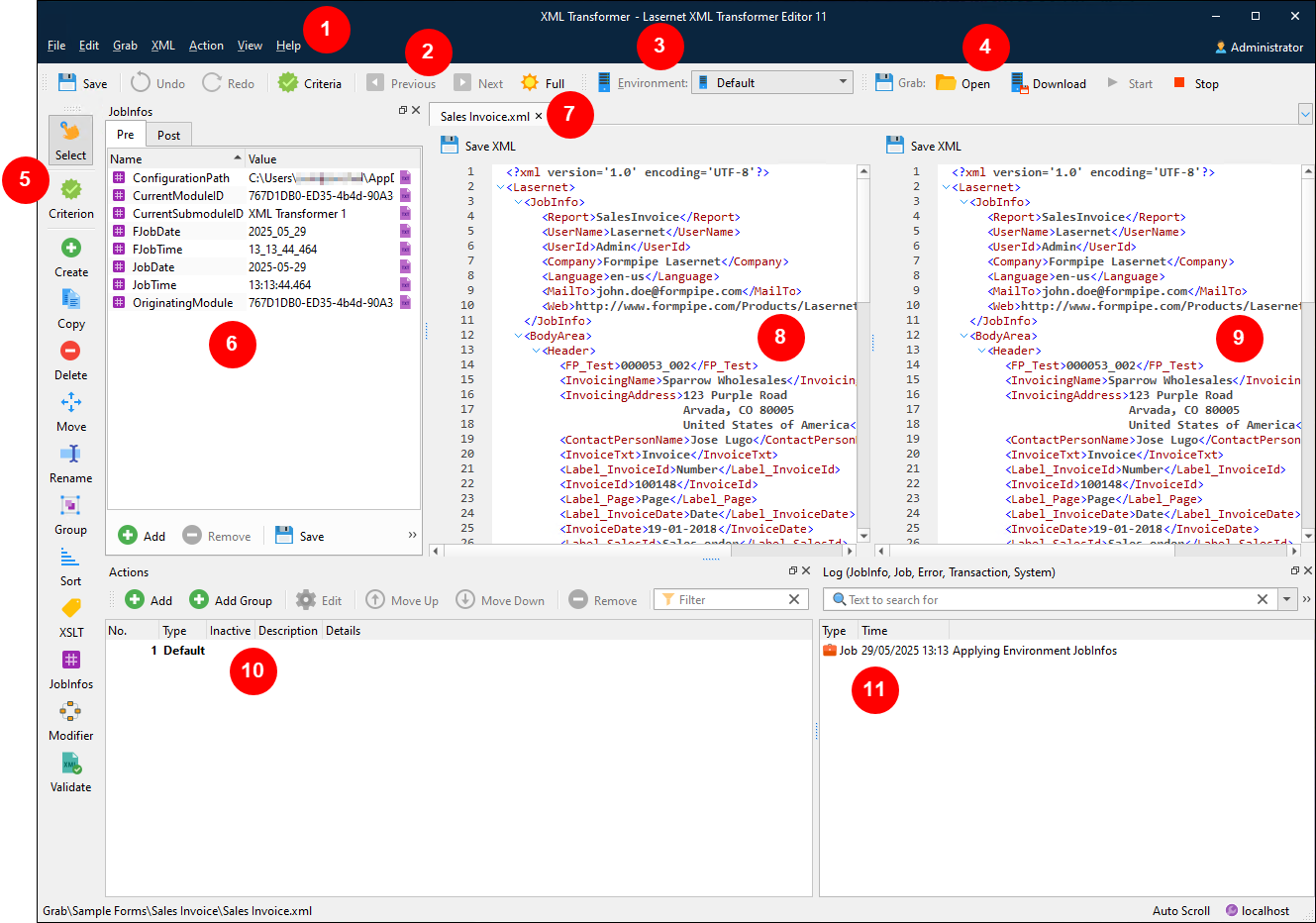
The window where you edit your XML Transformer forms is split in two: the left part shows the input file data (the original data received from the administrative system), and the right part shows the actual form design.
The XML format is represented in a tree structure with nodes identifying the variables. These also contain the actual data. You can switch the XML input view between Full XML, XML without end tags, and XML as a table through the View menu.
See the table below to learn more details about the user interface elements:
Element | Description | |
1 | Menu bar | Contains the following commands:
Use the menu bar to access the main functions of the XML Transformer Editor. |
2 | Toolbar | Provides easy access to commands such as Save, Undo/Redo, Criteria, Previous, Next, and Full. |
3 | Environment | Select the environment to retrieve the JobInfos defined for that environment (in the Lasernet Config Server). |
4 | Grab | Contains the following commands for grab functionality:
|
5 | Developer toolbar | Enables you to easily define criteria and apply actions to the XML file. The Select tool allows you to turn off the activated action. |
6 | Pre / Post JobInfos | Names and values of JobInfos used before and after actions are executed. |
7 | Grab file tabs | Each input document is opened in a separate tab. |
8 | XML input view | Result of XML before action transformation |
9 | XML output view | Result of XML after action transformation |
10 | Action panel | Allows you to add new actions or manage the list of existing actions. Contains the following commands:
|
11 | Log grid | Presents log records of different types (if any). |