
Environments in Lasernet Developer
- 13 Apr 2026
- 3 Minutes to read
- Contributors

- Print
- PDF
Environments in Lasernet Developer
- Updated on 13 Apr 2026
- 3 Minutes to read
- Contributors
- Print
- PDF
Article summary
Did you find this summary helpful?
Thank you for your feedback
Applies to: Lasernet Core 11
An “environment” is a running Lasernet Core service instance. A Lasernet Core system can consist of multiple distinct environments that run independently and each have a specified role. For example, Development, Test, and Production environments.
You can use Lasernet Developer to deploy Lasernet Core configurations to Lasernet Core environments.
Environments in Lasernet Developer
After you load a configuration into Lasernet Developer, the environments that you can deploy the configuration to are listed in the Environments pane.
You can add environments to this list.
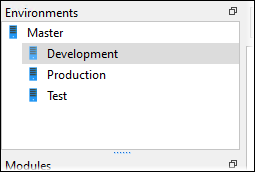
Master Environment
When you create a new configuration, Lasernet Developer automatically creates a Master environment. All the environments that you add to the configuration will inherit the modules and other items that you add for Master.
This makes it easier to share settings between multiple environments, because you can add shared items to Master and place only the items that need to differ between environments under the corresponding environment.
Managing Environments
To show the list of environments, click Environments in the Tools pane (see 1 in the image below). 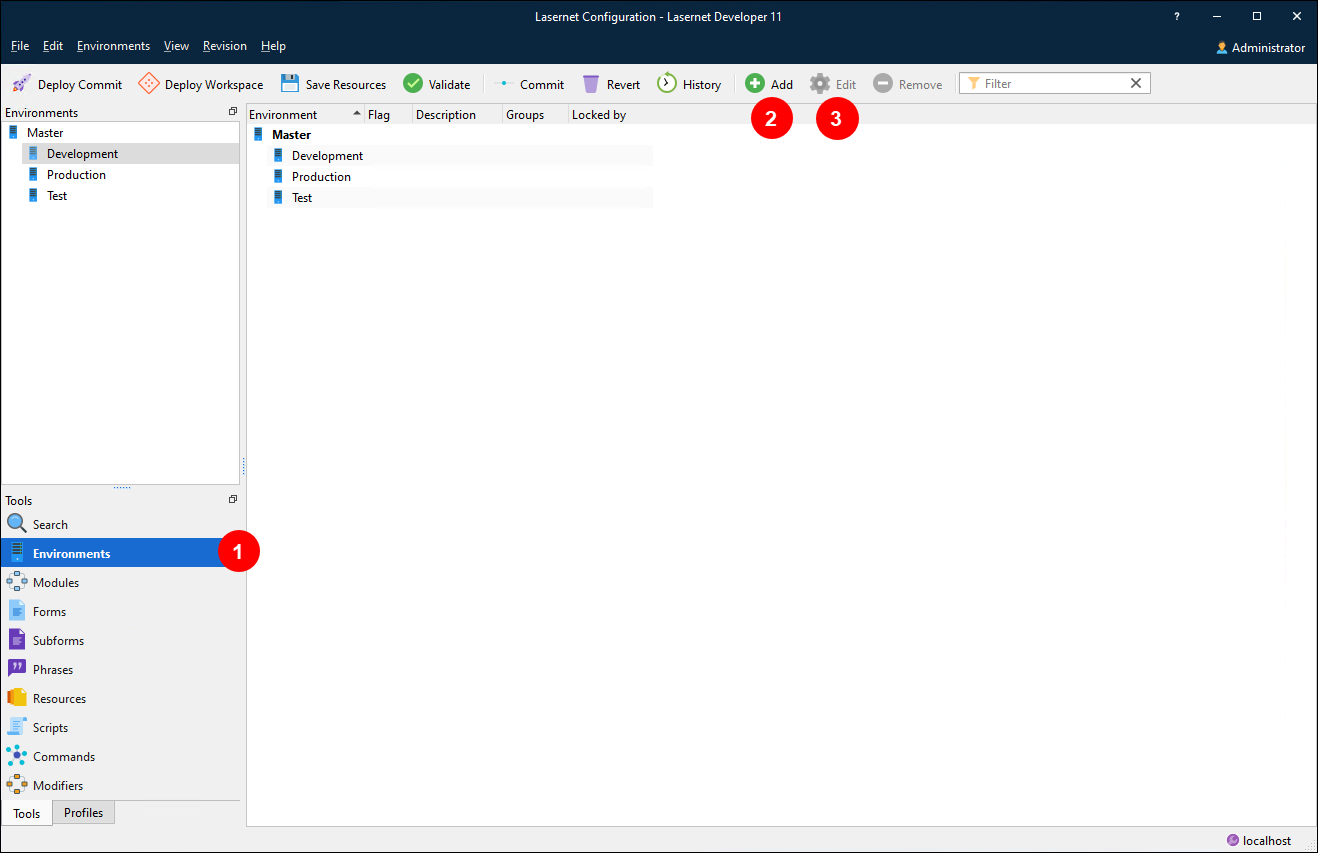
To add an environment to the configuration, click Add (2) in the toolbar.
To modify an existing environment in the list, select it then click Edit (3) in the toolbar. A Properties window for the environment opens.
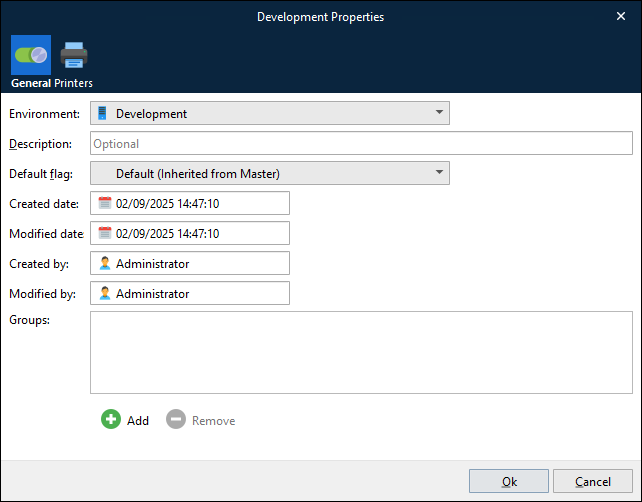
The following properties are available:
Environment | The environment name is linked to the environment names listed in Lasernet Config Server. Select an existing environment from the list. |
Description | An optional field used to describe the environment and settings. |
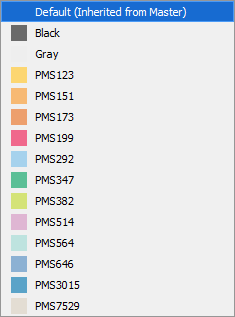
Default flag | This parameter is only used for the visualization of modules in the Lasernet Developer. The default background color setting is used when drawing/listing added modules in diagram or view list mode. The default color is a light gray but can be set to any color available in the predefined list.
A color can be defined for each environment to make it easier to see which modules are connected to which environment. |
Groups | An environment can belong to a user-defined group. Click Add to add the environment to a group or Remove to remove it from the selected group. After you click Add, select a group that already exists in the configuration or type the name of a new group.
Environment groups are used when deploying a configuration. Instead of selecting a particular environment to deploy the configuration to, you can select a group of environments. |
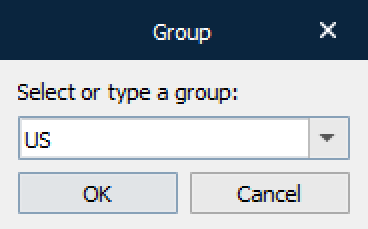
To add the new environment to the configuration, or save your changes to an existing environment, click Ok.
Printers
Any printer input port added to the Lasernet Core configuration is added as a Lasernet Printer Port in the Windows Spooler System by default, when deploying a configuration to a Lasernet Core environment.
The server running the Lasernet Core environment will automatically create the actual printer queues in Windows and connect them to the respective printer port if a Master input printer is defined and Create input printers in Windows on startup is activated in the Printers tab.
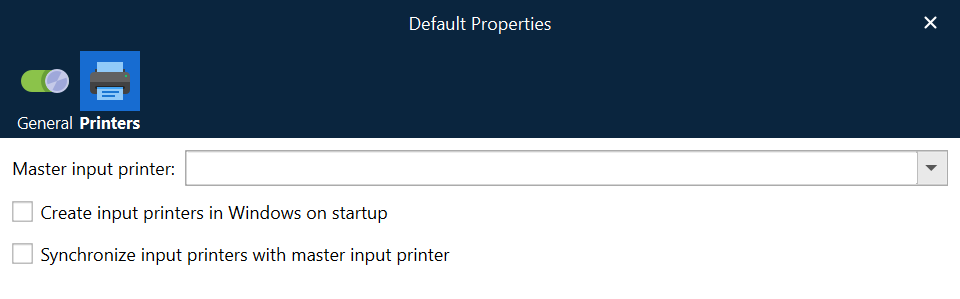
Master input printer | The name of the Windows printer, which is used as the master printer, when creating or synchronizing input printers. Printer queue settings defined for the master printer will be copied to new or synchronized input printers. |
Create input printers in Windows on startup | Any Lasernet Core printer input port defined in the configuration, will automatically be created as a Windows printer queue during service startup. |
Synchronize input printers with the master input printer | Any Windows printer queue created by Lasernet Core will automatically be synchronized with the settings saved in the master input printer during service startup. |
This feature ensures that any Lasernet Core input printer that is added to the configuration is always available on the Windows printer server. If a user makes breaking changes to the Windows printer queues by mistake, Lasernet Core is able to synchronize and reconfigure the settings, as defined for the master input printer.
This feature is also useful if Lasernet Core contains a large list of printer input ports. You only have to manually create the master input printer in the Windows printer environment, with the required settings for the type of printer driver, paper format, share settings, and so on. During service startup, Lasernet Core will then automatically create a Windows printer queue for any of your listed printer input ports in the configuration and apply the configured settings from the master printer.
Note
The device settings configured in the printer queue settings will not be synchronized as they are not a part of the basic printer device mode settings.