
Configure PDF/UA Output
- 15 Apr 2026
- 8 Minutes to read
- Contributors


- Print
- PDF
Configure PDF/UA Output
- Updated on 15 Apr 2026
- 8 Minutes to read
- Contributors
- Print
- PDF
Article summary
Did you find this summary helpful?
Thank you for your feedback
Applies to: Lasernet Core 10.12 and later
PDF/UA stands for Portable Document Format / Universal Accessibility. PDF/UA-compliant documents make their content readable by assistive technologies (such as screen readers). In some areas, local laws require that generated PDF documents are accessible in this way.
Assistive technologies can do this because significant and decorative content in PDF/UA documents is semantically tagged. Significant content, such as line item data, carries information and is meaningful. As a result, it is content that the user must hear. Decorative content, such as drawn shapes, is not meaningful.
Within the PDF document, the semantic tags for significant content form a structure tree that describes the order and hierarchy of the information content within the document. This structure tree enables a screen reader to understand what document content to read, and the correct order to read it in.
PDF/UA-compliant documents also provide “alt text” for each significant image. This is text that describes the image. A screen reader will read this alt text in place of the image.
Important
Lasernet Core’s PDF/UA capability is being developed iteratively. It can generate PDF/UA-compliant documents in common form design scenarios. However, if you notice any issues in the PDF/UA structure generated from your form design and workflow, contact Lasernet Support. Your feedback will help us improve this feature.
Compatible Input Format
Lasernet Core can create PDF/UA output from EMF input data.
Configure PDF/UA Document Generation
To enable the generation of PDF/UA-compliant documents, follow these steps:
On the PDF/UA tab of the Sheet Options window:
Enter a Title for the PDF document.
Enter an Author for the PDF document.
Enter a Subject for the PDF document.
Enter a Language for the PDF document. This can be a language code (for example, en) or a locale code (for example, en-US).
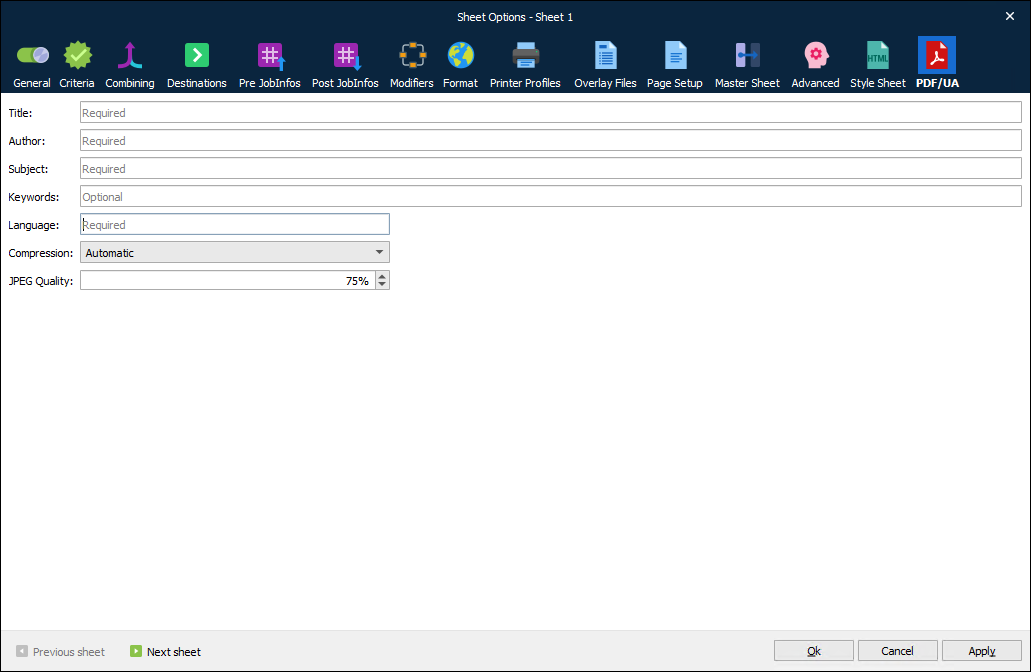
If necessary, configure PDF image compression.
Click Ok.
After you deploy the configuration to a Lasernet Core environment, that environment will generate PDF/UA documents.
Note
The Preview function within Lasernet Form Editor does not generate PDF/UA documents. To generate a PDF/UA document, you must send a job to a Lasernet Core environment that is running an appropriate configuration.
What Does Lasernet Core Add to PDF/UA Documents?
Lasernet Core adds tags and alt text to documents.
Tags
As described above, Lasernet Core tags content within the PDF document. The tags for significant content form a sequence within the PDF/UA document’s structure tree and, where relevant, are nested to create a hierarchy.
The structure tree’s root tag is <Document>. Lasernet Core applies the following tags to PDF content, and then adds the tagged content to the structure tree in accordance with the following structure:
<Sect>groups absolute rearranges, text, barcodes, images, charts, hyperlinks, and subforms.<P>around absolute rearranges.<P>around text.<Figure>around barcodes, images, and charts.<Link>around hyperlinks.<Sect>groups one or more form items from a specific subform.
<Sect>represents conditional areas and contains the following tags:A
<Div>for each line item in a pattern, which can contain:<P>around rearranges.<P>around text.<Figure>around barcodes, images, and charts.<Link>around hyperlinks.<Sect>groups one or more form items from a specific subform.
The order in which Lasernet Core renders patterns in the PDF determines the order in which elements are added to the structure, and consequently (to some extent) the reading order.
Decorative content is tagged as <Artifact> and is not included in the structure tree.
Alt Text
To make images and charts accessible, you can add alt text to them. This alt text is added to the relevant element in the PDF/UA document’s structure tree.
For information about how to add alt text to images, see the Alt Text section of What Do I Need to Do When Designing a Form?
What Do I Need to Do When Designing a Form?
When designing a form, you can modify the reading order of items in the form design and add alt text to images.
Modify Group Order and Reading Order
To appropriately order the semantic content tags in the structure tree, set the Group order and Reading order for the rearranges, text labels, images, charts, barcodes, and subforms in the form design.
Form items that have the same Group order number are part of the same group, so their <P> or <Figure> tags (or <Sect> if a subform) occur within the same parent <Sect> tag in the structure tree. The Reading order value of each form item determines the order of its <P> or <Figure> tag (or <Sect> if a subform) within that parent <Sect>. The reading order of items is meaningful only within their group, so items in different groups can have the same Reading order value with no adverse effect.
The relative values of the Group order numbers applied to form items determine the (ascending) order of the groups and consequently the order of their corresponding <Sect> tags in the structure tree.
You can use this capability to ensure that items in the header of the form design occur in the structure tree before items in the conditional area, and that items in the footer occur after the items in the conditional area. The conditional area has an implicit Group order of 100. So, to achieve this outcome, you could give all the header items a Group order of 50 and all the footer items a Group order of 150.
Reading Order for Subforms
Use the Reading order of a subform to specify the position of the subform’s content in the structure tree, relative to other content that has the same Group order. At that position in the tree, the structure tree contains a <Sect> that contains the content of the subform.
The Reading order of the items within the subform determines their order within that <Sect> in the structure tree. Lasernet Core ignores the Group order of items in a subform. For more information, see Create PDF/UA Subforms or Convert EMF Subforms to PDF/UA.
For example, you could use Reading order and Group order on form items, subforms, and subform items to create the following structure tree:
<Document><Sect><P>— text. Group order: 150; Reading order: 50.<P>— absolute rearrange. Group order: 150; Reading order: 60.<Sect>— subform. Group order: 150; Reading order: 70.<P>— text. Group order: 100; Reading order: 50.<P>— text. Group order: 100; Reading order: 60.
<P>— text. Group order: 150; Reading order: 80.
<Sect><P>— text. Group order: 200; Reading order: 50.<P>— absolute rearrange. Group order: 200; Reading order: 60.<P>— text. Group order: 200; Reading order: 70.<P>— absolute rearrange. Group order: 200; Reading order: 80.
Set the Group Order or Reading Order For Form Items
To set the Group order or Reading order for a rearrange, text label, image, chart, barcode, or subform, double-click the item in the Form Editor design area to open its properties window (for example, the Edit Rearrange window). On the PDF/UA tab, change the Group order and Reading order value.
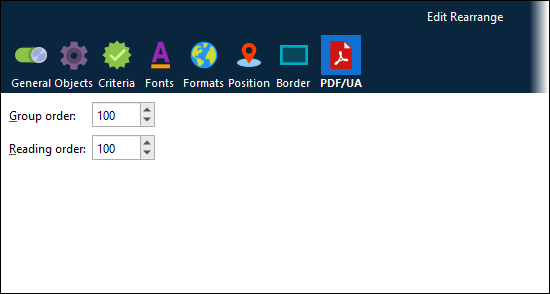
Each item has a default Group order and Reading order value of 100. It is recommended that you apply distinct and appropriately separated values to items, to correctly order them and to provide space for inserting new items into the ordering. For example, if a group contains four rearranges, you could give them Reading order values of 150, 160, 170, and 180, respectively. This would appropriately order the items, and it would also enable you to add a new item and order it fourth in the sequence by giving it a Reading order value of 175.
Alt Text
To make images and charts accessible, you can add alt text to them:
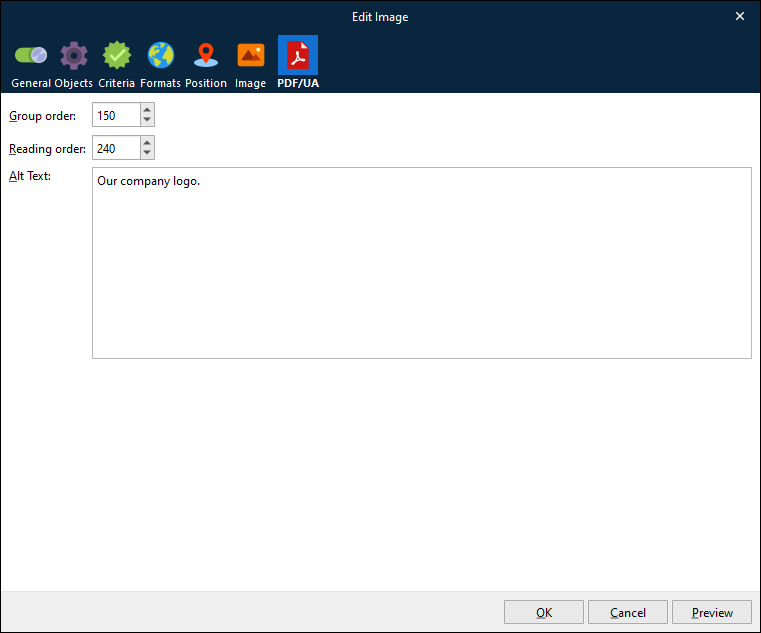
In the form design area of the Form Editor, double-click the image.
On the PDF/UA tab of the Edit Image window, enter the alt text in the Alt Text box.
Click Ok.
Create PDF/UA Subforms or Convert EMF Subforms to PDF/UA
Only subforms whose Output Format is PDF/UA are compatible with PDF/UA forms. This is because only the form items in PDF/UA subforms have the necessary Reading order properties.
You can create PDF/UA subforms or convert existing EMF subforms to PDF/UA format.
Create PDF/UA Subforms
When you create a subform, select PDF/UA from the Output Format list.
Convert EMF Subforms to PDF/UA
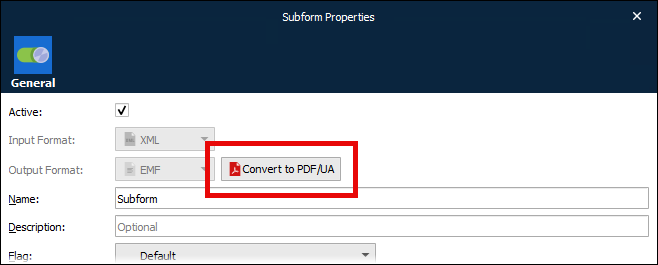
The Output Format property for existing subforms is grayed out. To convert an EMF subform to PDF/UA, click Convert to PDF/UA beside the format list.
Note
Although PDF/UA forms require PDF/UA subforms, the subforms that you convert from EMF to PDF/UA can still be used by any EMF and PDF forms that currently use them.
Set Reading Order on Form Items in Subforms
As described above, the Reading order of form items specifies their order in the structure tree.
Within a subform, appropriately set the Reading order of form items.
Group order is ignored within subforms and has no effect. Set the Group order of all items in a subform to the same value; the default is 100.
Limitations
The current PDF/UA feature has the following limitations:
XHTML that is read from the input file and rendered directly into the output document is omitted from the structure tree.
ActualText attributes are not supported.
Manually setting tag types is not supported.
Tables are ignored. The data within the table is included in the structure tree, but it is not semantically described as a table.
Overlays are ignored and their use should be avoided.
Splitting or combining PDF/UA documents is not supported.
It is not possible to add alt text to images that are inserted by scripting code.
Hyperlinks within input data are not automatically interpreted as hyperlinks and do not become
<Link>elements in the structure tree. Only rearranges that are marked as hyperlinks in the form design become<Link>elementsPDF/UA support applies only to documents whose underlying format in Lasernet Core is EMF. PDF/UA support for RTF-based PDF documents is not available.
Image Compression
Three Compression options and a JPEG Quality value (default 80%) are available for compressing images:
Option | Description |
|---|---|
Automatic | Prefers creating indexed images and uses JPEG if the image contains more than 256 colors. |
Indexed | Creates indexed images (using a palette) if the image contains no more than 256 colors, else the image is stored as a bitmap. The setting gives the best image quality, but the file size may increase. |
JPEG | Compresses all images using JPEG. The setting compromises image quality in favor of smaller file sizes. |