
Configure Microsoft Azure for Lasernet Cloud Printing
- 30 Jan 2026
- 3 Minutes to read
- Contributors

- Print
- PDF
Configure Microsoft Azure for Lasernet Cloud Printing
- Updated on 30 Jan 2026
- 3 Minutes to read
- Contributors
- Print
- PDF
Article summary
Did you find this summary helpful?
Thank you for your feedback
Applies to: Lasernet 11
Note
The instructions on this page apply only to Cloud printing.
You must set up the connections for the Microsoft Azure Service Bus and Storage Accounts. These must match with Lasernet Printer Service settings.
Complete these steps in the Microsoft Azure Portal.
Azure Service Bus
Locate the Azure Service Bus to be used by Lasernet and obtain the information mentioned in Shared Access Policies and Queues.
Shared Access Policies
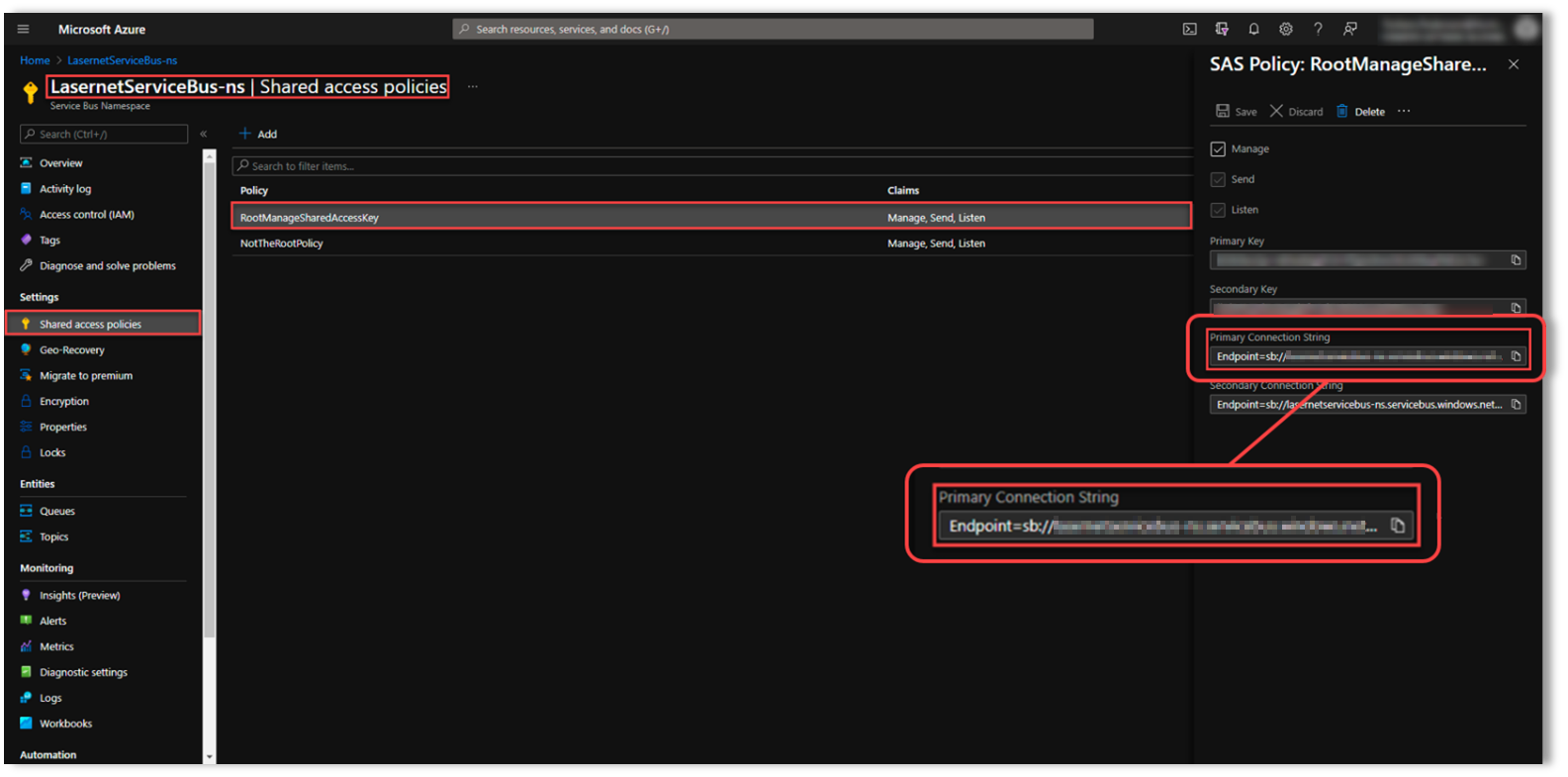
Click Shared access policies in the navigation menu.
Click the RootManageSharedAccessKey LasernetServiceBus.
Note its Primary Connection String because you will use it when you later configure the Service Bus connection in the Lasernet Config web app.
Queues
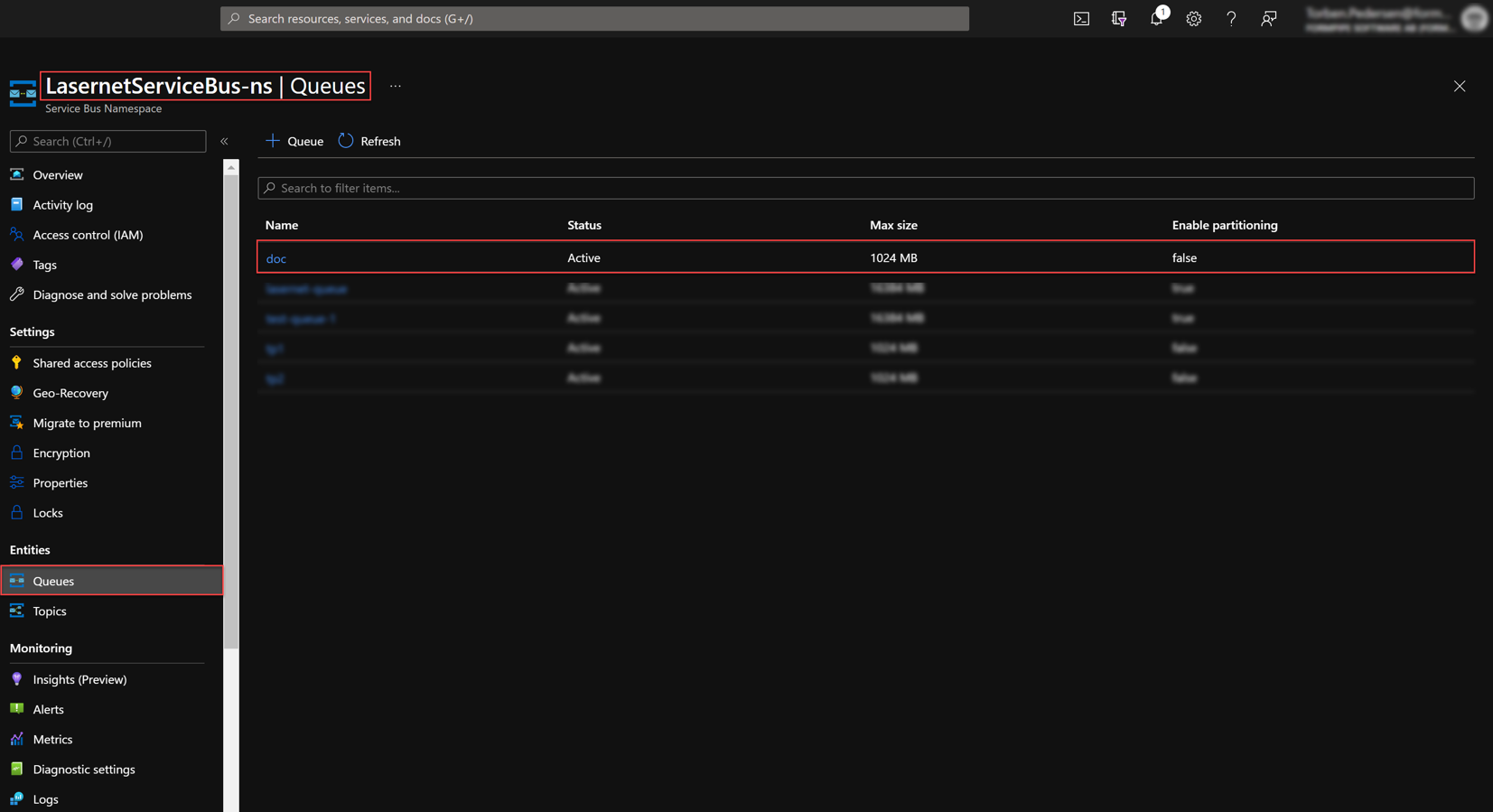
Click Queues in the navigation menu.
Note the Name of the queue that will be used. You will use this name (as the Entity Path) when you later configure the Service Bus connection in the Lasernet Config web app.
Azure Storage Account
Locate the Azure Storage Account to be used by Lasernet and obtain the container name (and if using app-registration-based authentication, the storage account name and tenant ID). Print jobs are temporarily stored in this container.
Then, depending on the authentication type that the Lasernet will use to access the storage, collect the information mentioned in Access Keys, Application Registration, or Shared Access Signature (SAS).
Container Name, Storage Account Name, and Tenant ID
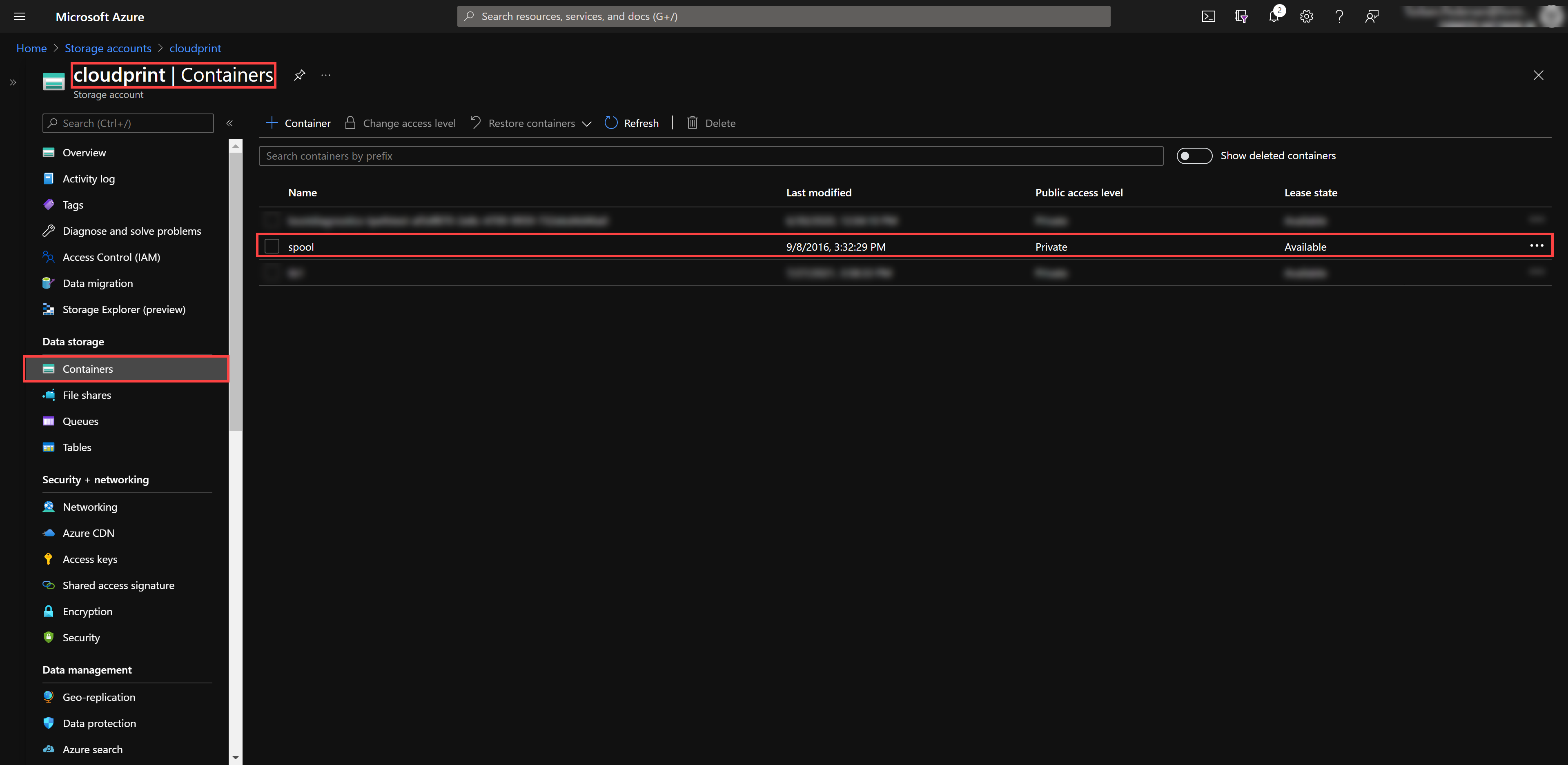
In the Azure Portal, click Containers in the navigation menu, then locate the existing container that Lasernet will use.
For Access Key, App-Registration-Based, and Shared Access Signature (SAS) Authentication
Note the container’s Name because you will use it when you later configure the Azure Storage connection in Lasernet Config (depending on the authentication type used, you will follow Connection String (Access Key), Application Registration, or Shared Access Signature (SAS) Token in Configure Lasernet Print Servers and User Access).
Additionally For App-Registration-Based Authentication Only
Note the name of the storage account (displayed in the top-left corner).
Also note the tenant domain (which is used as the Tenant ID when you configure Lasernet).
Additionally For Shared Access Signature (SAS) Authentication Only
Note the name of the storage account (displayed in the top-left corner).
Access Keys
If Lasernet will use access key authentication to access the storage account, follow these steps:
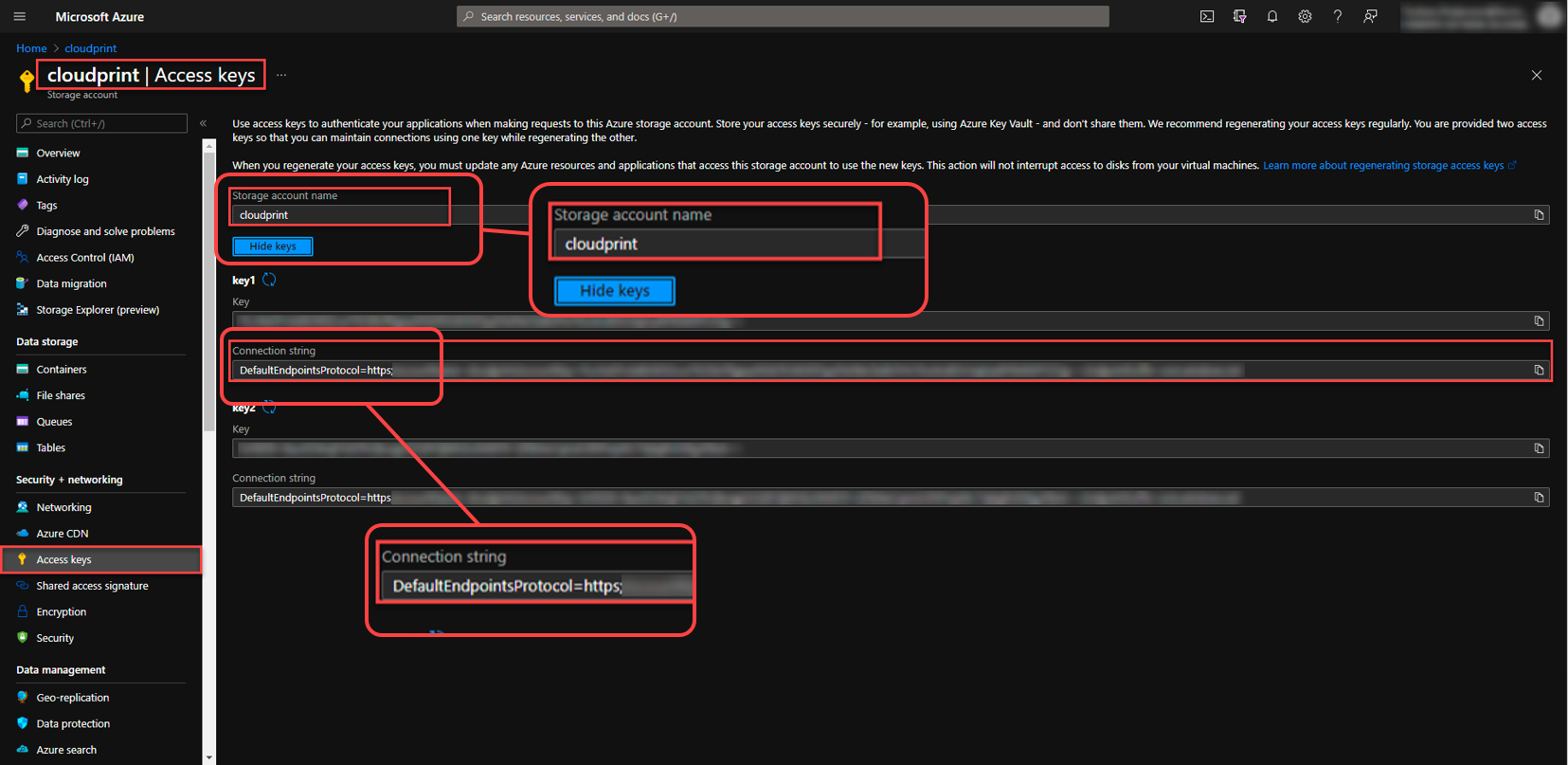
In the Azure Portal, click Access keys in the navigation menu.
Locate the Storage account name to be used by Lasernet.
Copy the Connection string because you will use it later if (in Lasernet Config) you configure access key authentication for the Azure Storage connection.
Application Registration
If Lasernet will use app-registration-based authentication to access the storage account, an administrator of the relevant Microsoft Azure tenant must create an app registration to represent Lasernet, configure that app registration (including generating a client secret for it), and then configure the storage account to allow Lasernet to access it.
Request the app registration’s client ID and client secret from the Microsoft Azure administrator.
Note
Information for Microsoft Azure administrators to describe the specific configuration changes that they must make to the app registration and storage account is provided separately to this guide. See Configure Microsoft Azure to Support Lasernet Access to Azure Storage Through App-Registration-Based Authentication.
Shared Access Signature (SAS)
If Lasernet will use a SAS to access the storage account, an administrator of the relevant Azure Storage account must generate an appropriate SAS token for Lasernet to use.
The SAS token must be specified for Lasernet to use in one of these two ways:
Directly specified in the print server’s SAS Token setting (in the Lasernet Config web app).
Provided by the PrinterServiceAzureStorageSASToken JobInfo in the jobs that Lasernet processes. This method applies if the Overridable checkbox is selected (on the Shared Access Signature Token (SAS) tab of the print server’s settings in the Lasernet Config web app).
You will implement of these methods later when you follow Shared Access Signature (SAS) Token in Configure Microsoft Azure to Support Lasernet Access to Azure Storage Through App-Registration-Based Authentication.
If using the first method, request the SAS token from the Microsoft Azure administrator.
If using the second method, appropriately design the Lasernet configuration to set the value of the PrinterServiceAzureStorageSASToken JobInfo to the current SAS token value (when Lasernet processes a job).
The print server’s Storage account setting can be overridden by PrinterServiceAzureStorageAccountName JobInfo. The Container name setting can be overridden by PrinterServiceAzureStorageContainerName.
Note
Depending on organizational security policy, the SAS token might often change. For this reason, it might be more practical for Lasernet to retrieve the SAS token and then supply it in the PrinterServiceAzureStorageSASToken JobInfo, rather than require a Lasernet administrator to update the SAS token specified in a print server’s settings (in the Lasernet Config web app) when the SAS token changes.
Next Steps
The next part of the process is to configure Lasernet print servers and user access.