Combining Jobs
- 15 Apr 2026
- 2 Minutes to read
- Contributors

- Print
- PDF
Combining Jobs
- Updated on 15 Apr 2026
- 2 Minutes to read
- Contributors
- Print
- PDF
Article summary
Did you find this summary helpful?
Thank you for your feedback
Applies to: Lasernet Core 11
Job combining is available in the list of modules below and can be used to merge mutliple jobs into a single job. The JobData JobInfo will contain the data for all the combined jobs. It will be attached to the JobInfos that were created in the first job. JobInfos for all other jobs expect the first job will be deleted.
Some of the modules require additional properties depending on the input and output format.
Module | Type | Input Format | Output Format |
|---|---|---|---|
Binary Merger | Engine | RAW | RAW |
Compression | Engine | * | ZIP |
EMF to RAW | Engine | EMF | RAW |
Pass-Through | Engine | EMF, TEXT | EMF, TEXT |
Engine | EMF | ||
PDF Merger | Engine | ||
TIFF | Engine | EMF | TIFF |
XML Merger | Engine | XML | XML |
File | Output | EMF, TEXT | EMF, TEXT |
Output | ** | ** | |
Printer | Output | EMF | EMF |
* Compression Engine can combine various job formats into a ZIP-archive for output. A filename for each input file is required and should be added to a user specified JobInfo.
** Outlook Mail and Mail modules do not combine lists of jobs into a single job. Instead, a single email will be generated containing several attachments.
EMF format can be combined into a multi-page EMF, PDF or TIFF job.
TEXT format can be concatenated into a single TEXT job.
XML format can be merged into a single XML job but requires special XPath properties.
Setting Up Combining
In the Properties window for a module that supports combining, click the Combining tab and then select Enable Job combining.
The default settings for combining are: Maximum combined Jobs is 0 (zero), Timeout (in seconds) is 1 second, and Link JobInfos and Stop JobInfos are empty.
Using the default settings, Lasernet Core is only able to combine jobs if the input job is received as a single job. If Lasernet Core receives multiple jobs to the same input module, a Link JobInfo or Stop JobInfo is required.
Lasernet Core is not able to combine jobs from a mix of input modules, all jobs must be from same input module.
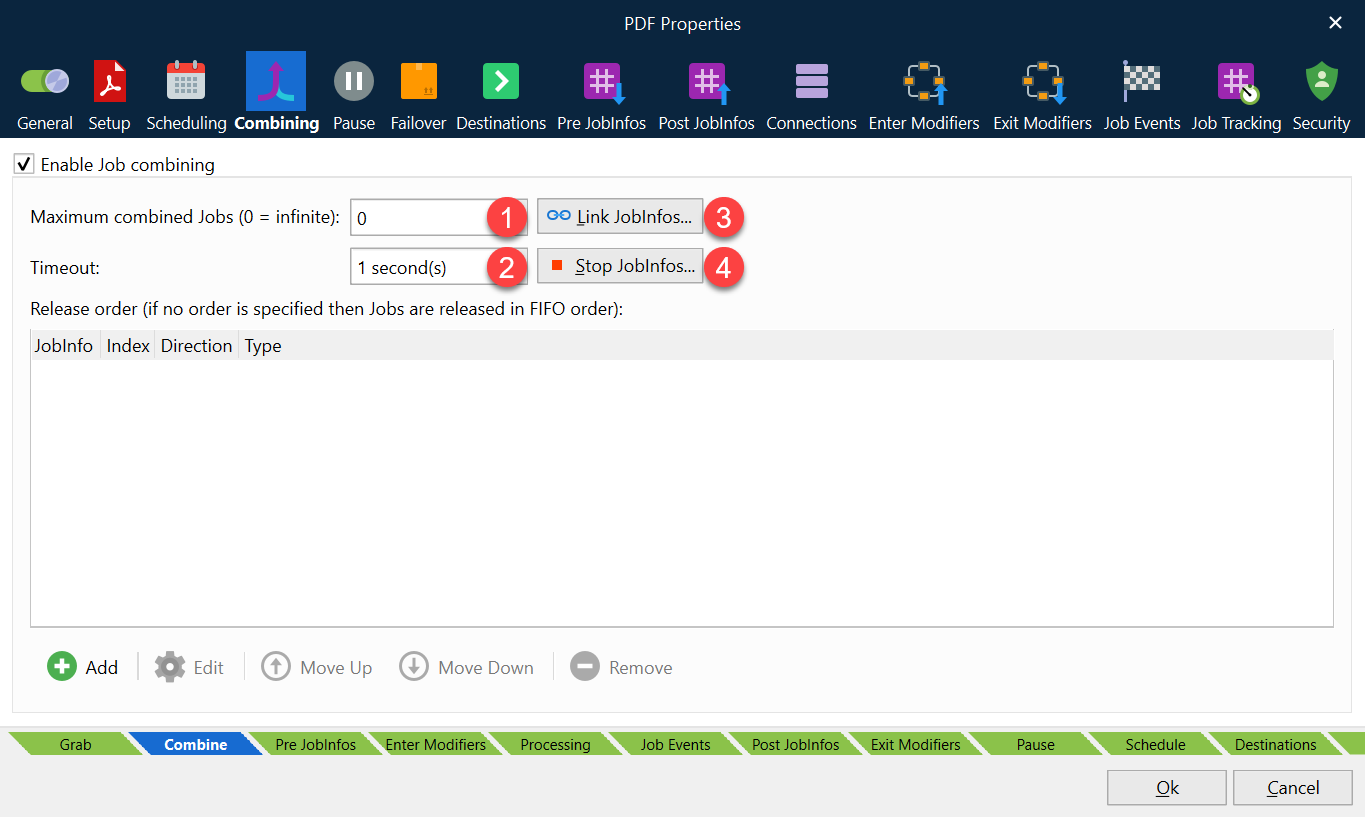
There are several ways to enable or empty combiner queues.
Maximum combined Jobs (1)
The queue will be emptied each time the number of jobs in the queue reaches the number specified here (except if it is set to zero).
Time out in seconds (2)
The queue is emptied if the specified amount of seconds pass without any new jobs coming in.
Link JobInfos (3)
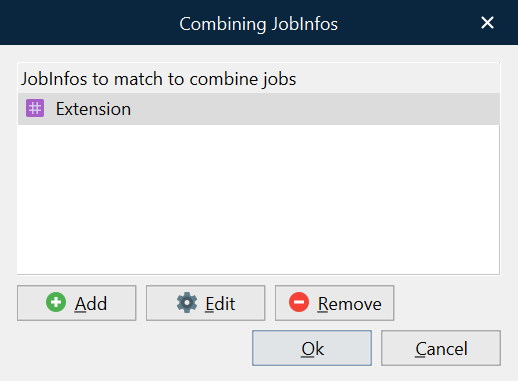
Providing Link JobInfos criteria means that jobs must have equal values in specific JobInfos for the jobs to end up in the same queue. For example, if you combine using the Extension JobInfo, only jobs with the same value for the Extension JobInfo will be combined.
The parameters for Maximum combined Jobs, Time Out and Stop JobInfos have a higher priority and will empty the queue even if Link JobInfos is true.
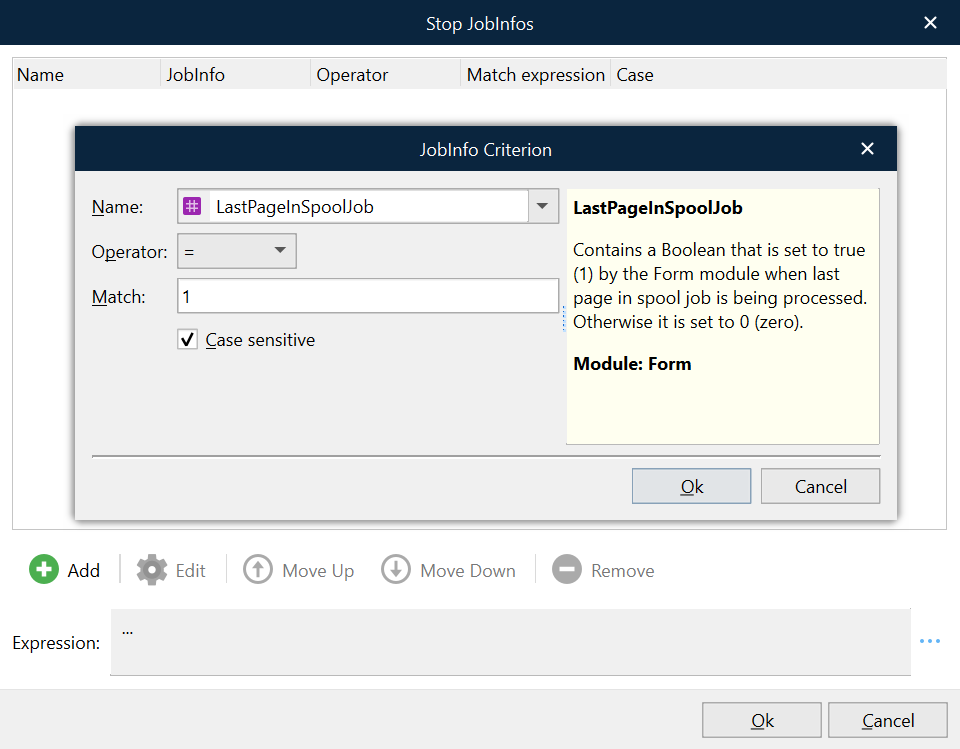
Stop JobInfos (4)
The queue is emptied if the specified expression evaulates to true. For example, if you enable combining using an expression that specifies the LastPageInSpoolJob JobInfo equals 1, all jobs will be combined until the expression evaluates to true. You can add multiple JobInfo criteria; refer to the Expression at the bottom of the Stop JobInfos window.