
Check the Deployment Status and Troubleshoot Startup Issues in Lasernet Keep
- 27 May 2026
- 3 Minutes to read
- Contributors

- Print
- PDF
Check the Deployment Status and Troubleshoot Startup Issues in Lasernet Keep
- Updated on 27 May 2026
- 3 Minutes to read
- Contributors
- Print
- PDF
Article summary
Did you find this summary helpful?
Thank you for your feedback
Note
This article applies only to standalone installations.
If users cannot access Lasernet Keep or the REST API is not responding, check the deployment status. This article explains how to check the deployment status and troubleshoot common startup issues for a standalone installation of Keep.
Check the Deployment Status
Keep is Java software running on a bundled Wildfly application server. After Wildfly starts, it completes the following deployment process that creates a running instance of the application:
Wildfly loads a
.earfile that contains the Keep software.Wildfly runs the software in that
.earfile.
If Keep is running and you can log in, it has been successfully deployed. However, if Wildfly cannot deploy Keep, the application will not run.
If you think Keep is not running, check its deployment status:
On the Keep server, navigate to:
<installation directory>\Wildfly-<version>\standalone\deployments. Appropriately substitute<installation directory>and<version>. The path to the<installation directory>varies depending on whether you chose the default installation.Locate
pdm_app_module.ear. This file contains the main Keep components.In the same directory, the extension of an accompanying file shows Keep’s deployment status. Locate this file and check the current deployment status. For example,
pdm_app_module.ear.deployed.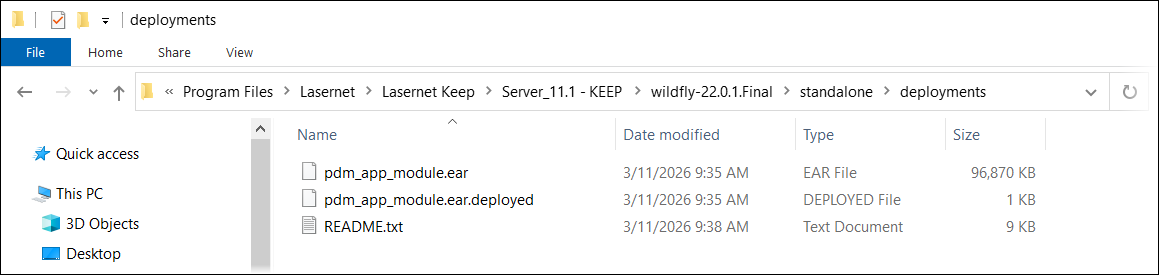
Keep deployment statuses:
.deployed: Keep was successfully deployed and is running..deploying: Wildfly is currently deploying the Keep application:If the deployment succeeds, the file’s extension changes to
.deployed.If the deployment fails, the extension changes to
.undeployedor.failed.
.undeployed: Wildfly has not deployed Keep. Before trying to restart Keep, you must complete further configuration steps. Check the Keep logs for messages that identify the cause of the problem. Often, licensing issues cause this problem. If you require further assistance, contact Lasernet Support..failed: Wildfly failed to deploy Keep. See Troubleshoot Startup Issues to resolve common issues.
Troubleshoot Startup Issues
The following sections describe common startup issues and provide resolution steps:
If none of these issues is the cause of deployment failure, check the Keep logs for messages that identify the root cause. If the logs do not help you to identify the cause, contact Lasernet Support.
Keep Starts Before One or More of Its Dependencies
If Keep depends on an external software component that has not yet started when the application starts up, Wildfly will fail to deploy Keep. This can happen when the server is restarted.
Try manually restarting Keep to resolve this issue.
A Port Conflict Occurs
A port conflict can prevent Keep from starting.
Use your preferred tools and approach to investigate the current port allocation for Keep and other software. If a conflict is found, take appropriate steps.
Keep Startup is Affected by a Firewall or Local Security Policy
Firewall configuration or a local security policy can prevent Keep from binding its configured port. This will prevent Keep from starting.
To resolve this issue, follow these steps:
Locate the Keep
standalone.xmlfile. It is in<installation directory>\Wildfly-<version>\standalone\configurationfile (appropriately substitute<installation directory>and<version>). Thestandalone.xmlfile is in the same directory asnode.properties.Open the file and locate the following lines:
<server name="default-server">
   <http-listener name="default" socket-binding="http" max-post-size="${max.post.size}" max-parameters="15000" ...
   <https-listener name="default-https" socket-binding="https" max-post-size="${max.post.size}" max-parameters="15000" ...
     <host name="default-host" alias="localhost">
       <location name="/" handler="welcome-content"/>
         ...
In the
<host name="default-host" alias="localhost">line, changelocalhostto your server’s host name.Save
standalone.xml.
Manually Restart Keep
After you have taken the recommended troubleshooting steps, restart Keep.
If Keep is running as a Windows service, follow these steps to restart it:
Open the Windows Services window.
Locate the Keep service. For example, Keep Server 11.1 - Standalone [Production]. The service name contains the Keep version number and includes the corresponding Keep node name in square brackets. The node name is entered during installation and is typically the name of the relevant service.
Click Restart Service.
Note
The restart can take up to 10 minutes.