
Barcodes in Lasernet Developer
- 15 Apr 2026
- 18 Minutes to read
- Contributors

- Print
- PDF
Barcodes in Lasernet Developer
- Updated on 15 Apr 2026
- 18 Minutes to read
- Contributors
- Print
- PDF
Article summary
Did you find this summary helpful?
Thank you for your feedback
Applies to: Lasernet Core 11
A large range of built-in barcodes can be inserted into the output view of a text form. A barcode can be inserted and delivered as a print output or embedded into PDF or TIFF files for archiving, mailing, and so on.
A range of linear and 2D barcodes are included in Lasernet Core as standard. The barcodes can be inserted as images into forms designed through the Lasernet Form Editor, and generated based on values in the incoming job data.
Barcode Profiles
A barcode profile is useful if the same barcode, with the same settings, is used in many different forms or labels. Changing settings for a profile will affect any form where the barcode profile is used. This is a powerful way to manage barcode settings and it ensures that barcode settings are the same for all forms.
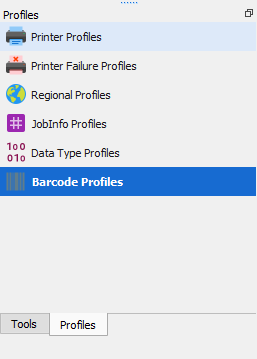
You can also insert barcodes into forms and labels without first creating a profile. When this method is used, barcodes are defined inside a form (rather than in a profile); as a result, barcode settings cannot be inherited from other forms. Creating barcodes without profiles is convenient if only a few forms include barcodes.
Linear Barcodes
Select Linear for Barcode type, select the barcode type (name of barcode) from the Symbology list, and then enter a Profile name that describes the barcode that you want to define.
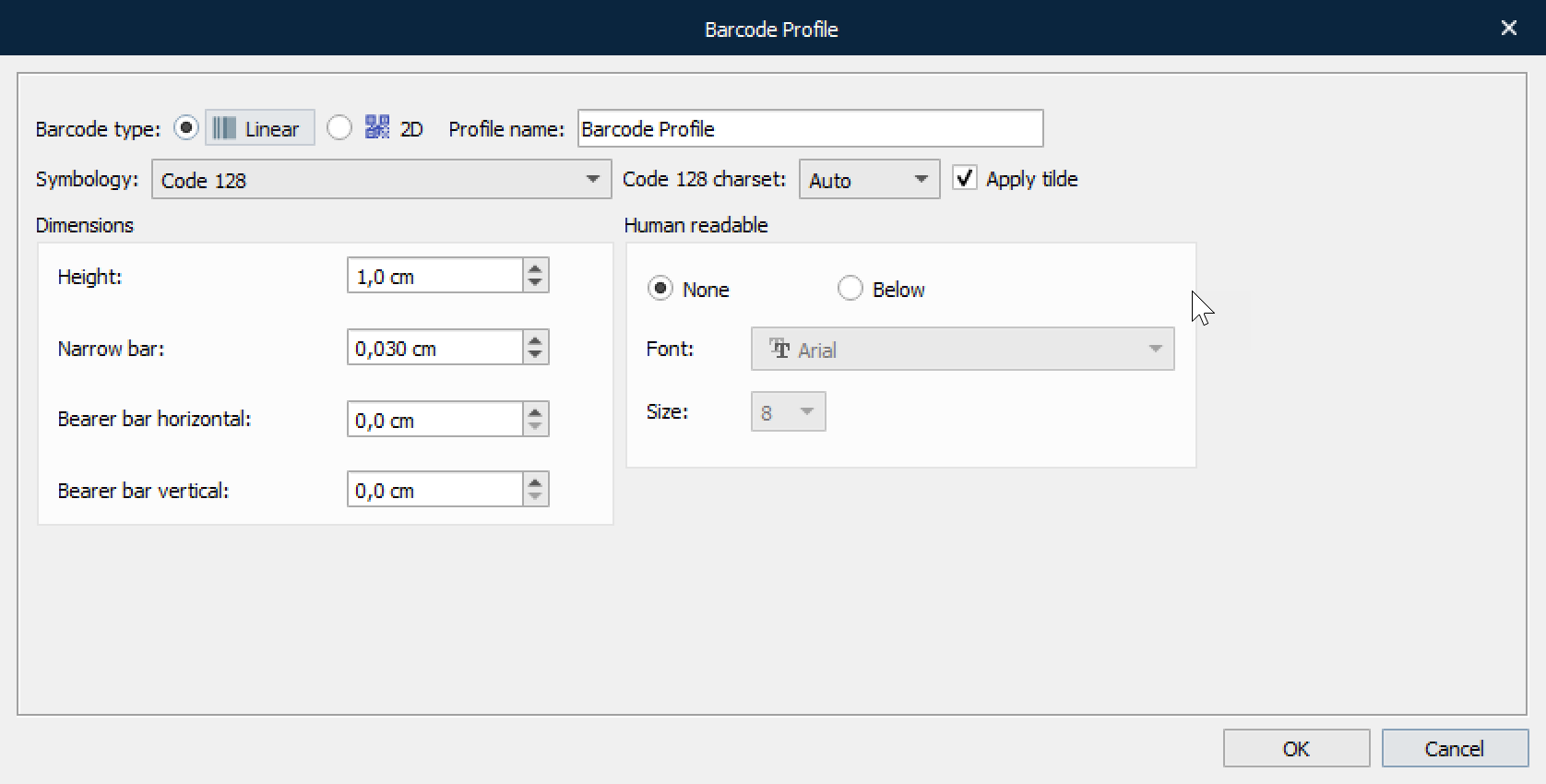
Settings for dimensions check digit on/off and human-readable specifications can be defined for the individual barcode profiles.
Dimensions – Basic Settings for Linear Barcodes
Most settings are common for linear barcodes.
Bar Height | 1 | The height of the barcode in centimetres (CM). |
Narrow Bar Width | 0.03 | NarrowBarWidth is the width in centimetres of the narrow bars. This is also referred to as the X dimension. The default is 0.03 CM, which is about .012" or 12 mils. This value may need to be increased if the scanner being used cannot read barcodes with small X dimensions. |
Bearer Bar Horizontal | 0 | The width of the horizontal bearer bars as a multiple of the XDimension; valid options are 0-10. |
Bearer Bar Vertical | 0 | The width of the vertical bearer bars as a multiple of the XDimension; valid options are 0-10. |
If the barcode has support for human readable characters, you can turn the setting on and define the font type and size you want to use.
Supported Linear Barcodes
More detailed information about linear barcodes can be found here:
http://www.idautomation.com/barcode-faq/
Code 128 - Alpha-numeric barcode with three character sets. Supports Code-128, GS1-128 (Formerly known as UCC/EAN-128) and ISBT-128. | |
| Code 39 - An alpha-numeric bar code that encodes uppercase letters, numbers and some symbols; it is also referred to as Barcode/39, the 3 of 9 Code and LOGMARS Code. |
| Code 93 - Similar to Code 39, but requires two checksum characters. |
| Codabar - A numeric barcode encoding numbers with a slightly higher density than Code 39. |
| Interleaved 2 of 5 - The Interleaved 2 of 5 barcode symbology encodes numbers in pairs, similar to Code 128 set C. |
| POSTNET - Used by US post offices for mail delivery and tracking. |
| UPC, EAN & GTIN - This is one of the most common barcode types. It is used to encode the GTIN and also used to create JAN, ISBN and Bookland barcodes. |


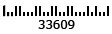

Code 128
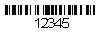
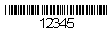
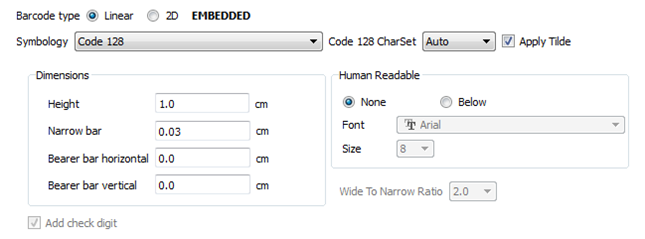
Code 128 barcode fonts encode numbers, symbols, uppercase and lowercase text as well as functions such as returns and tabs. All Code 128 barcode fonts require a start character, checksum character, and a stop character to create readable barcodes.
Set Barcode type to Linear and select Code 128 from the Symbology list.
Code 39
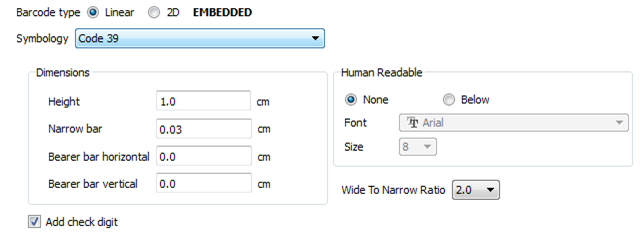
Code 39 is a common barcode type used for various labels such as name badges, inventory and industrial applications. The symbology of the Code 39 character set consists of barcode symbols representing numbers 0-9, upper-case letters A-Z, the space character and the following symbols: - . $ / + %. Lower-case characters may also be easily encoded
Set Barcode type to Linear and select Code 39 from the Symbology list.
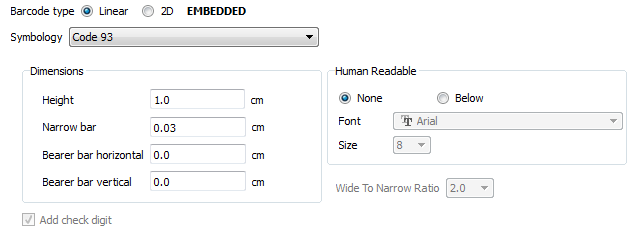
Code 93
Code 93 is a barcode symbology to provide a higher density and data security enhancement to Code 39. It is an alphanumeric, variable-length symbology. To generate the Code 93 barcode font, the start and stop digits and 2 check characters must be included.
Set Barcode type to Linear and select Code 93 from the Symbology list.
Codabar
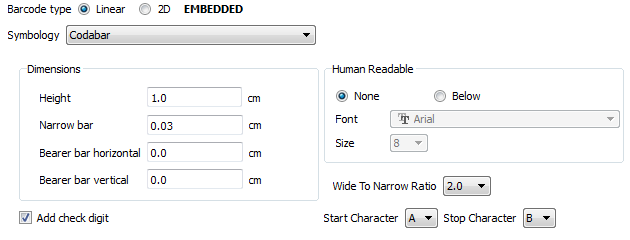
Codabar is a low-density numeric bar code. It includes 16 characters: the numbers 0-9, plus "-", ".", ":", "$", "/", and "+". The use of four separate Start and Stop characters (A, B, C, and D) allows useful information to be encoded by characters normally considered as overhead. Can be of variable length and do not require a checksum.
Set Barcode type to Linear and select Codabar from the Symbology list.
Interleaved 2 of 5
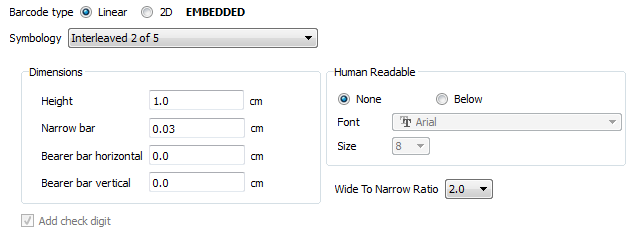
Interleaved 2 of 5 is a numeric only barcode used to encode pairs of numbers into a self-checking, high-density barcode format. In this symbology, every two digits are interleaved with each other to create a single symbol. If a number string containing an odd number of digits needs to be encoded, a leading zero must be added to produce an even number of digits in the Interleaved 2 of 5 barcode.
Set Barcode type to Linear and select Interleaved 2 of 5 from the Symbology list.
Postnet
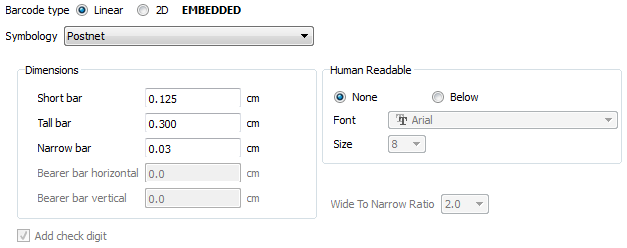
POSTNET (Postal Numeric Encoding Technique) is a barcode symbology used by the United States Postal Service to assist in directing mail.
Set Barcode type to Linear and select Postnet from the Symbology list.
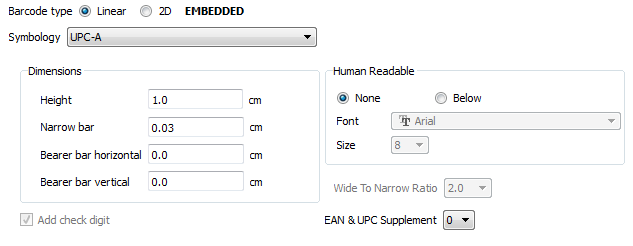
UPC-A, EAN-8 and EAN-13
Along with the related EAN barcode, the UPC (Universal Product Code) is the barcode mainly used for scanning of trade items at the point of sale, per GS1 specifications.
Set Barcode type to Linear and select UPC-A, EAN8, or EAN13 from the Symbology list.
UCC128 (EAN-128, GS1-128)
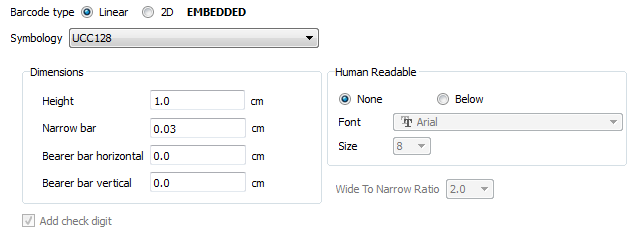
GS1-128 is a standard of the GS1 implementation using the Code 128 barcode specification. The former correct name was UCC/EAN-128. Other no longer used names have included UCC-128 and EAN-128. GS1-128 uses a series of “application identifiers” to include additional data such as best before dates, batch numbers, quantities, weights and many other attributes needed by the user.
Set Barcode type to Linear and select UCC128 from the Symbology list.
For more information about the supported linear barcodes, refer to the specifications at http://www.idautomation.com/barcode-faq/
2D Barcodes
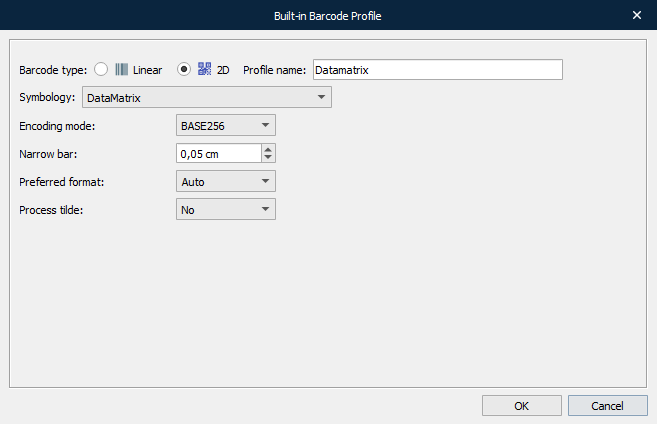
Select 2D for Barcode type, select the barcode type (name of barcode) from the Symbology list, and then enter a Profile name that describes the barcode that you want to define.
Supported 2D Barcodes
More detailed information about 2D barcodes can be found here:
http://www.idautomation.com/barcode-faq/
| Data Matrix Fonts - A matrix symbol that allows very efficient encoding of data into a square barcode with error correction. |
| MaxiCode Fonts - Used primarily by UPS to route and track packages. |
| PDF417 Fonts - This unique 2D barcode type is commonly used on FedEx shipping. |
| QR-Code Fonts - A matrix symbol that is capable of encoding binary and ASCII characters. Asian/Kanji characters are not supported. |

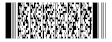

DataMatrix
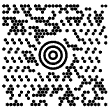
DataMatrix code is a two-dimensional matrix barcode. The information to be encoded can be text or numeric data. Usual data size is from a few bytes up to 1556 bytes. The length of the encoded data depends on the number of cells in the matrix. Error correction codes are often used to increase reliability; even if one or more cells are so damaged as to be unreadable, the message can still be read. A Data Matrix symbol can store up to 2,335 alphanumeric characters.
Set Barcode type to 2D and select DataMatrix from the Symbology list.
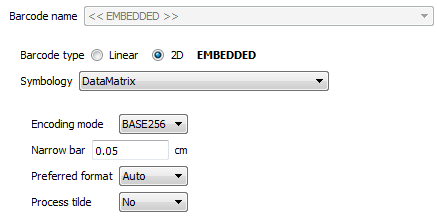
Settings
Property Name | Default | Property Description |
|---|---|---|
Encoding Mode | BASE256 | Valid Encoding Mode values are ASCII, C40, TEXT or BASE256. |
Narrow Bar | 0.05 | The width in centimetres of the narrow bars; this is also referred to as the X dimension. The default is 0.05 CM which is about .02" or 20 mils. This value may need to be increased if the scanner cannot read barcodes with small X dimensions. If using a high-quality barcode imager, this value may be decreased to obtain a higher-density barcode. |
Preferred Format | -1 | Sets the preferred Data Matrix formats represented by a number; valid values are from 0 (10X10) to 23 (144X144) and from 24 (8X18) to 29 (16X48). The default value of -1 is used for automatic formatting. |
Process Tilde | No | When set to Yes, the tilde (~) will be processed as explained in the DataMatrix Barcode FAQ. |
DataMatrix Encoding Modes
By default, the encoding mode for most components is BASE256. If the choice is to encode text or numbers only and size is a concern, a change of the encoding mode to ASCII, TEXT or C40 may produce a smaller symbol. The data represented in the symbol may be compressed using one of the following modes:
ASCII is used to encode data that mainly contains ASCII characters (0-127). It encodes approximately one alphanumeric or two numeric characters per byte. As a general rule, use ASCII to encode text that includes uppercase and lowercase letters with or without numbers and punctuation.
C40 is used to encode data that contains only numeric and upper-case characters. C40 encodes approximately three alphanumeric data characters into two bytes.
TEXT is used to encode data that mainly contains numeric and lowercase characters. TEXT encodes approximately three alphanumeric data characters into two bytes.
BASE256 is used to encode images, double-byte characters, binary data and 8-bit values.
DataMatrix Formats
Data Matrix ECC 200 barcode products support all formats. The following table contains the size, capacity and error correction features of each format. By default, the encoding mode is BASE256 (or binary) for compatibility reasons. The encoding mode may be changed to reduce the symbol size in some situations. The chart below illustrates the smallest symbol size, in the best-case scenario, for the amount of data encoded.
Format Number | Size | Max Numeric Capacity | Max Alphanumeric capacity | Max Binary capacity | Max Correctable Error/Erasure |
|---|---|---|---|---|---|
0 | 10 x 10 | 6 | 3 | 1 | 2 |
1 | 12 x 12 | 10 | 6 | 3 | 3 |
2 | 14 x 14 | 16 | 10 | 6 | 5/7 |
3 | 16 x 16 | 24 | 16 | 10 | 6/9 |
4 | 18 x 18 | 36 | 25 | 16 | 7/11 |
5 | 20 x 20 | 44 | 31 | 20 | 9/15 |
6 | 22 x 22 | 60 | 43 | 28 | 10/17 |
7 | 24 x 24 | 72 | 52 | 34 | 12/21 |
8 | 26 x 26 | 88 | 64 | 42 | 14/25 |
9 | 32 x 32 | 124 | 91 | 60 | 18/33 |
10 | 36 x 36 | 172 | 127 | 84 | 21/39 |
11 | 40 x 40 | 228 | 169 | 112 | 24/45 |
12 | 44 x 44 | 288 | 214 | 142 | 28/53 |
13 | 48 x 48 | 348 | 259 | 172 | 34/65 |
14 | 52 x 52 | 408 | 304 | 202 | 42/78 |
15 | 64 x 64 | 560 | 418 | 278 | 56/106 |
16 | 72 x 72 | 736 | 550 | 366 | 72/132 |
17 | 80 x 80 | 912 | 682 | 454 | 96/180 |
18 | 88 x 88 | 1152 | 862 | 574 | 112/212 |
19 | 96 x 96 | 1392 | 1042 | 694 | 136/260 |
20 | 104 x 104 | 1632 | 1222 | 814 | 168/318 |
21 | 120 x 120 | 2100 | 1573 | 1048 | 204/390 |
22 | 132 x 132 | 2608 | 1954 | 1302 | 248/472 |
23 | 144 x 144 | 3116 | 2335 | 1556 | 310/590 |
24 | 8 x 18 | 10 | 6 | 3 | 3 |
25 | 8 x 32 | 20 | 13 | 8 | 5 |
26 | 12 x 26 | 32 | 22 | 14 | 7/11 |
27 | 12 x 36 | 44 | 31 | 20 | 9/15 |
28 | 16 x 36 | 64 | 46 | 30 | 12/21 |
29 | 16 x 48 | 98 | 72 | 47 | 14/25 |
MaxiCode
Maxicode is an international 2D (two-dimensional) barcode that is currently used by UPS on shipping labels for world-wide addressing and package sorting. MaxiCode symbols are fixed in size and are made up of offset rows of hexagonal modules arranged around a unique finder pattern. MaxiCode includes error correction, which enables the symbol to be decoded when it is slightly damaged.
Set Barcode type to 2D and select MaxiCode from the Symbology list.
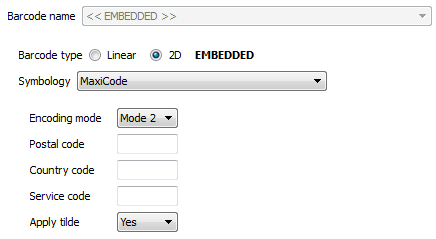
MaxiCode symbols encode two messages; a primary message and a secondary message. The primary message usually encodes the postal code, country code and the class of service number. The secondary message usually encodes address data, but can encode other types of information as well.
MaxiCode barcodes have different modes of operation.
2 = US Carrier with postal codes up to 9 digits in length.
Approximately 93 characters may be encoded in this mode.3 = International Carrier with alpha-numeric postal codes up to 6 digits in length.
Approximately 93 characters may be encoded in this mode.4 = Standard Symbol encodes general information for purposes other than the shipping industry.
Approximately 90 characters may be encoded in this mode.5 = Secure Symbol encodes general information with more error correction.
Approximately 74 characters may be encoded in this mode.6 = Reader Program allows scanner manufacturers to program barcode readers.
Symbol Size & Tolerance
The size and tolerance range of the MaxiCode symbol is noted below in millimetres. The sizes listed include the required quiet zone of one white hexagon on each side of the symbol, referred to as 1x. The allowable tolerance from the nominal size is approximately 5%.
Nominal | Minimum | Maximum | IDAutomation MaxiCode | |
|---|---|---|---|---|
Width | 28.14mm | 26.48mm | 29.79mm | 28.10mm |
Height | 26.91mm | 25.32mm | 28.49mm | 26.70mm |
Bullseye | 07.74mm | 07.35mm | 08.16mm | 07.72mm |
The printed size may vary slightly depending on the printer and labels used. We recommend printing the MaxiCode Font at 300 DPI or greater.
PDF417
PDF417 is a multi-row, variable-length symbology with high data capacity and error-correction capability. PDF417 has some unique features that make it the most widely used 2D symbology. A PDF417 symbol can be read by linear scanners, laser scanners or two-dimensional scanners. PDF417 is capable of encoding more than 1100 bytes, 1800 text characters or 2710 digits.
Set Barcode type to 2D and select PDF417 from the Symbology list.
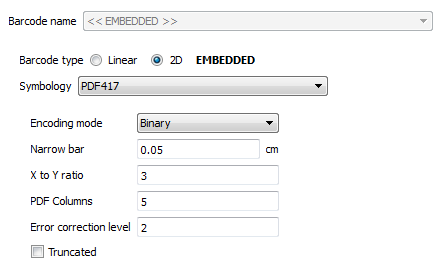
Property Name | Default | Property Description |
|---|---|---|
Error Correction Level | 2 | The Reed Solomon error correction level encoded in the symbol. |
PDF Columns | 5 | The number of data columns in the PDF417 barcode. The default is 5 and the maximum is 30. |
Encoding Mode | Binary | The mode of compaction used to encode data in the symbol. When set to Text, a smaller symbol may be created. Text mode encodes all characters on the US keyboard plus returns and tabs. Binary mode encodes ASCII 1 to 254. |
PDFRows | 0 | Sets the number of rows. It is recommended to leave this setting at 0, the default. |
Truncated | 0 | A truncated PDF417 symbol is more area efficient than normal PDF417. When set to true, the right hand side of the PDF417 is removed or truncated. |
XtoYRatio | 3 | The X multiple height of individual cells; default = 3, usually 2 to 4 times the NarrowBarCM (X). |
Large amounts of text and data can be stored securely and inexpensively when using the PDF417 barcode symbology. The printed symbol consists of several linear rows of stacked codewords. Each codeword represents 1 of 929 possible values from one of three different clusters. A different cluster is chosen for each row, repeating after every three rows. Because the codewords in each cluster are unique, the scanner is able to determine what line each cluster is from.
PDF417 Error Correction Levels
PDF417 uses Reed Solomon error correction instead of check digits. This error correction allows the symbol to endure some damage without causing loss of data. AIM standards recommend a minimum error correction level of 2. The error correction level depends on the amount of data that needs to be encoded, the size and the amount of symbol damage that could occur. The error correction levels range from 0 to 8. The chart below indicates the number of error correction codewords that are added to the printed symbol and AIM recommendations for the EC level.
AIM Recommended EC Levels
EC Level | 0 | 1 | 2 | 3 | 4 | 5 | 6 | 7 | 8 |
|---|---|---|---|---|---|---|---|---|---|
EC Codewords Generated | 2 | 4 | 6 | 8 | 16 | 32 | 64 | 128 | 512 |
Data Codewords | 1-40 | 41-160 | 161-320 | 321-863 | |||||
Data Bytes Encoded | 1-56 | 57-192 | 193-384 | 385-1035 |
X and Y Dimensions
The X dimension is the width of the narrowest bar in a printed codeword. The Y dimension is the height of each row within the PDF417 symbol. The PDF417 barcode is usually printed at an X to Y ratio of 1:2 to 1:5, with 1:3 being the most popular. By lowering the ratio, a significant amount of space can be saved; however, some scanners cannot read X to Y ratios of less than 1:3. Most scanners read PDF417 barcodes well at 1:3. When creating symbols with more than 10 columns we recommend using a ratio of 1:4 or 1:5.
Row and Column Limits
The number of rows and columns can be selected, allowing the symbol to be created in various forms. However, the PDF417 barcode symbol is limited to 30 columns and 90 rows. Keep in mind when selecting columns, only the number of data columns in the symbol are being selected. The normal PDF417 barcode symbol has two row start columns and two row stop columns. Truncated PDF417 contains only two row start columns. Some scanners and decoders cannot dependably read over 20 columns.
Truncated PDF417
A truncated PDF417 symbol uses less area than the normal PDF417 barcode. By selecting this option, the right-hand side of the symbol is removed or truncated. This option should be used primarily in a clean environment, because it is more susceptible to damage.
QR Code
QR Code is a very efficient, two-dimensional (2D) barcode symbology that uses a small area of square modules with a unique perimeter pattern, which helps the barcode scanner determine cell locations and decode the QR Code symbol. Characters, numbers, text and actual bytes of data may be encoded, including Unicode characters and images. Implementation of QR Code is based on the ISO/IEC 18004:2006 standard. Asian/Kanji characters are not supported.
Note
Colored QR codes are supported. Also, inverted QR codes are supported – for example, white on a black background.
Set Barcode type to 2D and select QRCode from the Symbology list.
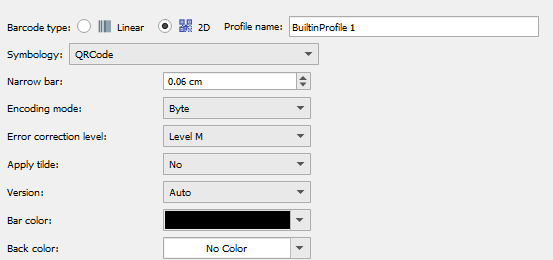
Property Name | Default | Property Description |
|---|---|---|
ProcessTilde | False | When set to True, the format ~d??? may be used to specify the ASCII code of the character to be encoded. Commonly used ASCII codes are ~d009 which is a tab function and ~d013 which is a return function. |
EncodingMode | Byte | The mode of compaction used to encode data in the symbol. Valid values are E_BYTE, E_ALPHANUMERIC, and E_NUMERIC mode. |
Version | AUTO | Sets the size of the symbol; valid values are from 1 (21X21) to 40 (177X177); the default value of "AUTO" is used for automatic formatting. |
ErrorCorrection | M | The error correction level encoded in the symbol. Valid values are ECL_L, ECL_M, ECL_Q, ECL_H. Higher error correction creates a larger symbol that can withstand more damage. |
XDimensionCM | 0.06 | The width in centimetres of the narrow bars. This value may need to be increased if the scanner cannot read barcodes with small X dimensions. When working with a high quality imager, this value may be decreased to create a smaller symbol. |
Error Correction and Encoding Modes
By default, the encoding mode for most components is "byte" and an error correction level of M. If you are only encoding text and size is a concern, changing the encoding mode to Alpha-Numeric may produce a smaller symbol. The data represented in the symbol may be encoded using one of the following modes:
Encoding Mode | Parameter Selection* | Description |
|---|---|---|
Byte | 0 | Encodes lower case letters, text, images, double-byte characters, binary data and 8 bit values. |
Alpha-Numeric | 1 | Encodes only numbers and uppercase letters. In this encoding mode, lower case letters will be converted to upper case. All other data will be filtered out. |
Numeric | 2 | Encodes only numbers; all other data will be ignored. |
Four levels of Reed-Solomon error correction are referred to as L, M, Q and H. The error correction levels allow verification of data and recovery in the event that part of the symbol is damaged. Increasing the error correction level increases the symbol size and reduces data capacity. The percentage of recovery and capacity noted below are approximate.
Error Correction Level | % of Recovery | Byte Capacity at Size 24 | Parameter Selection |
|---|---|---|---|
L | 7% | 1171 | 2 |
M | 15% | 911 | 0 |
Q | 25% | 661 | 3 |
H | 30% | 511 | 1 |
Symbol Version
The version is the size of the symbol from (1) 21x21 to (40) 177x177. Zero is the default selection. If the symbol needs to be larger than the selection, the component automatically overrides this value.
If you want read more about the supported 2D barcodes we recommend reading the specifications from:
http://www.idautomation.com/barcode-faq/
Linear Barcodes (Symbology and TrueType Fonts)
Inserting barcodes via TrueType fonts is supported and compatible with barcode fonts from www.elfring.com, which must be bought and installed separately. Lasernet Core is able to calculate the symbology for a list of linear, insert stop, start code and check sums. The symbology for a TrueType font is maintained via profiles only and cannot be added in the settings of a barcode rearrange like the built-in barcodes.
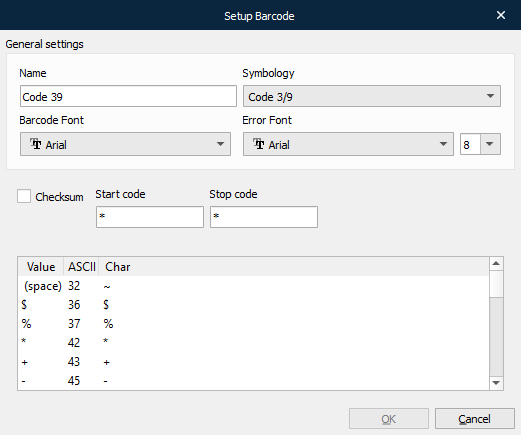
Generic barcode support is provided in Lasernet Core for the following symbologies:
Code 128 and EAN 128
Code 2 of 5 Interleaved
Code 3/9
EAN 8/13
A barcode symbology defines what characters the barcode can represent, how to calculate checksums (if any) and other properties specific for the individual barcode.
For Lasernet Core to produce its own barcodes, TrueType barcode fonts are required. Lasernet Core uses the Elfring TrueType fonts.
To create a new barcode click Add then choose which symbology to use in the dialog pop-up window.
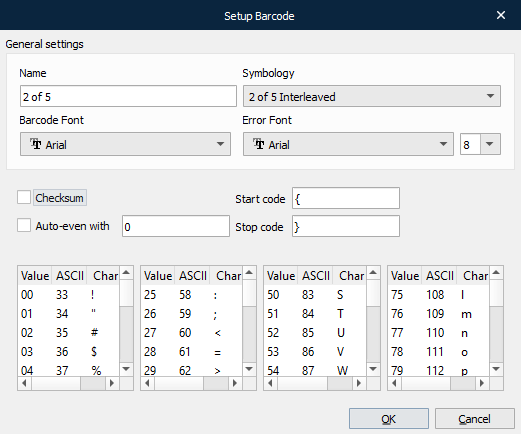
Name of template | The name of the barcode - must be unique. Lasernet Developer will not allow you to save the barcode if another barcode with the same name already exists. |
Barcode font | What font will be used for encoding the barcode. |
Error font (Underneath the Symbology dropdown list). | Sometimes an encoding error will occur in the barcode. This sets what font to use for printing this error. |
Font size | What font size must be used for error fonts. |
Symbology | When you change the symbology the settings for each type appear under general settings: |
2 of 5 Interleaved
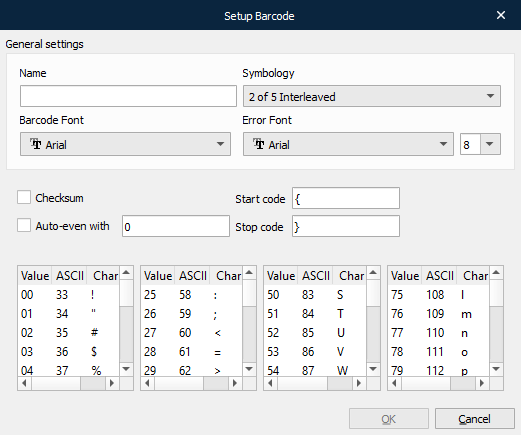
2 of 5 Interleaved encodes digits, lowercase and uppercase characters and a few special characters. The Character mapping tables are only for information. They should not be edited. At present Lasernet Core only supports Elfring barcode fonts.
This symbology requires that the resulting barcode encodes an even number of characters. This includes the checksum digit. The Auto-even with property is used to ensure this. If this is not checked and the resulting barcode does not have an even number of characters, an error is printed instead.
Code 3/9
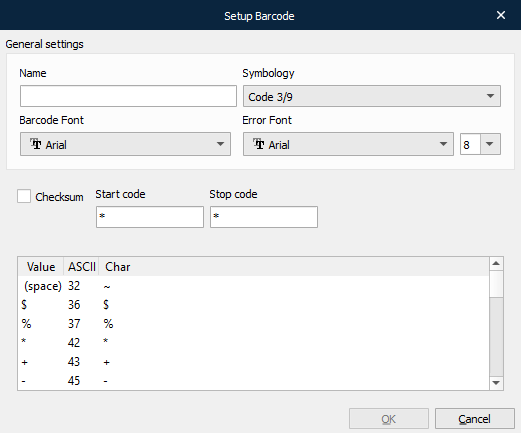
A simplistic symbology - encodes capital letters, digits and few special characters. It provides an option for a checksum. Please note that you need an intelligent reader to actually verify this checksum, since it is just a digit extra in the barcode.
Code 128
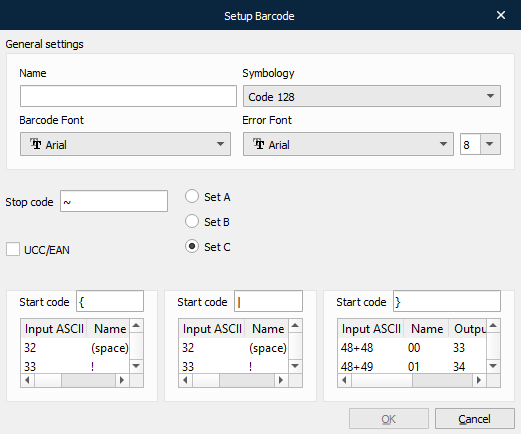
Code 128 is one of the most advanced barcodes, capable of encoding nearly all characters in the standard ASCII character set. It is also able to encode pure digits very efficiently.
The three tables show how the symbology encodes all these characters, using one of three subsets (A, B and C). Subset A focuses on capital letters, single digits, special characters and ASCII control characters. Subset B focuses on both lowercase and uppercase characters, single digits and a few special characters. Subset C concentrates on the expression of two digits for each barcode digit. This means that if you only need to encode digits you can use subset C to limit the width of the barcode.
For each subset there is a conversion table which consists of four columns:
Input ASCII
Name
Output ASCII
Char
Input ASCII shows the ASCII values that you need to write to get a specific barcode character. Name is the name that the barcode symbology gives that character.
Output ASCII shows the ASCII value of the character in the barcode font. Char is just a character representation of that value.
Three of four columns are editable: Input ASCII, Output ASCII and Char (Output ASCII and Char automatically follow one another when changed).
Reasons for changing the Input ASCII may occur if it was not possible to generate a specific character in your output system.
Output ASCII/Char values may need to be changed if another barcode font is chosen over Elfring, as alternate character mapping may be used by the new font.
Subset C uses Input ASCII combined with a ‘+’, for example, 53+50. This means that you should output 52 to Lasernet Core in order to get the barcode to encode those digits. Please note that only Subset C supports the ‘+’ syntax.
Code 128 or EAN 128 supports subset changing during the barcode.
This means Lasernet Core can create a Code 128 A, Code 128 B and Code 128 C. Rather than two subsets in a single barcode e.g., Code 128 B+C, or Code 128 A+B. The same rules apply for EAN 128.
EAN 8/13
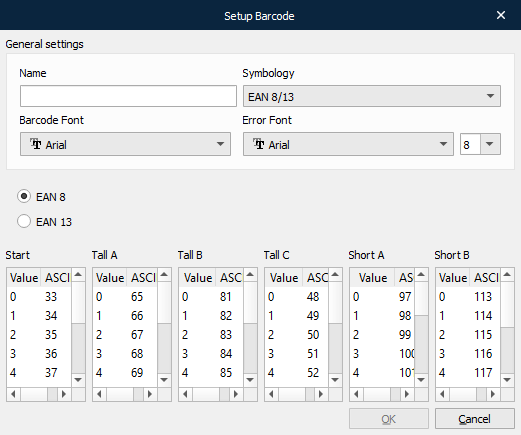
This barcode is widely used for food packaging. It encodes 8 or 13 digits. The mapping table is subject to the same limitations as for Code 3/9.