
XML Validator
- 13 Apr 2026
- 4 Minutes to read
- Contributors

- Print
- PDF
XML Validator
- Updated on 13 Apr 2026
- 4 Minutes to read
- Contributors
- Print
- PDF
Article summary
Did you find this summary helpful?
Thank you for your feedback
Applies to: Lasernet Core 11
Validation of XML via XML Schema (XSD) is a way to verify that the data structure conforms to the associated schema before delivering it to another system.
The XML Validator Engine or Modifier is able to parse and validate the XML data by using schema files stored locally or via a URL.
XML data can be received or created by any module and validated before parsing data to another module.

XML Schemas are primarily used to validate the structure and data types of the XML data. This covers:
Which data elements or attributes are expected.
What order the data elements are expected in.
The nesting these data elements can have.
Which data elements are optional and which data elements are required.
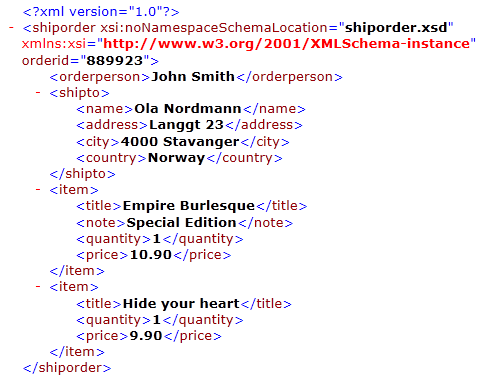
XML Data Sample
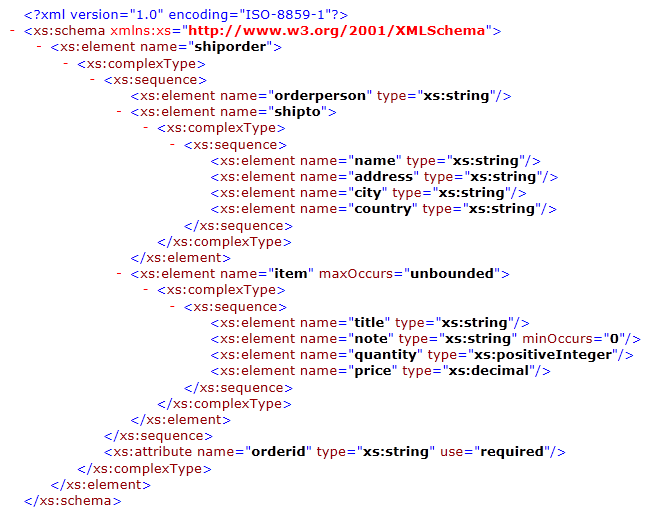
 XML Schema Sample
The XML above is validated by the following schema.
Location
Provide the XML schema in a separate XSD file.
The XML to be validated must contain an xmlns:xsi attribute and either an xsi:noNamespaceSchemaLocation or xsi:schemaLocation attribute (as appropriate) to specify the XSD to use.
The value of xsi:noNamespaceSchemaLocation or xsi:schemaLocation in the XML must be set as follows:
To identify a remotely accessible XSD: A pair of full URIs. For example:
xsi:schemaLocation=http://rep.oio.dk/ubl/xml/schemas/0p71/pie/ http://rep.oio.dk/ubl/xml/schemas/0p71/pie/pieStrict.xsdTo identify an XSD schema file that has been added to the list of schemas specified in this XML Validator Engine or Modifier (as described below): An XSD file name. For example,
xsi:noNamespaceSchemaLocation="shiporder.xsd". The XML Validator’s Files tab contains a list of schemas that have been selected and added to this XML Validator. Lasernet Developer copies these schemas to the Schemas folder of the Lasernet Core configuration’s Resources area. Each item on the Files tab can have criteria that specify when that particular schema is used. The XML for validation must specify which of these schemas to validate the XML against.
Specify Schemas to Use from Supplied Bundles
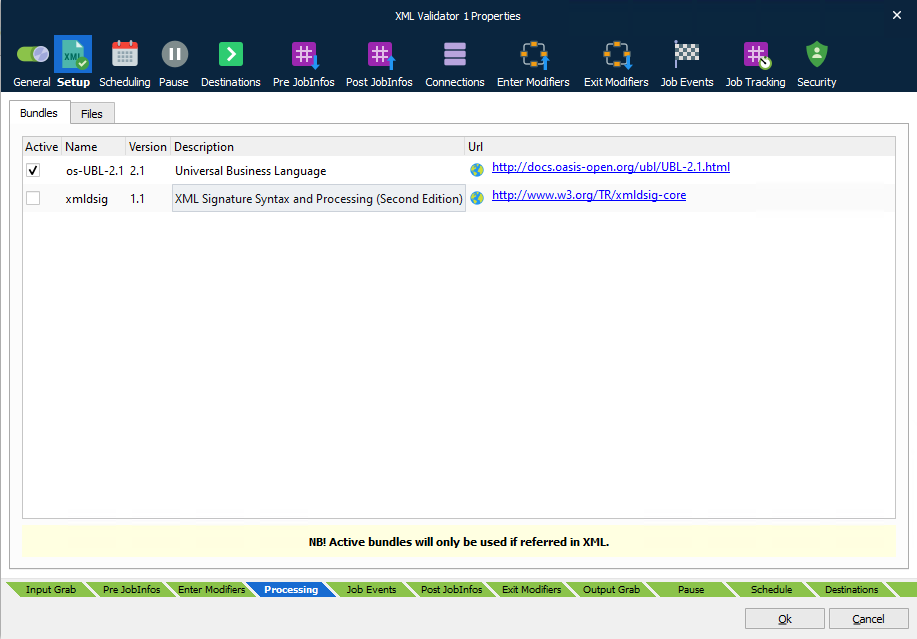
Click the Bundles tab if you want to use schema files that are bundled with Lasernet Core. In the Active column, select a bundle, then click Ok. The schema files in the selected bundle are imported in the Schema folder of the configuration’s Resources area and afterwards are available for you to add to the configuration of this XML Validator.
Note
The xmldsig bundle enables this module to validate XML against
xmldsig-core-schema.xsd. However, XML Validator will not validate the certificate within the XML.
Return to the XML Validator Properties window, go to the Setup tab, and then click the Files tab. Click Add, then in the Files window select checkboxes to specify one or more bundled schema files to add to this XML Validator’s schema list (see image below). Use the Criteria tab to specify when these schemas are used. After you click OK, the files are added to the schema list on the XML Validator’s Files tab. Click OK on the XML Validator Properties window to save your changes.
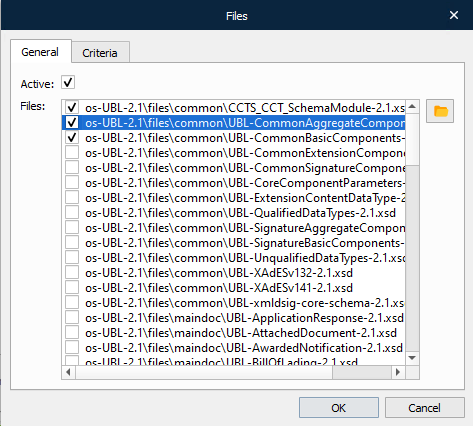
Supply Schemas Files to Use
The Browse button in the Files window (beside the Files area) enables you to browse for XSD files outside the Schemas folder. The selected files are copied to the Schemas folder, so beware of creating duplicates.
After you have chosen files, Lasernet Developer adds them to the Files area of the window. Select checkboxes in the Files area to specify which schema files to import into the configuration and add to the schema list for XML Validator. Use the Criteria tab to specify when these schemas are used. After you click OK, Lasernet Developer imports the files.
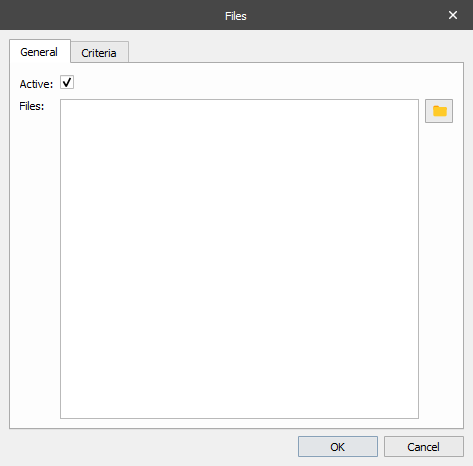
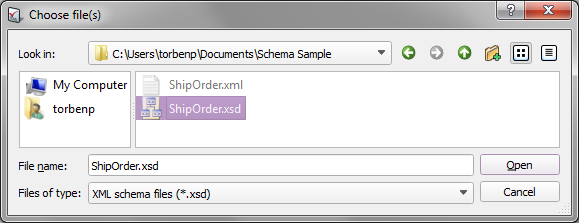
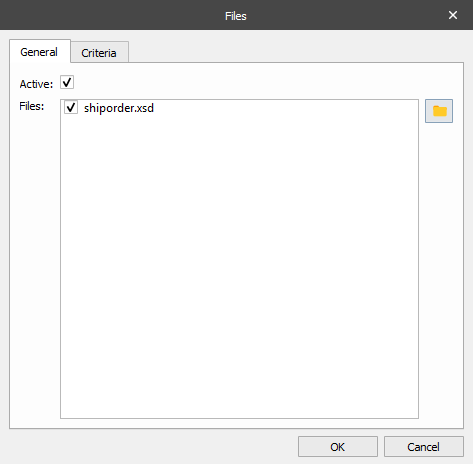
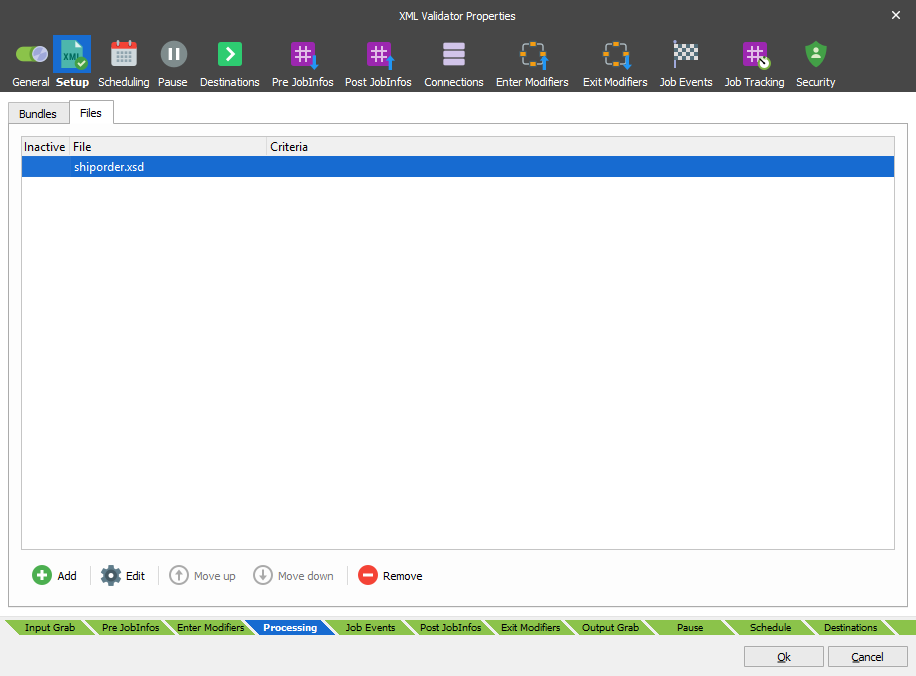
The list of accessible schemas files is loaded from the Schemas folder in the configuration.
xmlns:xsi + xsi:schemaLocation
When specifying a schema location, it is important to notice that Lasernet Core does not contain any URI resolving. This means that the schema must be accessible directly.
Non-working
Example of a location which Lasernet Core cannot use:
xmlns:xsi="http://www.w3.org/2001/XMLSchema-instance"
xsi:schemaLocation="urn:oasis:names:specification:ubl:schema:xsd:Invoice-2 UBL-Invoice-2.0.xsd"
Working
Location which points to schemas in the real world:
xmlns:xsi="http://www.w3.org/2001/XMLSchema-instance"
xsi:schemaLocation="http://rep.oio.dk/ubl/xml/schemas/0p71/pie/ http://rep.oio.dk/ubl/xml/schemas/0p71/pie/pieStrict.xsd"
The difference between the non-working and the working example is that additional processing is required to look up urn:oasis:names:specification:ubl:schema:xsd:Invoice-2 in order to find the actual location of the schema. This also applies to imports using XML Schema as well. Lasernet Core does not maintain or support this additional processing, so it is up to the Lasernet Core administrator to make sure that the XML and XML Schemas are specified using the full paths.
XML received from an external system should also be checked to ensure full paths are used.
Schemas Folder
If no full path or URL is specified in the module, the schema is loaded from the Schemas folder in the configuration. It is important to note that schema that reference other files must do so using absolute paths, or relative to the Schemas folder.
Engine
The XML Validator Engine fails the Job if validation is not successful. It also sets JobInfos so action can be taken accordingly.
JobInfos
The following JobInfos are set upon an unsuccessful validation either in the Engine or Modifier:
XMLValidationError: Set to 1 if an error has occurred.
XMLValidationErrorMessage: Description of the error that occurred.
Running XML Validator as a Sheet Modifier
When running an XML Validator as a Sheet Modifier, typically at Sheet End in a form, the validation is only valid during the processing of forms in the Form Engine. Because of architectural limitations, it is not possible to execute and validate XML data in the output view of the Form Editor. When pressing Shift-F5 for evaluating modifiers in the Form Editor, the parsing will be based on input data only, which differs from the Form Engine which will correctly parse the XML data based on output data.