Use of Context Methods in Lasernet FO Connector
- 11 Mar 2026
- 5 Minutes to read
- Contributors


- Print
- PDF
Use of Context Methods in Lasernet FO Connector
- Updated on 11 Mar 2026
- 5 Minutes to read
- Contributors
- Print
- PDF
Article summary
Did you find this summary helpful?
Thank you for your feedback
This article introduces the Lasernet Connector Context Method coding framework for Lasernet FO Connector. This framework enables you to migrate highly complex data selections and calculations from FinOps methods into an XML structure.
Before using the framework, consider whether your requirements can be met using the Query Wizard functionality.
The following documentation includes examples demonstrating the capabilities of the Query Wizard when enabling the Group by query property:
Prerequisites
Access to Visual Studio for Dynamics 365 Finance and Operations and some developer experience.
Create a Lasernet Connector Context Method
To create a Lasernet Connector context method, follow the steps described in the following sections.
1. Create a Class
Create a new class in Visual Studio, such as the one below.
It is important to add the suffix _Extension to the class name to identify that the method can be used in Lasernet FO Connector, for instance, in a report’s structure.
public static class LACContextMethod_Extension
{
}
2. Create a Method
Create a method within the class, such as the one below. In this example, the
CustConfirmJourtable is used as the first argument; therefore, the method is selected from this table. The second argument should always beLACContext.
context.newSectionadds a new section to the XML structure.context.newElementadds a new element to the XML structure.
public static class LACContextMethod_Extension
{
    public static void LAContextMethod(CustConfirmJour custConfirmJour, LACContext context)
    {
        XmlNode sectionNode = context.newSection('MyCustomSectionInReport');
        context.newElement("MyCustomDetail", CustConfirmJour.confirmAmount, sectionNode);
    }
}
Once this is done, rebuild the code in Visual Studio and either start Dynamics 365 Finance and Operations from Visual Studio or refresh an existing FO session.
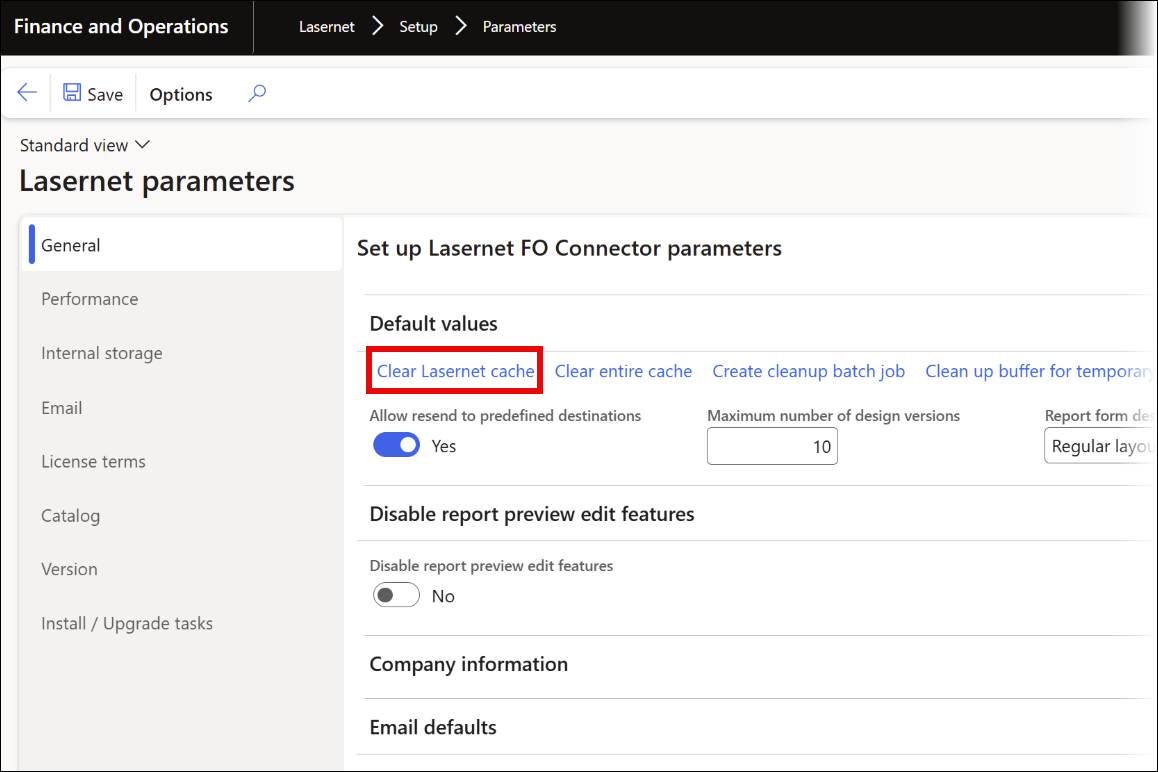
Click the Clear Lasernet cache button in the General FastTab of the Lasernet parameters page to refresh the list of methods that can be selected in Lasernet FO Connector.
Navigate to Lasernet > Common > Reports and select the desired report. Then, click Structure (Elements) on the Action pane.
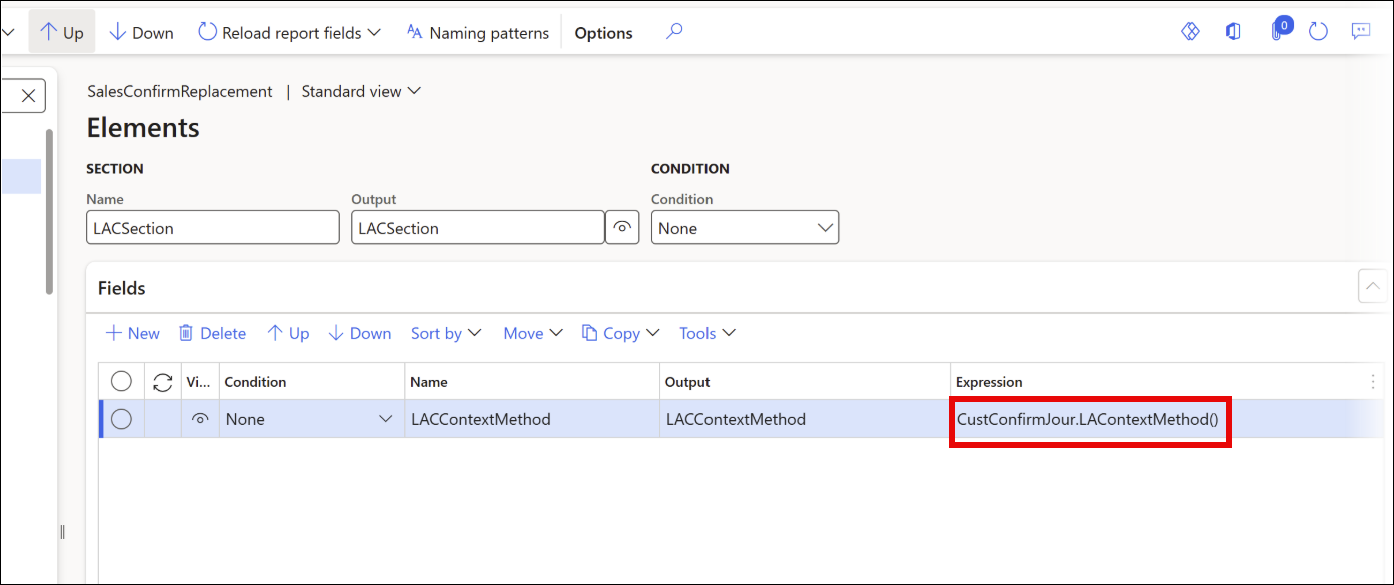
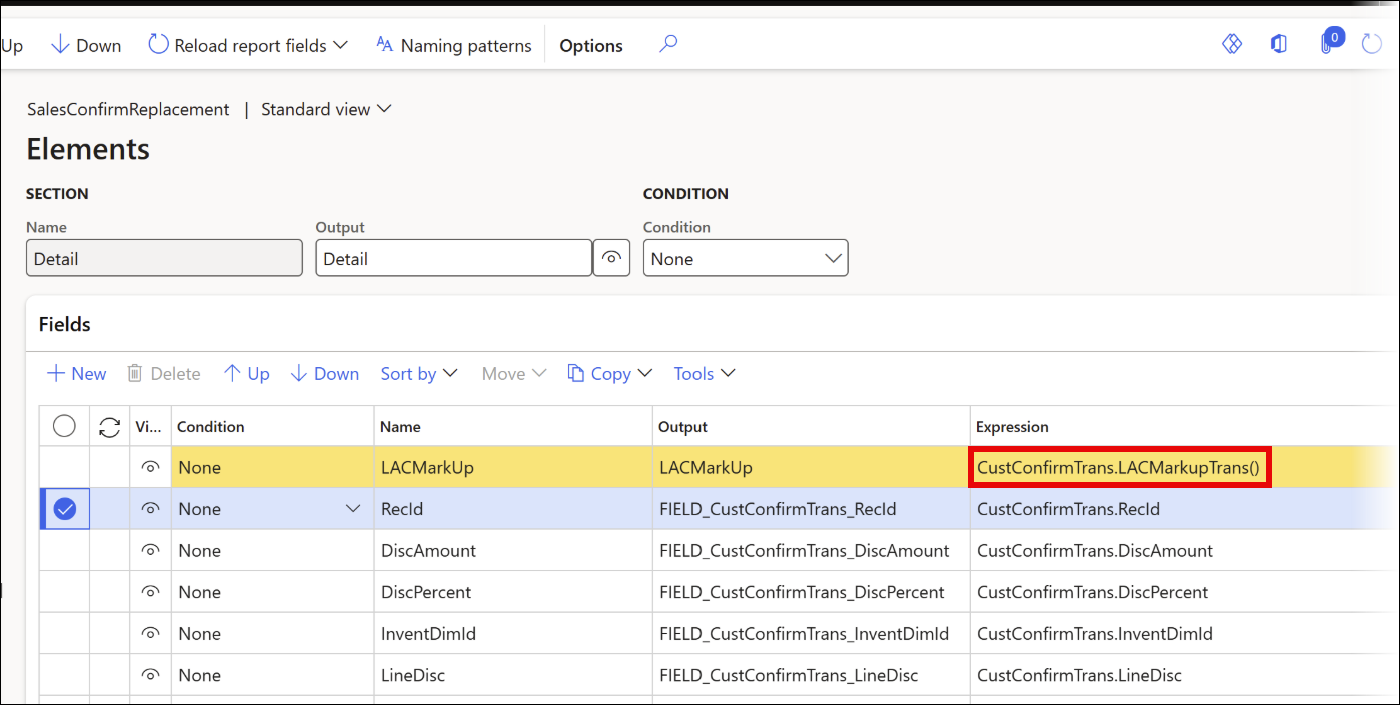
Once the Structure (Elements) form opens, select the newly created method. In the following example, the LACContextMethod is added to the SalesConfirmReplacement report.
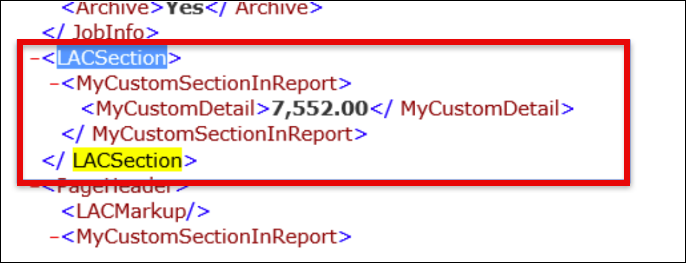
When the report is run, it contains the following information from the Lasernet Connector context method:
Common
When creating your method, instead of selecting a specific table, you can use the Common placeholder, which enables you to use the method on any Lasernet FO Connector table.
In the example below, Common is used to insert markups and charges.
By using Common for markupTrans, the method can be used on any table and, therefore, in any report. Follow these steps:
Use
context.newLabelto insert a label into the XML structure.
public static class LACContextMethod_Extension
{
    public static void LACMarkupTrans(Common common, LACContext context)
    {
        XmlNode detailNode,sectionNode = context.newSection("Markup");
        MarkupTrans markupTrans;
        context.newLabel('Label_MarkupTxt', "@SYS13566", sectionNode);
        context.newLabel('Label_MarkupValue', "@SYS23652", sectionNode);
        while select * from markupTrans
            where markupTrans.TransTableId == common.TableId
            && MarkupTrans.TransRecId == common.RecId
        {
            detailNode = context.newSection("MarkupDetail", sectionNode);
            context.newElement("MarkupTxt", markupTrans.Txt, detailNode);
            context.newElement('MarkupValue', MarkupTrans.Value, detailNode, extendedTypeNum(MarkupValue));
        }
    }
}
Rebuild the code in Visual Studio, then click the Clear Lasernet cache button on the Lasernet parameters page of Lasernet FO Connector.
Add the newly created method to the desired report’s structure.
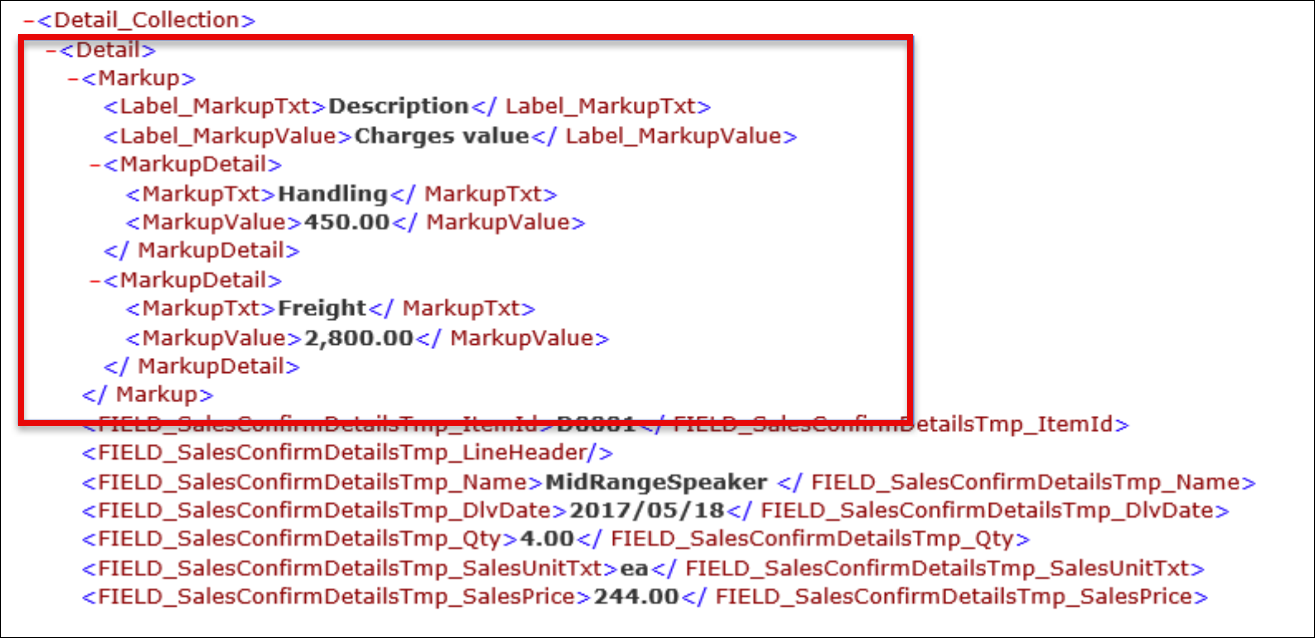
When the SalesConfirmReplacement report is run on a sales order containing charges and markups, the output will look similar to the following XML:
Formatting
Formatting can be achieved using an “extended datatype” or an expression:
Extended datatype:
context.newElement("LACConfirmAmountExtended", CustConfirmJour.confirmAmount, sectionNode, ExtendedTypeNum(AmountCur));The
convert2CultureStrCutomfunction, which can use the same expression as the Lasernet FO Connector user interface.
context.newElement('LACConfirmAmount', context.convert2CultureStrCustom(custConfirmJour.confirmAmount,
'###(.)##[,]##'),SectionNode);
context.newElement('LACConfirmDate', context.convert2CultureStrCustom(custConfirmJour.ConfirmDate, 'yyyy(-)MM-dd'),SectionNode,
extendedTypeNum(TransDate));
Date
Symbol | Meaning |
|---|---|
D | Short single-digit date with language-specific order and separator. Example: 7/4/2025. |
DD | Short double-digit date with language-specific order and separator. Example: 03-04-2025. |
DDD | Date format with MMM as months and language-specific order. Example: 3 Jan 2025. |
DDDD | Date format with MMMM as months and language-specific order. Example: 5 January 2025. |
/ | Date separator for short dates, replaceable with language-specific separator. Example: dd/MM/yyyy. |
(/)(-)(.)( ) | Fixed date separators for all languages. Example: dd(-)MM(-)yyyy. |
M | Months as 1-12. |
MM | Months as 01-12. |
MMM | Months as Jan-Dec. |
MMMM | Months as January-December. |
d | Days as 1-31. |
dd | Days as 01-31. |
ddd | Days as Sun-Sat. |
dddd | Days as Sunday-Saturday. |
y | Years as 0-99. |
yy | Years as 00-99. |
yyy | Years as 1900-9999. |
gg | Period/era, ignored if there is not one. |
Date Time
Symbol | Meaning |
|---|---|
D | Short single-digit date with language-specific order and separator. Example: 7/4/2025. |
DD | Short double-digit date with language-specific order and separator. Example: 03-04-2025. |
DDD | Date format with MMM as months and language-specific order. Example: 3 Jan 2025. |
DDDD | Date format with MMMM as months and language-specific order. Example: 5 January 2025. |
/ | Date separator for short dates, replaceable with language-specific separator. Example: dd/MM/yyyy. |
(/)(-)(.)( ) | Fixed date separators for all languages. Example: dd(-)MM(-)yyyy. |
M | Months as 1-12. |
MM | Months as 01-12. |
MMM | Months as Jan-Dec. |
MMMM | Months as January-December. |
d | Days as 1-31. |
dd | Days as 01-31. |
ddd | Days as Sun-Sat. |
dddd | Days as Sunday-Saturday. |
y | Years as 0-99. |
yy | Years as 00-99. |
yyy | Years as 1900-9999. |
gg | Period/era, ignored if there is not one. |
S | Short-time pattern, language-specific. Example: 14:20. |
L | Long-time pattern, language-specific. Example: 14:20:33. |
h | Hours as 0-12. |
hh | Hours as 00-12. |
H | Hours as 0-23. |
HH | Hours as 00-23. |
m | Minutes as 0-59. |
mm | Minutes as 00-59. |
s | Seconds as 0-59. |
ss | Seconds as 00-59. |
t | Insert “A” or “P” to display hours as a 12-hour clock. |
tt | Insert “AM” or “PM” to display hours as a 12-hour clock. |
Number
Symbol | Meaning |
|---|---|
0 | Digit. |
# | Digit. Zero shows as absent. |
. | The position of the decimal point, replaceable with a language-specific decimal point. Example: ##0.00. |
, | The group separator for thousands, replaceable with a language-specific thousands separator. Example: ###,##0.00. |
[.][,] | Fixed decimal separator. Example ##0[.]00. |
(,)(.)( )(') | Fixed group separator for thousands. Example ###(')##0[.]00. |
% | Displays the number as a percentage. Example: ##0%. |
; | Pattern separator. The first pattern will be used for positive numbers, and the second for negative numbers. |
Time
Symbol | Meaning |
|---|---|
S | Short-time pattern, language-specific. Example: 14:20. |
L | Long-time pattern, language-specific. Example: 14:20:33. |
h | Hours as 0-12. |
hh | Hours as 00-12. |
H | Hours as 0-23. |
HH | Hours as 00-23. |
m | Minutes as 0-59. |
mm | Minutes as 00-59. |
s | Seconds as 0-59. |
ss | Seconds as 00-59. |
t | Insert “A” or “P” to display hours as a 12-hour clock. |
tt | Insert “AM” or “PM” to display hours as a 12-hour clock. |
The following example shows different formatting of the confirmAmount and any markup and charges from CustConfirmTrans (line level) to the XML structure:
public static class LACContextMethod_Extension
{
    public static void LAContextMethod(CustConfirmJour custConfirmJour, LACContext context)
    {
        XmlNode sectionNode = context.newSection('MyCustomSectionInReport');
        context.newElement("MyCustomDetail", CustConfirmJour.confirmAmount, sectionNode);
        context.newElement("ConfirmAmount", CustConfirmJour.confirmAmount, sectionNode, ExtendedTypeNum(AmountCur));
        context.newElement('ConfirmAmount5Decimals', context.convert2CultureStrCustom(custConfirmJour.confirmAmount, '', 5), sectionNode);
        context.newElement('ConfirmAmountFixFormat', context.convert2CultureStrCustom(custConfirmJour.confirmAmount, '###(.)##[,]##'),SectionNode);
        context.newElement('ConfirmDate', context.convert2CultureStrCustom(custConfirmJour.ConfirmDate, 'yyyy(-)MM-dd'),SectionNode,
        extendedTypeNum(TransDate));

        XmlNode detailNode;
        MarkupTrans markupTrans;

        while select * from markupTrans
            where markupTrans.TransTableId == custConfirmJour.TableId
            && MarkupTrans.TransRecId == CustConfirmJour.RecId
        {
            detailNode = context.newSection("MarkupDetail");
            context.newElement("MarkupTxt", markupTrans.Txt, detailNode);
            context.newElement('MarkupValue', MarkupTrans.Value, detailNode, extendedTypeNum(MarkupValue));
        }
    }
}
Tutorial Model
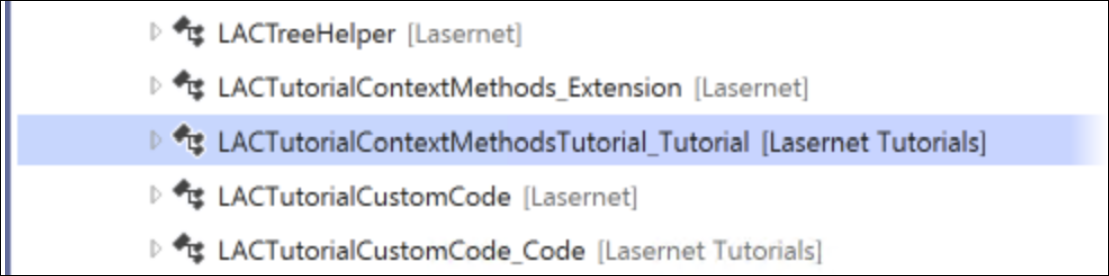
You can find more information and examples on how to use the Lasernet Connector Context Method coding framework in the LACTutorialContextMethodsTutorial_Tutorial class from our open source tutorial model, “Lasernet Tutorials”. A new model is released with each new Lasernet FO Connector version and can be downloaded from the Files section of the Lasernet Support Portal.