
Upgrade Test Configuration from Lasernet 9 to Lasernet 10
- 03 Mar 2026
- 3 Minutes to read
- Contributors

- Print
- PDF
Upgrade Test Configuration from Lasernet 9 to Lasernet 10
- Updated on 03 Mar 2026
- 3 Minutes to read
- Contributors
- Print
- PDF
Article summary
Did you find this summary helpful?
Thank you for your feedback
Introduction
This section will give a walkthrough of a Lasernet upgrade from version 9 to version 10. The upgrade will be demonstrated on a Test configuration connected to a Dynamics 365 Finance and Operations Test environment.
It is best practice to upgrade a Test configuration before upgrading a live one to identify any unexpected issues that may arise during the upgrade. Therefore, the Test configuration upgrade will be carried out before the Prod configuration upgrade.
Export Objects from Lasernet 9 Test Configuration
To export objects from Lasernet 9 Test configuration, follow these steps:
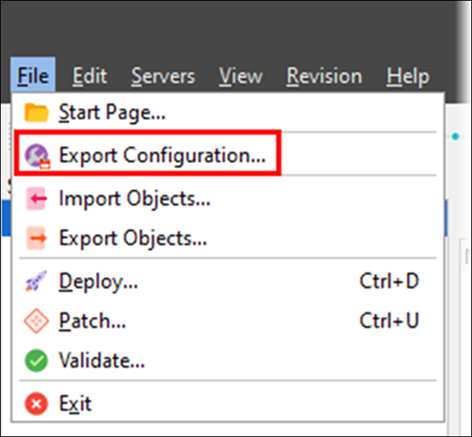
Open the Lasernet Developer 9, then click File > Export configuration to take a backup of the whole Lasernet 9 Test configuration.
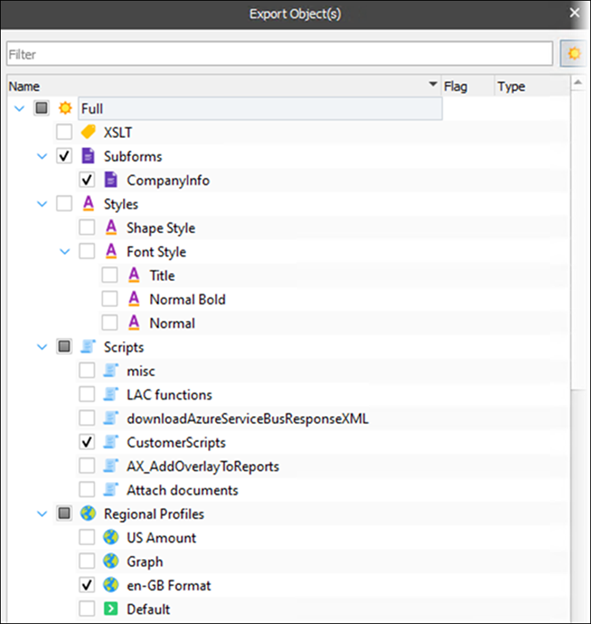
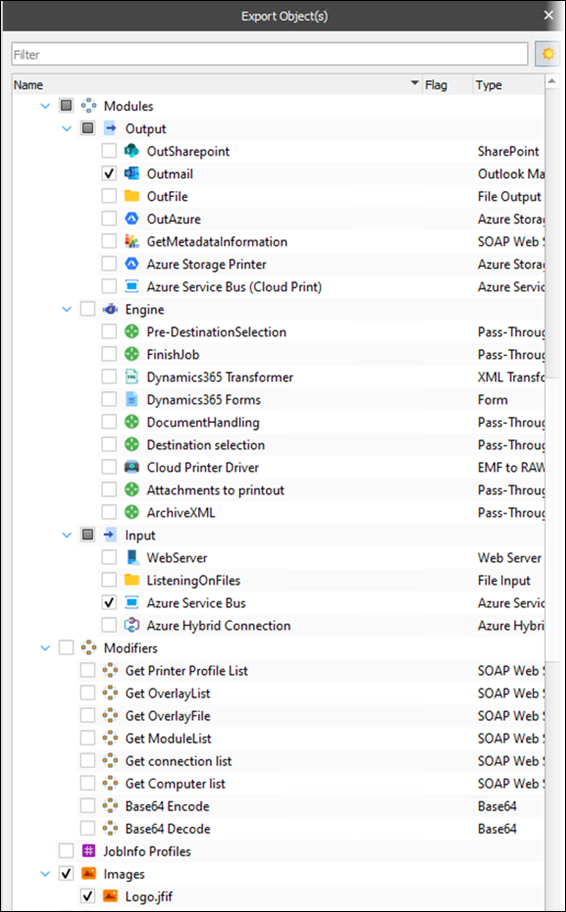
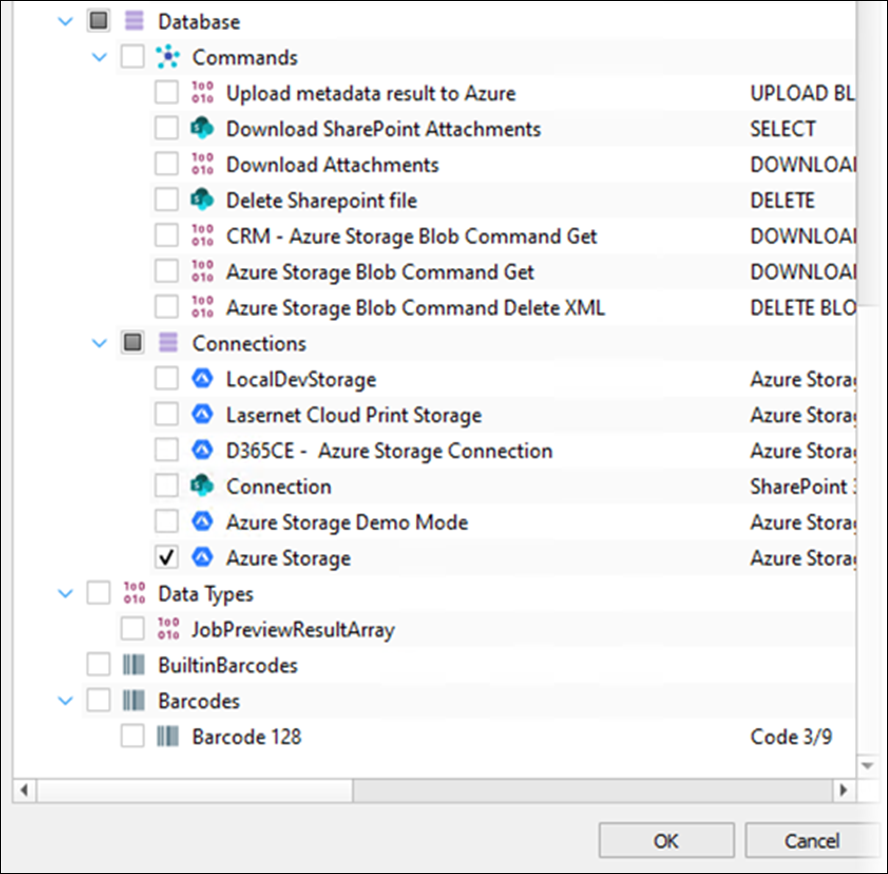
Export the objects that have been added or modified from the default Lasernet 9 configuration.
Here is a list of objects which you may want to export (this list will differ based on your unique configuration):
Azure Service Bus
Azure storage command
Forms
Subforms
XML transformers
Regional profiles
Custom scripts
Images
Outlook mail module
Any other objects that have been added or changed from the default configuration
In this example, we will export the following:
One subform
Customer scripts
One regional profile
Outmail Output module
Azure Service Bus
One image
Three Dynamics 365 transformers
All sixteen forms (ensure you select the forms from the “Dynamics 365 forms” as there are some similarly named forms within “Templates”)
One Azure storage account
Click OK to create an
lnobjectxfile that contains the exported objects.
Install Lasernet 10 and Apply Demo License
To install Lasernet 10, read the following guide: How to Install Lasernet.
You will need to complete at least the following three sections of the guide:
Lasernet Server
Add a demo license in the Lasernet Server License Manager when you get to that section of the Lasernet 10 installation guide.
A demo license is valid for sixty days and can be downloaded here.
If you do not complete the upgrade within sixty days, you will need to download another demo license and apply that.
Lasernet Config Server
When setting up the server, ensure the instance name uses the same name that is in the Lasernet Server License Manager 10.
Lasernet Web Client
The Lasernet Developer is usually accessed from the same server as the Lasernet server. If the Lasernet Developer needs to be accessed from the Lasernet server, install the Lasernet Developer:
Add a demo license in the Lasernet Developer License Manager when you get to that section of the Lasernet 10 installation guide.
A demo license is valid for sixty days and can be downloaded here.
The demo license downloaded for the Lasernet Server License Manager can also be used with the Lasernet Developer License Manager.
If you do not complete the upgrade within sixty days, you will need to download another demo license and apply that.
Turn Off Lasernet 9 Services
Open the Services on the Lasernet server and ensure the following Lasernet 9 services are turned off:
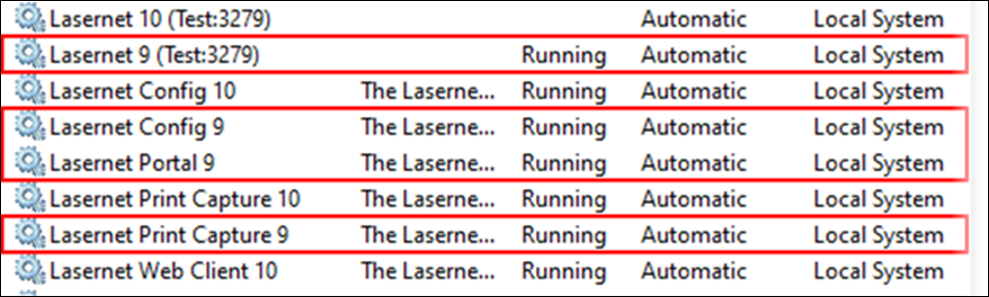
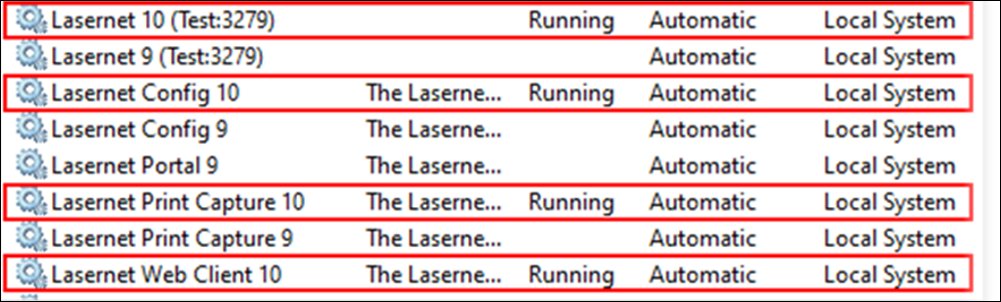
Turn On Lasernet 10 Services
Open the Services on the Lasernet server and ensure the following Lasernet 10 services are turned on:
Import Lasernet Default Configuration for Dynamics 365 Finance and Operations
If you are unsure as to whether you are using a Lasernet Group default configuration, consult your Lasernet partner, as they may have an alternative non-Lasernet Group configuration that they would like you to use.
If you are using a Lasernet Group default configuration, refer to this page of our knowledge base.
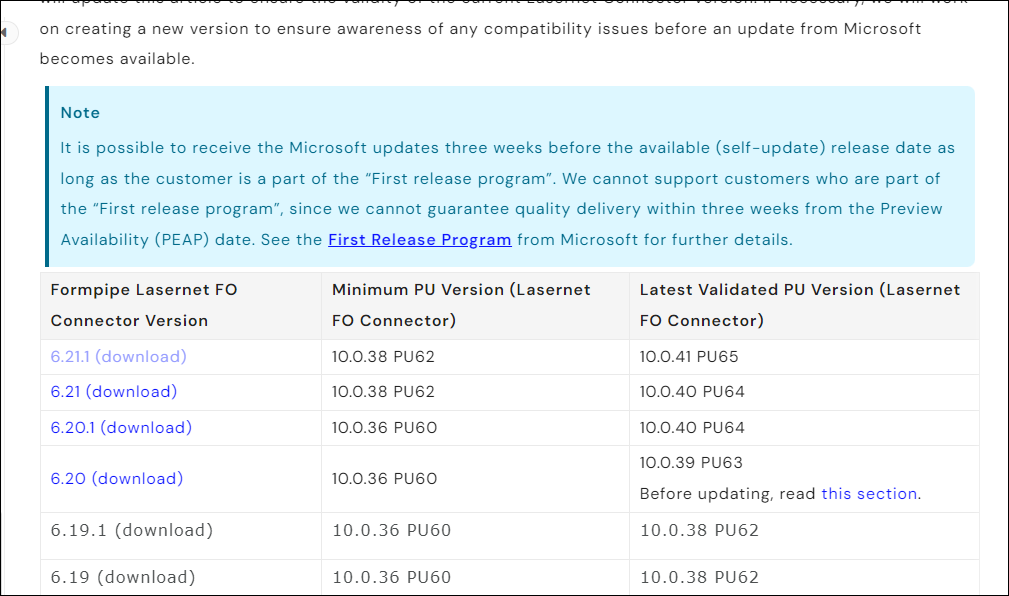
Click the download link for the FO Connector version that you are using.
Select the default configurations zip folder.
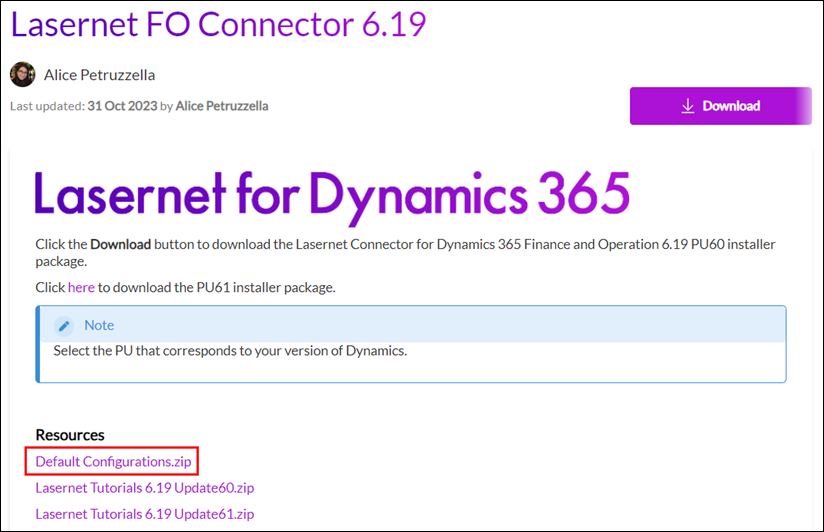
Extract the
lnconfigxfile from the zip folder.

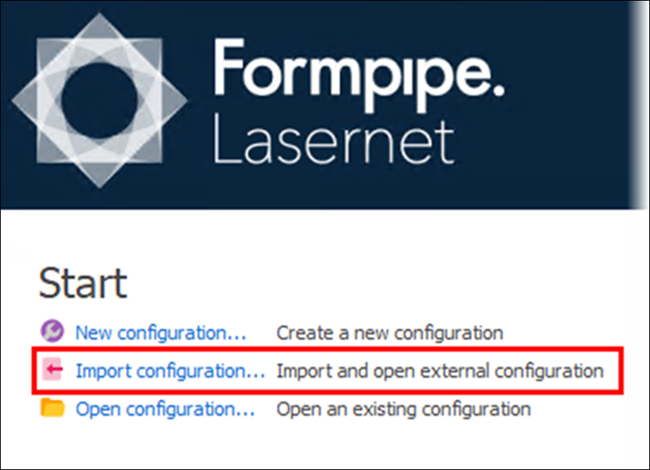
Import the default configuration (
lnconfigxfile) within Lasernet Developer 10.
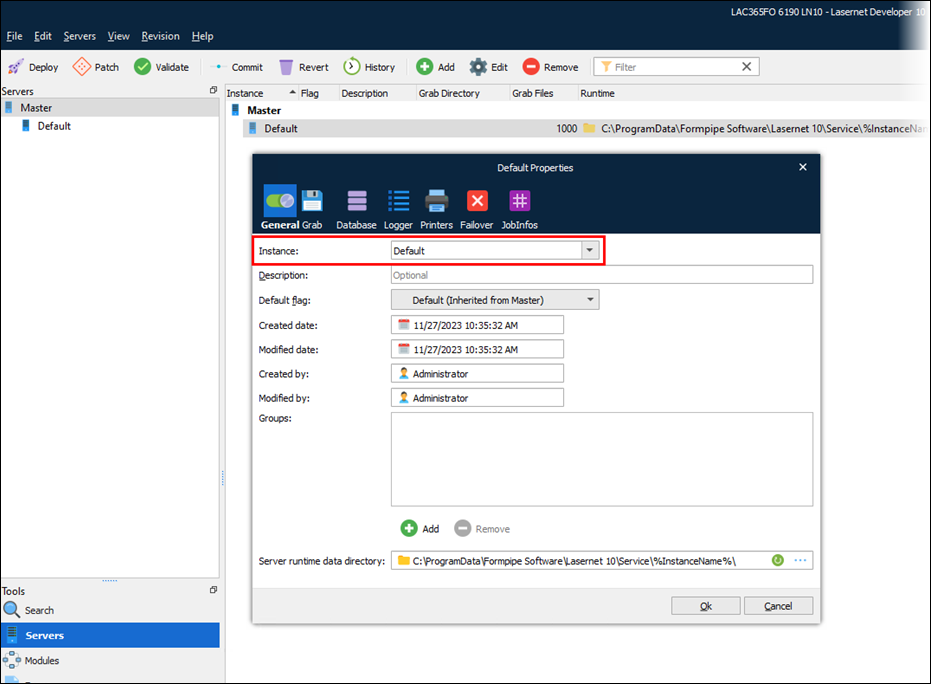
Select Servers.
Change the Instance to the instance name that was defined in the Lasernet Server License Manager 10 and in the Config Server.
Import Lasernet 9 Objects into Lasernet 10 Default Configuration for Test
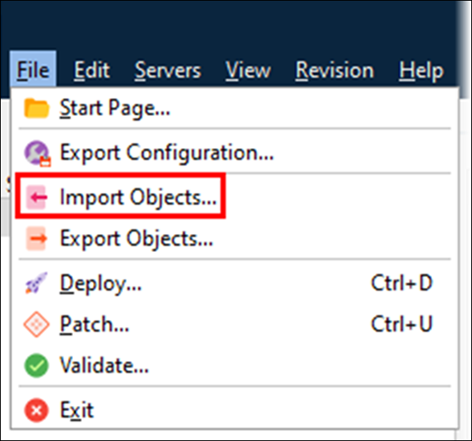
Open Lasernet Developer 10, then click File > Import Objects.
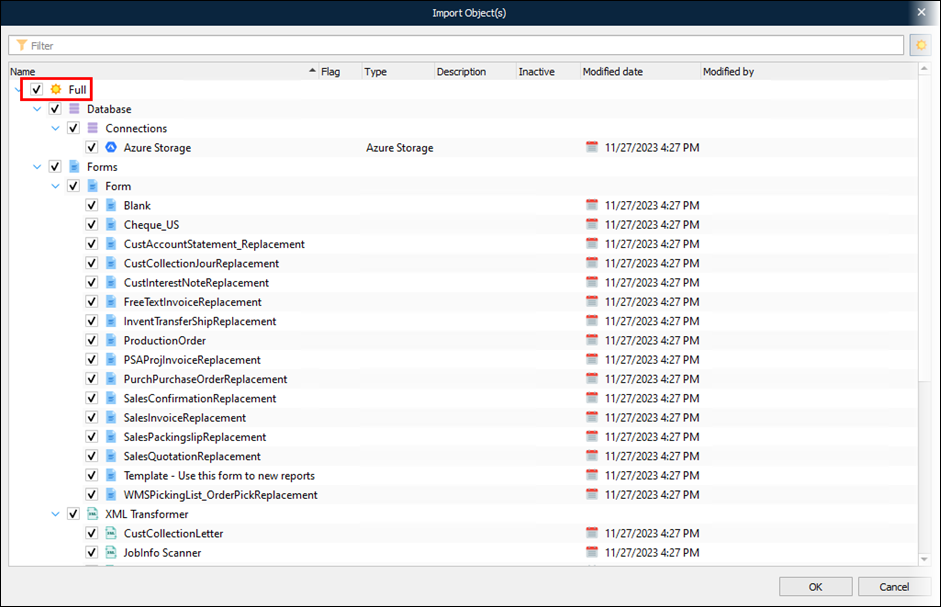
Select the
lnobjectxfile that was exported from the Test configuration in Lasernet Developer 9.Select Full to select all objects within the
lnobjectxfile.
Click OK.
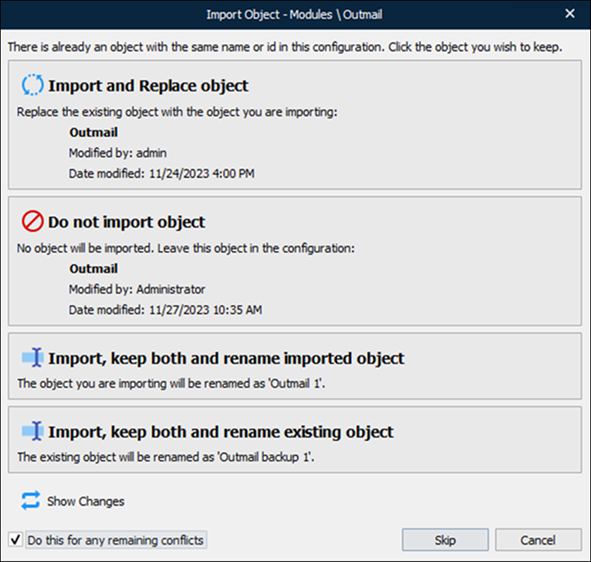
Click Import and Replace object to replace the object from the default Lasernet 10 configuration with the objects from the Lasernet 9 configuration. Select Do this for any remaining conflicts to apply the same choice to the remaining conflicts.
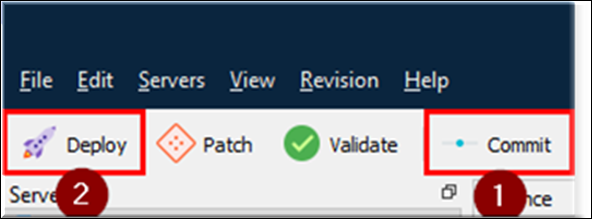
Commit and deploy changes.
Perform Testing to Ensure Reports are Behaving as Expected
The Lasernet 10 configuration is now ready for testing.
Perform testing to ensure reports are behaving as expected.
Make a note of any additional changes needed for the Lasernet 10 Test configuration, as they may also need to be made in the Prod configuration.