
Text Filter Engine
- 13 Apr 2026
- 5 Minutes to read
- Contributors

- Print
- PDF
Text Filter Engine
- Updated on 13 Apr 2026
- 5 Minutes to read
- Contributors
- Print
- PDF
Article summary
Did you find this summary helpful?
Thank you for your feedback
Applies to: Lasernet Core 11
The Text Filter is used for filtering the incoming job into a format that Lasernet Core can work with. When adding a new Text Filter engine, the Setup tab enables you to set up the character conversion.
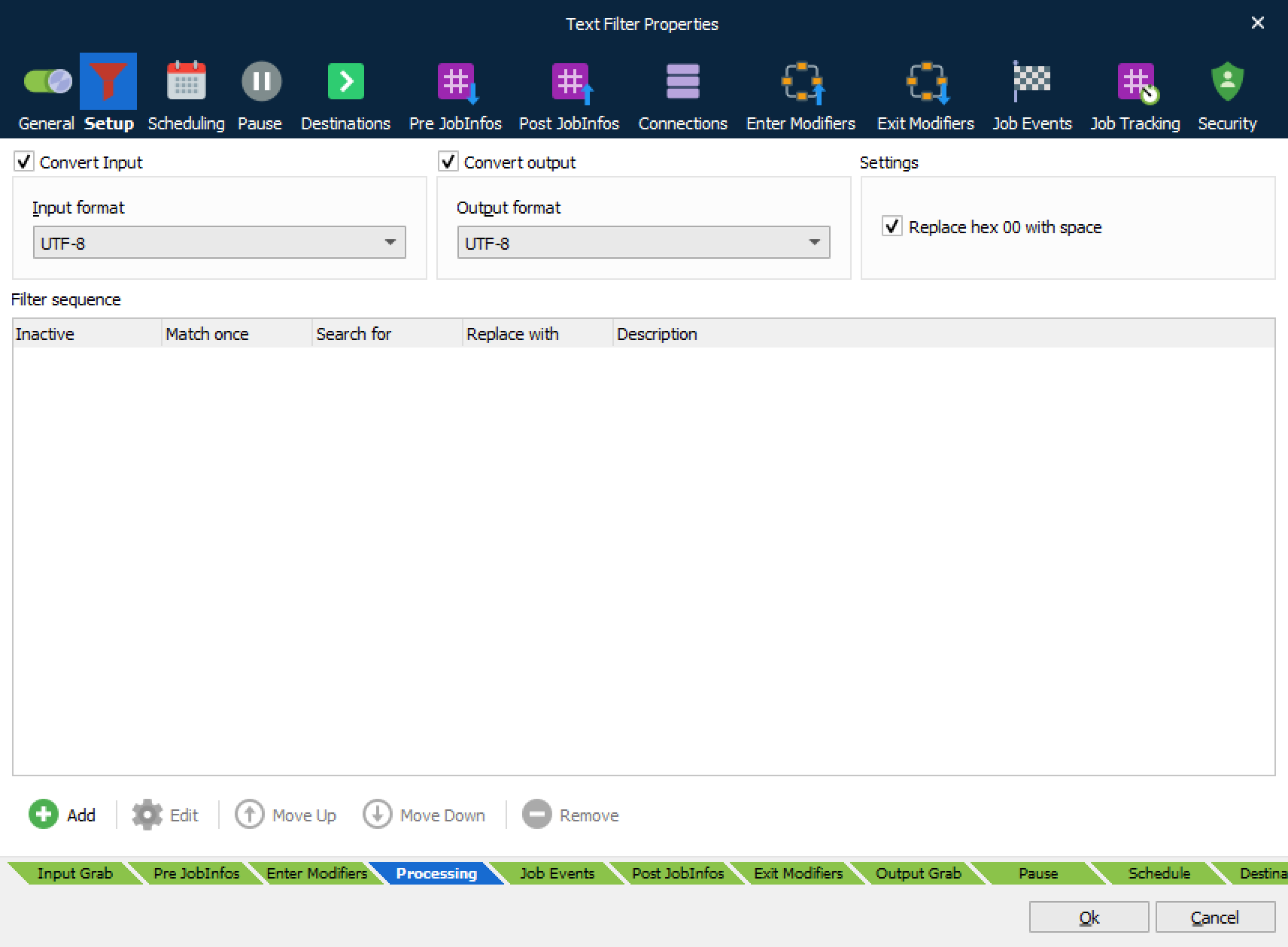
Replace hex 00 with space | Whether null bytes in the incoming data should be converted to spaces. |
Input format | The set of characters which are used in the incoming data. |
Output format | Always choose UTF-8 if the data should be processed by the Form Engine afterwards. |
Lasernet Core sets the JobInfo ActiveCodePage to the name of the code page that is used for the output. If Convert output is not checked, Lasernet Core will use UTF-8 by default for the output, because the Form Engine expects input in UTF-8.
If Convert input is not selected, Lasernet Core will verify if the JobInfo ActiveCodePage exists. If it does, Lasernet Core will convert from that code page to UTF-16, which the filter uses internally. If it does not exist, Lasernet Core will assume that the code page is already UTF-16.
Code Pages
The most common input formats are: ISO 8859-1 to ISO 8859-14 (Windows Latin 1 1252 and various formats), IBM 850 / Windows CP850 (MS DOS codepage 850).
Lasernet Core supports a list of built-in code page conversion tables as well as having a “Regional and Language Option” (see Windows Control Panel) located on the computer running Lasernet Core. If your character set is not shown you can add it to your list of code page conversion tables in this dialog box.
To solve some of the problems with handling various code pages (language-dependent character sets), Lasernet Core stores text internally as Unicode, which is a universal character set that will eventually contain all characters from all languages. It is therefore necessary to convert to and from the various code pages that exist around the world.
Lasernet Core uses the space efficient UTF-8 format to store Unicode text internally. UTF-8 is one of a number of ways of storing Unicode text. Lasernet Core comes with support for some code pages as well as supporting the code pages that are installed on the Windows system on which it is running.
It is always possible to convert from a code page to Unicode (since Unicode essentially includes all characters), but it is not always possible to do a perfect conversion from Unicode to any code page. This is because the Unicode text may contain characters that are not represented in that code page. Equally, converting between random code pages is not always successful as the same characters may not be present.
To convert from one code page to another code page Lasernet Core provides two options: The Text Filter Engine and the Code Page Conversion Modifier. If you do not want to filter anything you should use the Code Page Conversion Modifier.
Character Codes
Characters are represented by character codes. Character codes are generated and stored when a user inputs a document. Single-Byte character sets (SCS) provide 256-character codes. This is an adequate number to encode most of the characters needed for Western Europe. For example, the Windows Extended ANSI character set contains 256 characters consisting of Latin letters, Arabic numerals, punctuation and drawing characters.
However, 256-character codes are not enough to represent all the characters needed by multilingual users in a single font, or by users in the Far East, where over 12,000 characters may need to be addressed at any time. Consequently, Multi-Byte character sets are necessary. Multi-Byte character sets (MACS) provide over 2 billion possible character codes (2 to the 31st power).
UTF-8 Unicode
UTF-8 Unicode is somewhat backwards compatible with the standard ANSI codepage. The first 192 characters are the same. This encoding allows files in standard ANSI to be read and written easily since they are more or less interchangeable (providing no characters above 192 are used).
Filter Sequence
A filter definition can be defined for converting specific character strings in the job data. Lasernet Core provides pattern matching using regular expressions.
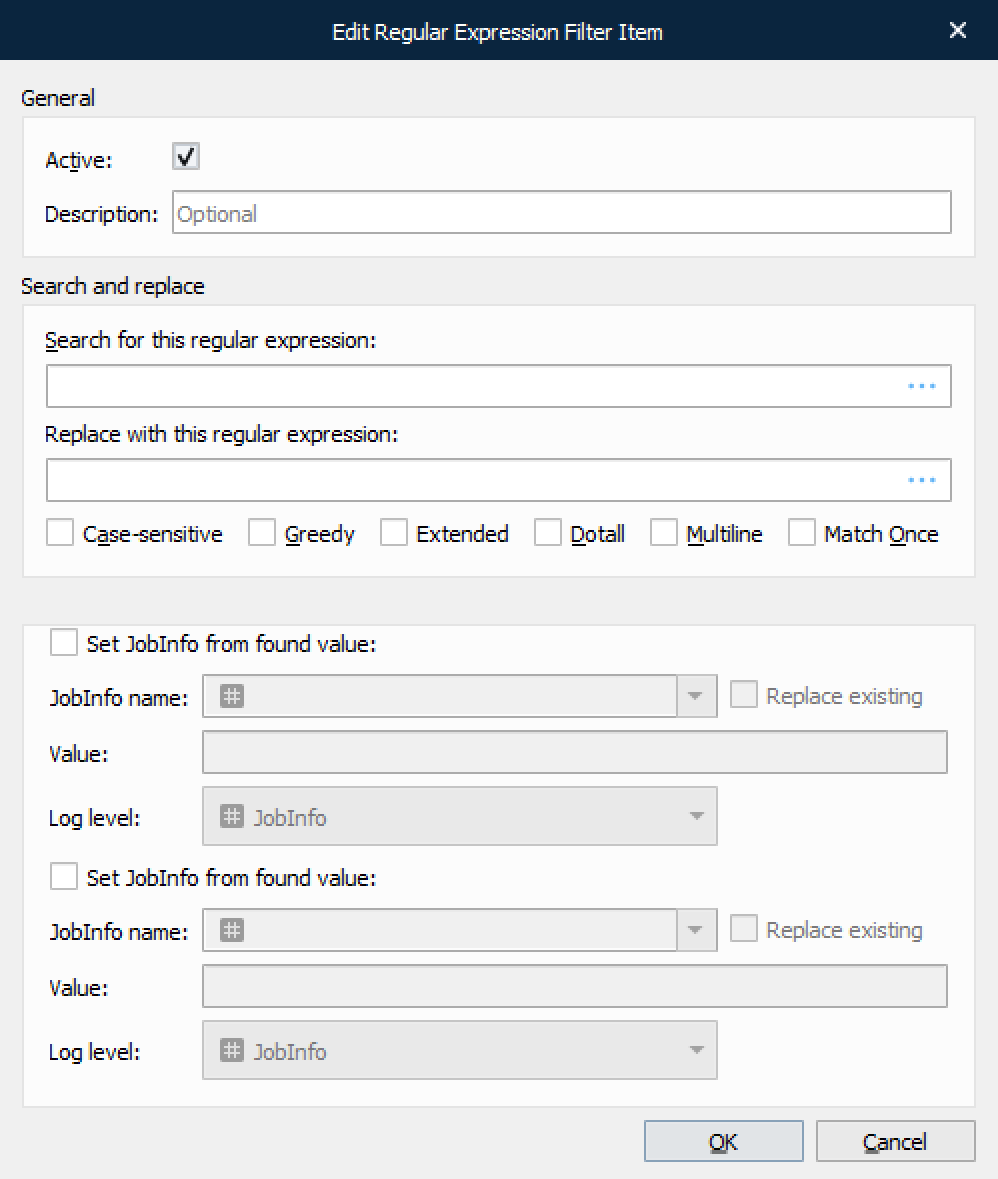
Search for this regular expression | The text to be searched for, typed as a regular expression. |
Replace with this regular expression | The search value to be replaced, typed as a string or hex value. For example, |
Active | Turn on/off the chosen search/replace. |
Greedy | Makes the filter match as many items as possible. When it is turned off the filter matches as few items as possible. Relevant when using wildcards. |
Multiline | Causes ^ and $ to match before and after new lines instead of start and end of string. |
Extended | Ignores white space characters in the expression. This is useful for formatting lone expressions. |
Dotall | Determines whether |
Case sensitive | Enable case-sensitive matching. |
Match once | Only the first match will be replaced in job data. |
Set JobInfo from found value | A unique search string can be put in to a specific JobInfo. |
Set JobInfo from new value | A unique replace string can be put in to a specific JobInfo. |
Capturing Text
The search expression allows for the use of parentheses to capture text for inclusion in the replace string. Consider this search string:
Chapter (\d.)
This searches for the text “Chapter” followed by a chapter number. The parentheses around the \d. are not searched for, instead the number found is remembered, and so it can be used in the replace string like this:
Chapter $1
The $ is followed by a number which refers to the sets of parentheses numbered from left to right. $0 is unique – it refers to the entire search string found.
It is possible to use captured text within the regular expression itself. To refer to the captured text, back references are used, which are indexed from 1. For example, duplicate words can be searched for in a string using \b(\w+)\W+\1\b ; this will match a word boundary, followed by one or more word characters, followed by one or more non-word characters, followed by the same text as the first parenthesized expression, followed by a word boundary.
Parentheses can be used purely for grouping and not for capturing. This can be done with non-capturing syntax such as (?:green|blue). Non-capturing parentheses begin (?: and end ). In this example either green or blue is matched but it is not captured, therefore it is only possibly knowing a match occurred rather than which color was actually found. Using non-capturing parentheses is more efficient than using capturing parentheses since the regular expression engine has to do less book-keeping.
Both capturing and non-capturing parentheses may be nested.
For more detailed information on regular expressions, see Regular Expressions.
Regular Expression Editor
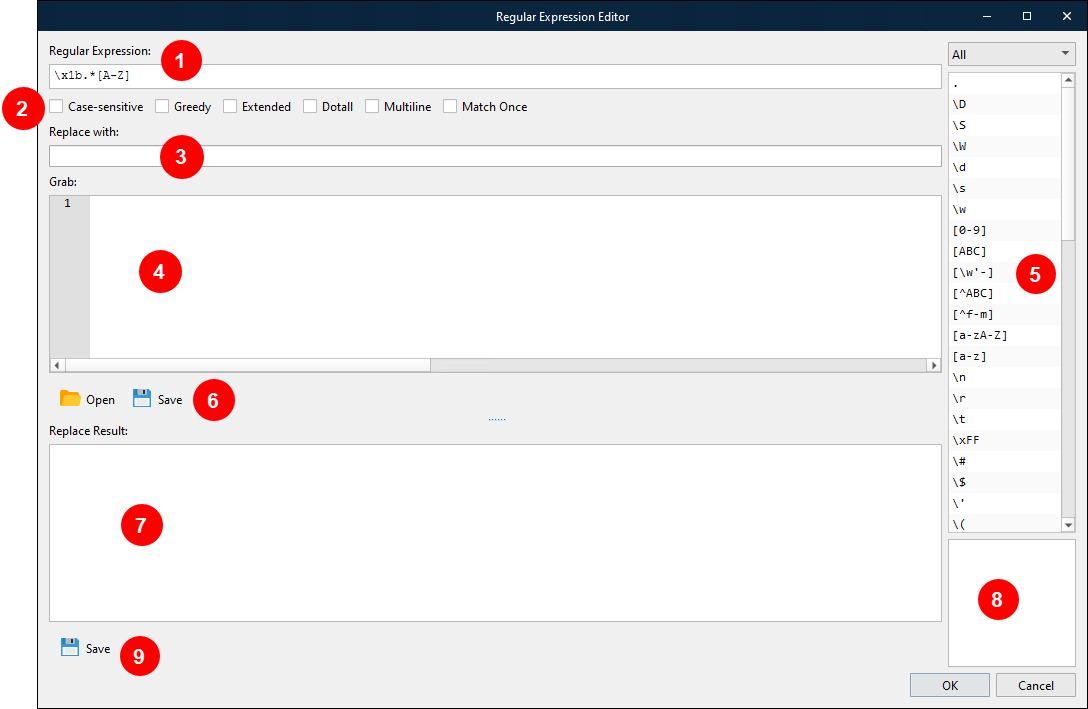
The Lasernet Developer has a built-in regular expression editor for building and testing your regular expressions.
In the Regular Expression Editor, you can edit an expression and test it to see if it matches. It’s a handy way to test regular expressions as you write them.
Element | Description |
|---|---|
1 | The text to search for (entered as a regex). |
2 | Regex parameters. |
3 | The replacement text (entered as a regex). |
4 | Grab data to be parsed by regex. Matching sequences are highlighted green. |
5 | Regex quick reference. Double-click on a regex to include it as part of a search string. |
6 | Open a grab file, edit the grab data, and save the grab files to disk. |
7 | Result after regex is executed. |
8 | Help guide. |
9 | Save result of replaced data to disk. |