SharePoint Output Module
- 16 Apr 2026
- 5 Minutes to read
- Contributors

- Print
- PDF
SharePoint Output Module
- Updated on 16 Apr 2026
- 5 Minutes to read
- Contributors
- Print
- PDF
Article summary
Did you find this summary helpful?
Thank you for your feedback
Applies to: Lasernet Core 11
The SharePoint output module enables Lasernet Core to deliver documents and associated metadata to Microsoft SharePoint.
The module is used to insert a new document in SharePoint with metadata or to update the metadata of an existing document. Supported connection types are Web Services and REST API (Legacy or Graph).
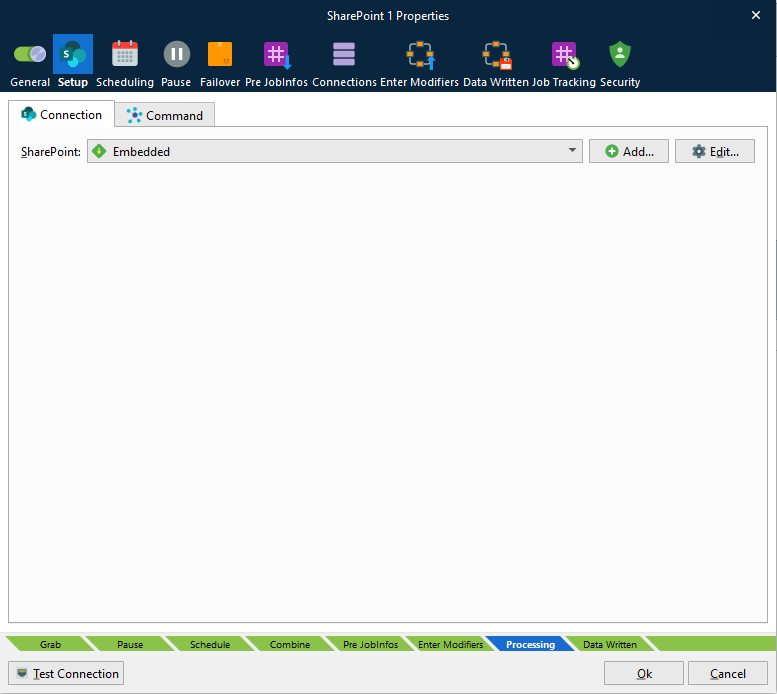
On the Connection tab, you have the following options:
Create an “embedded” connection: Embedded connection settings apply only to this module.
To do this, select Embedded from the SharePoint list, then click Edit to configure the connection.
Create a new global connection: Multiple modules in this Lasernet Core configuration can share the same “global” Connection item (to centralize management of connection configuration).
To create a global Connection item, click Add beside the SharePoint list.
Use an existing global connection
To use an existing global Connection item, select it from the SharePoint list.
To edit its connection properties, click Edit.
Next, select a connection type.
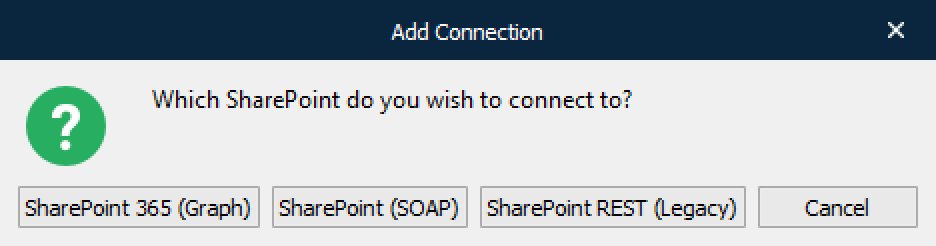
Supported API versions are:
SharePoint 365 (Graph)
SharePoint (SOAP)
SharePoint REST (Legacy)
Connect to SharePoint via Graph, SOAP (Web Service) or REST (Legacy). An advantage of using Graph (which is the latest Microsoft API) or REST is that you do not have to add references to any SharePoint 365 libraries or client assemblies. Instead, you make HTTP requests to the appropriate endpoints to retrieve or update SharePoint 365 entities, such as webs, lists, and list items.
Note
Supported command types and properties can vary between the protocols because not all types are supported by the Graph and REST interfaces.
Connection: Web Services
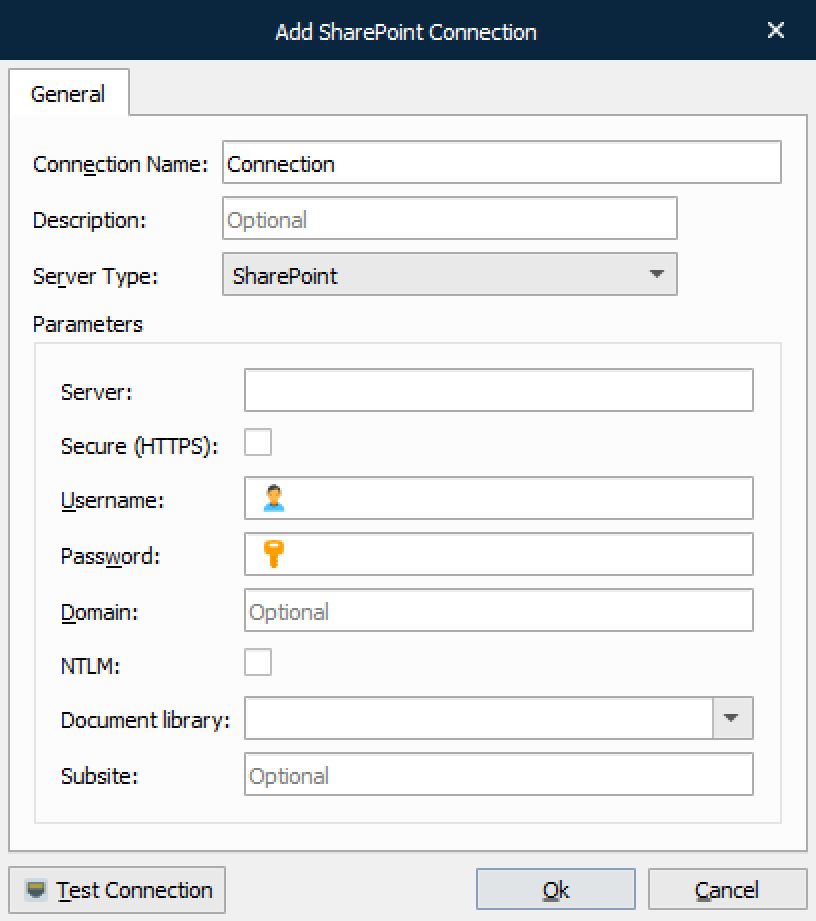
Property | Description |
|---|---|
Server | The name of the server. Do not use IP address or localhost. |
Username | A SharePoint user with appropriate rights. The domain can be specified using the format: |
Password | Password of the SharePoint user. |
Domain | Domain name for SharePoint server. |
NTML | Windows network protocol for security. |
Document library | (Optional) The library where insert or update is done. The library can be specified as part of the destination path. This property supports JobInfo substitution. |
Subsite | If SharePoint is set up with subsites, a subsite must be specified. This property supports JobInfo substitution. |
Click Test Connection to validate the connection between the Lasernet Core module and SharePoint.
Connection: REST API (Legacy or Graph)
Choose Legacy or Graph as the REST API connection type.
Important
In August 2025, Microsoft stopped allowing the use of legacy authentication with SharePoint 365. As a result, Lasernet Core must authenticate via Graph API.


Connection: Legacy
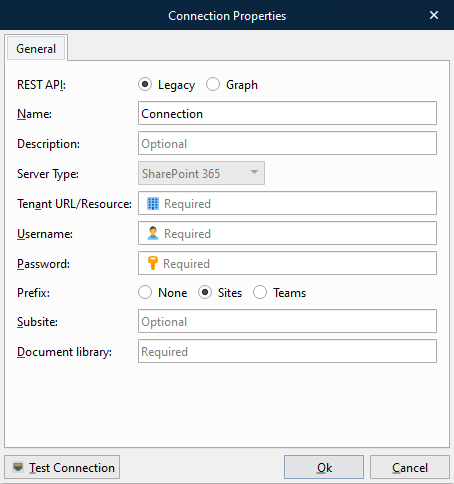
Property | Description |
|---|---|
REST API | Select Legacy. |
Tenant URL/Resource | The tenant URL for your resource, like https://microsoft.sharepoint.com |
Username | A SharePoint user with appropriate rights. The domain can be specified using the format: |
Password | Password for the SharePoint user. |
Prefix | Select Sites to connect to SharePoint. However, some SharePoint sites have a URL that does not contain Select Teams to connect to Teams instead of SharePoint. |
Subsite | If SharePoint is set up with subsites, a subsite must be specified. This property supports JobInfo substitution. |
Document library | (Optional) The library where insert / update is done. Library can be specified as part of the destination path. This property supports JobInfo substitution. |
Click Test Connection to validate the connection between the Lasernet Core module and SharePoint.
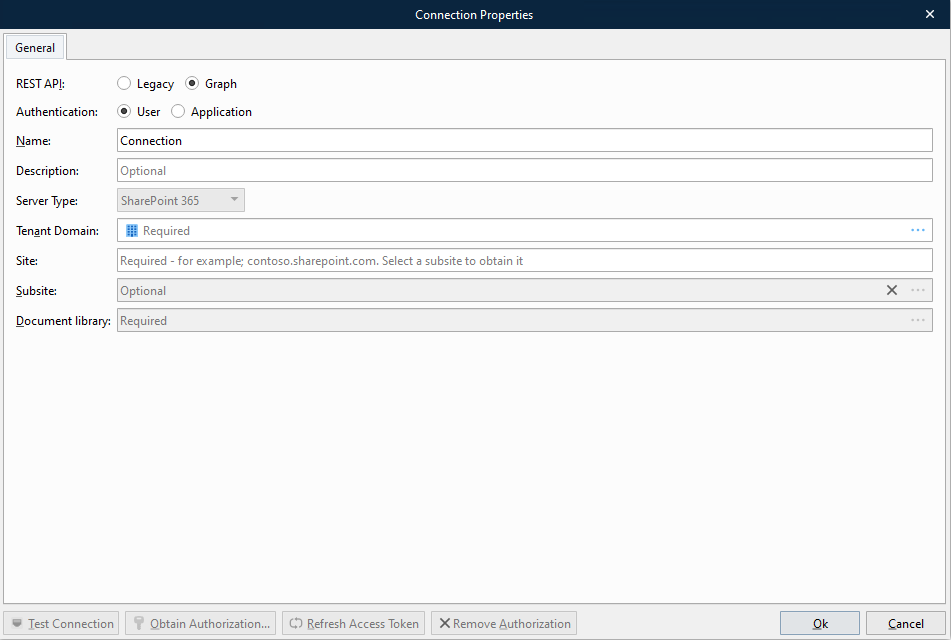
Connection: Graph
Enter the following connection properties.
Property | Description |
|---|---|
REST API | Click Graph. |
Authentication | Click User to authenticate using a user account in your organization or click Application to authenticate as a registered application in Entra ID. |
Tenant Domain | Click the … (three dots) button to specify your domain (for example, microsoft.com). |
Site | The organization site for your SharePoint. |
Subsite | (Optional) If SharePoint is set up with subsites, a subsite must be specified. Click the … (three dots) button to get a list of your available subsites, then select a subsite. You might experience a short wait while Lasernet Developer downloads the list of subsites. This property supports JobInfo substitution. |
Document library | (Required) The library where insert or update is done. Library can be specified as part of the destination path. Click the … (three dots) button to get a list of your available document libraries. This property supports JobInfo substitution. |
Set Up User Authentication for a Graph Connection
Click Obtain Authorization and log in with user credentials to connect to an account in your organization.
Set Up Application Authentication for a Graph Connection
Enter the Tenant Domain, Client ID, and Client Secret, then click Refresh Access Token.
Application authentication for SharePoint Graph communication requires that:
Lasernet Core must be registered as an app by an Entra ID admin.
The Entra ID admin must provide a client ID and client secret for the module to use to sign in.
Note
If the client ID and client secret change in the future, repeat the step above, then commit and deploy the Lasernet Core configuration.
At any time, you can click Refresh Access Token to test that the currently provided credentials are valid. When you click the button, Lasernet Developer attempts to use those credentials to obtain a new access token.
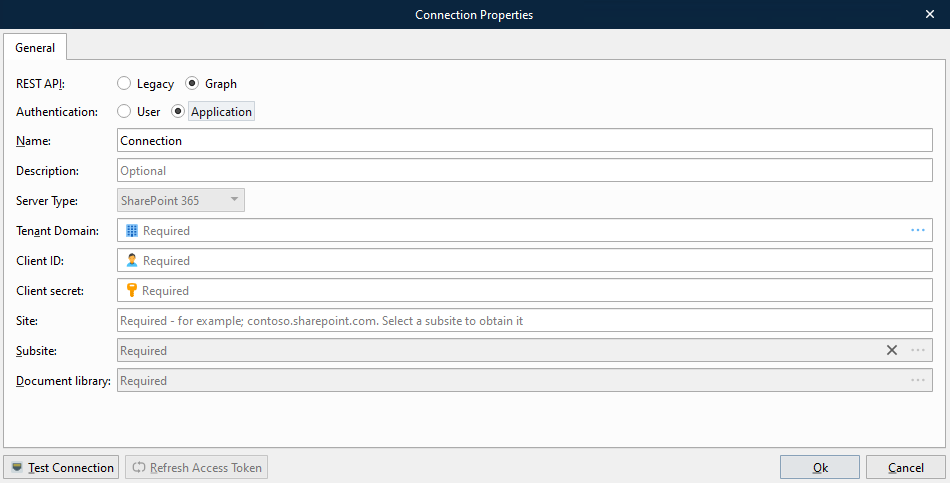
Click Test Connection to validate the connection between the Lasernet Core module and SharePoint. This button is enabled only when all required properties have values.
Refresh Access Token
If Lasernet Core experiences issues connecting to SharePoint, there might be a problem with its current security tokens. In some cases, the Refresh Access Token button can resolve connection issues.
Connection issues can occur for a number of reasons, including:
More than 90 days of inactivity (user authentication).
The user changed their password (user authentication).
Permission or security changes to the user (user authentication).
Revocation of permissions (user authentication or application authentication).
If Lasernet Core experiences connection issues, try the following steps (depending on the authentication method used).
User Authentication
Click Refresh Access Token to obtain new tokens, then commit and deploy the Lasernet Core configuration.
If doing this does not resolve the issue, click Remove Authorization to remove the currently stored security tokens, then click Obtain Authorization to reauthenticate using the user account (which will also refresh the security tokens). Then, commit and deploy the Lasernet Core configuration.
Application Authentication
Click Refresh Access Token to obtain new tokens, then commit and deploy the Lasernet Core configuration.
Command
On the Command tab, you enter your Insert properties. Information about the properties are listed in the information about the Insert command in the SharePoint Commands page.
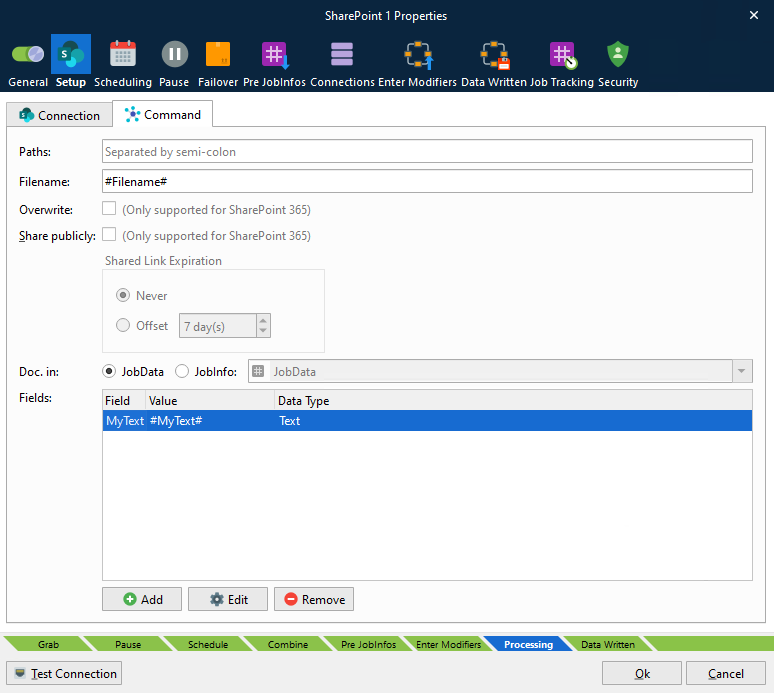
Insert Document
Documents can be inserted from JobData or another JobInfo.
Setting | Description |
|---|---|
Paths | It is possible to insert the same document in multiple paths in SharePoint. To do this, each path must be separated with a semicolon. |
Doc. in | Specifies where document data comes from.
|
Fields | A list of metadata to be inserted along the document. These fields must exist in the SharePoint library.
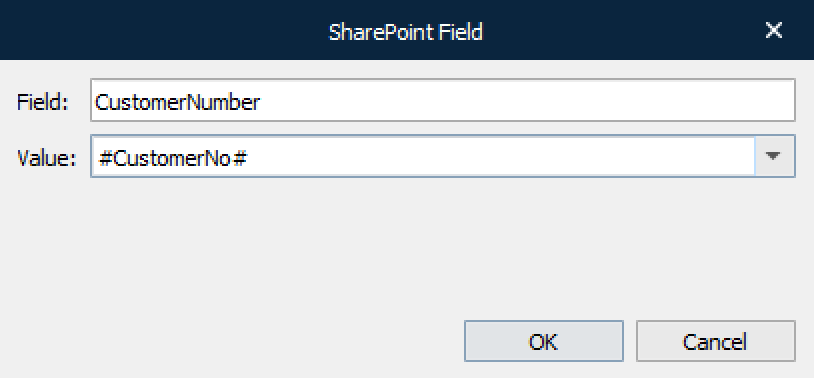
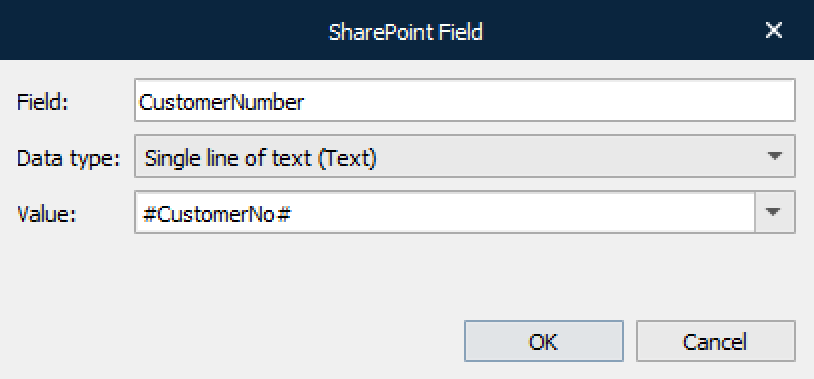
The data type of a field must match the data type of the field in SharePoint. It is possible to use JobInfo substitution, as seen above, in the example with #CustomerNo# JobInfo. The data type field is required for Web Services only and is therefore hidden for REST.
|