
Regional Profiles
- 15 Apr 2026
- 1 Minute to read
- Contributors

- Print
- PDF
Regional Profiles
- Updated on 15 Apr 2026
- 1 Minute to read
- Contributors
- Print
- PDF
Article summary
Did you find this summary helpful?
Thank you for your feedback
Applies to: Lasernet Core 11
The regional profile settings work like the Region and Language > Formats settings in Windows. In a regional profile, you can specify number, currency, time, and date formats to use in forms added to the Form Engine.
For more information about how and why Lasernet Core uses regional profiles, and how to configure forms to use them, see Regional Profiles.
In Lasernet Developer, you can add, edit, and delete regional profiles, and import predefined profiles. You can also specify which regional profile is the default profile.
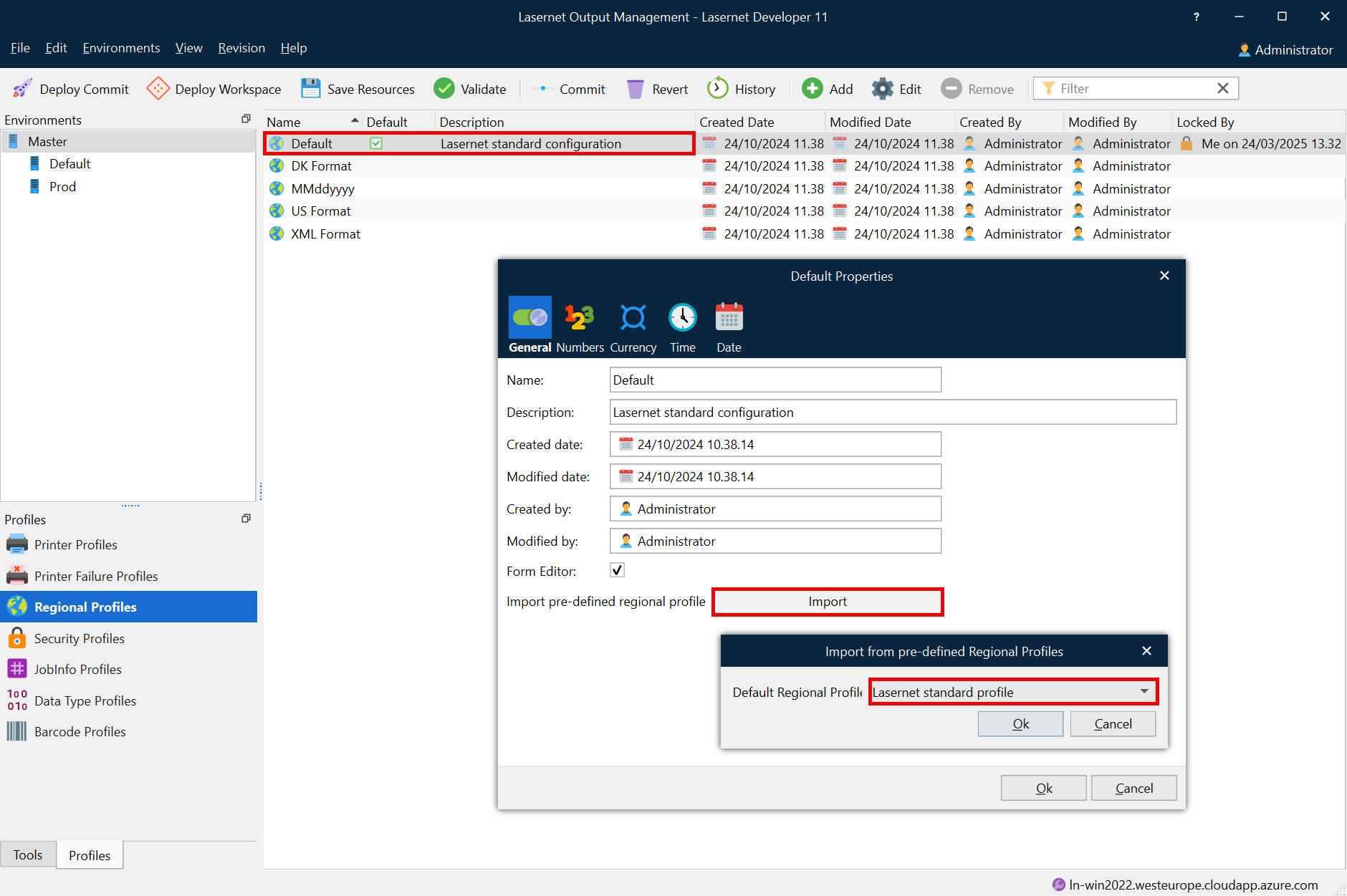
The default regional profile, named Default, is added to all new configurations. It can be changed, renamed and removed in the same way as other regional profiles that are manually added to the configuration.
The default regional profile, marked with a tick in the Default column, will be used if no regional profile is assigned to a form, a sheet, or a rearrange processed by the Lasernet Form Editor/Engine.
Click the Add button in the toolbar to add additional regional profiles to the configuration.
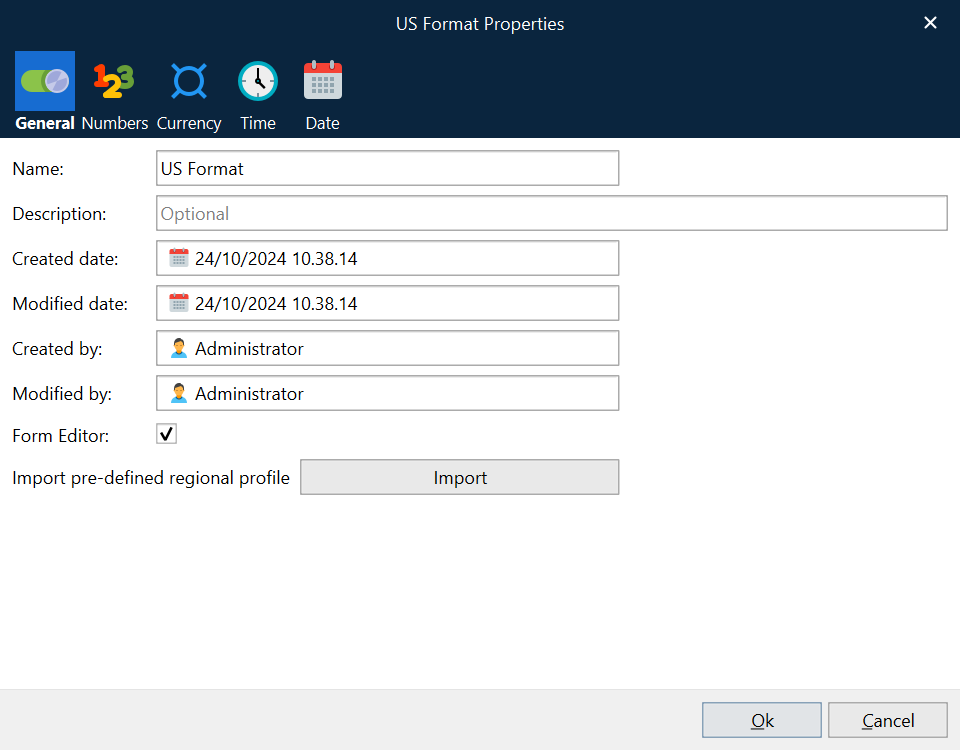
If Form Editor is selected, the profile will be accessible from Lasernet Form Editor.
The Import button opens the Import from pre-defined Regional Profiles window. Use the dropdown list to select predefined regional settings to import to the new profile.
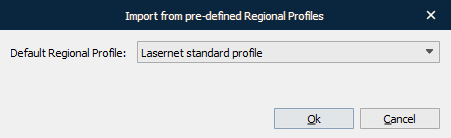
After selecting a profile, the user can review and change the settings on the Numbers, Currency, Time and Date tabs. Click Ok to save the profile. Click Cancel or press Esc to close the dialog without saving the profile.
All configurations need at least one profile; therefore, it is not possible to remove the last remaining profile in a configuration.