Query Links
- 24 Mar 2026
- 3 Minutes to read
- Contributors


- Print
- PDF
Query Links
- Updated on 24 Mar 2026
- 3 Minutes to read
- Contributors
- Print
- PDF
Article summary
Did you find this summary helpful?
Thank you for your feedback
Subreports and Query Links are accessible through the Query links feature located in Lasernet > Common > Reports.
Query Links enable users to combine multiple queries and maintain and reuse a query for multiple reports. This is useful if the same information from a single query is needed on multiple reports, such as CompanyInfo.
Query Links work similarly to subreports but offer improved performance, especially when used at the line/details level.
Query Links can be added through the Query Wizard using the Copy/Link query option. Alternatively, existing subreports can be converted into Query Links from within the Structure using the Convert to query link option.
Example: Add a Query Link Using Copy/Link Query
In this scenario, the FPCompanyInfo query contains the company information (data sources and tables):


Follow these steps:
Locate the replacement report or query to which FPCompanyInfo should be linked. The report SalesPackingSlipReplacement and the FPCompanyInfo are linked to the data source table CustPackingSlipJour.
Open the Query Wizard and navigate to the Tables page. There, click Copy/Link query and choose which table the query should be linked to.

Select or enter the query name FPCompanyInfo in the field Source report.

Toggling the Link (updates query on source change) button to Yes creates a reference to the query (instead of just copying the query) and ensures the following options become available:
Options | Description |
|---|---|
Host report | The report that receives the query link. The link is added to this report. |
Destination anchor data source | The data source within the host report where the query link is attached. |
Source report | The report containing the query to be linked. |
Source query | The specific query (or subquery) in the source report to link. When the source report contains multiple queries or nested subqueries, the appropriate one must be selected here. |
Link (updates query on source change) | No: The query is copied into an existing query. Yes: A link/reference is created. |
Keep original output names | Used to preserve the layout and naming from the linked query (Layout: Min, Medium, Max). |
Synchronize custom elements | Used to synchronize and update custom elements (in yellow). |
Create an element for the main query | Used to make the query name part of the output. |
A link to the query FPCompanyInfo is added to the query. Query_1 (Linked from FPCompanyInfo) is a link to a query and not a copy:

Toggling the Link (updates query on source change) button to No creates a copy instead of a link to the query:

Example: Convert a Subreport Using Convert to Query Link
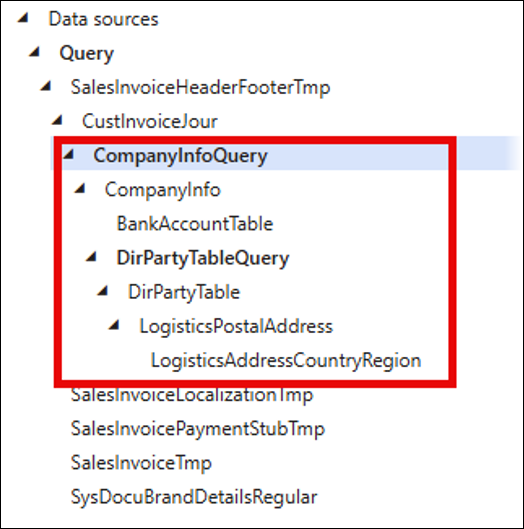
In this scenario, the query contains the following company information:


This query is used as a subreport in the SalesInvoiceReplacement query.
Follow these steps:
Open the Structure for the SalesInvoiceReplacement query and identify the subreport element.

Click Tools > Convert to query link.

This converts the subreport into a query link. The structure of the subreport is added to the structure of the SalesInvoiceReplacement.

The existing subreport element is automatically made invisible when the Code condition is set to 0.

Navigate to the Reports page, select SalesInvoiceReplacement, and click the Query links option on the Action pane. Here, you can see the subreports and query links associated with the host report.


Open the Query Wizard for the SalesInvoiceReplacement. The query link is visible and configurable through the Query Wizard's Copy/Link query option.


Now that the subreport has been added as a query link, ensure that all patterns and rearranges are properly mapped in the Lasernet form design.
Example: Add a Query Link to a Report with Multiple Queries Using the Source Query Selection
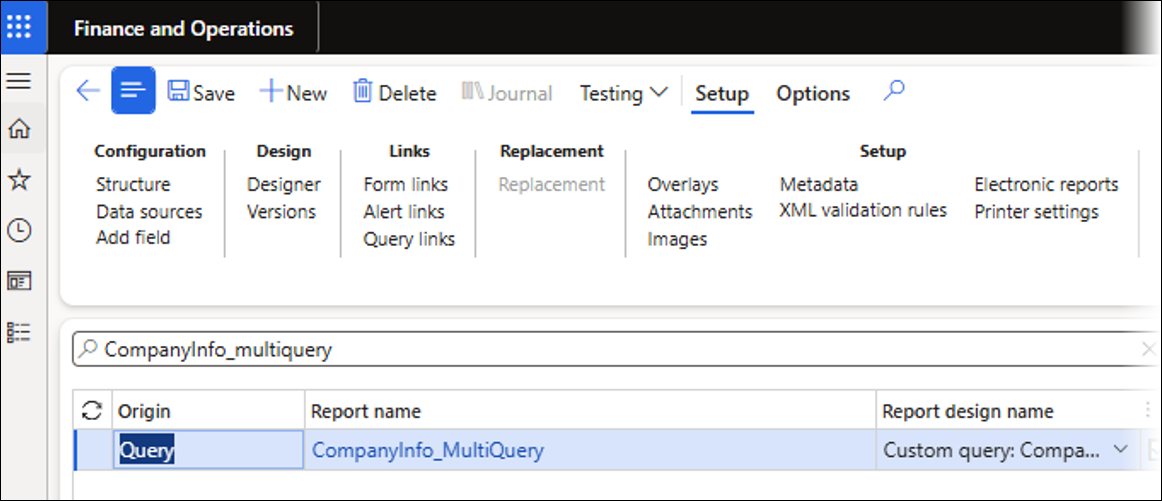
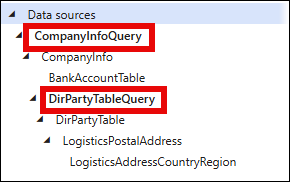
In this scenario, the CompanyInfo_MultiQuery query contains the company information (data sources and tables) and is made up of a query and subquery:
Follow these steps:
Locate the replacement report or query to which CompanyInfo_MultiQuery should be linked. The report SalesInvoiceReplacement and the CompanyInfo_MultiQuery are linked to the data source table CustInvoiceJour.
Open the Query Wizard and navigate to the Tables page. There, click Copy/Link query and choose which table the query should be linked to.
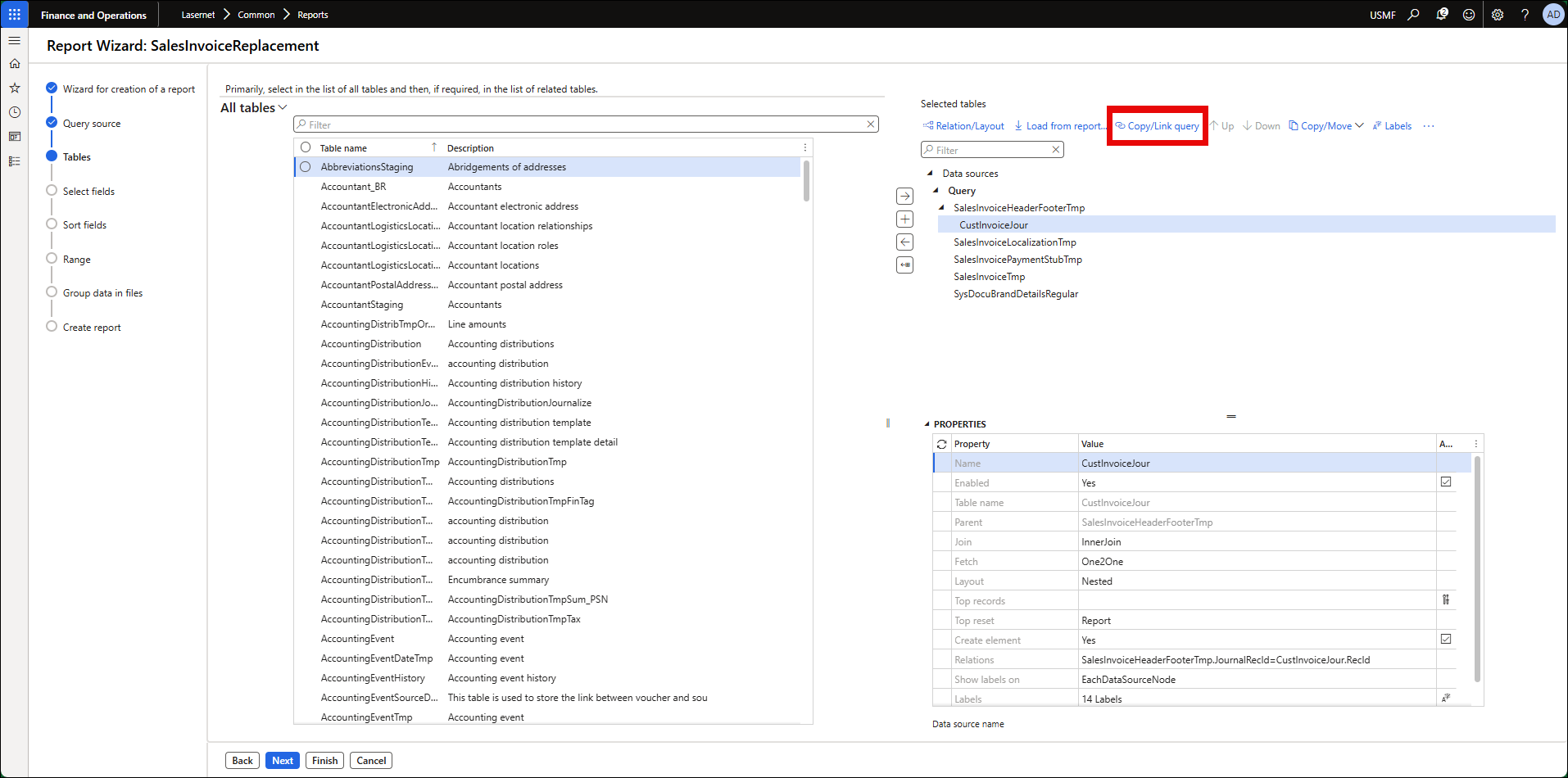
Select or enter the query name CompanyInfo_MultiQuery in the Source report field.
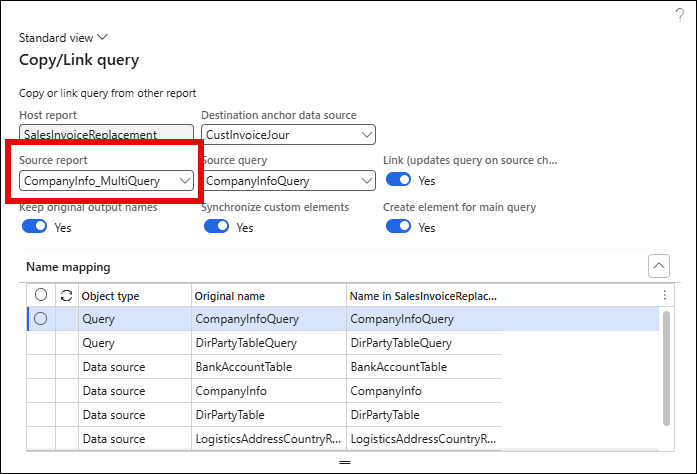
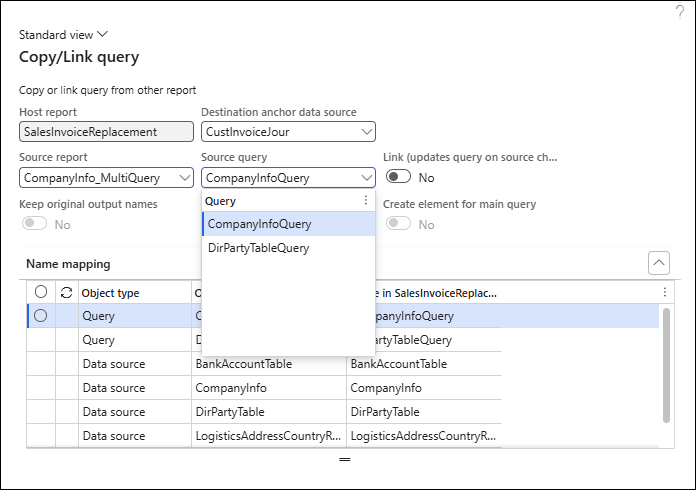
Since CompanyInfo_MultiQuery contains multiple queries, use the Source query dropdown to choose which one to copy/link from. In this example, DirPartyTableQuery is a subquery of CompanyInfoQuery.
Selecting CompanyInfoQuery (the root) copies all of its data sources plus the subquery.
Selecting DirPartyTableQuery copies only the data sources that belong to that subquery.
The Name mapping section automatically updates to reflect the data sources included based on the selected source query.
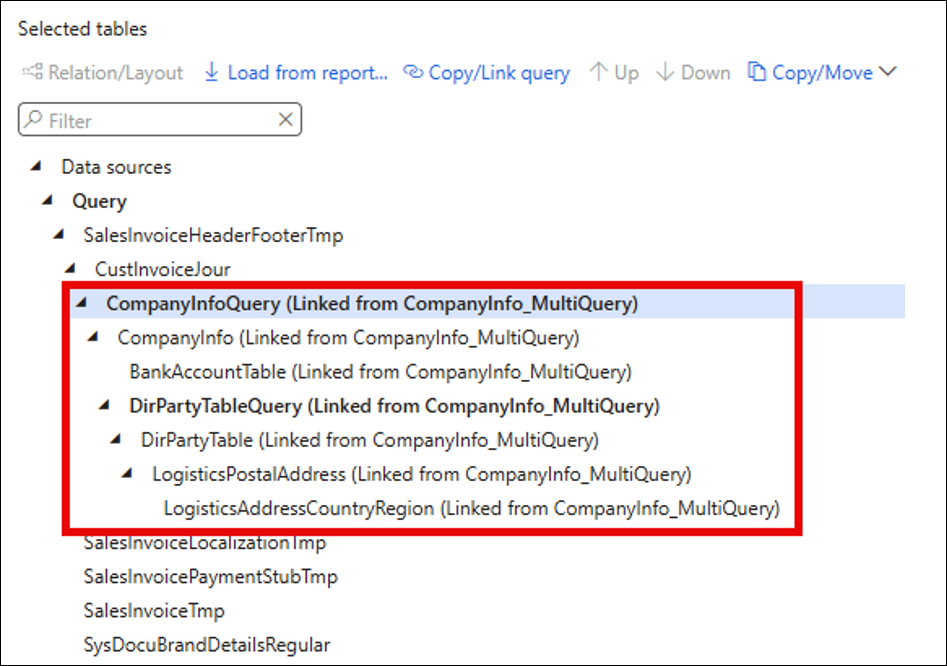
Toggling the Link (updates query on source change) button to Yes creates a reference to the query (instead of just copying the query) and ensure the relevant options become available.
A link to the query CompanyInfo_MultiQuery is now added to the query. CompanyInfoQuery (Linked from CompanyInfo_MultiQuery) is a link to a query and not a copy:
Toggling the Link (updates query on source change) button to No creates a copy instead of a link to the query: