
PDF to Text Modifier
- 30 Jan 2026
- 1 Minute to read
- Contributors

- Print
- PDF
PDF to Text Modifier
- Updated on 30 Jan 2026
- 1 Minute to read
- Contributors
- Print
- PDF
Article summary
Did you find this summary helpful?
Thank you for your feedback
Applies to: Lasernet Core 11
All the pages in a PDF document are converted to text format as output with a FormFeed character (HEX 0C) as a splitter character between the pages.
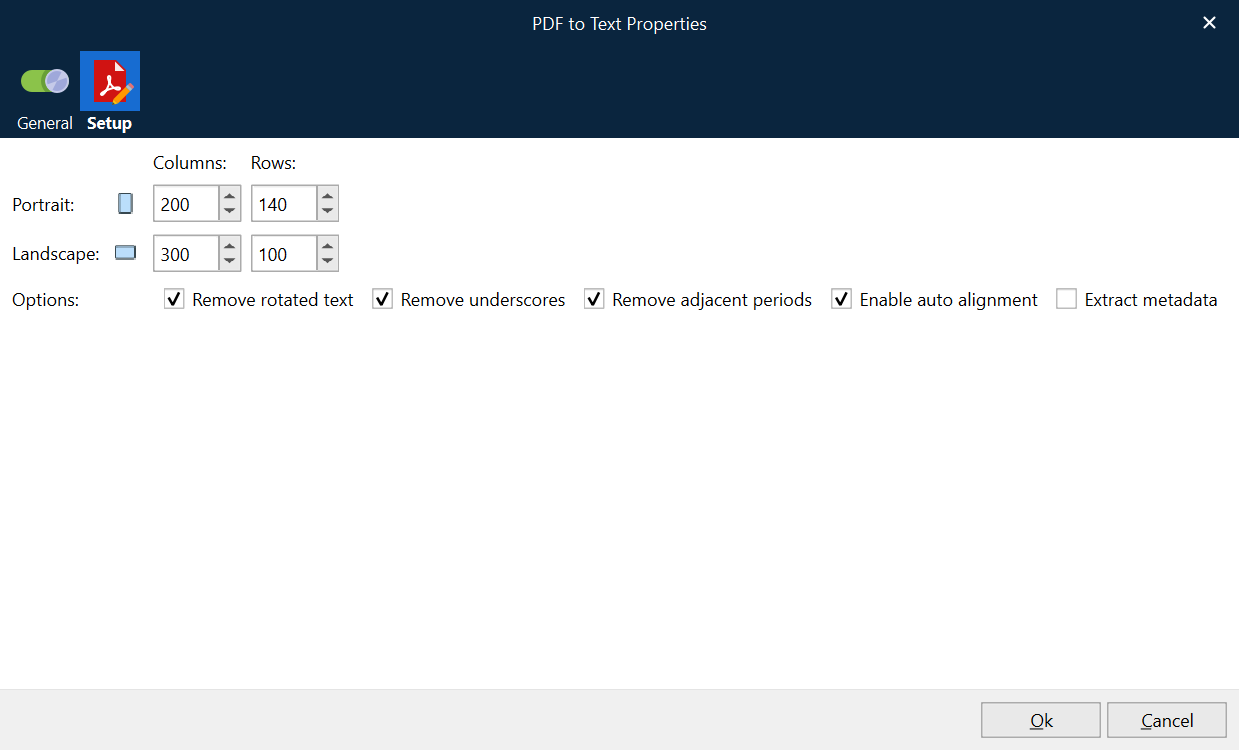
The parameters to define the output text settings are:
Portrait Columns: (Default=200). Recommended value for PDF documents (in Letter or A4 portrait format) is 200 columns.
Portrait Rows: (Default=140). Recommended value for PDF documents (in Letter or A4 portrait format) is 140 rows.
Landscape Columns: (Default=300). Recommended value for PDF documents (in Letter or A4 landscape format) is 300 columns.
Landscape Rows: (Default=100). Recommended value for PDF documents (in Letter or A4 landscape format) is 100 rows.
License code: A license code is only needed for users running Lasernet 6.7.1 and earlier to run the module in compatibility mode. The latest and most optimized algorithm for converting PDF to Text is running in the latest versions and does not require an additional third-party license.
Remove hidden text: Select to remove hidden text in the PDF file, to prevent it from appearing in output text. Only active for older versions.
Remove invisible text: Select to remove invisible text (from OCR-scanned PDF documents) from appearing in the text output. Only active for older versions.
Remove rotated text: Select to remove characters rotated more than 5 % in PDF input from appearing in text output.
Remove underscores: Select to remove underscores (HEX 5F) from appearing in text output.
Remove adjacent periods: Select to remove adjacent (HEX 2E) from appearing in text output. It might be expected that a single period character will be left back after removing adjacent periods in a string.
Enable auto alignment: Select to enable auto alignment of scanned text to ensure the best output quality.
Extract metadata: Select to highlight OCR Fields in the Lasernet OCR Editor > Preview window. This feature is memory-consuming and will dramatically reduce speed for multi-page documents.