
PDF Security Modifier
- 15 Apr 2026
- 3 Minutes to read
- Contributors

- Print
- PDF
PDF Security Modifier
- Updated on 15 Apr 2026
- 3 Minutes to read
- Contributors
- Print
- PDF
Article summary
Did you find this summary helpful?
Thank you for your feedback
Applies to: Lasernet Core 11
This modifier is used for adding support for security options (change content, printing, copying content, adding notes or modifying form fields, signing, and so on).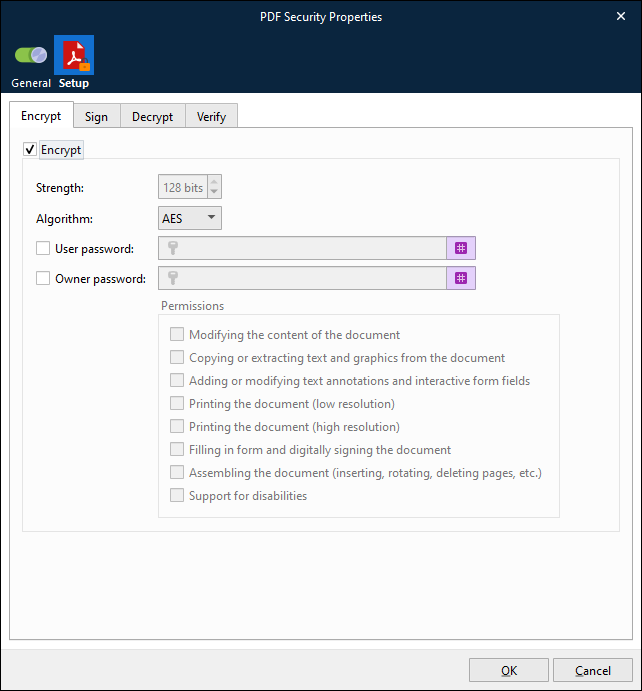
Encrypt
PDF encryption allows you to secure the contents of your PDF with a password. It also allows you to define which operations will be allowed by the user reading the PDF.
The user and owner password created for the PDF document can be overwritten at runtime by setting the following JobInfos:
PDFOwnerPassword
PDFUserPassword
Note
Encryption is not allowed when working with PDF/A (ISO 19005-1-2005).
Algorithm
The following algorithms can be used for encrypting the PDF. Each algorithm has its own advantages and disadvantages which should be taken into consideration when deciding which one to use.
AES | The AES algorithm provides better security than RC4. AES encryption was introduced in PDF 1.6 (Acrobat Reader 7.0) and only supports a key length of 128 bits. |
RC4 | The RC4 algorithm is supported from PDF 1.1 (Acrobat Reader 2.0). It supports key lengths ranging from 40 bits to 128 bits in 8 bit increments. Use of key lengths longer than 40 bits is supported from PDF 1.4 (Acrobat Reader 5.0).
|
Passwords
Two passwords are defined when enabling encryption. The user password is the password that must be supplied to the recipient of the PDF. When opening the PDF using the user password, the restrictions defined by the document permissions will be in effect.
Opening the PDF using the owner password will override the defined restrictions. You will also be able to change the operations allowed by the recipient.
If the user password and the owner password are the same, the user password will have highest priority. This means you will not be able to circumvent the restrictions defined by the document permissions.
Permissions
You can define which actions will be allowed when opening the encrypted PDF using the user password. This allows you to prevent the document from being modified, printed or copied from.
Sign
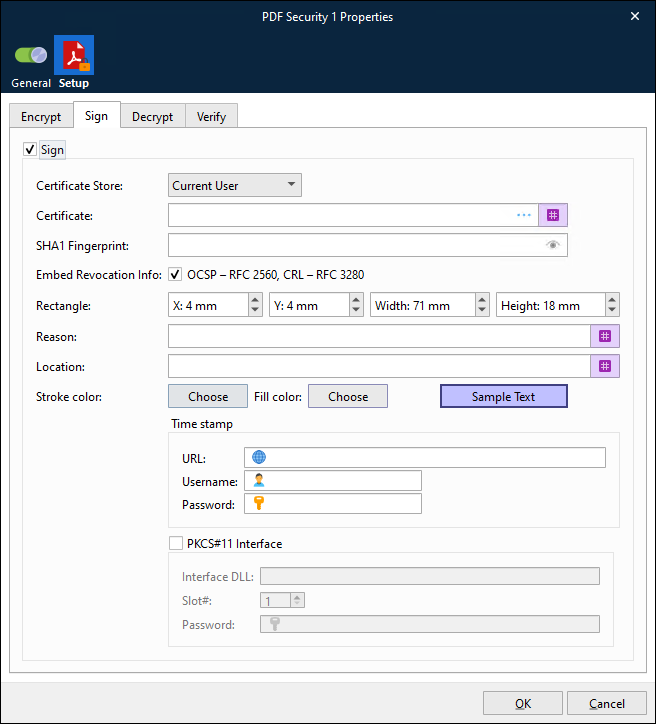
By signing your PDF using a digital certificate, you enable the recipient to verify both the origin and the integrity of the document. This means that the recipient can verify that the document came from your organization and has not been changed since it was created. Digital signatures are supported since PDF 1.3 (Acrobat Reader 4.0) and are allowed in PDF/A.
Certificate Store
Select whether the certificate is located on the Local Machine or for the Current User account.
Certificate
In order to sign the PDF using a digital signature, you must have a valid and appropriate certificate installed for the user account that the Lasernet Core service is running under.
SHA1 Fingerprint
The SHA1 fingerprint is used to verify that the signed file is unaltered. The checksum is created before the file is transmitted, and then once again it reaches its destination.
Rectangle (X, Y, Width, Height)
Specify the location (X and Y) and size (Width and Height) of the overlay that this modifier adds to the document.
Reason
The Reason field allows you to enter a text string that will be displayed when viewing the signed PDF. This provides a visual representation of the signature to the user. You can enter text and select a background colour for the text field.
Location
The physical location where the signature is added for example “Zurich, Switzerland”. If this property is set to an empty string no entry is created.
Timestamp
By signing your PDF with a timestamp provided by a trusted source, you can make sure that the PDF will still show a valid signature after your certificate expires. If you choose not to timestamp your PDF, the recipient will receive a warning that the certificate used to sign the PDF has expired.
Decrypt
The PDF Security modifier allows you to remove password encryption from an already encrypted PDF. This may be required to further process the PDF. To successfully remove encryption from a PDF you must supply the correct password.
Verify
The PDF Security modifier allows you to verify the signature of an incoming PDF. You can supply a decryption password in case the incoming PDF is encrypted. The result of the validation will be stored in the PDFSignatureValid JobInfo.