
Outlook Mail Output
- 14 Apr 2026
- 4 Minutes to read
- Contributors

- Print
- PDF
Outlook Mail Output
- Updated on 14 Apr 2026
- 4 Minutes to read
- Contributors
- Print
- PDF
Article summary
Did you find this summary helpful?
Thank you for your feedback
Applies to: Lasernet Core 11
The Outlook Mail module integrates directly with Office 365 to send emails.
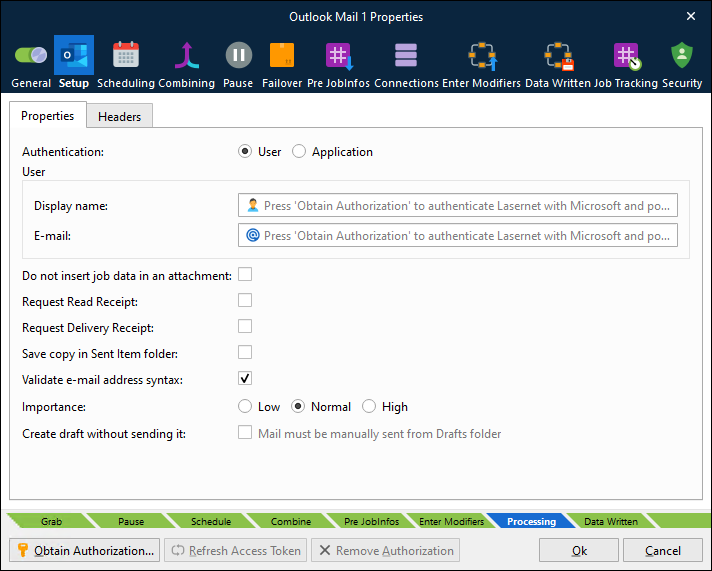
Select Authentication Type
Select which type of authentication the module will use:
User: The module authenticates as a user.
Application: The module authenticates as an application registered in Entra ID.
Authenticate as a User
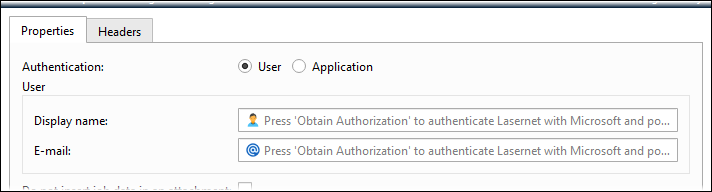
Set Authentication to User, then click Obtain Authorization to access the account for your organization and to autofill the Display name and E-mail fields.
The Outlook Mail module will obtain authorization to:
Maintain access to data to which you have granted access.
Configure individual permission to send mail on behalf of yourself.
Sign you in and read your profile.
The Remove Authorization button deletes the obtained authorization.
Note
Obtain Authorization and Remove Authorization are available only when you select User authentication.
User Authentication Properties
Display name | Display name for the account (click Obtain Authorization to autofill this field). |
E-mail address for the account (click Obtain Authorization to autofill this field). |
Authenticate as an Application
Authentication as an application for Outlook Mail communication requires that:
Lasernet Core is registered as an app by an Entra ID admin.
The Entra ID admin must provide a ClientID and Client Secret for the module to use to sign in.
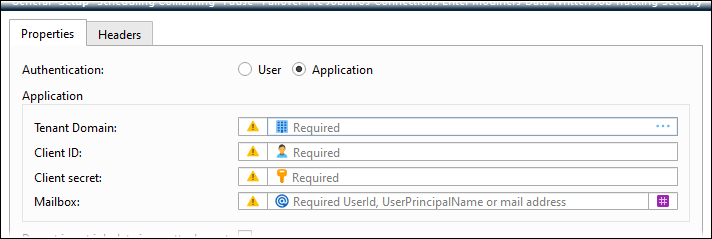
Set Authentication to Application, enter Client ID and Client secret (and any other necessary settings), then click Refresh Access Token.
Note
If the client ID and client secret change in the future, repeat the step above and then commit and deploy the Lasernet Core configuration. Doing this ensures that the module remains authenticated.
At any time, you can click Refresh Access Token to test that the currently provided credentials are valid. When you click the button, Lasernet Core attempts to use those credentials to obtain a new access token.
Application Authentication Properties
Tenant Domain | Enter the relevant tenant domain. |
Client ID | The Entra ID admin must provide a client ID for the module to use for authentication. |
Client Secret | The Entra ID admin must provide a client secret for the module to use for authentication. |
Mailbox | Specify the mailbox to access (as a UserId, UserPrincipalName, or mail address) |
Refresh Access Token
If Lasernet Core experiences issues connecting to Outlook Mail, there might be a problem with its current security tokens. In some cases, the Refresh Access Token button can resolve connection issues.
Connection issues can occur for a number of reasons, including:
More than 90 days of inactivity (user authentication).
The user changed their password (user authentication).
Permission or security changes to the user (user authentication).
Revocation of permissions (user authentication or application authentication).
If Lasernet Core experiences connection issues, try the following steps (depending on the authentication method used).
User Authentication
Click Refresh Access Token to obtain new tokens, then commit and deploy the Lasernet Core configuration.
If doing this does not resolve the issue, click Remove Authorization to remove the currently stored security tokens, then click Obtain Authorization to reauthenticate using the user account (which will also refresh the security tokens). Then, commit and deploy the Lasernet Core configuration.
Application Authentication
Click Refresh Access Token to obtain new tokens, then commit and deploy the Lasernet Core configuration.
Properties
Do not insert job data in an attachment | If selected, an e-mail will be sent without including JobData as an attachment. EWS server will as report a non-critical error log message when sending emails without attachments: Unable to read MimeContent; This operation can’t be performed because this service object doesn’t have an Id. |
Request Read Receipt | If selected, a receipt will be sent to the e-mail address when the recipient has opened the e-mail.
|
Request Delivery Receipt | If selected, a delivery receipt will be sent to the e-mail address when the message is successfully delivered to the recipient. A JobInfo overrides the default behaviour.
|
Save copy in Sent Item folder | If selected, a copy of the e-mail will be stored in the Sent Item folder in your email client. |
Validate e-mail address syntax | If selected, the email syntax in MailTo, MailCC and MailBCC will be validated before sending the email to the mail server. If the syntax is not valid, the job will fail. To prevent a job from failing the setting must be de-activated. This will allow mail addresses to contain syntax used for external fax systems connected to mail servers. Comma and semicolon are valid as separators if MailTo, MailCC or MailBCC contain multiple addresses. |
Importance | Set the category of importance to Low, Normal (default) or High. |
Create draft without sending it | If selected, a draft will be created to manually open and edit the e-mail before sending from mailbox. |
Headers
Optionally, you can add custom MIME headers to the emails sent by an Outlook Mail Output module. Some possible uses for custom headers are to enable the sending organization to troubleshoot delivery issues by examining unique codes in the header data in bounced emails, and to enable enhanced workflow visibility by enabling the organization to track emails back to their originating Lasernet Core process or job.
You can add up to five custom headers.
The Outlook Mail Output module will add the configured custom headers to outgoing email and give each header the specified value. A custom header’s Name must start with X- or x-; for example, x-Invoice-Number.
You can specify a static value for a header; for example, Lasernet Core Mail. Else you can use JobInfo substitution if you want header values to be dynamic. For example, you could enter a JobInfo reference (like #InvoiceNumber#) as the header’s Value.
If a mail is bounced back to the sender and is read by Lasernet Core’s Outlook Mail Input module, Lasernet Core creates JobInfos that have names and values corresponding to the custom headers in the bounced email.
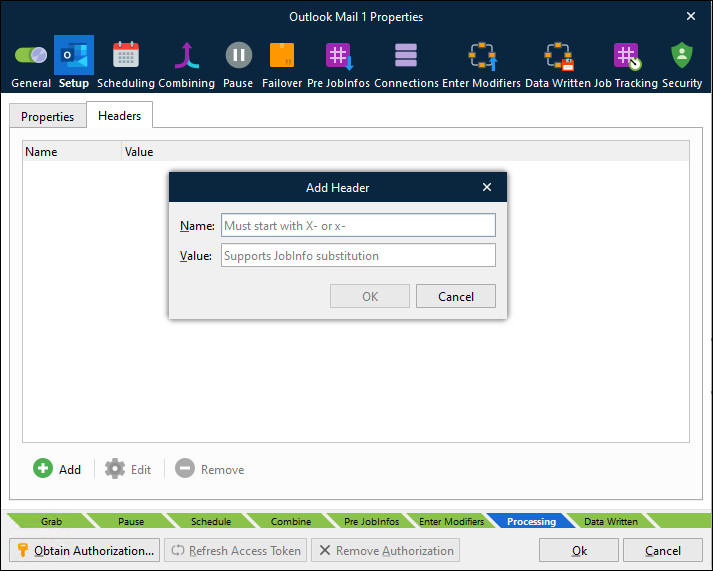
Name | The name of the custom header must start with X- or x-. |
Value | Set a value for the header. Supports JobInfo substitution. |