
OneDrive Input
- 13 Apr 2026
- 1 Minute to read
- Contributors

- Print
- PDF
OneDrive Input
- Updated on 13 Apr 2026
- 1 Minute to read
- Contributors
- Print
- PDF
Article summary
Did you find this summary helpful?
Thank you for your feedback
Applies to: Lasernet Core 11
Easily store and share documents in the cloud. Microsoft OneDrive works with Office, so it's easy to create, edit, and share your documents.
Input
On the Scheduling tab, create a scheduling event with a specified polling interval to control this input. When a file is downloaded, it is hard-deleted. A Job is created per file downloaded.
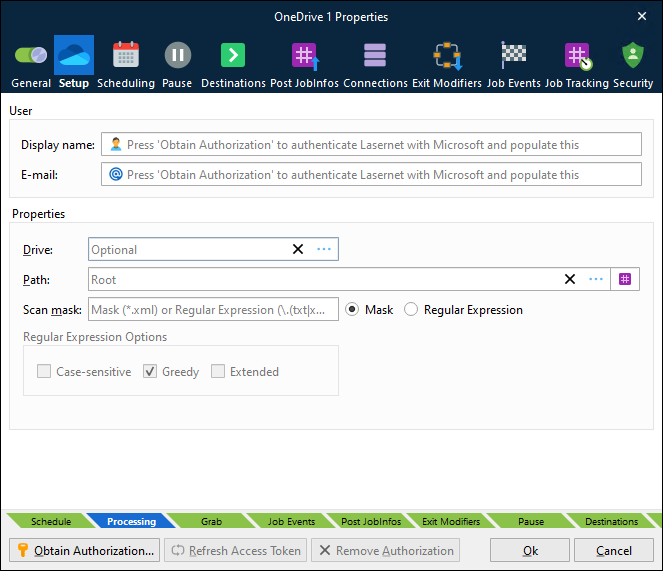
How to Access Microsoft OneDrive
Click Obtain Authorization.
You get redirected to the Microsoft website to authorize OneDrive for Lasernet Core.
Enter your Microsoft credentials.
Authorize the access request.
The authentication window closes automatically and your Display name and E-mail are added to the dialog.
In the Properties window, set Drive and Path to describe where to poll for incoming files.
Doing this stores an encrypted token in the configuration. This token is then used to regain access to the OneDrive later.
Refresh Access Token
If Lasernet Core experiences issues connecting to OneDrive, there might be a problem with its current security tokens. In some cases, the Refresh Access Token button can resolve connection issues.
Connection issues can occur for a number of reasons, including:
More than 90 days of inactivity.
The user changed their password.
Permission or security changes to the user.
Revocation of permissions.
If Lasernet Core experiences connection issues, click Refresh Access Token to obtain new tokens, then commit and deploy the Lasernet Core configuration.
If doing this does not resolve the issue, click Remove Authorization to remove the currently stored security tokens, then click Obtain Authorization to reauthenticate using the user account (which will also refresh the security tokens). Then, commit and deploy the Lasernet Core configuration.
JobInfos
The following JobInfos will be set for the incoming Job.
FileLastModified | When the file was last modified |
FileCreated | When the file was created |
FullFilename | Full path to the file including the filename |
Filepath | Location of the file |
Filename | Name of the file including extension |
Extension | Extension of the file prefixed with a dot |
FilenameWithoutExt | Name of the file without an extension |
Filesize | Size of file in bytes |