
Modify the Lasernet Workflow and Form Settings in Lasernet Developer
- 30 Jan 2026
- 4 Minutes to read
- Contributors

- Print
- PDF
Modify the Lasernet Workflow and Form Settings in Lasernet Developer
- Updated on 30 Jan 2026
- 4 Minutes to read
- Contributors
- Print
- PDF
Article summary
Did you find this summary helpful?
Thank you for your feedback
Applies to: Lasernet 11
In Lasernet Developer, you can add the Printer Service output module to a Lasernet configuration, so that the Lasernet workflow can send jobs to the printer that you have deployed.
Also, sheet options for the forms in a Lasernet configuration have print-specific options.
Add a Printer Service Output Module to the Lasernet Workflow
Note
Before you configure the Printer Service output module, you must configure print servers (on the Config Server) and deploy printers in the Printer Service application.
To add the Printer Service output module to a Lasernet configuration, follow these steps:
Start Lasernet Developer.
Connect to the Config Server. To do this, enter the Config Server’s host name, and then your credentials.
In the Lasernet Developer window, click the Tools menu, then click Modules.
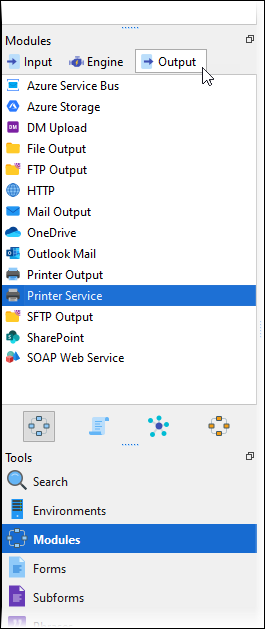
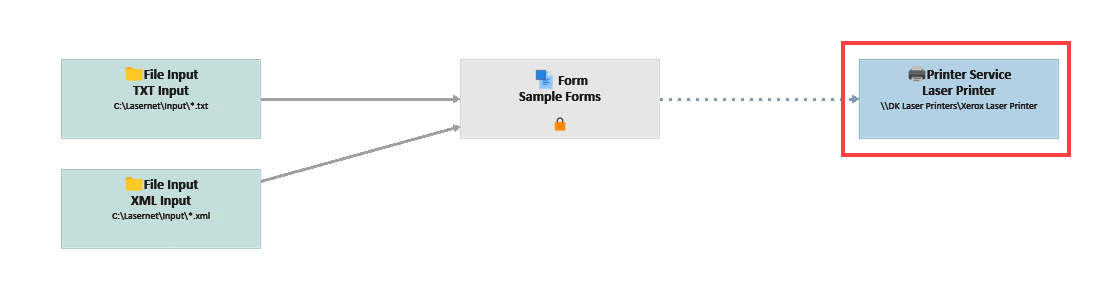
On the Output tab of the Modules panel, double-click Printer Service to add the module to the workflow.
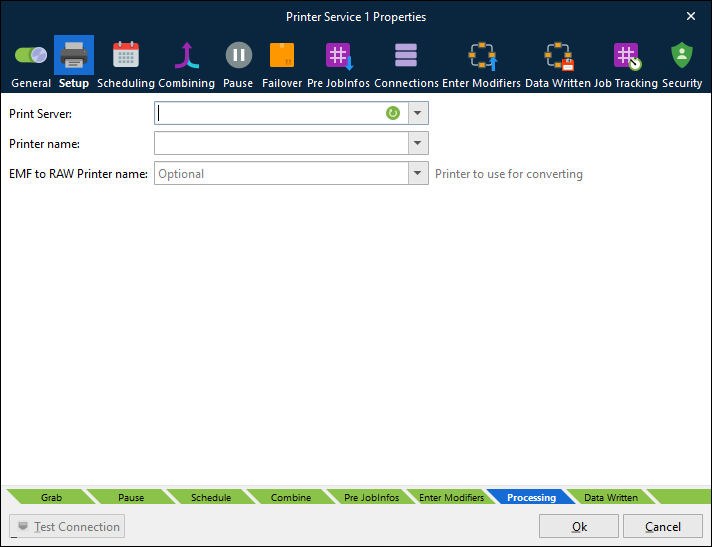
On the Setup tab of the output module:
Select a print server from the Print Server list.
Note
This print server list is retrieved from the Lasernet Config server.
Select a printer to connect to from the Printer name list.
Click Test Connection (at the lower-left corner of the window). For Cloud print servers, Lasernet tests the connection to the Azure Service Bus and Azure Storage account that the printer server is configured to use. For on-premises print servers, Lasernet tests the TCP/IP connection to the print server.
Optional: The EMF to RAW Printer name setting enables you to select a print queue driver that will render EMF output so that Lasernet can then send the RAW print (PCL, PostScript, ZPL, and so on) to the printer selected in the Printer name list.
Printer Profiles
To view a list of print servers and their printer profiles (as created in the Printer Service application), click the Profiles tab at the bottom of the left panel, then click Printer Profiles. For each print server, the selected checkbox indicates which print profile is currently deployed.
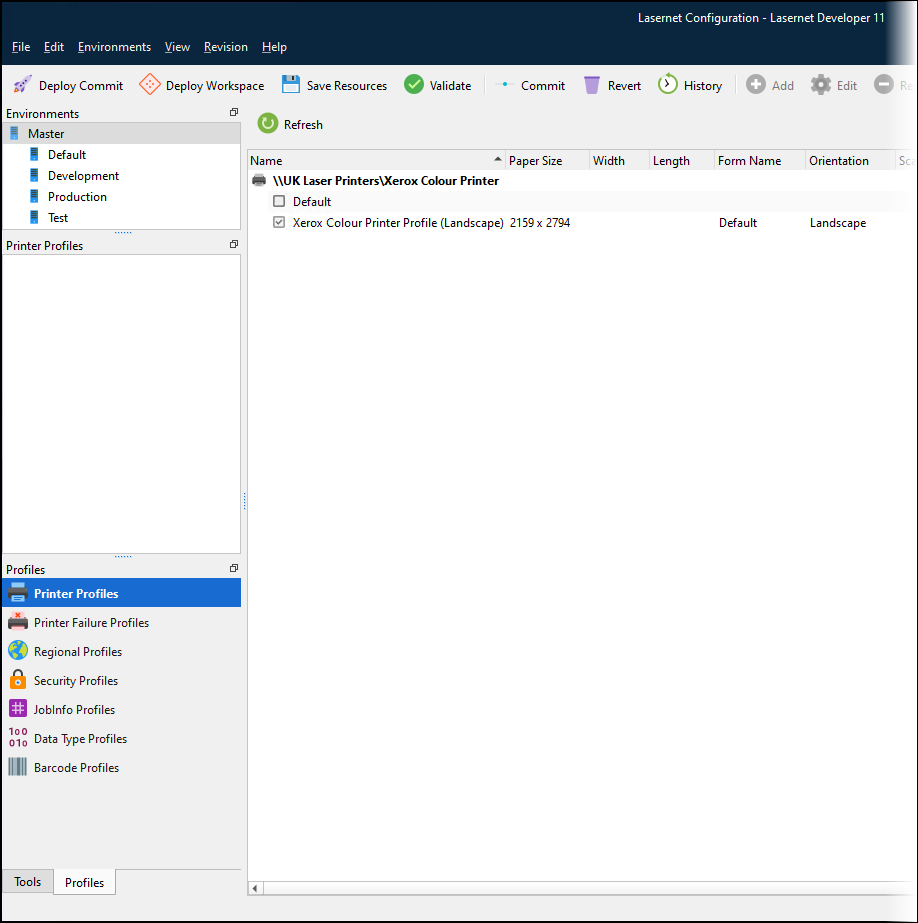
Printer profiles are supported for documents created in the EMF format only.
About Printing PDF and DOCX files
The Print Service module and application can autodetect and print PDF and DOCX documents, called printer attachments, without the need for third-party software. This includes the selection of paper source in the printer by detecting the PDF page sizes in the PDF documents. Other printer settings are selected by the default printer settings defined in the Windows printer settings.
JobInfos
The following JobInfos can override the printer settings.
ColorMode | ColorMode is used set monochrome or color printing. Known values are: Default, monochrome and color. |
Copies | Set Copies to control the number of printed copies. |
DocName | DocName JobInfo is used to control the name of the print job for the Windows Print Spooler. If not set the default value is set to “Unnamed – Lasernet document”. |
DuplexMode | Duplex printing allows the printing of a sheet of paper on both sides automatically. Examples of values are: Default, Simplex, Vertical and Horizontal. |
Orientation | Manage the Orientation of the paper. Example of values are Portrait or Landscape. |
PaperHeight | Defines the height of the paper form. |
PaperSource | Selects the Paper Source in the printer. Example of values are: Auto, Tray 1, Tray 2, Upper Tray, Lower Tray. |
PaperWidth | Defines the width of the paper form. |
PrintAttachment | May contain a list of documents in binary representation for printing externally. It is used together with PrintAttachmentFilename and PrintAttachmentMimeType JobInfos. |
PrintAttachmentCopies | Used to set control the number of printed copies for attached documents in the format PDF and DOCX. |
PrintFilename | If it is not empty, it is assumed that the JobData is a PDF or Word document type which should printed separately. It is used together with PrintMimeType. |
PrintMimeType | Contains the mime type of the file to print. It is used together with PrintFilename. |
WinPrintUserName | Specifies the username of the print job as shown in the job list for a local printer. This can be set to just about anything. |
Lasernet Form Editor
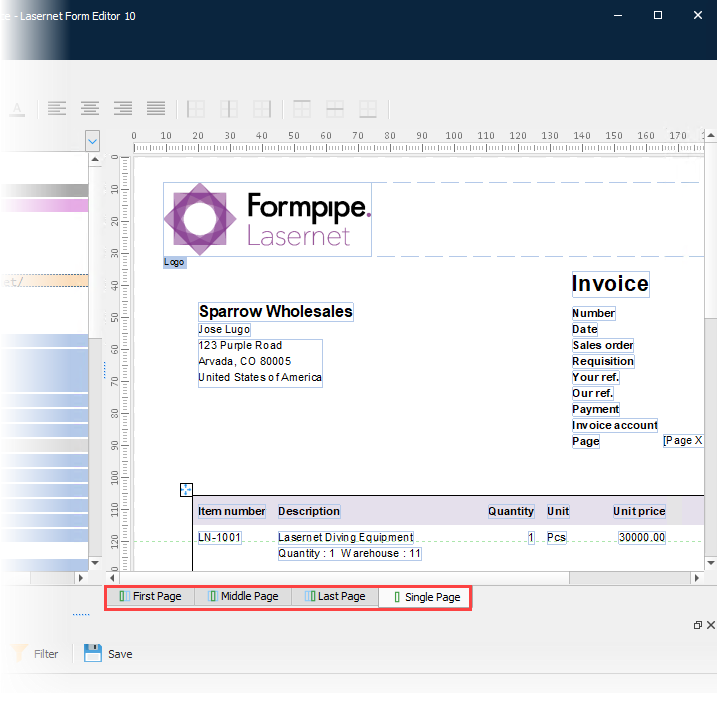
The Sheet Options window in Lasernet Form Editor contains some print-specific options.
To open the Sheet Options window, double-click the output page tabs in the Form Editor window.
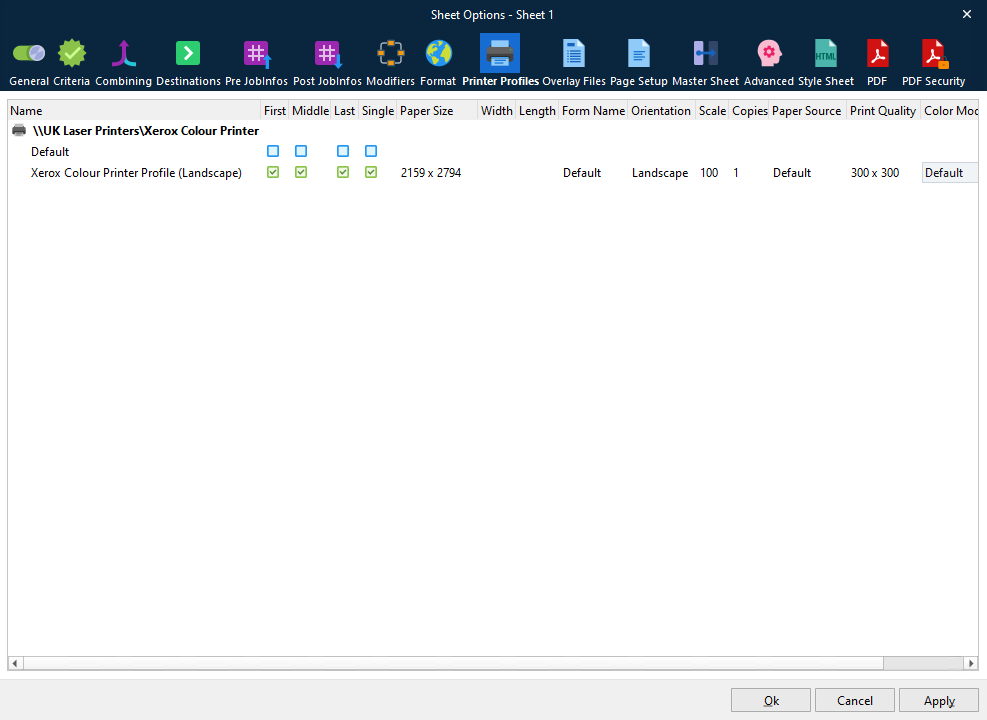
Sheet Options > Printer Profiles
Click the Printer Profiles tab to show the relevant settings.
You can select different profiles for the First, Middle, Last and Single pages by clicking the checkboxes in the corresponding columns.
Printer Profile Priority
Printer profile settings can override the default Printer Service settings, depending on where they are configured.
This is the order of precedence, from highest to lowest:
Form Editor – Printer Profile selection at sheet level
Printer Service application – Printer Profile selection
Windows local printer queue – printer settings
Sheet Options > EMF
Sheets that generate EMF output have the following settings.
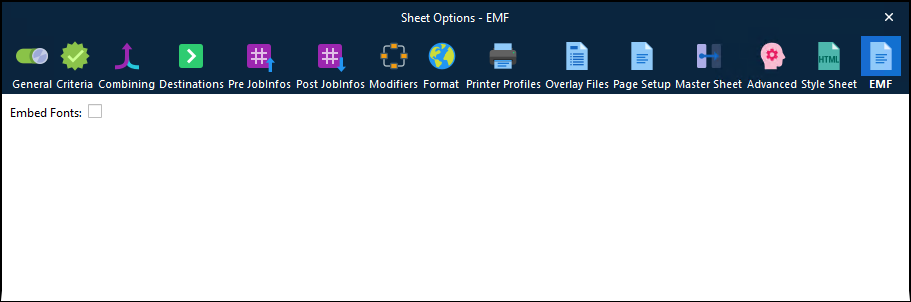
If Embed Fonts is selected and EMF output from a Form engine is processed by a Printer Service Output module, Lasernet copies the fonts that the job uses from the configuration’s resources area and includes them in the EMF container it sends to the Lasernet Printer Service application.
When it receives the print job, the Printer Service application extracts the fonts from the EMF container and uses them as font resources when printing.
This feature ensures that the necessary fonts are available to the Printer Service application when printing.