
Migrate Lasernet CE Connector Configurations between Environments
- 26 Feb 2026
- 5 Minutes to read
- Contributors

- Print
- PDF
Migrate Lasernet CE Connector Configurations between Environments
- Updated on 26 Feb 2026
- 5 Minutes to read
- Contributors
- Print
- PDF
Article summary
Did you find this summary helpful?
Thank you for your feedback
Introduction
When working with Lasernet CE connector, configurations will likely need to be migrated between environments for testing. A number of different options are available:
Configuration Migration Tool: This is the standard tool for migrating data between Customer Engagement apps. It is supported by Microsoft and is the Lasernet Group recommended solution. We provide a schema for migrating all Lasernet CE Connector configurations. To migrate individual entities, the user must create a custom schema.
XrmToolBox Data Transporter Tool: This is a custom third-party tool. Several users find it simpler than the Configuration Migration Tool. The Lasernet Group does not provide templates. However, the tool can be easily used to migrate individual entities or configured to migrate all entities in order.
Excel Templates: These can be hard to set up, but can still be used to export and import data from CE apps or to make changes to the data in Excel.
Configuration Migration Tool
For more information on Microsoft’s standard tool for migrating data between Customer Engagement applications, visit this link.
This utility does not require additional licenses and can be run from the desktop client, command line, or as part of a build.
It is recommended that the destination environment be backed up first and the configuration wiped before every import, as the utility only inserts new entities and updates fields for existing entities if the record is included and the field contains a value in the backup.
The tool does not remove excess entities, relationships between entities, or field values if no value is supplied.
If you are manually deleting all Lasernet records from the UI, we recommend deleting relationships between every Group and Flyout/OData Dialog/HTTP method/OData Direct Submit before proceeding to the other entities.
This article includes a schema for migrating Lasernet CE Connector 1.1 configurations.
(7).png "image (18)(7).png")
The schema uses the records' ID to find existing records, except for HTTP Method, OData Dialog, and OData Direct Submit, which all use the records’ Name. The Button entity uses the Control ID.
Therefore, existing records with the same Name or Control ID will be overwritten in the destination environment.
Only links between Group and Flyout/OData Dialog/HTTP method/OData Direct Submit containing a value for the group and the action will be imported. Links serve no purpose without both values and will only hinder performance.
Installation
Ensure that .NET is installed (version 6.0 is currently recommended): https://dotnet.microsoft.com/download.
(7).png "image (19)(7).png")
Download and install the Power Platform Command-Line Interface (CLI) from the command line:
dotnet tool install --global Microsoft.PowerApps.CLI.Tool.
(6).png "image (20)(6).png")
If the following error occurs, the standard NuGet source may be missing:
Error
error NU1101: Unable to find package microsoft.powerapps.cli.tool. No packages exist with this id in source(s): Microsoft Visual Studio Offline Packages
Run the following command to display NuGet sources:
dotnet nuget list source.
You should be able to find nuget.org [Enabled] within the list: https://api.nuget.org/v3/index.json.
(7).png "image (21)(7).png")
If the source is missing, the following command will add it:
dotnet nuget add source https://api.nuget.org/v3/index.json -n nuget.org.If the source is disabled, the following command will enable it:
dotnet nuget enable source nuget.org.
It is recommended that the CLI be updated regularly using the following command: dotnet tool update --global Microsoft.PowerApps.CLI.Tool.
Install and start the Configuration Migration Tool (CMT) using the following command:
pac tool cmt.
(7).png "image (22)(7).png")
Export Data
Navigate to the Start menu and search for Configuration Migration Tool.
(6).png "image (23)(6).png")
Click Export data and then Continue to export data from the source environment.
(5).png "image (24)(5).png")
A wizard will be displayed. Click the Office 365 radio button.
Select the Display list of available organizations checkbox.
If the same account is used for both exporting and importing, we recommend selecting the Show Advanced checkbox and then entering your credentials when prompted.
(5).png "image (25)(5).png")
Click Login and follow the steps.
(6).png "image (26)(6).png")
(6).png "image (27)(6).png")
Select the source environment from which data needs to be extracted and click Login.
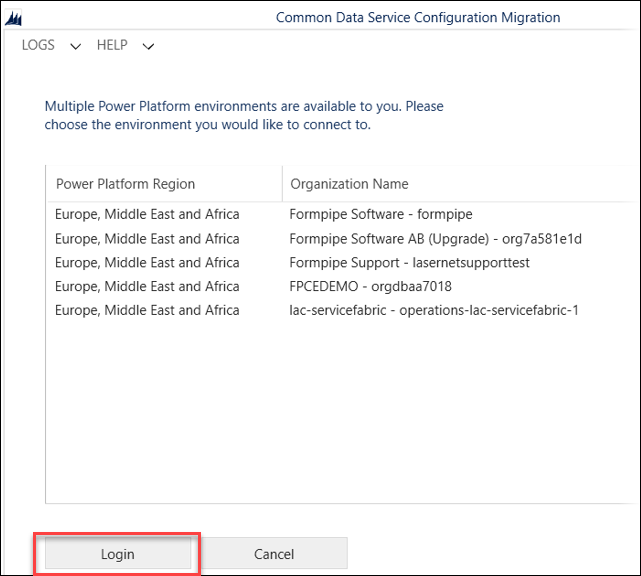
In the Schema file field, select the schema supplied by the Lasernet Group. This will migrate all the Lasernet CE Connector configurations using the logic explained above.
(4).png "image (29)(4).png")
(3).png "image (30)(3).png")
In the Save to data file field, specify a path and filename for the export.
(3).png "image (31)(3).png")
(4).png "image (32)(4).png")
Click Save and then Export Data.
(4).png "image (33)(4).png")
The system will show you the entities that are being exported:
(3).png "image (34)(3).png")
Validate that the exported records match your expectations.
Click Exit.
Import Data
Navigate to the Start menu and search for Configuration Migration Tool.
Click Import data and then Continue to import data from the source environment.
The login for importing uses the same setup as for exporting.
Click Login and select the destination environment.
In the Zip File field, select the previously exported file.
(4).png "image (35)(4).png")
Click Open and then Import Data.
(4).png "image (36)(4).png")
The configuration has been successfully imported.
XrmToolBox Data Transporter Tool
This is a third-party tool used by many CE developers. The Lasernet Group always recommends using the default Microsoft solution. However, if you are familiar with the XrmToolBox, it can be a quick and easy solution.
Download XrmToolBox
Download the latest version of the XrmToolBox from this link and follow the installation steps.
Create a Connection
To connect the XrmToolBox to your environment, click Connect.
(4).png "image (37)(4).png")
Click New.
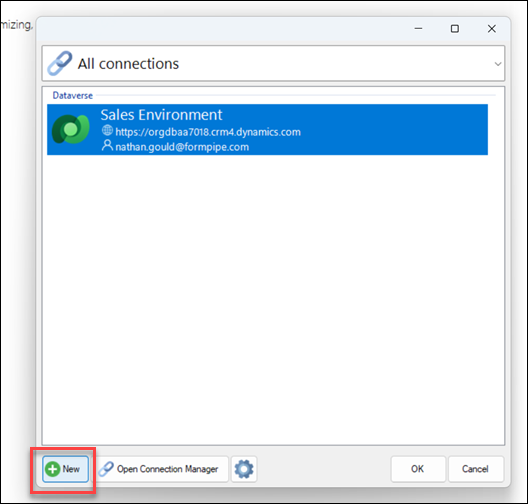
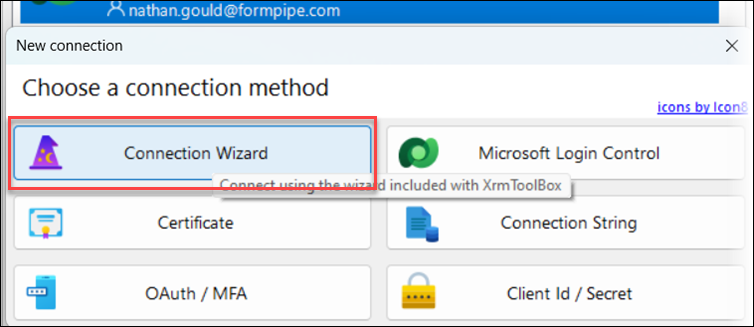
Click Connection Wizard.
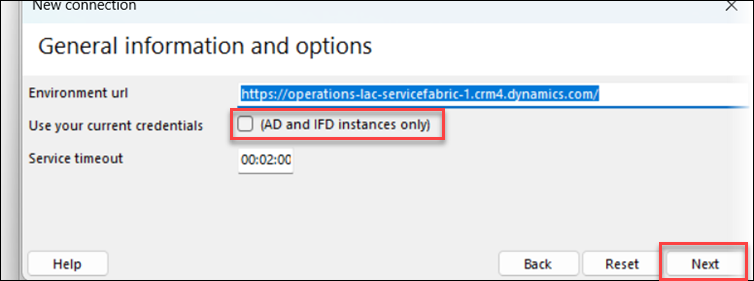
Add the URL of your environment.
(4).png "image (38)(4).png")
Clear the AD and IFD instances only checkbox and then click Next.
Provide the credentials and click Next.
(2).png "image (39)(2).png")
The wizard will try to connect.
(1).png "image (40)(1).png")
Once the connection is established, the system will prompt you to provide a name for the connection. Once you are done, click Finish.
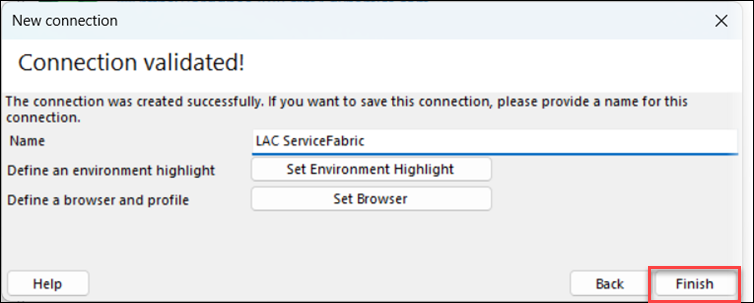
The connection is now created:
(1).png "image (41)(1).png")
Repeat the process for your source and destination environments.
Use the Data Transporter Tool
In the Tools tab, search for the Data Transporter.
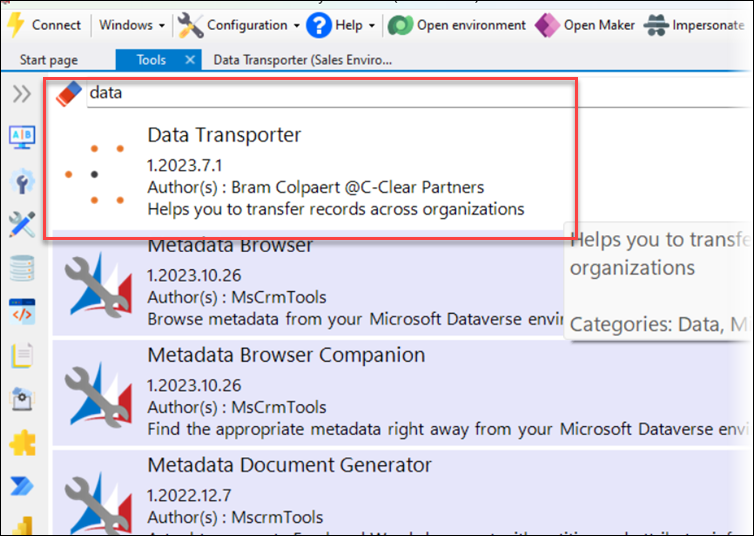
Open the tool.
(1).png "image (42)(1).png")
Click Connect to select the data source from which you wish to extract data.
(1).png "image (43)(1).png")
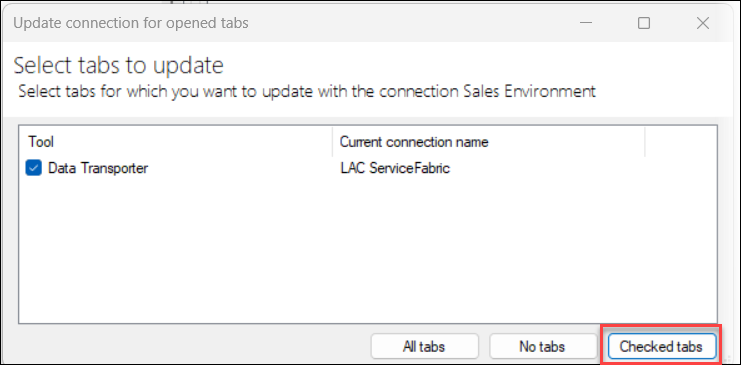
Click OK and then select the Tools for which you want to update the connection. In this instance, the Data Transporter.
Click Checked tabs. Your connection will be updated.
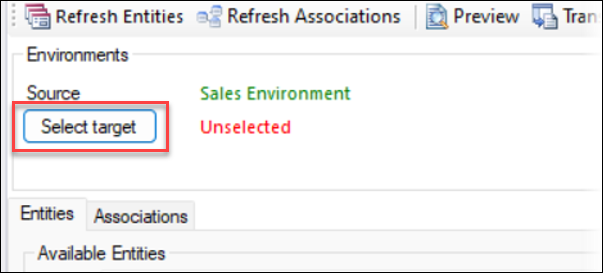
To connect to the target, click Select target and select the target environment in the same way you did for the source.
Select the Entities
In the Filter field, search for Lasernet.
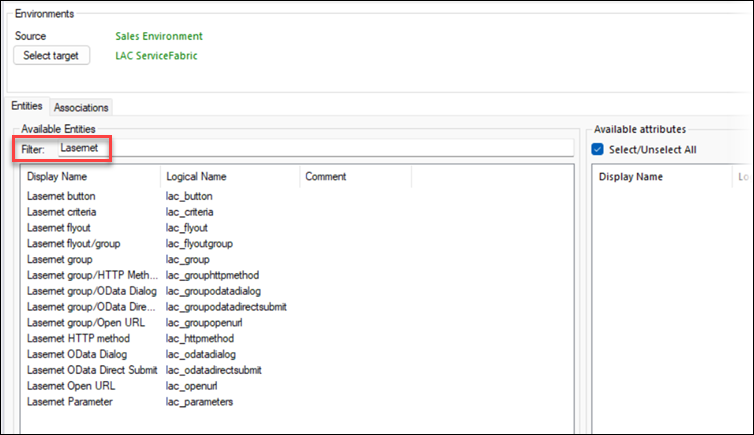
To migrate an individual entity, select it from the Available Entities list.
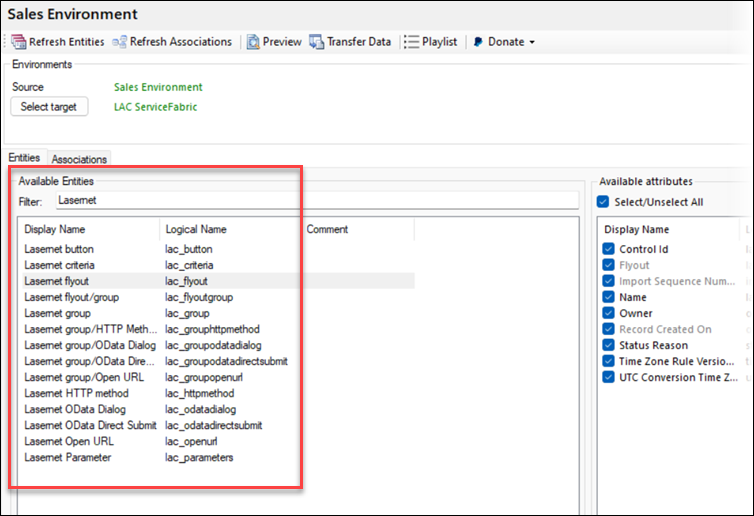
Click Transfer Data.
(1).png "image (44)(1).png")
This will copy the data from that source entity to the destination. The tool provides options to control the create/update/delete settings.
If, for example, you’d like to copy multiple entities and the whole configuration from one environment to another, select the entities you wish to migrate and click the Download symbol.
.png "image (45).png")
Save them in your desired location.
(1).png "image (46)(1).png")
Once you have saved all the configurations, navigate back to the Data Transporter Tool and click Playlist.
Click Add Configuration and then select all the entities you wish to migrate.
(1).png "image (47)(1).png")
(1).png "image (48)(1).png")
Click Open. The entities will be displayed in the playlist.
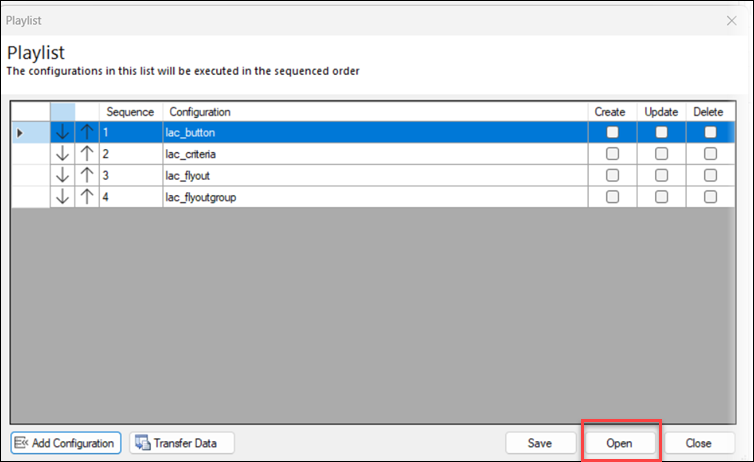
Use the arrows to modify the sequence. When you are happy with it, click Transfer Data.
The tool will migrate the data for you:
(1).png "image (49)(1).png")
10. Click Close and then Open environment.
(1).png "image (50)(1).png")
Ensure that the data is in the new environment as expected.
Excel Templates
Users also have the option to create Excel templates for importing and exporting data from CE environments.
Follow this link to consult Microsoft documentation.
This tool can be useful for migrating data for a single entity or for making changes to the data before it is loaded into the target system.