
Lasernet Monitor 11 Guide
- 01 May 2026
- 5 Minutes to read
- Contributors


- Print
- PDF
Lasernet Monitor 11 Guide
- Updated on 01 May 2026
- 5 Minutes to read
- Contributors
- Print
- PDF
Article summary
Did you find this summary helpful?
Thank you for your feedback
Applies to: Lasernet Core 11
This guide is written for a Lasernet Core system administrator. It explains how to use the Lasernet Monitor application.
System administrators can use the Lasernet Monitor to determine the status of processes and form flows within Lasernet Core environments.
Working with Lasernet Monitor
The log generated by Lasernet Core 11 environments can be viewed in the Monitor window. This can either be the live log for jobs currently being processed or log data saved to your computer for older jobs that have already been processed. For more information, see Open Logs.
Monitoring Environments
From the Lasernet Monitor, you can view logs for Lasernet Core environments that are managed by the Lasernet Config Server that Lasernet Monitor connects to.
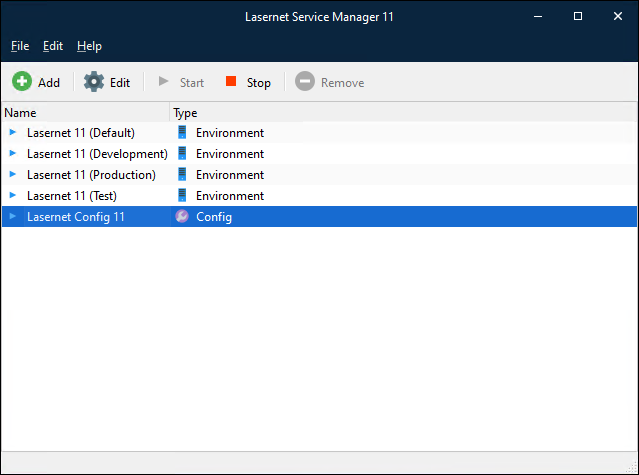
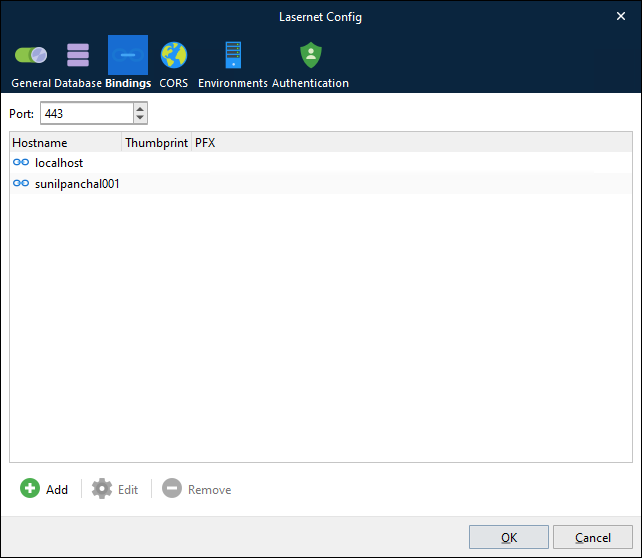
Lasernet Monitor and Lasernet Config Server communicate over an encrypted TCP/IP connection on the port number defined for the Lasernet Config 11 service (in Lasernet Service Manager 11).
Note
If the Lasernet Monitor is installed on a different computer than the one running the Lasernet Config Service, ensure that your server’s firewall settings allow the Monitor to connect to the Config Server through the specified port number.
A Lasernet Core environment must run and communicate with the Config Server for the first time before it appears in the Lasernet Monitor.
Connect to Lasernet Core
To start Lasernet Monitor and connect to a Lasernet Core environment, follow these steps:
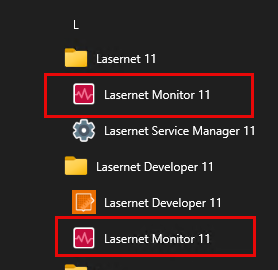
From the Windows Start menu, click Lasernet Monitor 11 under Lasernet Developer 11.
Or click Lasernet Monitor 11 under Lasernet 11.
Note
If Lasernet Server and Lasernet Developer are both installed, there are two Lasernet Monitor shortcuts in the Start menu.
Select a server from the dropdown in the Connect to Lasernet window and then click Connect.
.png)
Provide your credentials.
Select an environment from the Environment dropdown.
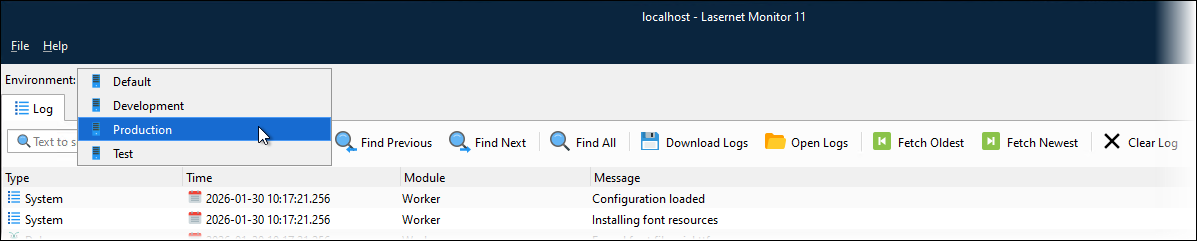
You are now ready to access the environment logs and perform other actions in Lasernet Monitor.
Log
The Log tab displays the log for the selected environment.
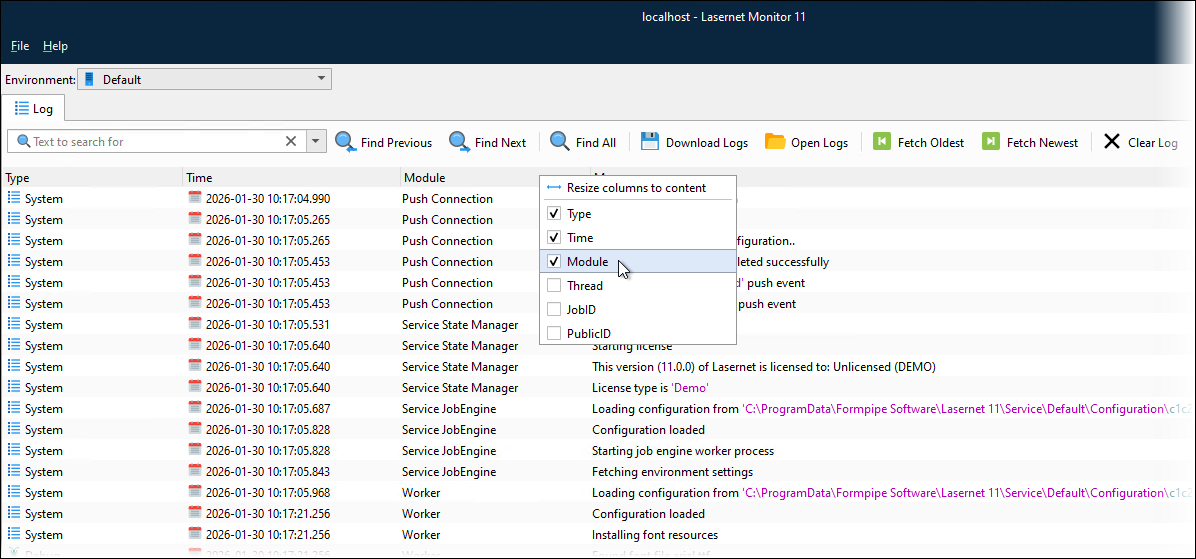
Right-click a row’s header to activate the columns you want displayed in the monitor log.
Click Resize columns to content to auto-align the size of each column based on the content for each column.
Menu Bar Options
File
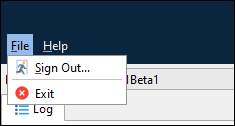
From File in the menu bar, you can either Sign Out or Exit the monitor. More information about these can be found under Toolbar Options.
Help
This redirects to the knowledge base pages for Lasernet Core and displays information about the current Lasernet Core version.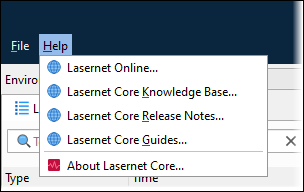
Note
Turning grab mode on and off is now done in a web application. For more information, see Start and Stop Grab Mode.
Starting and stopping Lasernet environments is done in the Lasernet Service Manager. For more information, see Start and Stop Lasernet Core Services.
The Lasernet Config web app defines the maximum number of log lines in your Lasernet Monitor. For more information on environment logging, see Lasernet Core Environment Logging.
Toolbar Options

Text to Search For
In the Text to search for box, type the text you want to find in the log, then press Return. Occurrences in the log are highlighted.
Text strings are not case-sensitive. Click x to clear the field.
To view text that you previously searched for, click the dropdown arrow. To search for the same text again, click on one of the displayed options. 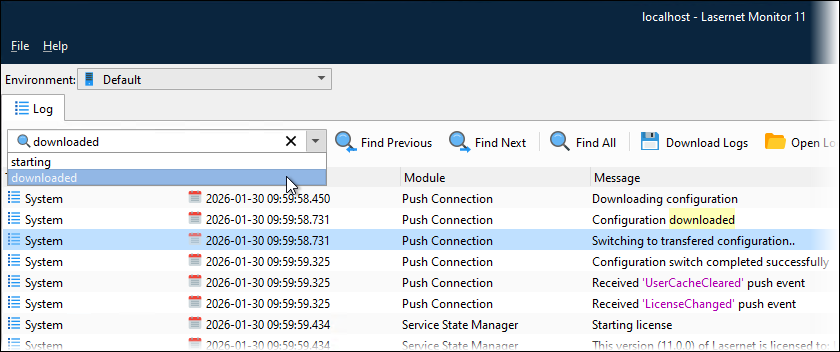
Find Previous and Find Next
Click Find Previous to scroll to the previously found string in the log. Click Find Next to scroll to the next found string.
Find All
Click Find All for enhanced search and filter functions. A Find All dialog will appear, enabling you to obtain more accurate results based on your specific criteria.

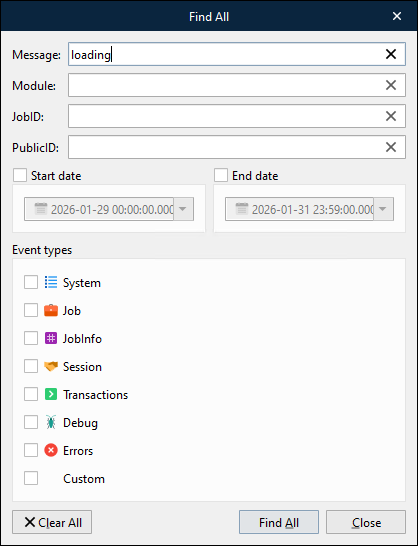
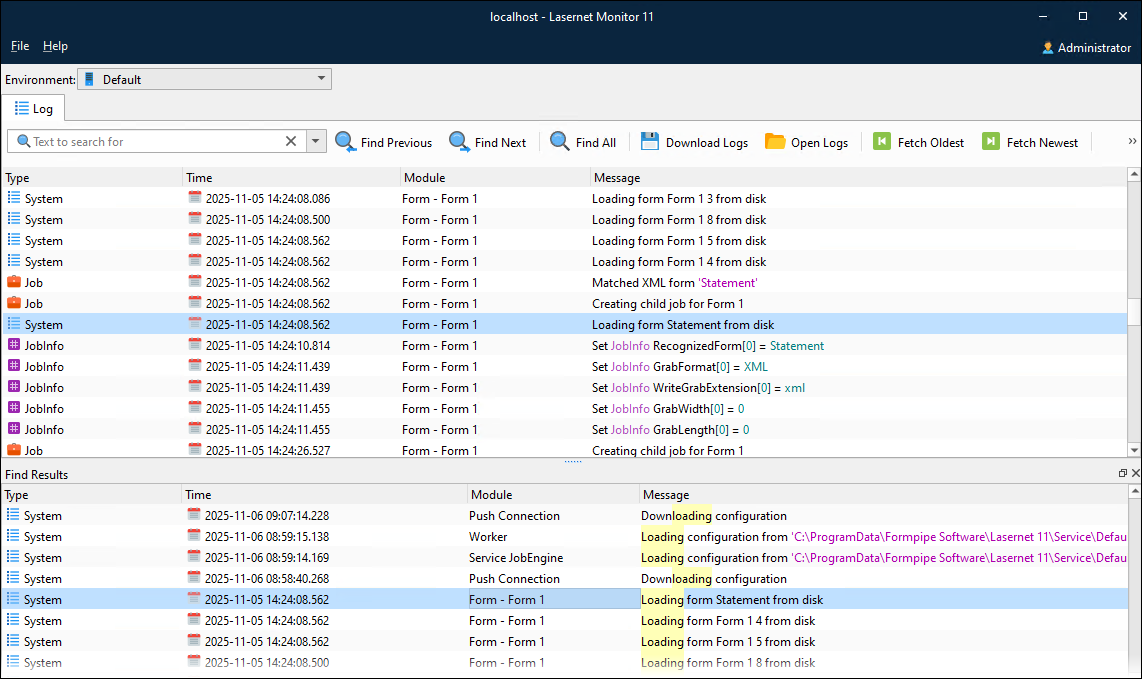
Click Find All in the Find All dialog. A lower pane displays all the found results sorted, with the newest log entries first in the list. Double-click on a line in the lower pane to bring focus to the log message in the upper pane.
To filter the find results for a selected object in the lower pane, click Find All again, and then enter any message, module name, JobID, or PublicID that might occur in the log. You can also specify a start date, an end date, or both to filter the find results. For a specific type of event, select the checkboxes under Event types. Click Find All to see updated find results in the Find Results pane.
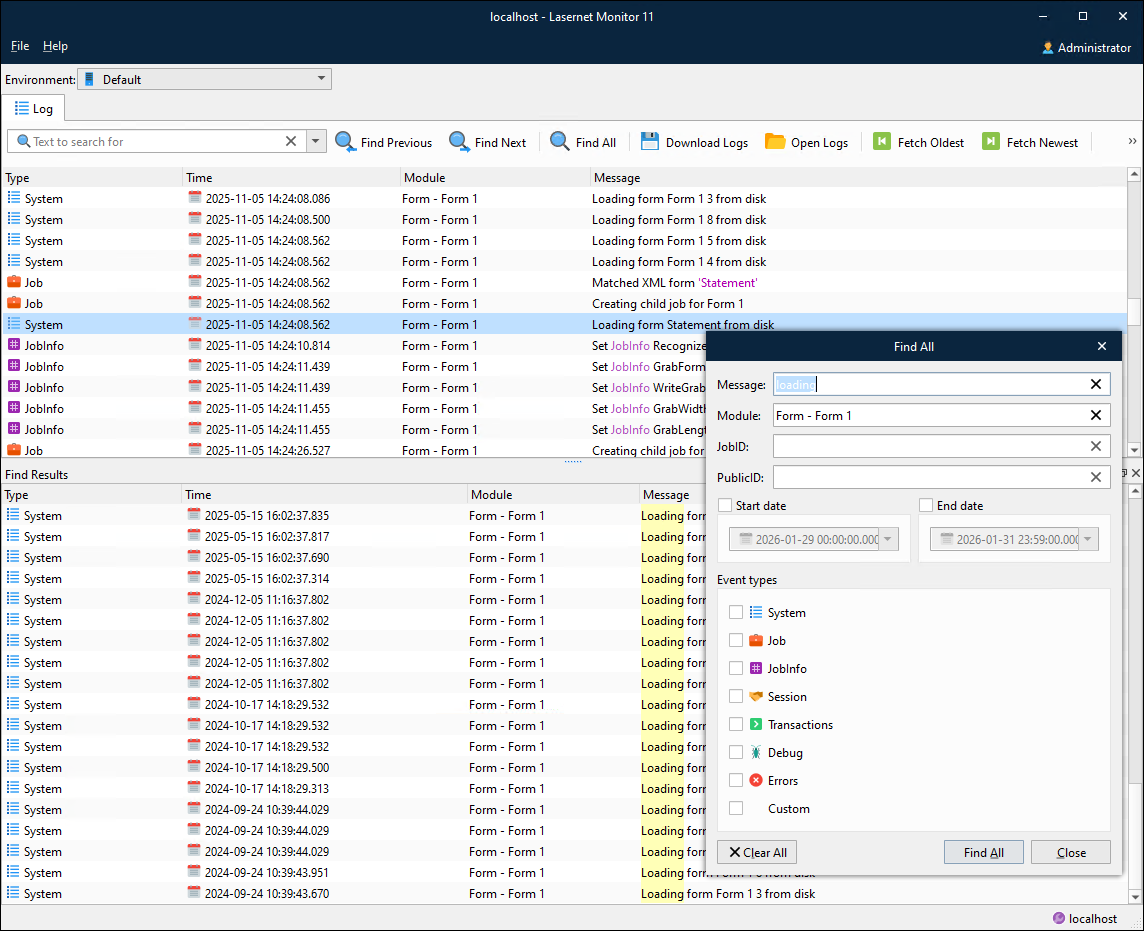
Click Clear All to reset the values entered in the Find All dialog.
Download Logs
This tool will download the log files from the environment or instance to the local computer as a zip file.
To download the logs, perform the following actions:
Click Download Logs in the toolbar.
Select a file to save the logs to and then click Save.
You now have a copy of the downloaded logs on your computer.

Open Logs
It is possible to view older jobs that have already been processed and saved to your computer on Lasernet Monitor.
To view these logs, perform the following actions:
Click Open Logs in the toolbar.
Choose a file from your local hard drive and click Open.
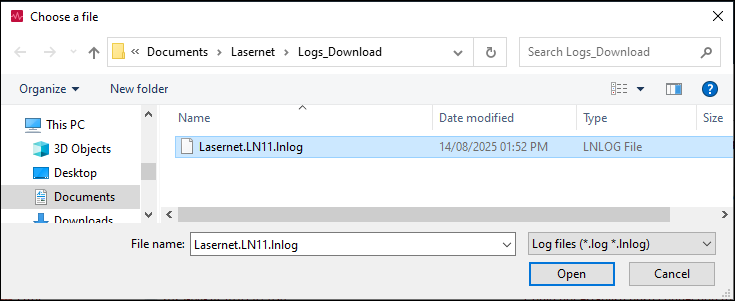
The logs open in Lasernet Monitor.
Fetch Oldest
Click Fetch Oldest to scroll the monitor log down to the oldest log present in the environment. Click Fetch Newest to see the newest created log messages.
Drag the scroll bar up to fetch previous log messages or scroll down to fetch the newest log messages.
Clear Log
Clears log messages from the view.
Tools in the Log Window
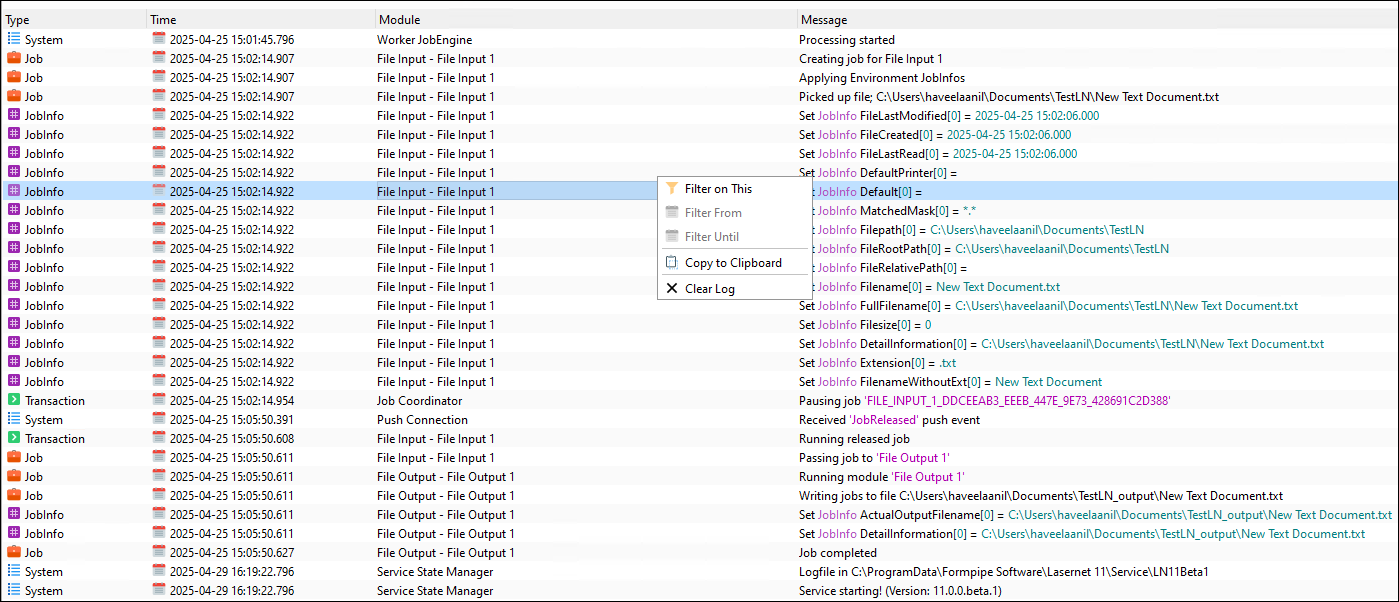
Filter on This
You can right-click on any column or value in the upper pane and select Filter on This, Filter From, or Filter Until. The selected value will be captured and inserted in the Find All window. Click the Find All button in that window to filter the log on that criteria.
Note
If you select Filter on This, the log window will only display lines that contain an exact match in the selected column.
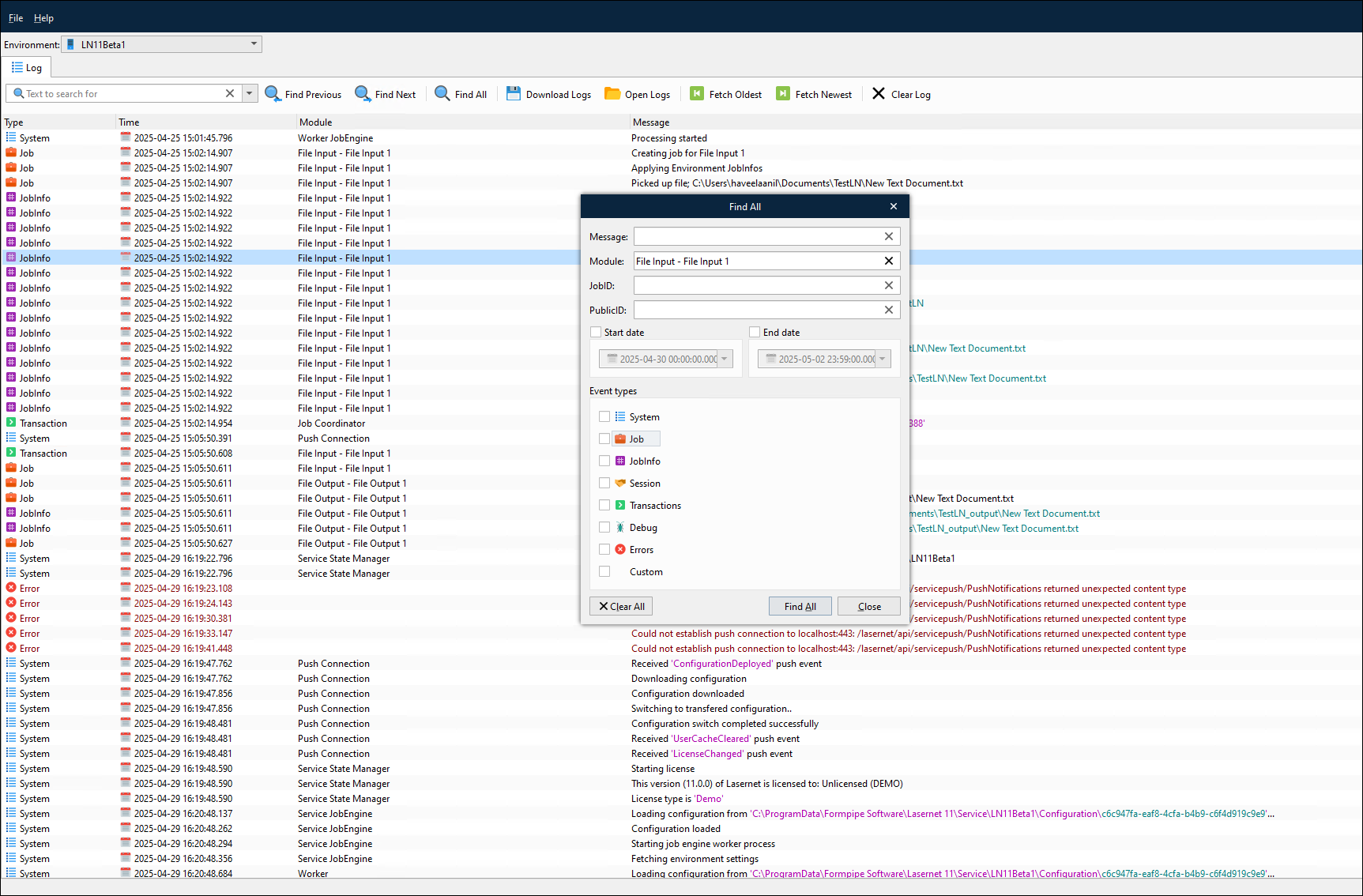
You can continue to select more columns to reduce the number of matched lines.
Copy to Clipboard
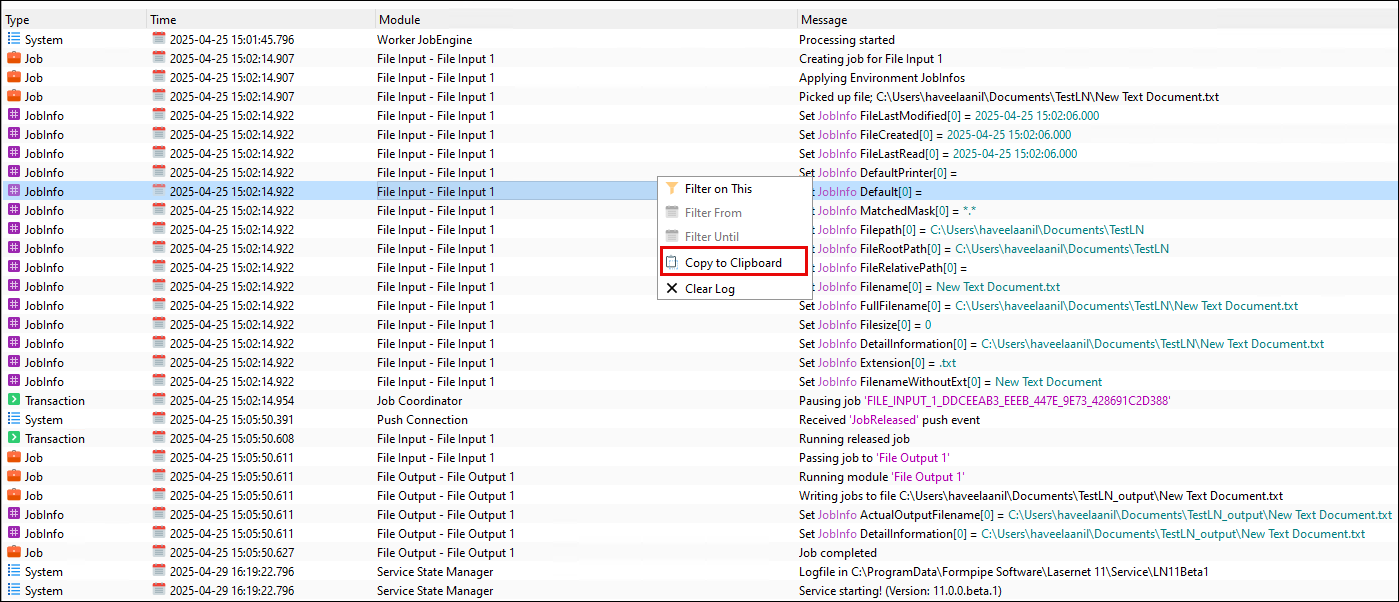
Right-click on a log line, and then select Copy to Clipboard to copy any message to the clipboard, so that you can paste it into other apps. Only one line can be selected and copied at the same time.
Clear Log
Right-click on a log line, and select Clear Log to clear the live log you are currently viewing.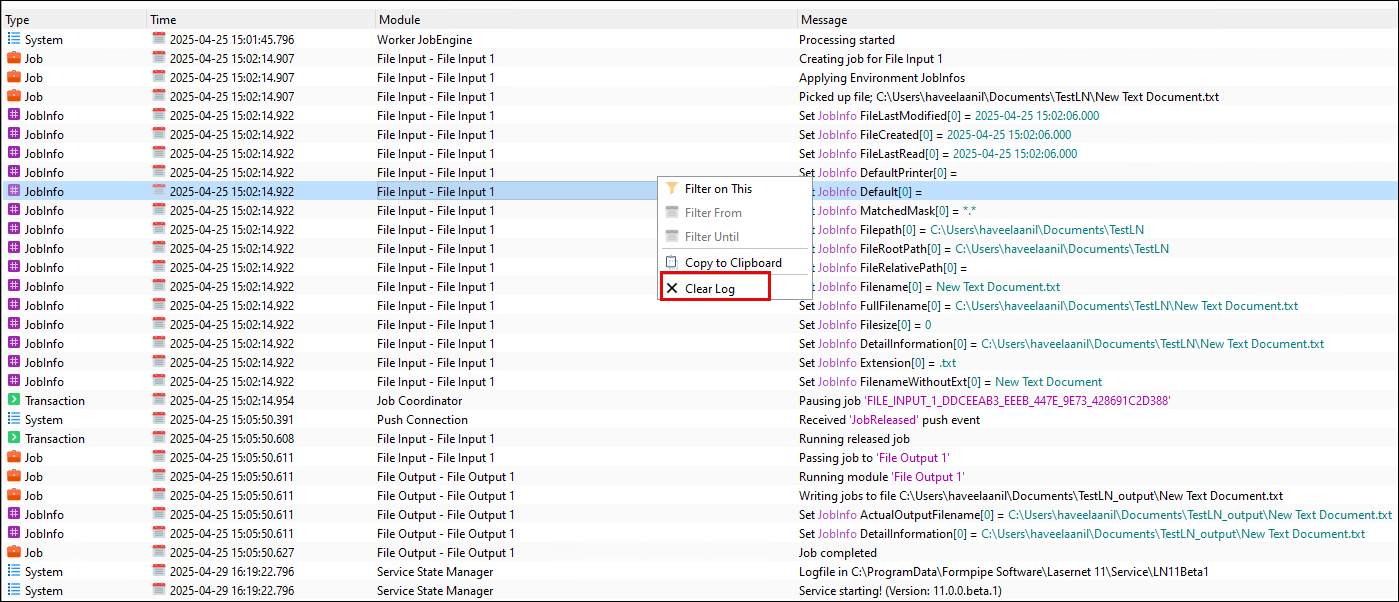
Configuring the Log
The Lasernet Config server has settings that determine the number of log files to be saved, file sizes, and log event types. Log data can be used for debugging, error handling, job tracing, and so on. You can customize the log events you want to monitor and save, which can reduce the number of log lines saved to file and shown in the Monitor window.
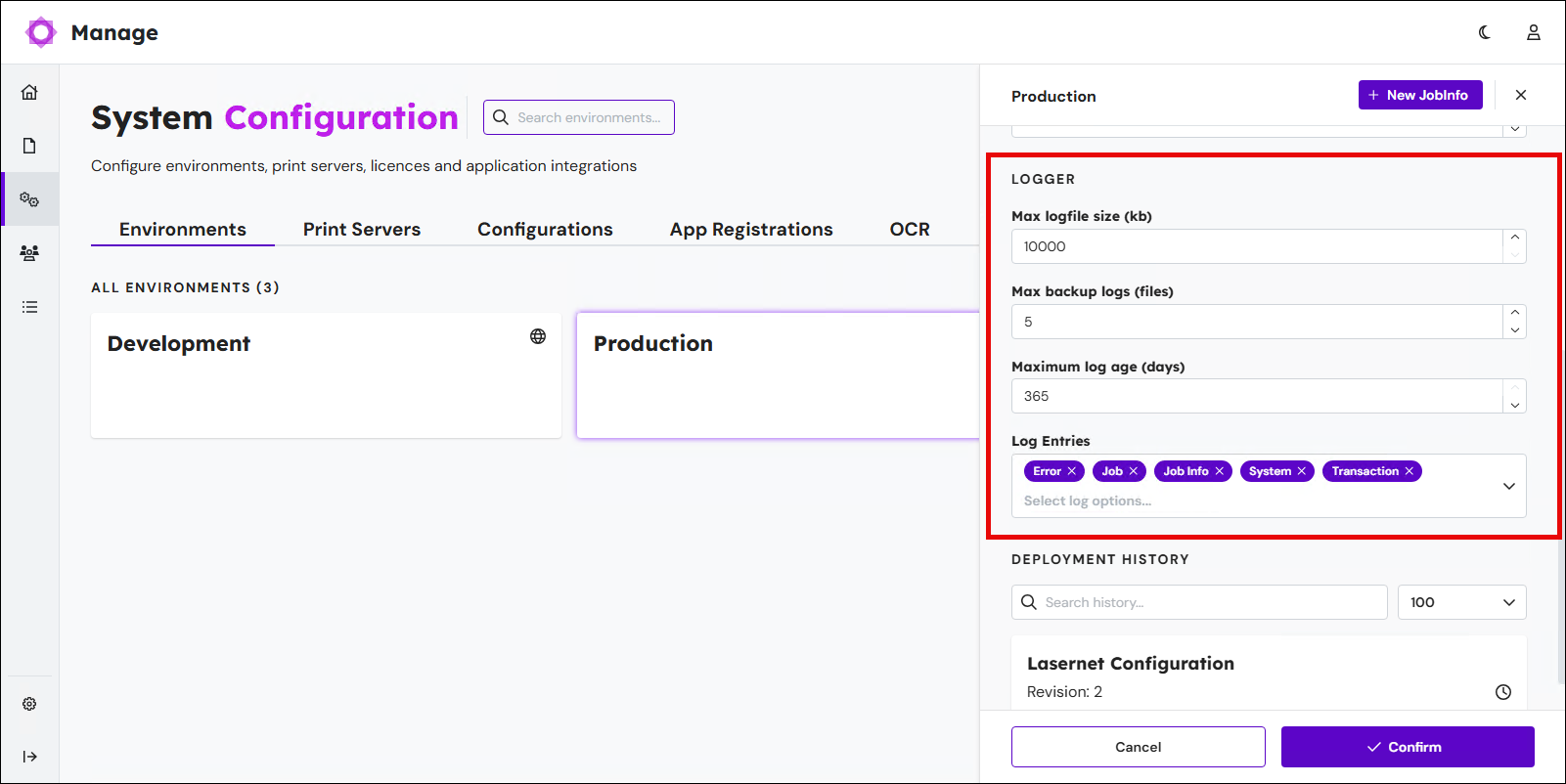
For more information about environment logging options, see Lasernet Core Environment Logging.
To change the location of log files and runtime settings, use the Lasernet Service Manager.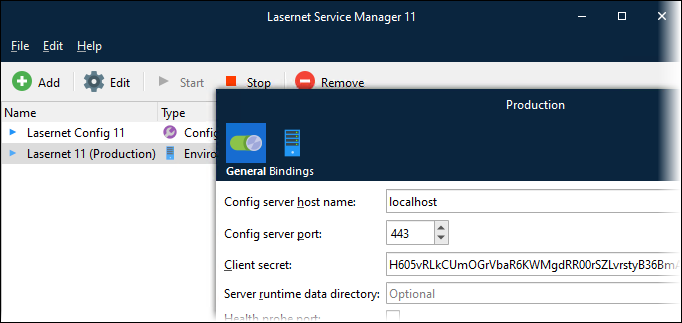
You can also create your log messages and levels from a script. For more information about the logger class, see the Lasernet Core Scripting Guide.
The Logs Page in Manage
The Logs page in Manage provides a web-based method for viewing Lasernet Core environment logs. For more information, see Lasernet Core Environment Logging.