
Lasernet Core Environment Logging
- 02 Apr 2026
- 7 Minutes to read
- Contributors


- Print
- PDF
Lasernet Core Environment Logging
- Updated on 02 Apr 2026
- 7 Minutes to read
- Contributors
- Print
- PDF
Article summary
Did you find this summary helpful?
Thank you for your feedback
Applies to: Lasernet Core 11
Note
For server logging information for Lasernet Core 10, refer to the Lasernet Developer 10 Guide.
Lasernet Core environments generate log messages that can help you monitor processing status, monitor the flow of forms through Lasernet Core, and detect errors.
Access Lasernet Core Environment Logs
There are three ways to read a Lasernet Core environment’s log messages:
Read Lasernet Core Logs in Manage
The Logs page in Manage enables you to select a Lasernet Core environment and view its log messages.
You can search the log for text and download the log messages as a file.
Navigate to the Logs Page
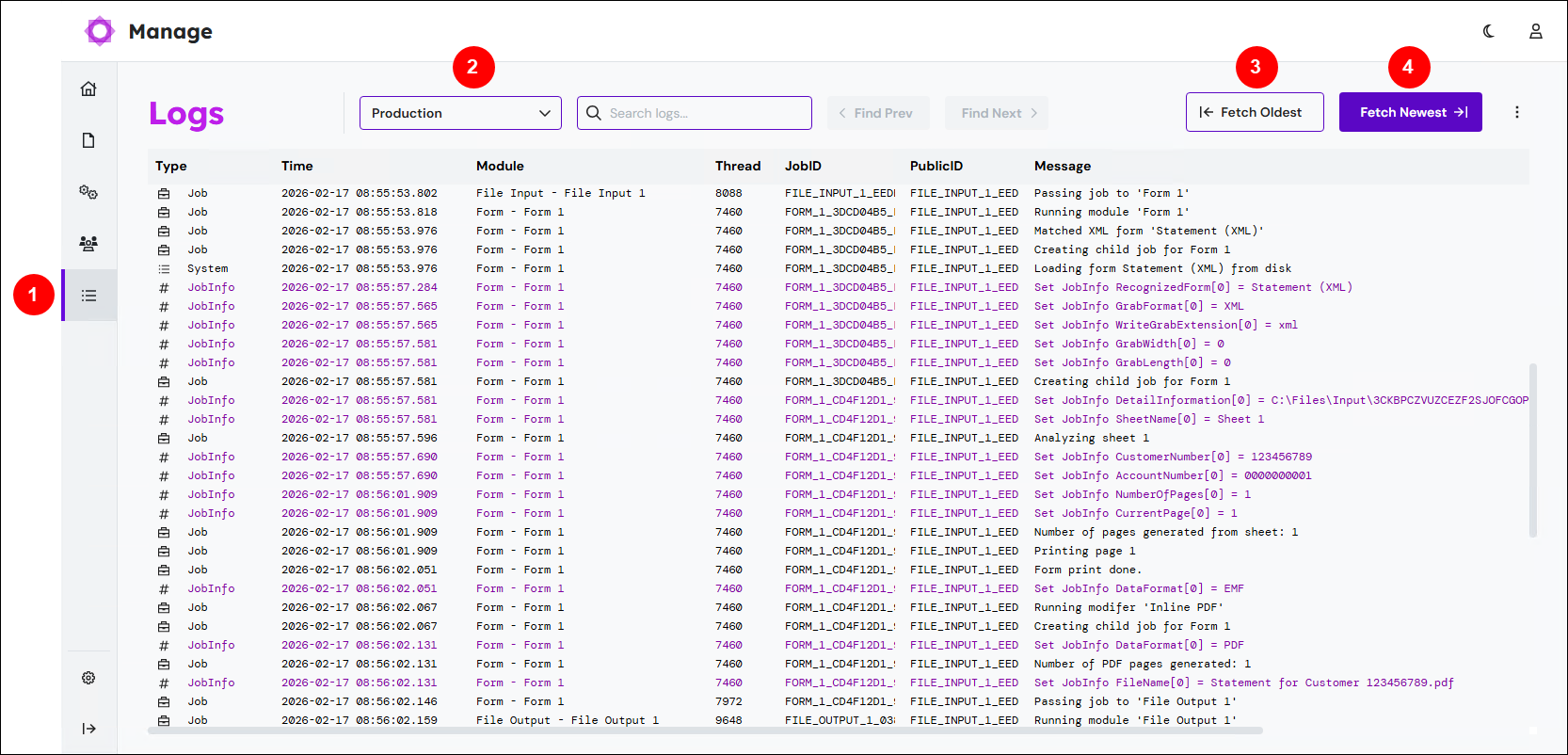
In the Manage side menu, click Logs (see 1 in the image below). Use the environment list (2) to select which environment’s log to view.
Click Fetch Oldest (3) to load and see the oldest log messages available for the environment.
Click Fetch Newest (4) to see the newest created log messages.
Search the Log
You can use the simple search to look for text in the Message column and move between those occurrences.
Find All is a more complex search feature. You can find occurrences of data in multiple log columns. This feature produces a list of search results.
Simple Search
Enter search text in the Search logs box (see 1 in the image below), then press Return. Manage finds occurrences of that text in the Messages column. The search is not case-sensitive.
To navigate between occurrences, click Find Next and Find Prev (2). Manage selects the row that contains the next or previous occurrence.
.png)
Find All
This feature enables you to search for different data in specific columns of the log. For example, you can search for “form” in the Messages column and “file” in the Module column. The search results are displayed as a list. You can click items in the list to jump to particular occurrences in the log.
To use this feature, follow these steps:
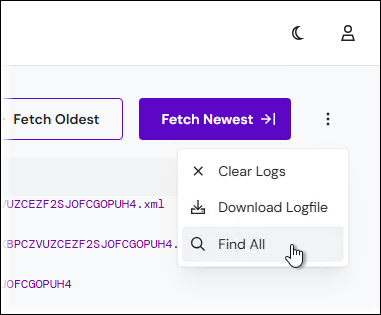
On the Logs page, click the menu button (three vertical dots), then click Find All.
In the Find All window:
In Message, Module, JobID, and PublicID, enter text to search for. The search results will contain all the text that you enter in this window.
In Event Types, select which event types to search. If you do not select any, all event types are searched.
Click Confirm.
.png)
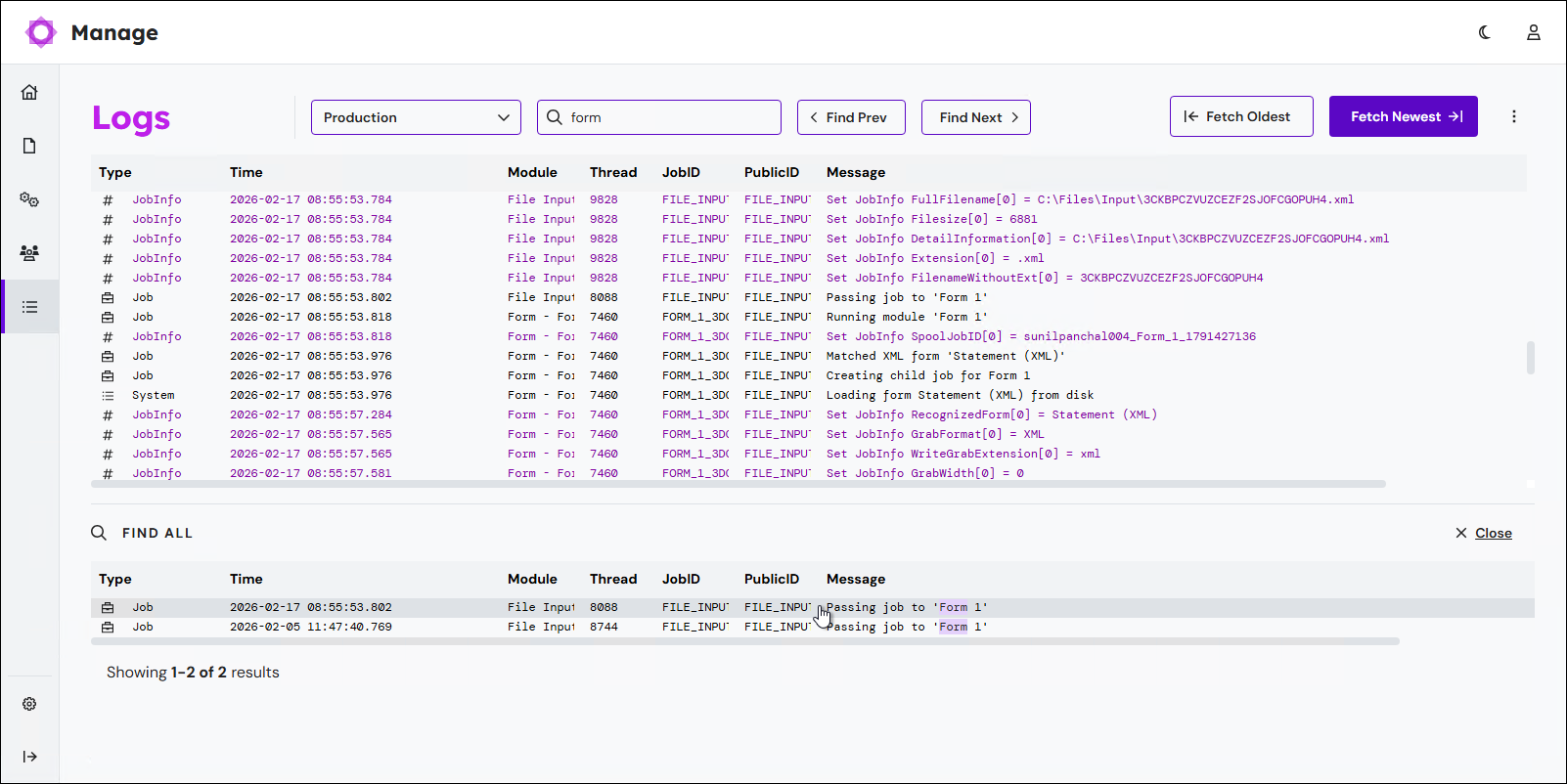
The Find All pane displays search results. The search results satisfy all the criteria that you entered in the Find All window. Click a search result to view that log entry in the main log area.
Download the Log as a File
On the Logs page, click the menu button (three vertical dots), then click Download Logfile. Manage downloads a ZIP file that contain log data in LNLOG format.
Clear the Log
To clear the log data displayed in Manage, click the menu button (three vertical dots), then click Clear Logs. This action clears the Logs page in Manage; it does not affect the logging data held by the environment itself.
Lasernet Monitor
Lasernet Monitor is a desktop application that enables you to view an environment’s log data. To start Lasernet Monitor, click Lasernet Core 11 > Lasernet Core Monitor 11 or Lasernet Core Developer 11 > Lasernet Core Monitor 11 in the Windows Start menu.
At the prompt, enter credentials to log in to the selected Lasernet Config Server. Lasernet Monitor will start.
The main part of the window displays log messages. Use the Environment list in the top corner to select which environment to view log messages for.
.png)
For more information about Lasernet Monitor, see Lasernet Monitor Guide.
Log File
In addition to making log messages available in Lasernet Monitor, a Lasernet Core environment writes log messages to an .lnlog file.
The location of the log file is determined by the environment’s Server runtime data directory location (in Lasernet Service Manager). If this setting is blank, the default location is used: C:\ProgramData\Formpipe Software\Lasernet 11\Service\<environment name> (appropriately substitute <environment name>). Else the location specified by Server runtime data directory is used.
The log file name is Lasernet.<host name>.lnlog (appropriately substitute <host name>). This file contains the newest log messages.
In Manage (and the Lasernet Config web app), you can configure Max logfile size (in KB), Max backup logs (as number of files), and Maximum log age (in days) for an environment. When the file described above reaches the size specified by Max logfile size, it will be renamed to Lasernet.1.lnlog , and a new blank Lasernet.<host name>.lnlog file will be created. If a Lasernet.1.lnlog file already exists, it will be renamed to Lasernet.2.lnlog , and so on for any other existing log history files. The number of log history files maintained is determined by Max backup logs and Maximum log age.
Each Lasernet Core environment and pod transfers the log messages that it generates to the Config Server. A single combined log file is generated there. The Lasernet Monitor tool fetches this combined log; in that tool, the user can use the Environment list to filter the log messages.
Lasernet Core Environment Log Content
Lasernet Core environment logs can contain the following types of messages:
Log Event Type | Description |
|---|---|
Debug | Events that generally produce too much noise to be included in EID_JOB or EID_SYSTEM, but which may provide extra help tracking down a problem or a possible bug in the system. |
Error | Fatal errors that prevent a job from being successfully received, handled, or sent to an output port. |
Job | Log data from the modules as a job passes through them. The Overlay Engine may comment on what overlays are put on or what JobInfo is found. The Forms Engine logs what form was chosen. Information that helps show why the job passes through the system as it does. |
Custom | User-defined log messages. |
System | Boot and shutdown messages. License information about modules. |
Transactions | Log information that shows how a job is received by the input port, handled by the engines, and committed by output ports. Mostly produced by the Job class and the transaction manager. |
JobInfo | Set JobInfo log events. |
Session | This option applies to all modules which communicate with other systems to intercept the session log. Sessions are logged for HTTP, FTP(S), SFTP, POP3, IMAP, File Retriever (FTP(S), SFTP, HTTP), SharePoint, and Web Service. |
Warning | Warnings about unexpected events and errors that occurred but were not fatal errors. |
Specify Which Types of Message Are Included in a Lasernet Core Environment’s Log
You can specify which types of message are included in the log. To do this, follow these steps.
Manage
In the side menu, click System Configuration (see 1 in the image below).
On the Environments tab, click the tile (2) for the Lasernet Core environment that you want to configure.
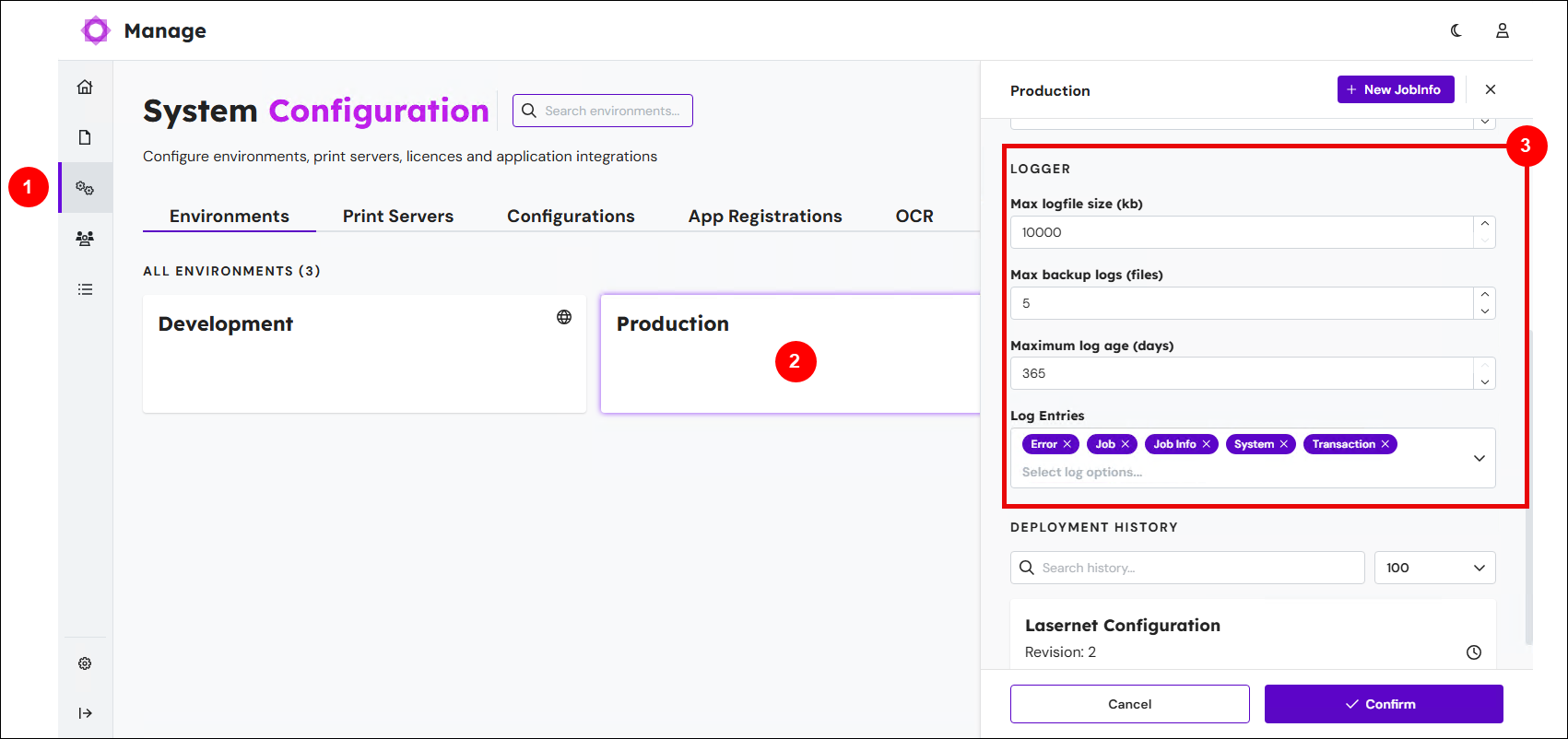
In the Logger area (3) of the environment’s properties pane:
Use the Log Entries list to select which type of message to include in the log. The message types are described in Lasernet Core Environment Log Content.
Warning
Only select Debug or Session for Lasernet Core environments that are used for development or testing purposes. These logging levels are not suitable for use on production Lasernet Core environments because they can reduce Lasernet Core’s processing speed and generate a very large number of message lines in the log file. Session log messages can also use a very large amount of server memory.
Optional: If necessary, you can change the default values for Max logfile size (kb), Max backup logs, and Maximum log age (days).
Note
When the Lasernet Core environment’s current log file reaches the Max logfile size, Lasernet Core archives it and creates a new blank log file to write new log messages to. At this point, Lasernet Core will delete any archived log files that exceed Maximum log age or that cause the number of archived log files to exceed Max backup logs (oldest are deleted first).
Click Confirm.
Lasernet Config Web App
Note
The Lasernet Config web app was provided with earlier versions of Lasernet Core. It is a legacy web app and will be deprecated in a future version of Lasernet Core.
Expand for information
Edit the environment’s Logger settings in the Lasernet Config web app:
Sign in to the Lasernet Config web app.
In the Tools menu, click Environments.
Click the environment that you want to configure logging for, then click Edit in the toolbar.
On the Logger tab, clear or select the Debug, Error, Job, Custom, System, Transactions, JobInfo, Session, and Warning checkboxes to choose which type of message to include in the log. The message types are described above.
Warning
Only select Debug or Session for Lasernet Core environments that are used for development or testing purposes. These logging levels are not suitable for use on production Lasernet Core environments because they can reduce Lasernet Core’s processing speed and generate a very large number of message lines in the log file. Session log messages can also use a very large amount of server memory.
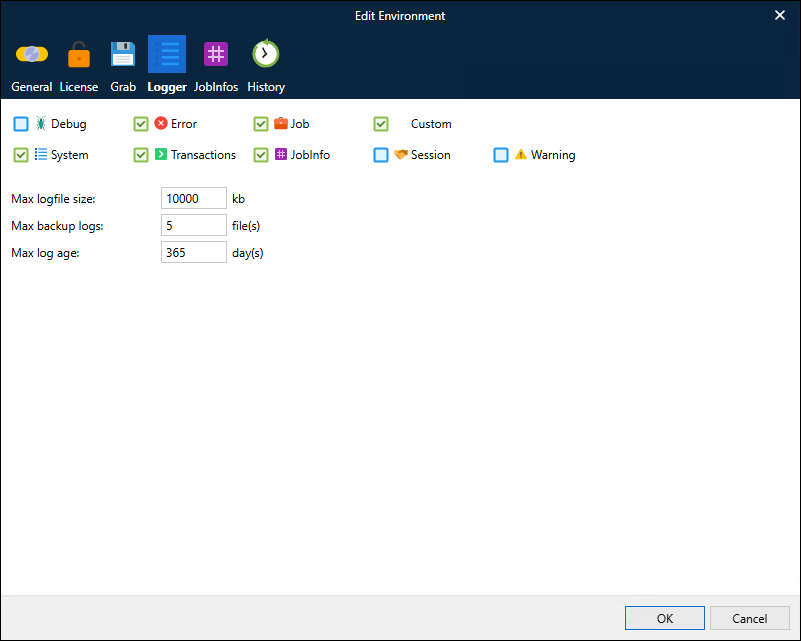
Optional: If necessary, you can change the default values for Max logfile size, Max backup logs, and Max log age.
Note
When the Lasernet Core environment’s current log file reaches the Max logfile size, Lasernet Core archives it and creates a new blank log file to write new log messages to. At this point, Lasernet Core will delete any archived log files that exceed Max log age or that cause the number of archived log files to exceed Max backup logs (oldest are deleted first).
Click OK to save and apply your changes.