
Lasernet Core 11.0 New Features
- 08 May 2026
- 20 Minutes to read
- Contributors

- Print
- PDF
Lasernet Core 11.0 New Features
- Updated on 08 May 2026
- 20 Minutes to read
- Contributors
- Print
- PDF
Article summary
Did you find this summary helpful?
Thank you for your feedback
Release version: 11.0
Release date: 2nd March 2026
Introduction
This page describes the new features in Lasernet Core 11.0.
Note
Compatibility Warning
The Lasernet Connectors for Microsoft Dynamics 365 are currently not compatible with Lasernet Core 11.0. We are working towards launching these two products together, but until then, current customers and partners with the Dynamics 365 connectors should continue to use Lasernet Core 10.
Note
Lasernet Core 11.0 is a release that delivers significant advancements in several key areas.
Because of the underlying architectural changes in this release, if you are considering upgrading to Lasernet Core 11.0, we recommend that you thoroughly review the release notes and documentation, fully test your configuration, and reach out to your technical team for support.
This note does not apply to the Lasernet Connectors for Microsoft Dynamics 365, which must continue to use Lasernet Core 10.
New Features
Lasernet Core 11 focuses on refining core functionalities, improving performance, and delivering a better user experience. It includes various updates to the job engine, Config Server, Lasernet Developer, Lasernet modules, Lasernet Form Editor, and Lasernet Printer Service.
Job Engine
New Job Engine
Lasernet Core 11 includes a new job engine that provides several new features to modules. These advancements ensure that jobs are processed more efficiently in server environments.
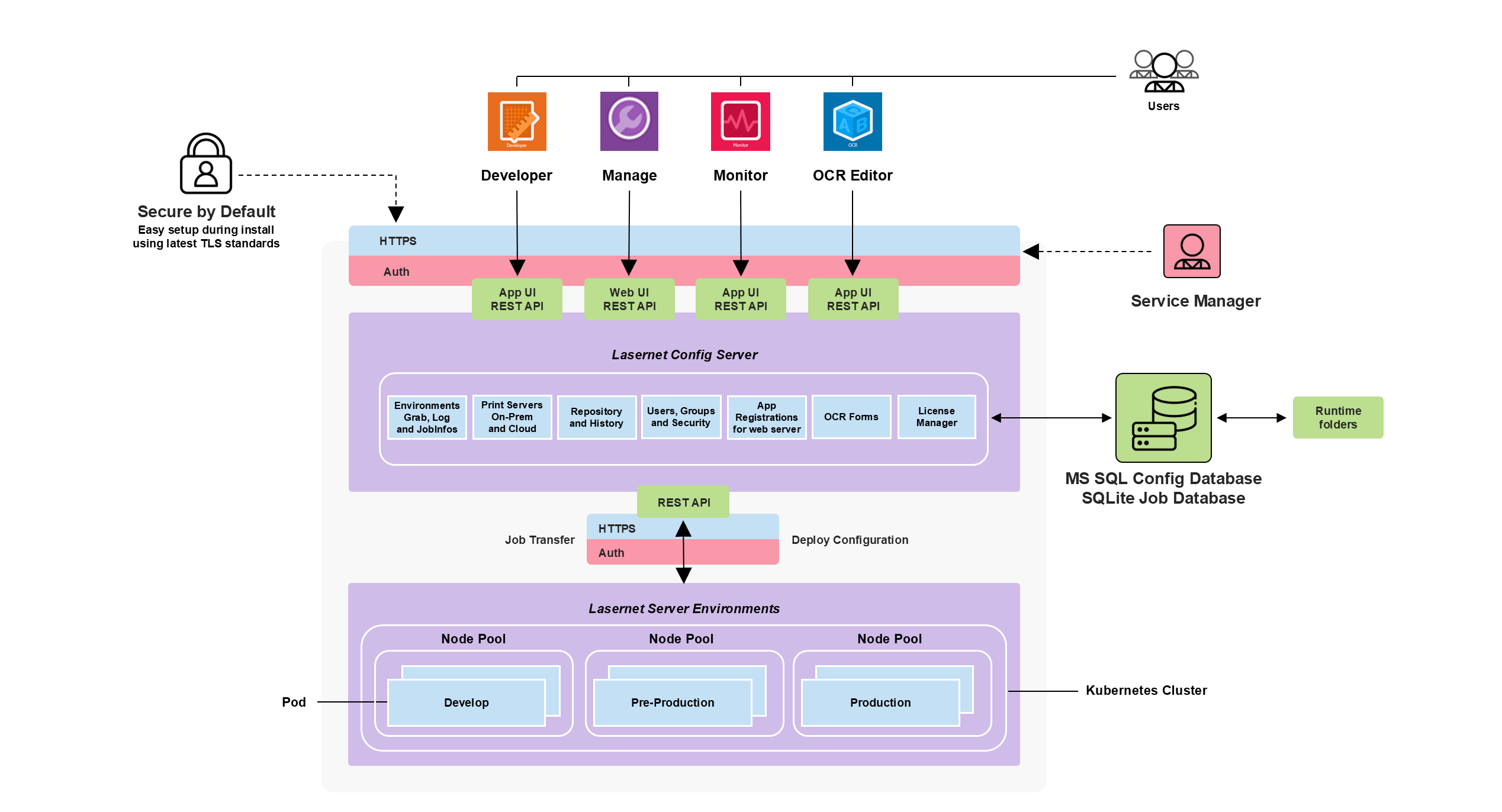
The job engines running in each of the Lasernet environment Windows services transfer jobs to the Lasernet Config Server service when jobs:
Pause (because a module is configured to pause the job or because it has a configured schedule)
Fail
Are combined
Jobs that have these statuses are temporarily stored in runtime folders and in an SQLite database on the Config Server to support failover and load-balancing. Jobs are released from the Config Server through Manage and are pushed back to one of the environments assigned to a node pool. Log messages processed by an environment are centralized on the Config Server and combined into a single log file for each node pool.
The benefits of the new architecture include:
Lower memory consumption
Faster processing
Load-balancing support
Failover support
High availability
Docker support
Kubernetes Pod Scaling
Lasernet Core now has the ability to scale across multiple pods, bringing the ability to auto-scale the following polling input modules:
FTP Input
SFTP Input
Mail Input
File Input
These modules can identify when they are running in a Kubernetes environment and synchronise file access between pods, preventing multiple pods from accessing the same resources.
Note
Lasernet support for deployment in a Kubernetes environment will initially be available only for our hosted offering.
This approach will enable us to develop experience, knowledge, and best practice around deploying Lasernet in Kubernetes. At a later date, after we complete this build-up phase of our Kubernetes project, we will be able to offer all customers and partners access to Lasernet in containerized form along with comprehensive guidance and documentation.
Job Events
Job events added to modules have been reworked in the job engine.
Job events are now supported for all modules and create events for a user-defined destination in the following scenarios:
Job Start
Job Paused
Job Scheduled
Job Failed
Job Combined
Job End
PDF/UA
PDF/UA stands for Portable Document Format / Universal Accessibility. PDF/UA-compliant documents make content readable by assistive technologies, such as screen readers.
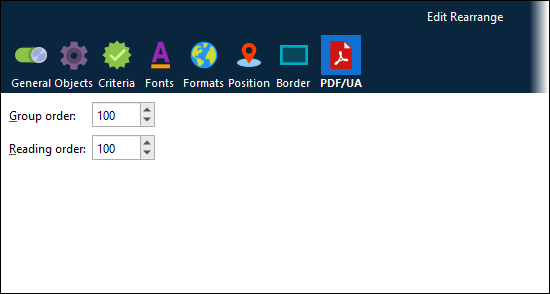
Lasernet Core provides a specific PDF/UA output type for sheets, which enables you to provide Group order and Reading order property values for rearranges, text, barcodes, images, charts, and subforms. These properties control the position of each form item in the structure tree embedded in PDF/UA documents.
Crucially, Group order enables you to group form items in the structure tree, so that (for example) you can ensure that the structure tree in an invoice PDF contains all header items, followed by all line items in the invoice, followed by all footer items.
PDF/UA subforms are supported. You can create PDF/UA subforms and convert existing EMF subforms to PDF/UA format, and then use them in PDF/UA forms.
You can add alt text to charts and images. Also, rearranges that are marked as hyperlinks are included in the structure tree as <Link> elements.
For more information, see Configure PDF/UA Output.
Important
Lasernet Core’s PDF/UA capability is being developed iteratively. It can generate PDF/UA-compliant documents in common form design scenarios. However, if you notice any issues in the PDF/UA structure generated from your form design and workflow, contact Lasernet Support. Your feedback will help us improve this feature.
Manage
The Lasernet Core administration and configuration experience has been completely reworked. Lasernet Core 11 introduces Manage, which delivers a brand new, modern, streamlined, and intuitive user experience for Lasernet administrators.
All aspects of Lasernet Core administration (including environment management, user management, and licensing) are available, in addition to the ability to view Lasernet Core logs and manage paused and scheduled jobs.
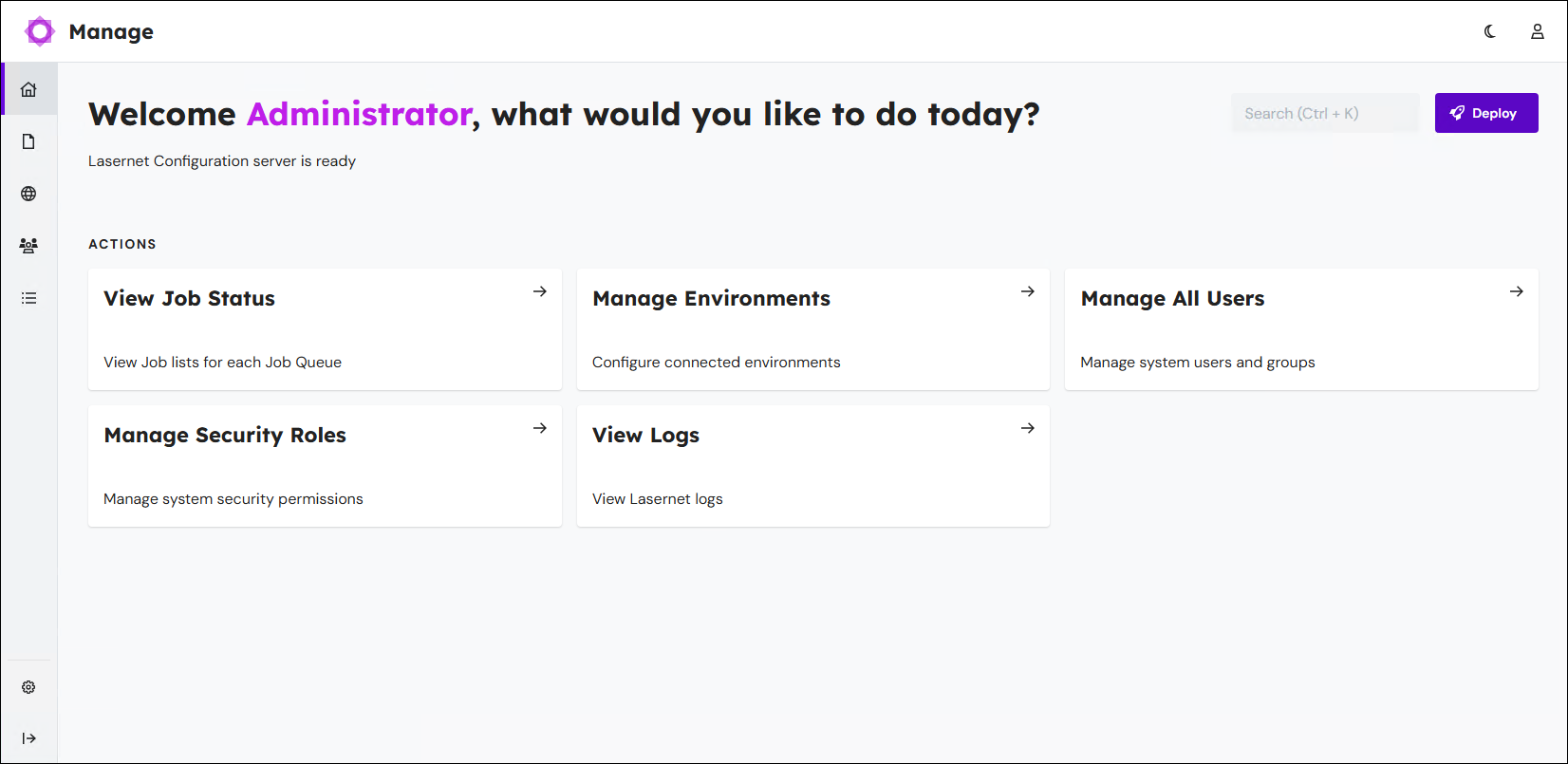
To access Manage, go to the following location in a web browser:
https://<hostname>:<port number>/lasernet/manage
Appropriately substitute <hostname> (and <port number> if used).
Important
To enable users to access Manage from computers other than the Lasernet Config server, you must specify appropriate allowed origins (CORS) when you configure the Lasernet Config server.
For more information about Manage, see Find Your Way Around the Lasernet Core Administration Tool.
Note
The Lasernet Config web app remains available at its existing URL.
Offline Activation
To enable Lasernet administrators to activate licenses on Lasernet Core servers that are not connected to the internet, a new offline activation workflow has been introduced.
If you upload a license to a Lasernet Core server that is not connected to the internet, Lasernet Core generates an offline activation license key. A new Lasernet Offline Activation portal enables the administrator to supply their activation code and license key (from an internet-connected device) and receive an activated license file to upload to their Lasernet Core server.
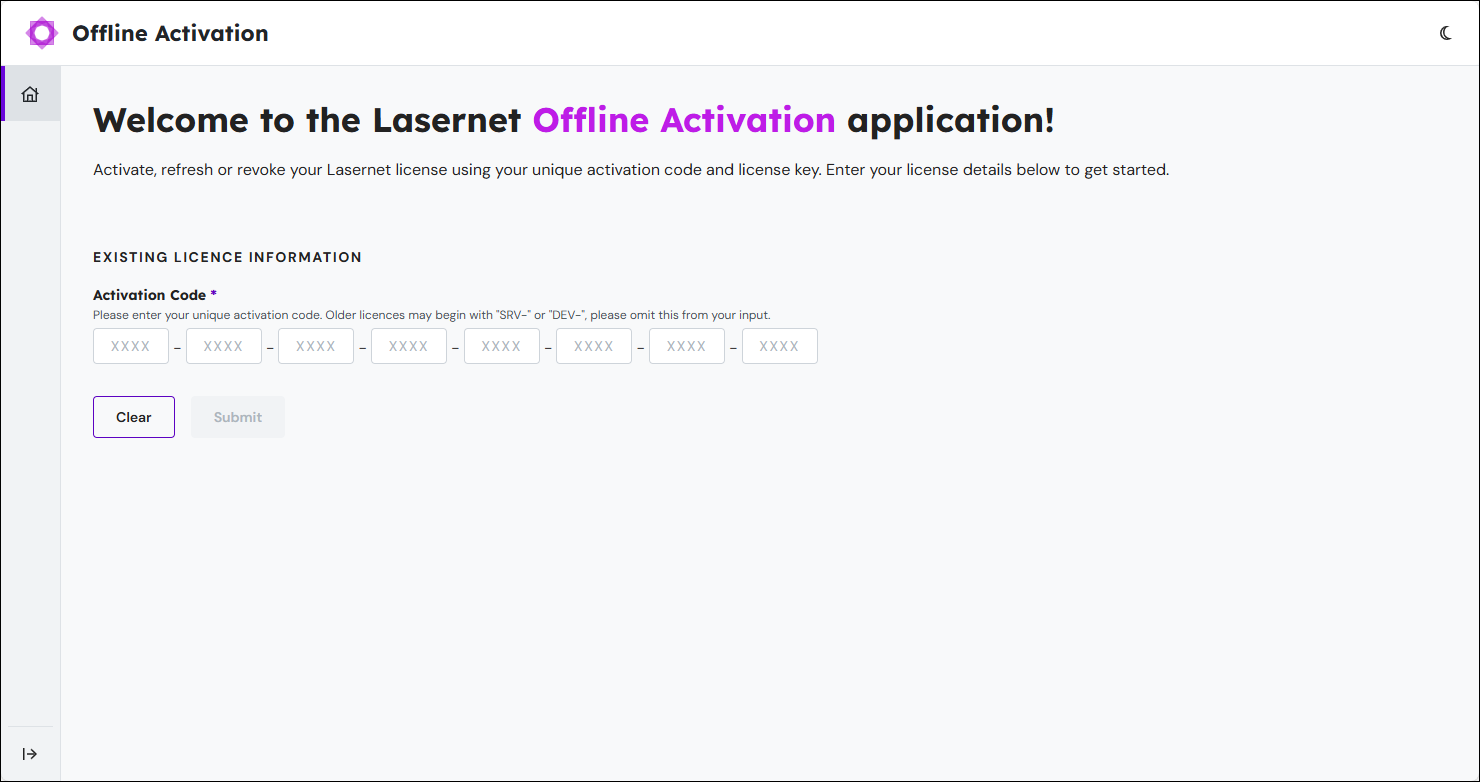
The workflow also supports license refreshes and deactivations.
For more information about offline license activation, deactivation, and synchronization, see:
Lasernet Service Manager
Lasernet Service Manager is a new application that enables you to create Lasernet Core environments and manage settings for the following Lasernet Windows services:
Lasernet Config Server
Lasernet Core environments
Note
Most settings in the Service Manager replace settings previously managed on the Config Server through server settings files or the Server License Manager. This has been done to increase security.
Note
The Lasernet Core 11 Installation and Setup Guide describes how to use Lasernet Service Manager to:
Environment Management and Configuration
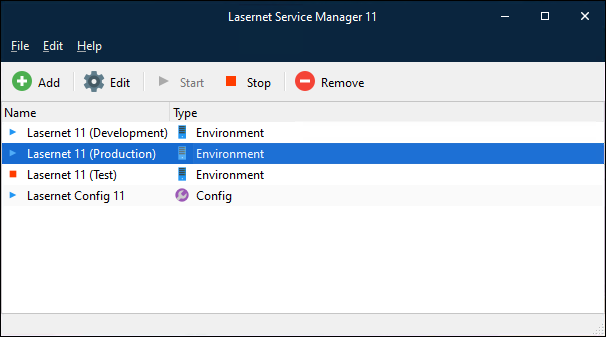
Lasernet Service Manager enables you to add, edit, remove, start, and stop services for an environment.
You can also configure settings for Lasernet Core environment services, including port number, client secret, server runtime data directory, and host name bindings.
Config Server Management and Configuration
You can configure the Config Server’s connection to Microsoft SQL Server, which hosts the Config Server’s main database.
You can also start and stop the Config Service, and configure settings such as its port number, host name bindings, client secret for environments, and external authentication providers.
Note
The Lasernet installation package does not include Microsoft SQL Server. It must be installed, managed, and backed up separately to Lasernet Core.
Config Server Features
Lasernet Config Server is the central communication hub for all components of the Lasernet Core system. It manages the configurations used by different environments. It also oversees various aspects of system configuration, including user access to the Lasernet Core system. The features outlined below are new to Lasernet Config Server.
Note
The Lasernet Core 11 Installation and Setup Guide describes how to use the Config Server to complete essential Lasernet Core system setup tasks (such as installing licenses and configuring users, groups and security roles).
The Lasernet Core Administration Guide describes how to use Manage or the Lasernet Service Manager to do common administration tasks such as starting and stopping Lasernet Core services, toggling grab mode and logging for Lasernet Core environments, and performing license management tasks (such as removing and deactivating a Lasernet Core license).
Grab
A grab event’s status and value for maximum grabs per object are configured on the Config Server. Selected values are automatically pushed to the environment on demand.
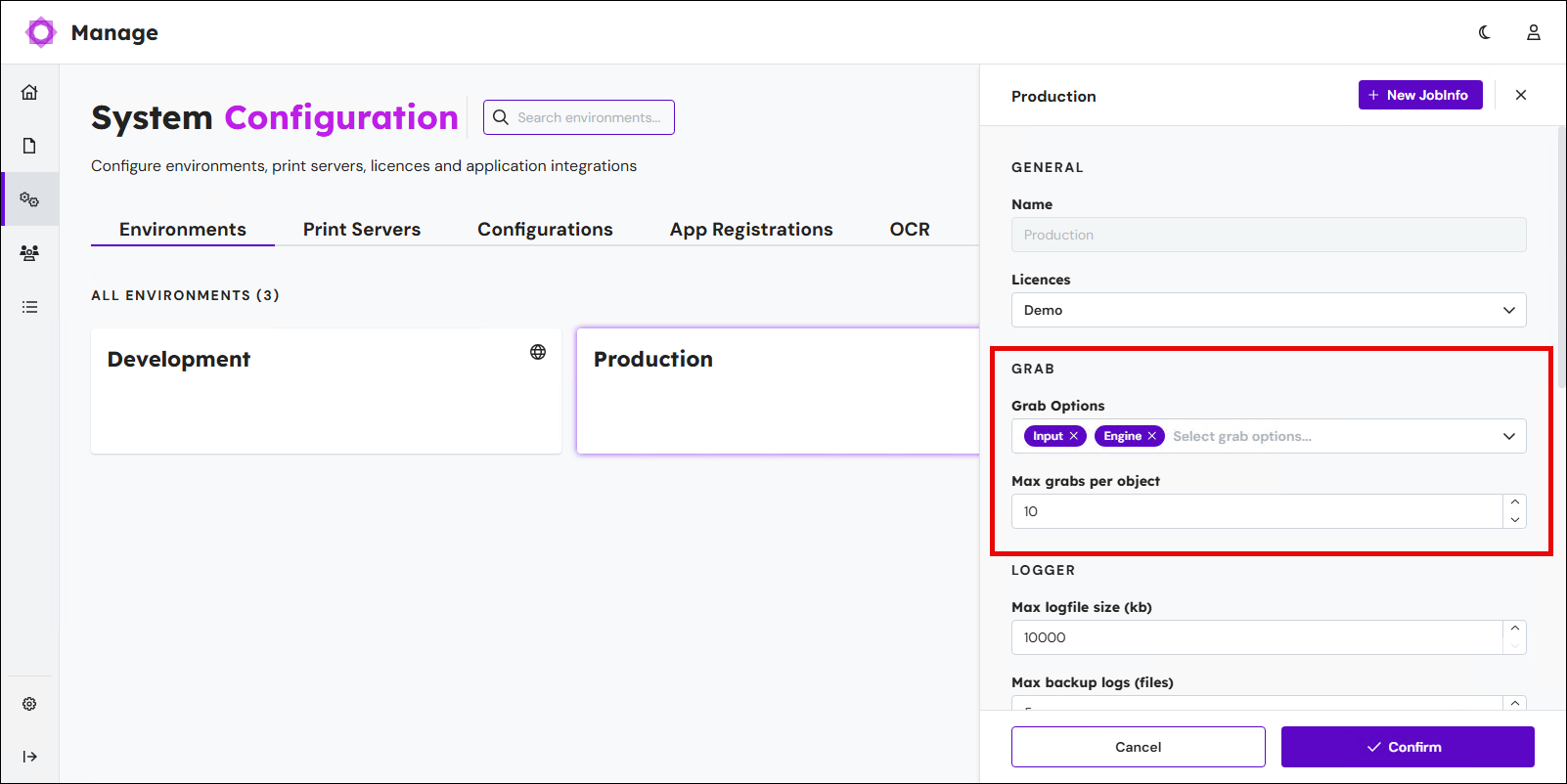
Available grab event points are:
Any input module
Any engine
Any form
Any output module
The default value for maximum grabs per object for the selected event point is ten files to avoid intensive saving of grab files.
For more information, see Start and Stop Grab Mode.
Note
Grab event points can no longer be activated for a specific module or form object. These settings have been removed from the configuration objects.
Logger
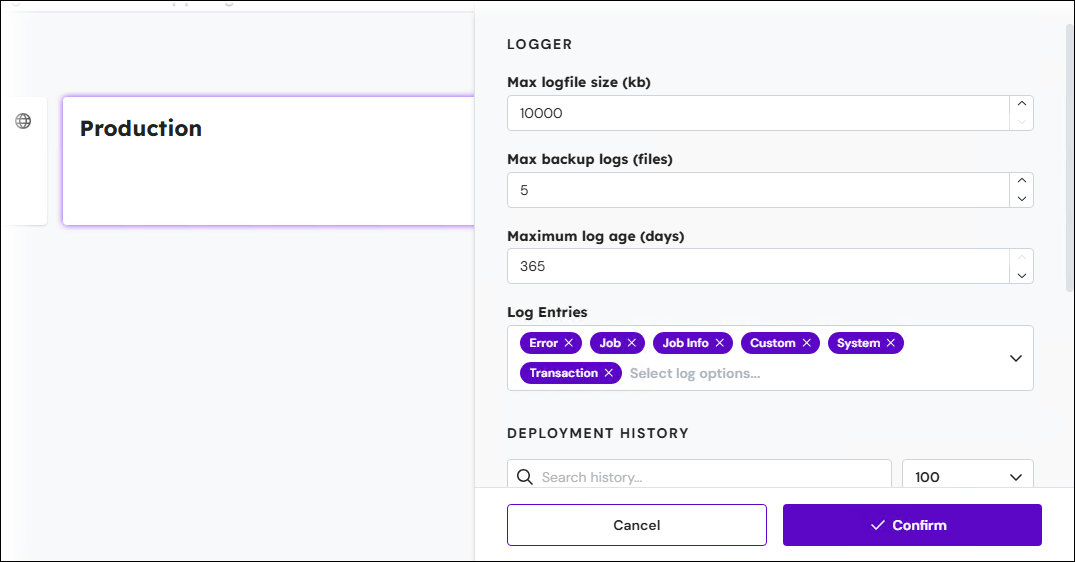
The logger event status, maximum log file size, maximum number of backup logs, and maximum log age can be changed at any time on the Config Server. Selected values are automatically pushed to the environment on demand.
When the Lasernet Core environment’s current log file reaches the Max logfile size, Lasernet Core archives it and creates a new blank log file to write new log messages to. At this point, Lasernet Core will delete any archived log files that exceed Maximum log age or that cause the number of archived log files to exceed Max backup logs (oldest are deleted first).
For more information, see Lasernet Core Environment Logging
JobInfos
JobInfo names and values can be added or changed at any time on the Config Server and are automatically assigned to an environment on demand.
For more information, see Add Environment JobInfos.
.png)
Licensing
In Lasernet Core 11, the registration and administration of Lasernet Core environment licenses is centralized in the Config Server. License files are added on the Licences tab of the System Configuration area of Manage.
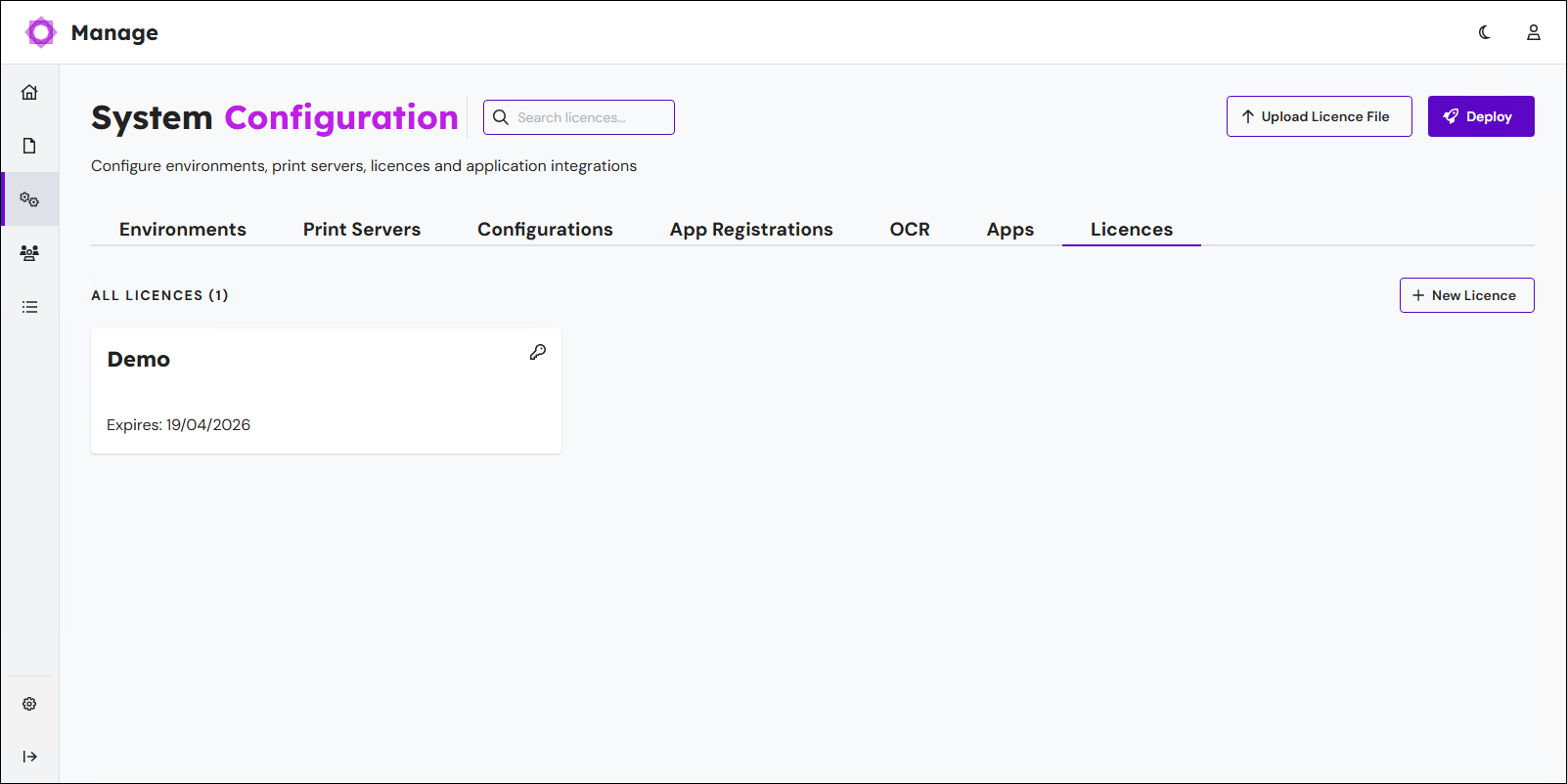
It is now possible to unassign and assign licenses to another environment without deactivating a license.
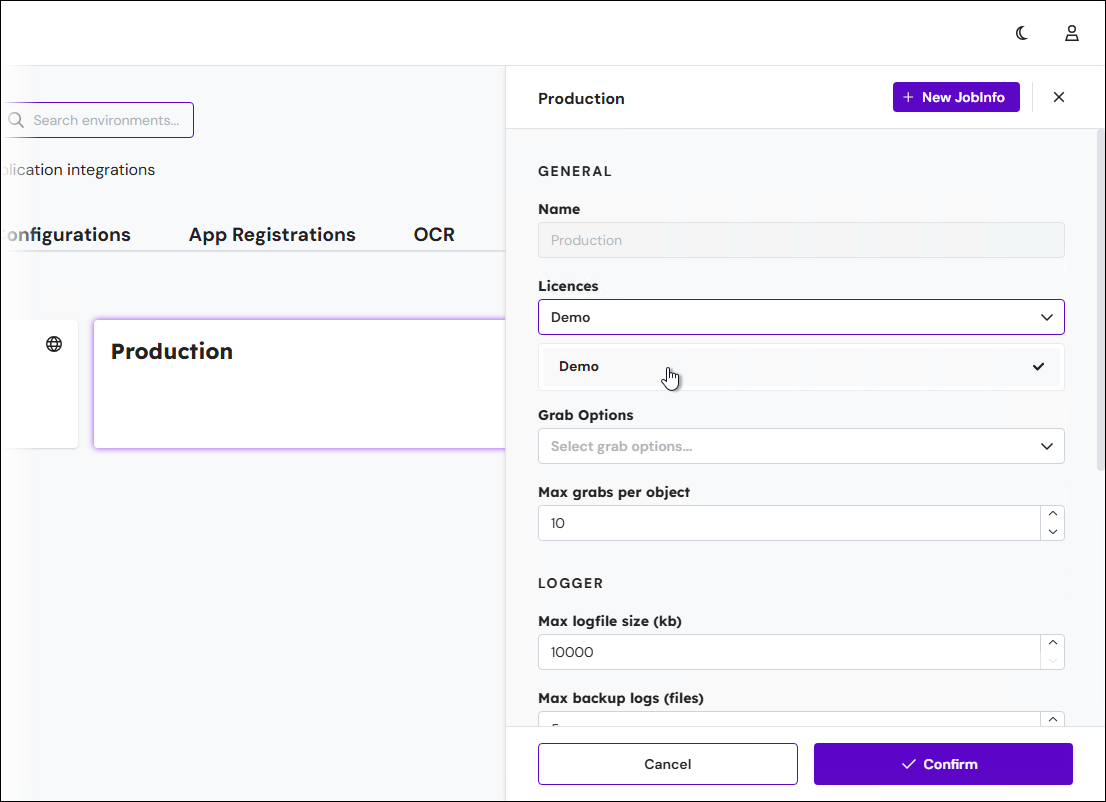
For more information, see Apply Licenses to Lasernet Services and Lasernet Core License Management.
Note
Lasernet Developer 11 does not require a license.
Lasernet Developer Features
Lasernet Developer provides an easy-to-use environment for configuring and maintaining input and output management workflows and designing forms. The features outlined below are new to Lasernet Developer.
Environments
An environment consists of the resources that support an application while it runs on a processor. It can be either a development, test, or production environment. A “pod” refers to a group of one or more physical servers or containers in Kubernetes that share the same network namespace, storage, and other resources.
Lasernet Core 11 supports running a single configuration in one or multiple environments managed by a Windows Server or in Docker containers managed by Kubernetes. It offers support for environments and pods for failover and load-balancing.
Note
Lasernet support for deployment in a Kubernetes environment will initially be available only for our hosted offering.
This approach will enable us to develop experience, knowledge, and best practice around deploying Lasernet in Kubernetes. At a later date, after we complete this build-up phase of our Kubernetes project, we will be able to offer all customers and partners access to Lasernet in containerized form along with comprehensive guidance and documentation.
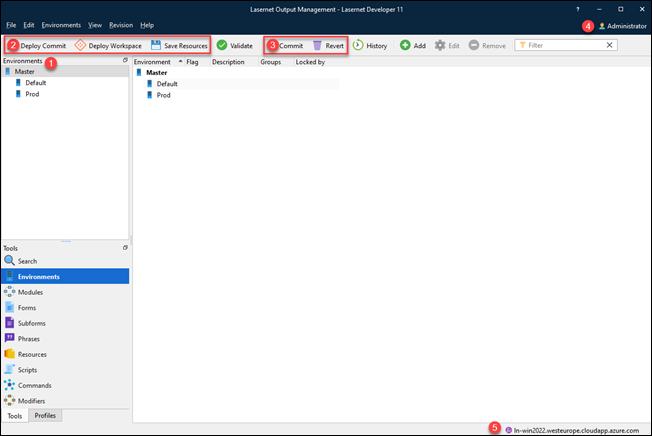
Information about the signed-in username and the name of the config server you are connected to are displayed in the Lasernet Developer window.
Deploy Workspace
Workspace is a new feature in which objects are synchronized with other users working on the same configuration, when a user adds, updates, or removes objects in the configuration. When a user changes an object and clicks OK or Save, it is immediately updated in the workspace on the Config Server and pushed to the other users. When connecting to the Config Server, a user receives the latest revision stored in the workspace. The objects are updated in the local cache and synchronized with any change made by other users working on the same configuration.
Deploy Commit is a feature that works like Deploy in Lasernet 10. Deploy Workspace is a feature that works like Patch in Lasernet 10, but includes several enhancements. In Lasernet 10, the local working copy was integrated with other users' local working copies. In Lasernet Core 11, the workspace is stored on the Config Server and shared with other users, which is then deployed to the environment.
Save Resources pushes objects stored as resources into the workspace. Resources are file objects without a GUID. Typical resource types are fonts, grabs, images, and overlays.
Note
To save new or changed files stored as resources to the workspace, you must remember to click the Save Resources button in the toolbar. The Save changes dialog appears. You must select the listed resources marked as changed.
Note
In Lasernet Core 11, Lasernet Developer locks objects in the configuration when you edit them and then unlocks them when you finish making changes, so that other users working on the same configuration can edit them. This behavior is different to Lasernet 10, which locked objects until you committed your changes.
Note
For more information, see the Lasernet Core Configuration Management and Deployment Guide, which includes Synchronize Configuration Changes Between Lasernet Developers (Workspace).
Commit and Revert
Created Date, Modified Date, Created By, and Modified By have been added as new columns to the list view of objects in the Commit and Revert dialogs. Additionally, the revision number currently being worked on is displayed in the lower left corner of these dialogs.
Right-click on an object with dependencies in the Commit or Revert dialogs, and select the new tool Deselect Dependencies to automatically deactivate the checkbox for other objects in the list view with dependencies on the selected object.
New Grab Mode Panel
You can now start or stop grab mode on demand from the Lasernet Developer without needing to deploy a configuration. New action tools have been added to various toolbars for easy access to start, stop, download, and open grab files. The status of the start and stop buttons is communicated on demand to other users working on the same configuration.

For more information about grab files in Lasernet Developer, see Grab Files.
Note
Grab event points can no longer be activated for a specific module. This setting has been removed from the configuration object.
Grab File Format
Grab files are only stored in container files with the extension .lnjob (see 1 in the image below). The container includes JobInfos with values and job data such as XML, TEXT, PDF, and so on.
Note
Unlike previous versions, JobData is no longer stored as a standalone file, with its file type extension.
.png)
The preview is divided into two panes: an upper pane with an editor to add and edit JobInfos and values, and a lower pane with an editor to edit job data.
Export/Import Configurations and Objects
Right-click an object with dependencies in the Commit or Revert dialog, and select the new tool Deselect Dependencies to automatically clear the boxes for other objects in the list that depend on the selected object.
It is now possible to include timestamps in filenames in the Export Configuration > Options dialog.
.png)
The Export Objects dialog now features a filter that displays only the nodes containing objects or resources.
JobInfo Dialog
A JobInfo is a unique and variable information string that can be automatically generated by Lasernet Core or manually defined by a user. The information carried by a JobInfo can be added to a form design. Lasernet Core 11 introduces the following new features for JobInfos:
Description: It is now possible to add a description to your JobInfo.
Active: You can now make your JobInfos either active or inactive by selecting the Active checkbox.
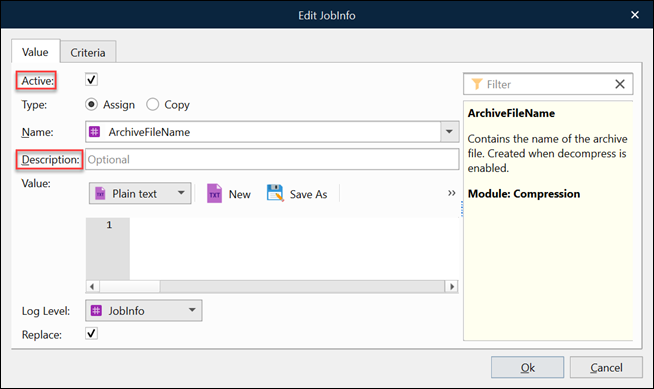
Additionally, a Filter field has been added to enhance the search for available JobInfos.
Environment Toolbar
The Environment toolbar has been added to the following editors:
XML Transformer Editor
SQL Editor
Script Editor

Lasernet Module Features
The features outlined below are new to Lasernet Core modules.
General tab
Multithreading and batch mode have been added to the General tab for any input module polling for jobs. Multithreaded input ports now share the same thread pool for processing jobs. When the batch mode is enabled, jobs from the module will be delivered into a batch thread pool instead of the main thread pool.
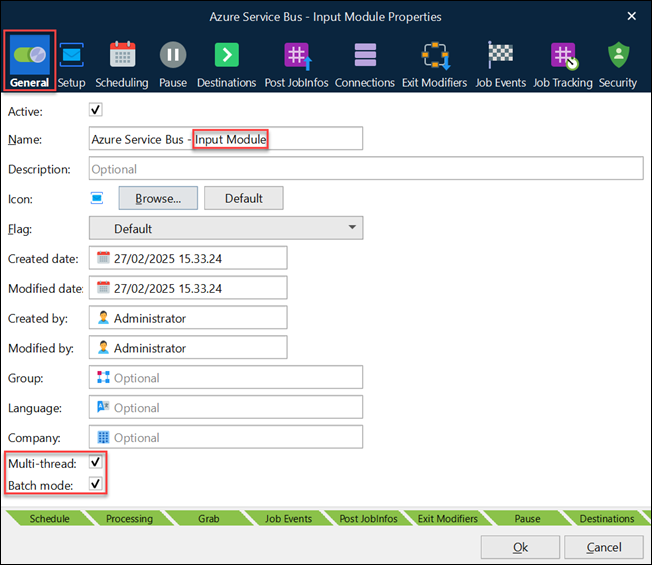
The number of threads in the regular pool is equivalent to the number of cores in the machine. The number of threads in the batch pool is limited.
To select Batch mode, you must first select Multi-thread.
In summary, when an input module receives a job:
If Multi-thread is not selected: A single CPU core is used to process jobs generated by this input.
If Multi-thread is selected and Batch mode is not selected: Each job generated by this input can be processed by any CPU core. The number of CPU cores available is not limited.
If Multi-thread and Batch mode are both selected: Each job generated by this input can be processed only by one of a limited number of CPU cores.
For more information, see Multithreaded Processing Options for Input Modules.
Scheduling Tab
The Scheduling tab introduces an improved UI/UX on any module for setting up a scheduler event. Supported event types are:
Interval
Daily
Weekly
Monthly
Additionally, you can now set expiry dates for a scheduler event.
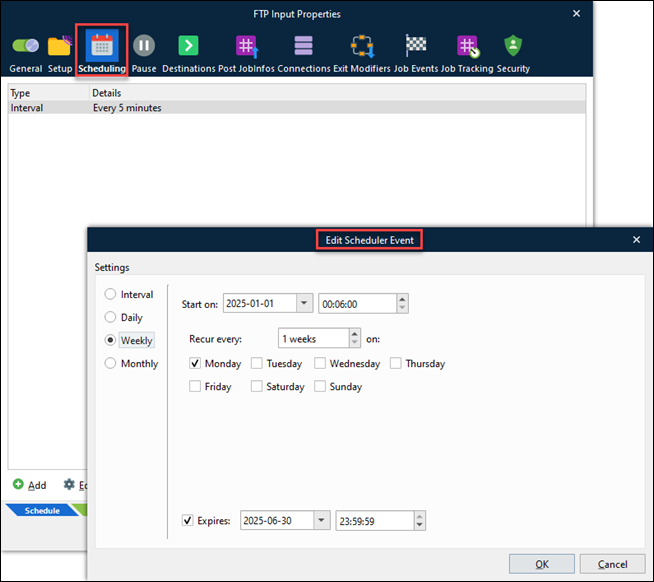
For more information, see Scheduling Jobs.
Note
Starting with Lasernet Core 11, setting up a scheduler event is mandatory for any input module polling for jobs.
Failover in Modules
Failover functionality has been added to engines to support the forwarding of jobs to a failover destination in case of job failure caused by an action in one of the modules.
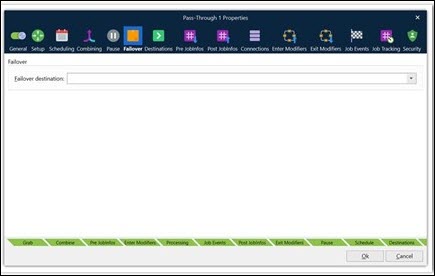
Failover functionality has been reworked in the output modules, replacing the Delivery and Destination tabs.
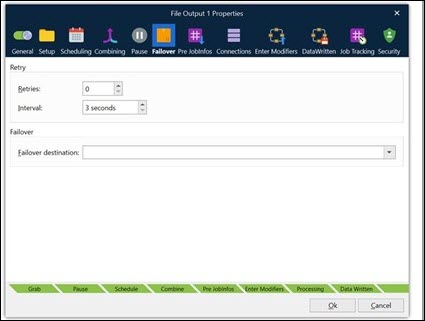
For more information, see Failover and Retries.
Web Server
The Web Server module now supports app registration authentication. Other software can now authenticate with Lasernet Core web services by supplying a client ID and client secret. The Web Server module still supports basic authentication.
The new Manage tool enables you to create and manage app registrations (including generating client secrets for apps).
For more information, see Set Up App-Registration-Based Access for External Applications.
FTP and SFTP
The FTP(s) and SFTP protocol settings are divided into two modules called FTP and SFTP. A cipher algorithm setting is used for encryption in FTP(S) + SFTP + File Retriever.
For more information, see:
Outlook Mail
Lasernet Core 11 supports app registration as an authentication method in the Outlook Mail input and output module.
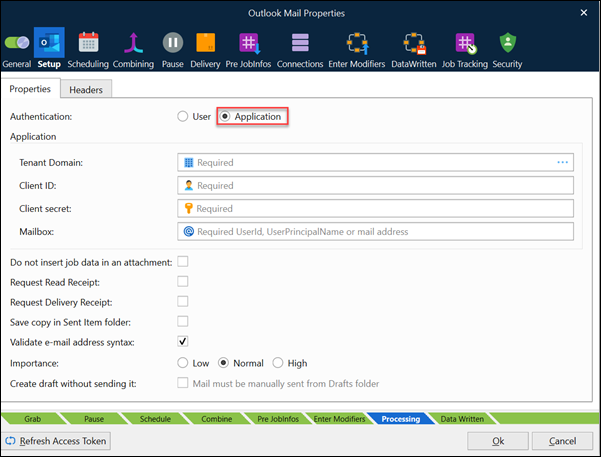
Custom MIME headers for sending emails and reading headers of incoming emails are now supported. This feature is also supported for the Mail Input and Mail Output modules. It helps identify and correlate bounced emails back to the original sending process or job within Lasernet Core.
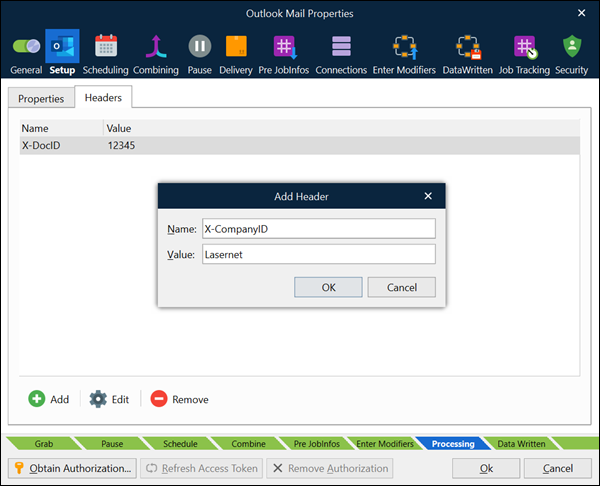
Additionally, we have added support to process incoming emails that have been marked as read in Outlook Mail and Mail Input (IMAP) modules.
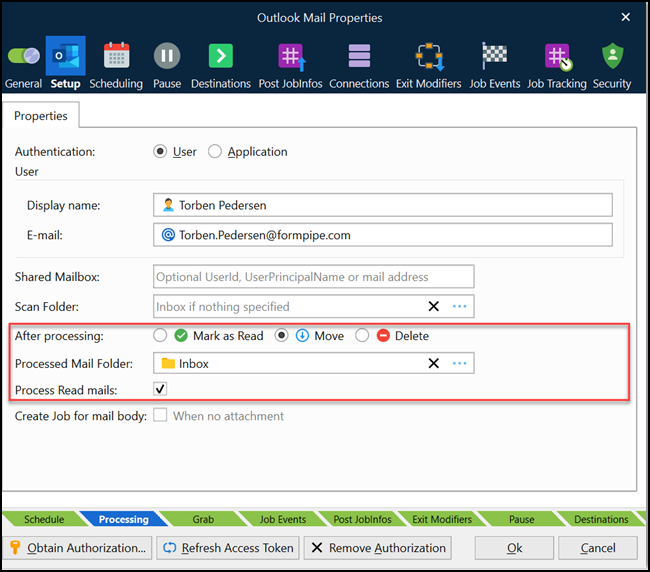
For more information, see:
SharePoint 365
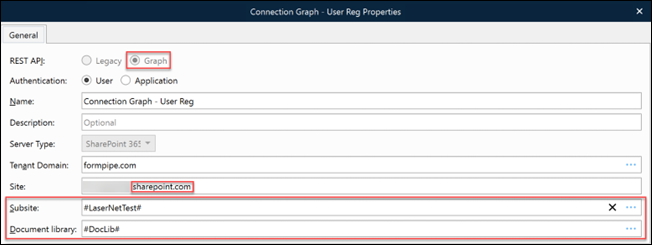
Now, with JobInfo substitution, instead of looking up IDs, you can look up names to find IDs.
Barcode Reader and PDF Splitter
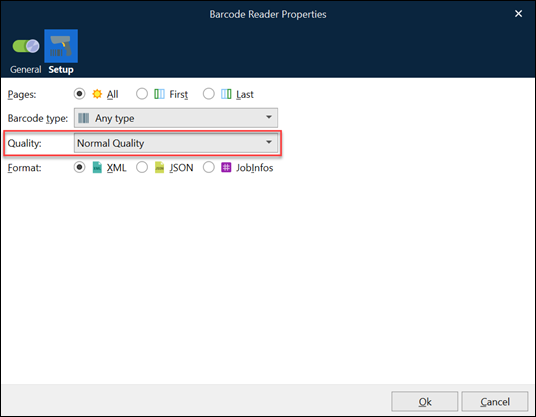
The Barcode Reader module and PDF Splitter have been updated with quality settings parameters to optimize barcode recognition.
For more information, see:
OCR Engine
OCR Forms and dictionary content are now stored in the Config Server database. The location is configured in Lasernet Service Manager. The OCR Engine shares the same port number as the one running the Config Server.
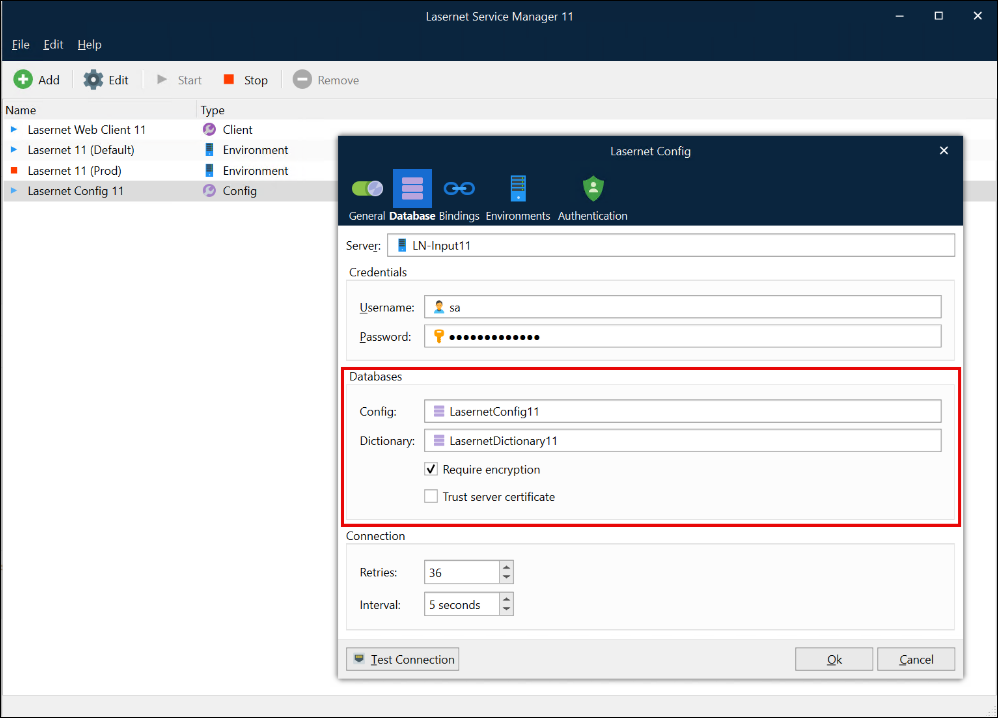
The new UI/UX for Lasernet Developer > OCR Engine module can now assign a list of OCR forms and identifiers stored on the Config Server, configure OCR Fields, enable statistics, and select a default language for the dictionary.
OCR Forms are uploaded by the end user from Lasernet OCR Editor into Lasernet Config Server. The OCR forms are stored in a database to share them across multiple environments to support:
Failover
Load-balancing
Easier administration of backups
The lists for created OCR and Auto Captured Forms are accessible from the following applications:
Lasernet Developer > OCR Engine > Forms
Manage > System Configuration > OCR
Lasernet Config Server > OCR > Forms
Lasernet OCR Editor > Form > Forms
OCR Identifiers
Lasernet Config Server offers a new OCR API endpoint for uploading identifiers with JSON as content type. Multiple environments can connect, share, and read the same list of identifiers.
Lasernet Form Editor Features
Lasernet Form Editor provides an easy-to-use environment to design and maintain great-looking forms and reports, or structured data outputs, from input data originating from any platform or administrative system capable of generating structured data (such as XML or JSON) or a text file. The features outlined below are new to Lasernet Form Editor.
New Grab Mode Panel
You can now start or stop grab mode on demand from Lasernet Form Editor without deploying a configuration. New action tools have been added to the toolbar for easy access to start, stop, download, and open grab files. The status for the start and stop buttons is pushed on demand to other users working on the same configuration.

For more information, see Turn Grab Mode On and Off.
Note
Grab event points can no longer be activated for a specific form object. This setting has been removed from the form object.
Grab File Dialog
The Open Grab File(s) dialog has an extended editor view for grab files of type .lnjob. The lnjob container includes JobInfos with values and job data like XML, TEXT, PDF, and so on.
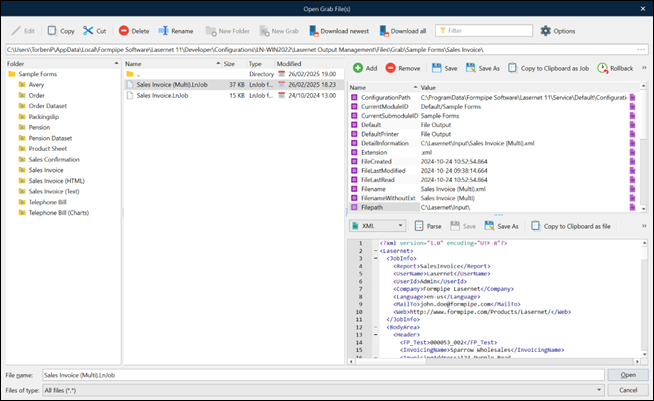
The preview is divided into two panes. An upper pane with an editor to add and edit JobInfos and values, and a lower pane with an editor to edit job data.
For more information, see Add Grab Files to a Form.
Search in Objects
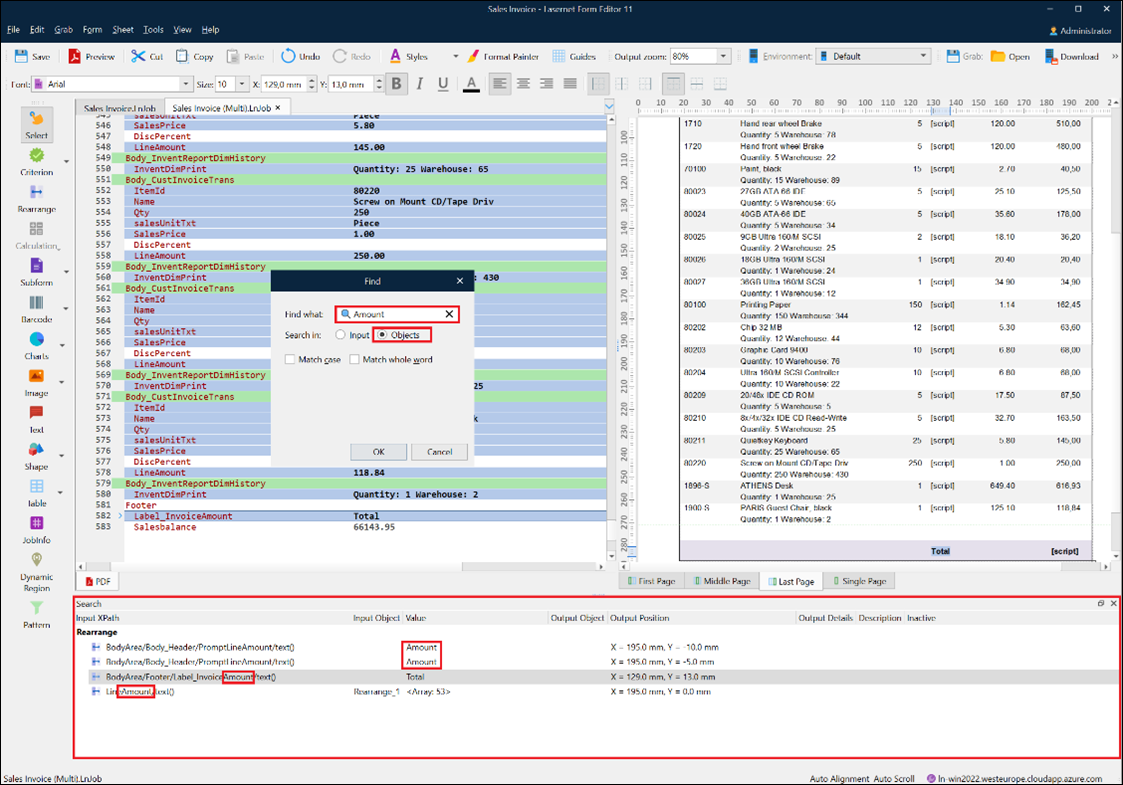
A new option has been added in the Find dialog to search for detailed information stored in properties for rearranges, subforms, barcodes, charts, images, fixed text, shapes, JobInfos, and patterns. A new lower pane displays the result of found objects.
For more information, see Find Data and Form Objects.
Line Numbers for XML/JSON Views
An option to display line numbers has been added to the XML/JSON input and output views.
Replace Tag Name
A new tool in the Patterns pane allows you to find and replace XPath / JPath tags in any input object or pattern stored in a sheet with another tag name.
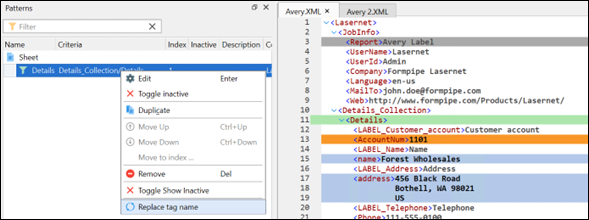
For more information, see Replace XML and JSON Tag References Within Patterns and Rearranges.
Gradient Fill for Shapes
Lasernet Core now supports vertical and horizontal gradient fill effects for shapes added to EMF forms.
For more information, see Add Shapes to a Sheet.
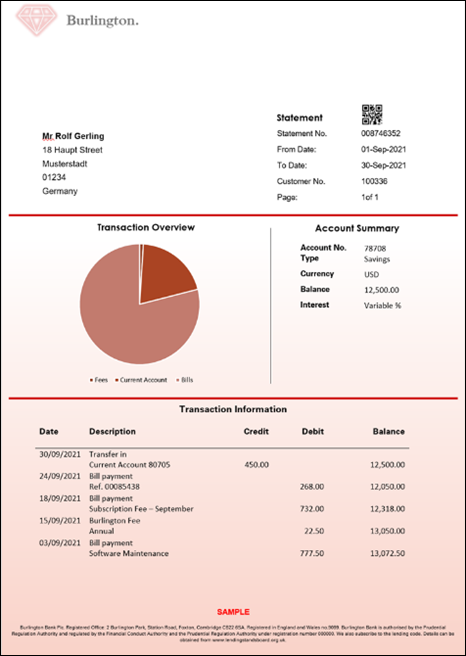
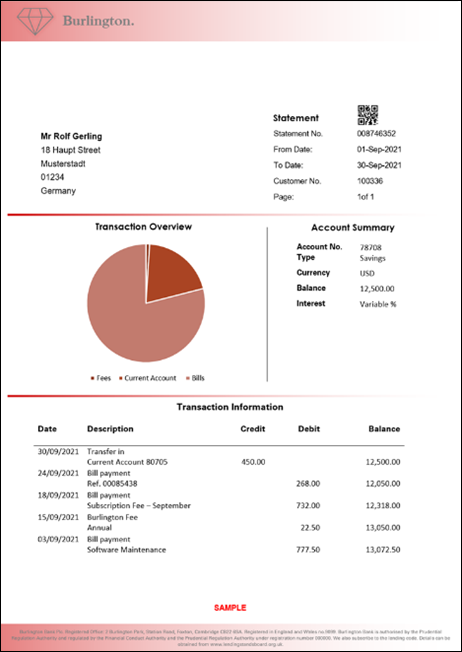
QR Codes With Images
You can now insert an image into the center of the QR code by merging the two objects.
For more information, see Add Barcodes to a Sheet.

Border Settings for Rearranges
Border settings have been extended to have individual color and width settings.
Rounded Rectangles in Shapes
Settings have been updated to allow rounding for each corner of rectangles: top left, top right, bottom left, and bottom right.
Patterns and Rearranges
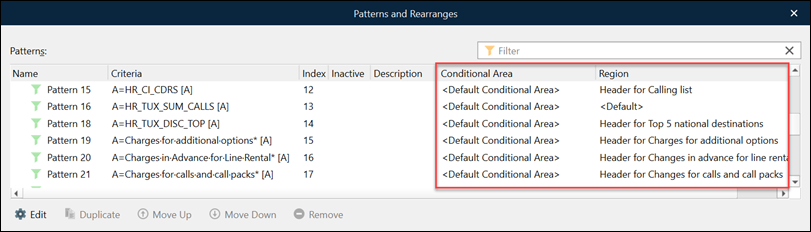
The Patterns and Rearranges dialog now has two new columns showing the relations between Patterns and Conditional Area and Region.
Change to Default Sheet Destinations
Lasernet Core no longer adds the Default destination to new sheets by default.
The “default destination” mechanism enables a module to route jobs to different modules that follow it in the workflow, depending on which input module received the job. This dynamic control is possible because each input can specify a different Default destination. If a module or sheet’s Destination list contains Default, the input module’s Default destination controls the destination of the job after it passes through that module or sheet.
However, if a module or sheet’s list of destinations contains the Default destination but input modules do not define a Default destination, Lasernet jobs can fail. This scenario typically occurs because the Default destination (added by default to sheets by Lasernet) was not manually deleted.
To prevent this issue, Lasernet Core 11 does not automatically add the Default destination to new sheets by default.
Lasernet Printer Service
Lasernet Printer Service is an application that can maintain your custom printer settings and deploy them to local printers or anywhere globally using Microsoft Azure services. The features outlined below are new to Lasernet Printer Service.
The Test Connection button is available in the Printer Service module to test a network connection of the host running the Printer Service app in:
Cloud (Azure Services)
On-premises (API)
.png)
EMF to RAW support
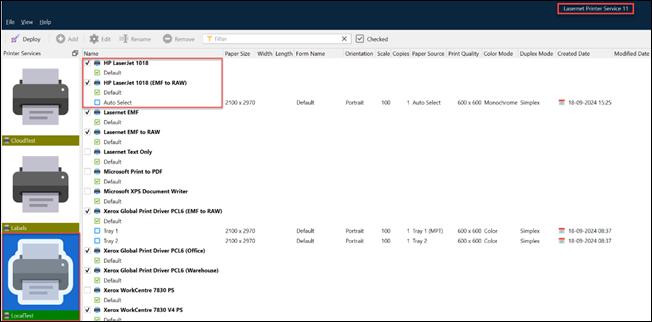
The new EMF to RAW printer name setting in the Printer Service module allows you to select a specific print queue driver on the Windows Printer Server. Use this feature to render the printing format (PCL, PostScript, ZPL, and so on) before sending the RAW print to the final Printer name destination in the Printer Service app. This feature makes it easier to manage many printers of the same model with printer profiles. It also supports Lasernet Core environments without any method of installing printer drivers.
For more information, see Modify the Lasernet Core Workflow and Form Settings in Lasernet Developer.
Font Embedding
Lasernet Core now supports font embedding in the Printer Service module. Select Embed Fonts under Sheet Options > EMF tab in the Form Editor for EMF-based output to embed fonts in your form design.

When fonts are embedded within the EMF container for the job being sent to the Printer Service app (via cloud through Azure Services or on-premises through API), the Printer Service app extracts them to memory and uses them as font resources when printing jobs. You no longer need to manually install fonts on the Windows Printer Server to support print jobs containing embedded fonts.
For more information, see Sheet Options > EMF.
Notification System
A new notification system automatically updates and synchronizes the Printer Service app whenever the Windows printer list changes.