
JobInfo Profiles
- 02 Mar 2026
- 2 Minutes to read
- Contributors

- Print
- PDF
JobInfo Profiles
- Updated on 02 Mar 2026
- 2 Minutes to read
- Contributors
- Print
- PDF
Article summary
Did you find this summary helpful?
Thank you for your feedback
Applies to: Lasernet Core 11
JobInfo profiles are used to display a list of relevant JobInfos in Manage. After they are configured, the specified data is shown for jobs. JobInfo profiles can be used to show useful information such as invoice numbers, names and email addresses of clients, and so on.
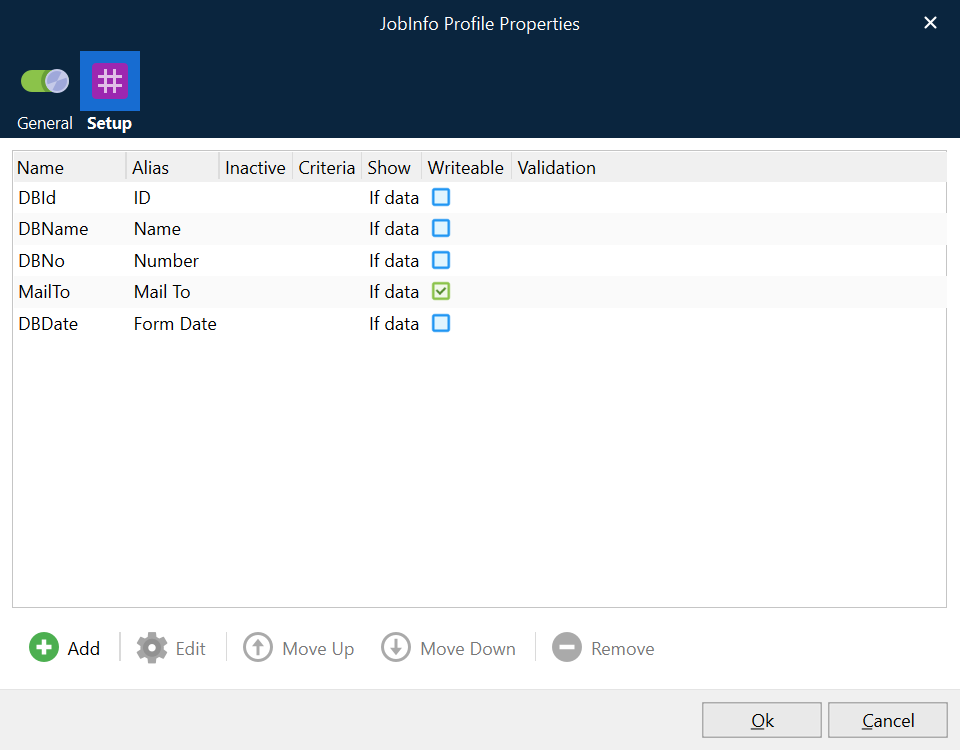
The name of a JobInfo is not always user-friendly, so you can specify an Alias.
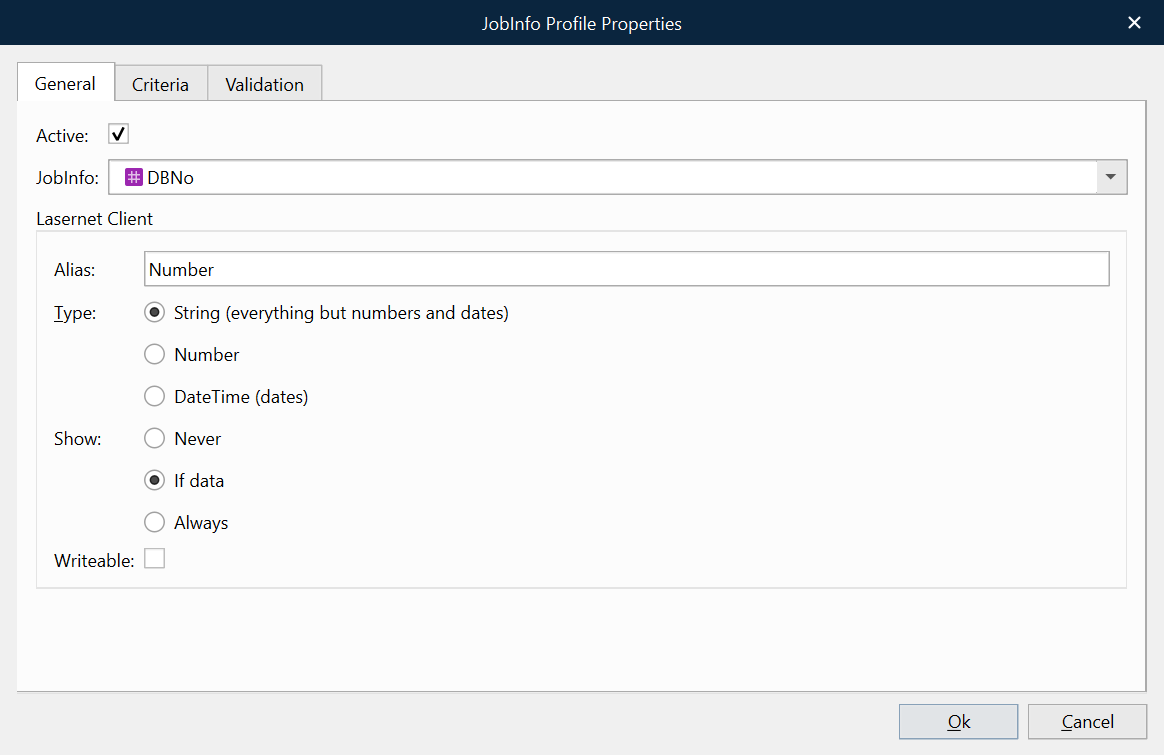
Three types of JobInfos are supported and handled accordingly: String, Integer and DateTime.
The Show property specifies whether a JobInfo is displayed as a column in Manage. As all stored JobInfos are searchable, it is not always necessary or desirable to make them visible in Manage.
The Writeable property specifies whether or not a JobInfo can be edited in Manage. As all stored JobInfos are searchable, it is not always necessary or desirable to make them editable in Manage.
The Criteria tab can be used to ensure that only JobInfos that match specific conditions are stored. 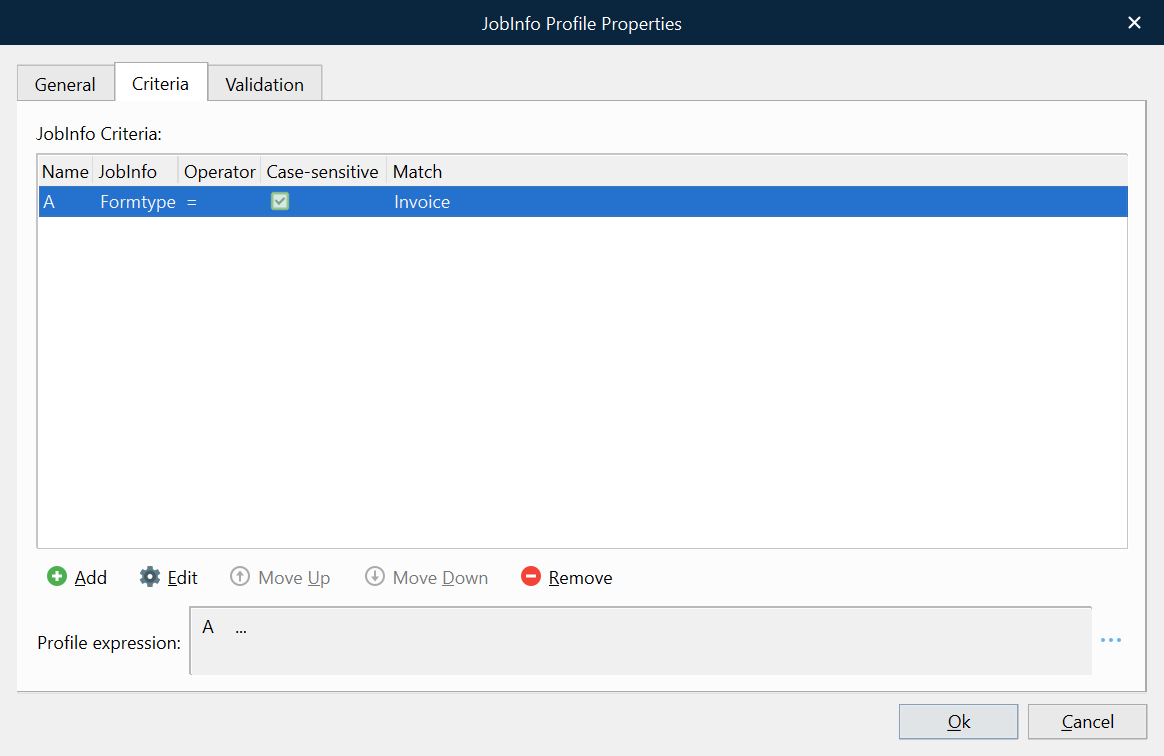
The Validation tab is used to validate the contents of a JobInfo in Manage. JobInfo data that does not match the specified conditions will be marked as either tentative (yellow) or unsuccessful (red). 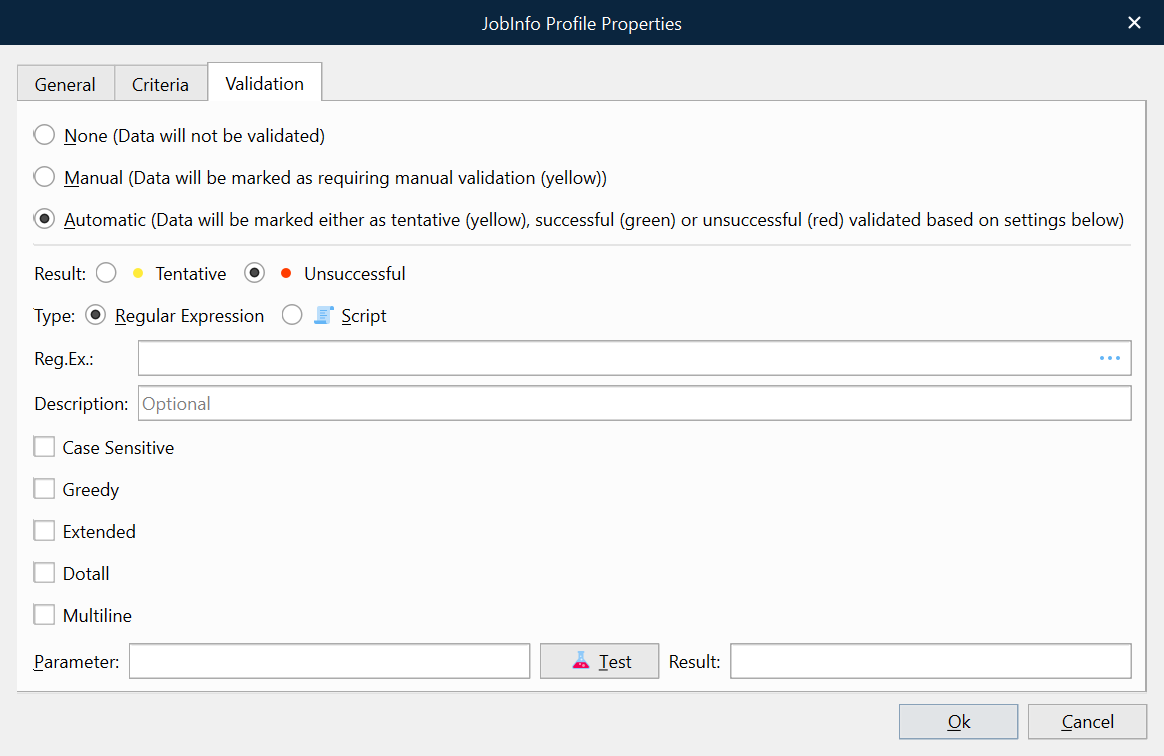
Type a regular expression or a script to validate the contents of a JobInfo.
Validate via Regular Expression
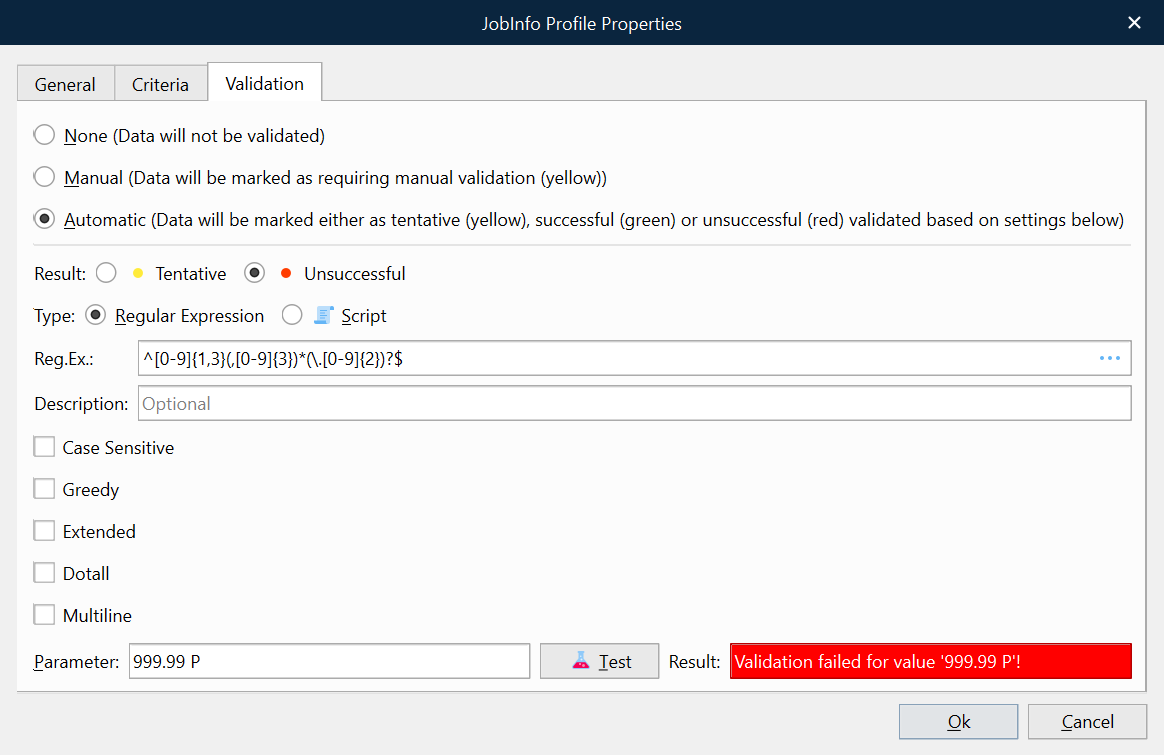
In this example, a regular expression matches a number in US format, which uses a comma as a thousand delimiter and a dot as a decimal separator.
Regular Expression: ^[0-9]{1,3}(,[0-9]{3})*(\.[0-9]{2})?$
The $ sign at the end of the regular expression is essential to match the full string and not a part of the string.
The Parameter field and Test button are useful to validate the expected result of the regular expression. This functionality is for online testing only in Lasernet Developer.

A wide range of resources that describe the syntax for regular expressions are available on the Internet.
Validate via JavaScript
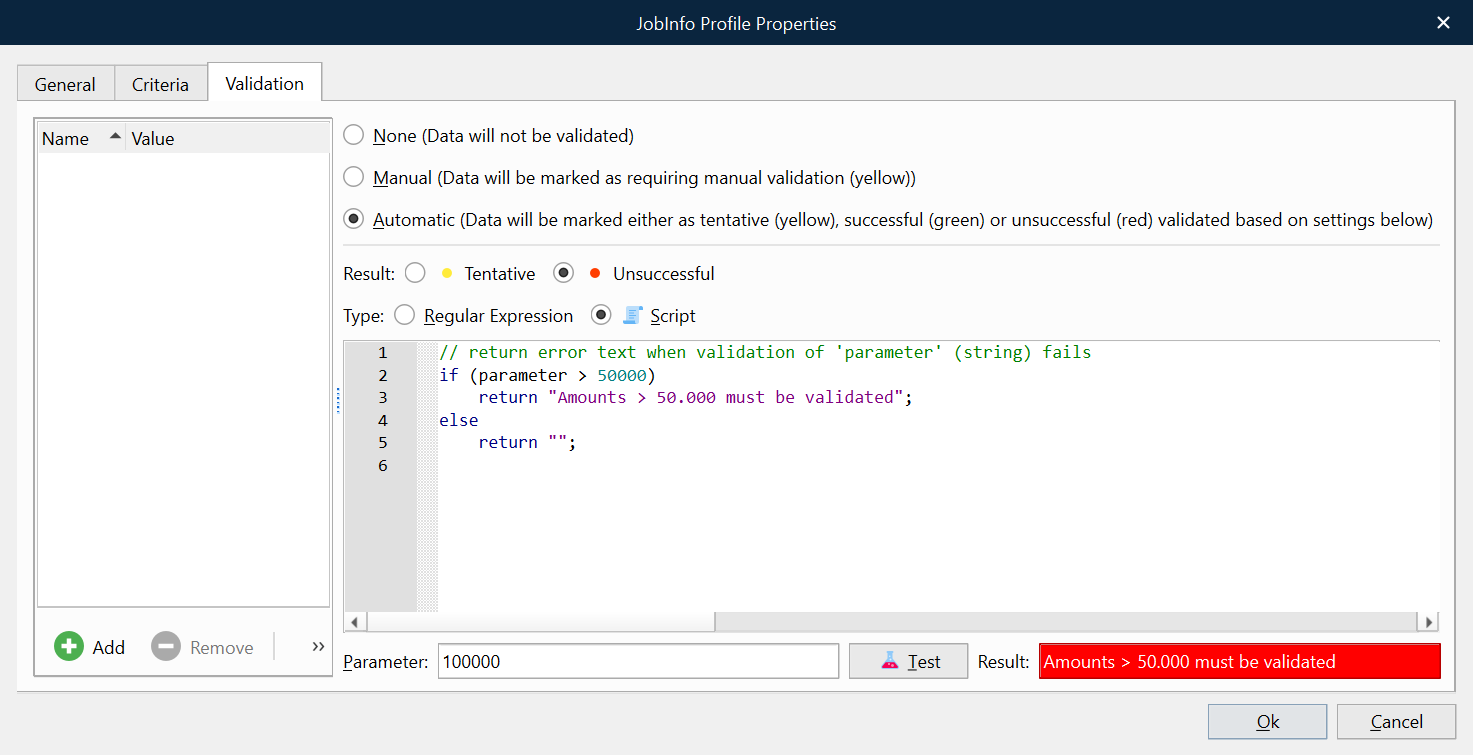
In this example, JavaScript matches if a parameter is higher than a specific amount. The parameter string is essential and contains the contents of the JobInfo to be validated. The expression will return an empty string when validation of the parameter is successful and error text when it fails validation.
if (parameter > 50000)
  return "Amounts > 50.000 must be validated";
else
  return "";
If you want to validate against a JobInfo included in the script, click Add to add the JobInfo Name and Value in the JobInfo grab window.
if (parseFloat(parameter) > parseFloat(job.getJobInfo("Amount")))
  return "Amounts > 50.000 must be validated";
else
  return "";
The Parameter field and Test button are useful to validate the expected result of the JavaScript. This functionality is for online testing only in the Lasernet Developer.


Supported JavaScript Functions
The JavaScript tool in the validation dialog supports a limited range of system functions compared the Job Engine. The supported convert functions, job classes and arrays are:
Static functions:
Convert.toDateConvert.toDateRPConvert.toNumberConvert.toNumberRP
Job class:
All functions in the
Jobclass. For reference information, refer to Global Lasernet Script Classes.
Arrays:
Azure commands
Database commands
Modifier commands
SharePoint commands
Job Tracking
Add the list of JobInfo Profiles in the module’s Job Tracking tab. This will activate storage of metadata in the database for paused, scheduled, succeeded, archived or failed jobs.
When a module is configured to pause (Pause tab) or to use scheduling (Scheduling tab), it is possible to specify which JobInfos should be stored for later viewing in Manage. This is achieved by first creating one or more JobInfo profiles and then mapping them to the module on the Job Tracking tab. More than one JobInfo profile can be added to the same queue and a JobInfo profile can be used on several different queues.
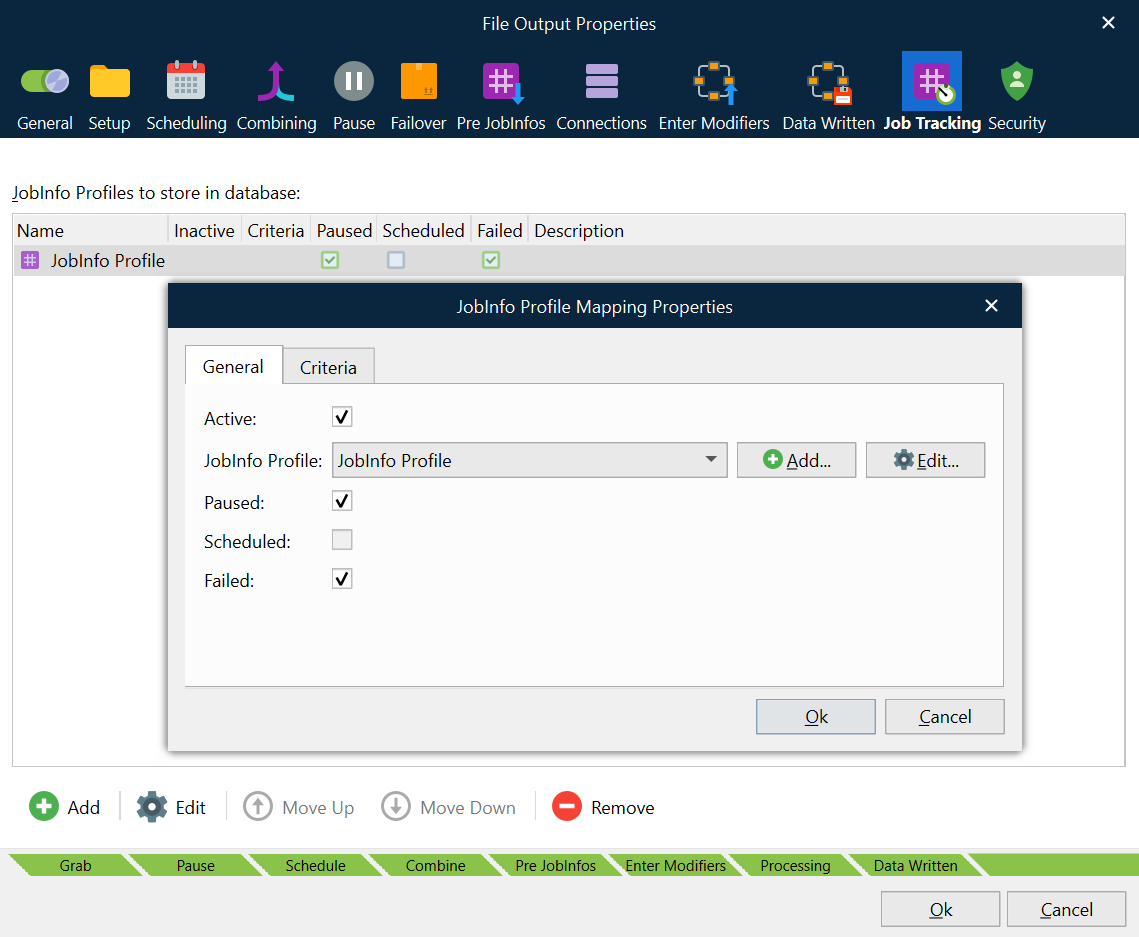
It is possible to use different JobInfo profiles based on criteria.