
HTTPS Certificate Rotation for Lasernet Keep
- 27 May 2026
- 2 Minutes to read
- Contributors

- Print
- PDF
HTTPS Certificate Rotation for Lasernet Keep
- Updated on 27 May 2026
- 2 Minutes to read
- Contributors
- Print
- PDF
Article summary
Did you find this summary helpful?
Thank you for your feedback
This article explains how to rotate an expired, expiring, or temporary certificate for both standalone and clustered Lasernet Keep servers. If you used an autogenerated certificate during an initial installation of Keep, you can use these instructions to replace it with a custom certificate.
Note
For clustered installations, you must perform the certificate rotation on the load balancer.
Prerequisites
A Personal Information Exchange (PFX) keystore that contains the following:
A new, valid certificate along with the keystore alias and password.
The associated private key in either Java Keystore (JKS) or PFX format. Certificates exported from a Windows environment are typically in PFX format.
Installation
Rotating your HTTPS certificate is a straightforward process that should take no more than a few minutes.
Before you begin, ensure you have access to both your new keystore and the node.properties file on the Keep server. In both standalone and clustered installations, the node.properties file and the existing keystore are located in the same directory. For example:
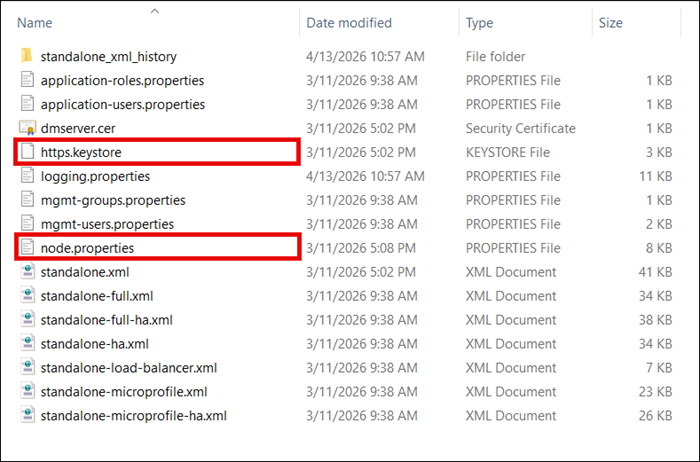
Standalone Installation Path
The default location of the existing keystore and node.properties file.
Lasernet Keep 11.1 or Later
C:\Program Files\Lasernet\Lasernet Keep\Server_11.<minor version> - <node name>\wildfly-<version number>.Final\standalone\configuration\.
Appropriately substitute <minor version>, <node name>, and <version number>.
Lasernet Keep 11.0
C:\Program Files\Formpipe Software\Lasernet Keep\Server_11.0 - <node name>\wildfly-<version number>.Final\standalone\configuration\.
Appropriately substitute <node name> and <version number>.
Clustered Installation Path on the Load Balancer
The default location of the existing keystore and node.properties file.
Lasernet Keep 11.1 or Later
C:\Program Files\Lasernet\Lasernet Keep\Server_11.<minor version> - <your load balancer>\wildfly-<version number>.Final\domain\configuration\
Appropriately substitute <minor version>, <your load balancer>, and <version number>.
Lasernet Keep 11.0
C:\Program Files\Formpipe Software\Lasernet Keep\Server_11.0 - <your load balancer>\wildfly-<version number>.Final\domain\configuration\.
Appropriately substitute <your load balancer> and <version number>.
Rotate Certificates
Follow these steps to rotate a custom certificate or replace a temporary autogenerated one.
Locate and rename the existing keystore file (
https.keystore) tohttps.expired.Locate your new keystore file and copy it into the
configurationdirectory on the Keep server.Rename the new file to
https.keystore.Update the existing keystore alias and password to match those of the new keystore. In a text editor, open the
node.propertiesfile, locate the#HTTPSsection and replace values forhttps.keystore.alias=andhttps.keystore.password=. For example:# # HTTPS # -------------------------------------------------- # These values should be updated if switching to use your own certificates/keystore from an auto-generated one # Certificate alias and password for the keystore https.keystore.alias=examplealias https.keystore.password=securepasswordSave your changes to the
node.propertiesfile.For the changes to take effect, restart the Keep service. For a clustered deployment, you only need to restart the load balancer service. Your new certificate should now be active for your standalone or clustered deployment.
Validate the Keystore (Optional)
Run the following commands to validate the keystore or to retrieve your keystore alias.
Open a command prompt and change into the
bindirectory. The default path to this directory varies according to your Keep version and installation type.Lasernet Keep 11.1 or Later
Standalone installation:
C:\Program Files\Lasernet\Lasernet Keep\Server_11.<minor version> - <node name>\jdk-11.0.4_11\bin.Appropriately substitute
<minor version>and<node name>Clustered installation:
C:\Program Files\Lasernet\Lasernet Keep\Server_11.<minor version> - <your load balancer>\jdk-11.0.4_11\bin
Appropriately substitute<minor version>and<your load balancer>
Lasernet Keep 11.0
Standalone installation:
C:\Program Files\Formpipe Software\Lasernet Keep\Server_11.<minor version> - <node name>\jdk-11.0.4_11\bin.Appropriately substitute
<minor version>and<node name>Clustered installation:
C:\Program Files\Formpipe Software\Lasernet Keep\Server_11.<minor version> - <your load balancer>\jdk-11.0.4_11\bin
Appropriately substitute<minor version>and<your load balancer>
Run the following command, replacing
<path to keystore>with the relative path from thebindirectory to thehttps.keystorefile in theconfigurationdirectory:keytool.exe -list -keystore <path to keystore>\https.keystoreFor example:
keytool.exe -list -keystore ..\..\wildfly-22.0.1.Final\standalone\configuration\https.keystoreEnter the keystore password when you are prompted to. The certificate details are listed, including the alias and the type, which should be
PrivateKeyEntry.