Grab Files
- 13 Apr 2026
- 4 Minutes to read
- Contributors

- Print
- PDF
Grab Files
- Updated on 13 Apr 2026
- 4 Minutes to read
- Contributors
- Print
- PDF
Article summary
Did you find this summary helpful?
Thank you for your feedback
Applies to: Lasernet Core 11
A grab file is a capture of a Lasernet Core job’s data, at a specific point during the processing of that job by a Lasernet Core environment. For example, a grab file could be captured after an input module in a Lasernet Core workflow has read a received input file.
A Lasernet Core environment can be set up to capture grab files when modules or forms are processed.
Grab files can:
Serve as representative input data files that you can design forms against.
Act as data captures that help you to debug Lasernet Core workflows.
The data in grab files is captured after a module’s ‘Pre JobInfos’ and ‘Enter Modifiers’ have run, but before the module’s ‘Post JobInfos’ and ‘Exit Modifiers’ have run.
Types of Grab File
Lasernet Core 11 creates LNJOB grab files. An LNJOB grab file contains all of a job’s JobInfos (including JobData). JobData is an important JobInfo because it carries the data that the Lasernet Core workflow is processing in order to create the output document.
Lasernet Core 11 can also open grab files that consist of only job data. This type of grab file can be in .grab format, or in a format (such as .xml or .txt) that indicates the type of data that the grab file contains. These non-LNJOB grab files do not contain any JobInfos.
Start and Stop Grab Mode
To start grab mode now for a particular Lasernet Core environment:
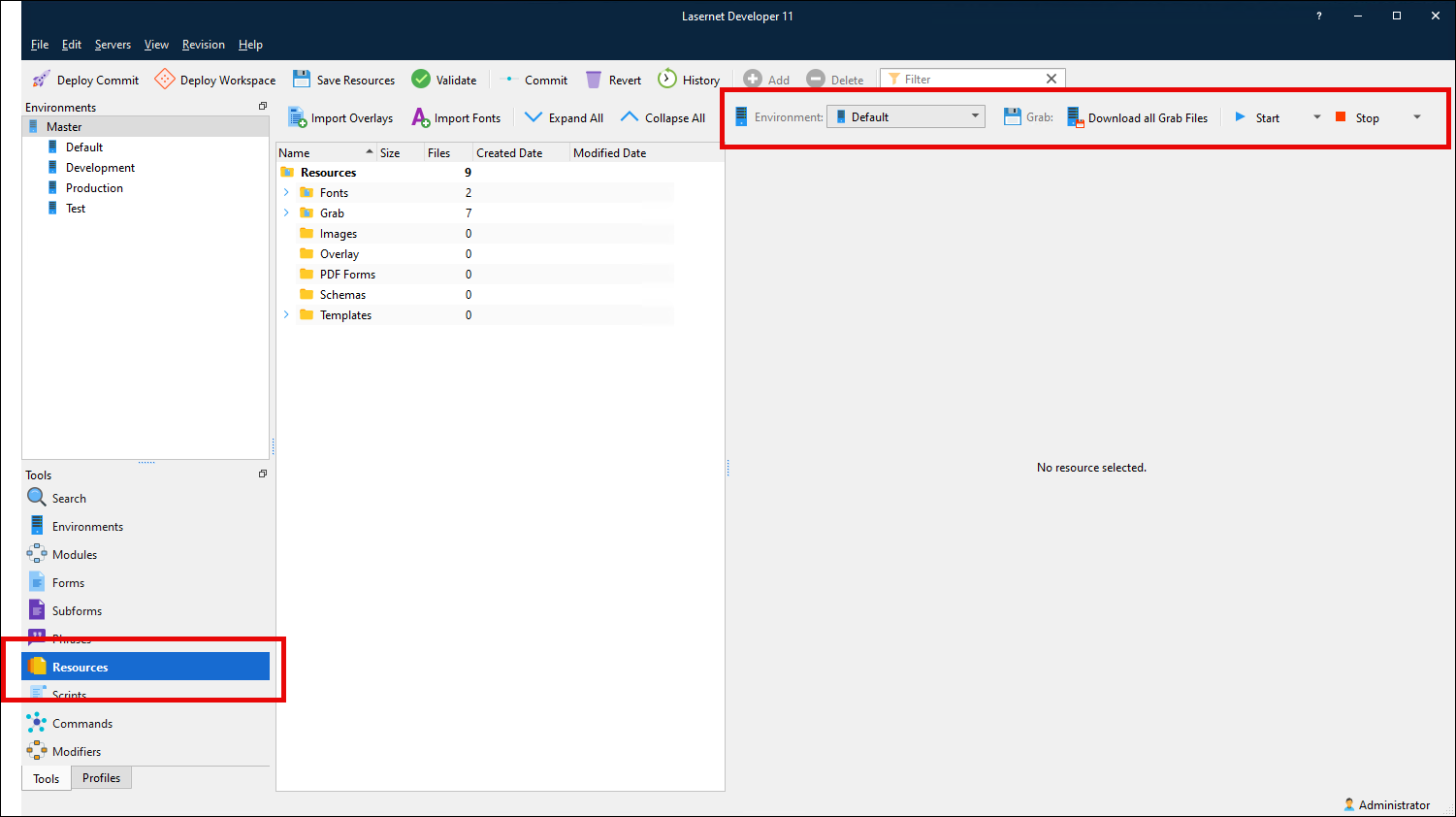
Click Resources in the Tools pane (at the left side of the Lasernet Developer window).
After the Resources tool loads, use the Environment list (in the area indicated in the image below) to select the environment that you want to start grab mode for.
Click Start in the Grab toolbar above the main resources area.
Select Input, Engine, Forms, or Output from the list.
To stop grab mode, click Stop in the Grab toolbar instead.
As indicated above, you can turn grab mode on and off for:
Input modules.
Engines (all engines except form engines).
Form engines.
Output modules.
Grab mode is toggled for all workflow items of the selected type. For example, if you click Start then click Input modules, Lasernet Core will generate a grab file when (on the selected environment) any input module runs.
Note
The other applications that you can toggle grab mode from are the Lasernet Config web app and Lasernet Form Editor. For more information, refer to the following pages:
Download Grab Files
To download grab files from the selected environment to the configuration currently loaded in Lasernet Developer, click Download all Grab Files in the Grab toolbar.
Lasernet Core will download all grab files from the selected environment and then delete them from that environment. The grab files become available in the Grab area of the Resources tool (as described below).
Access Grab Files in the Resources Tool
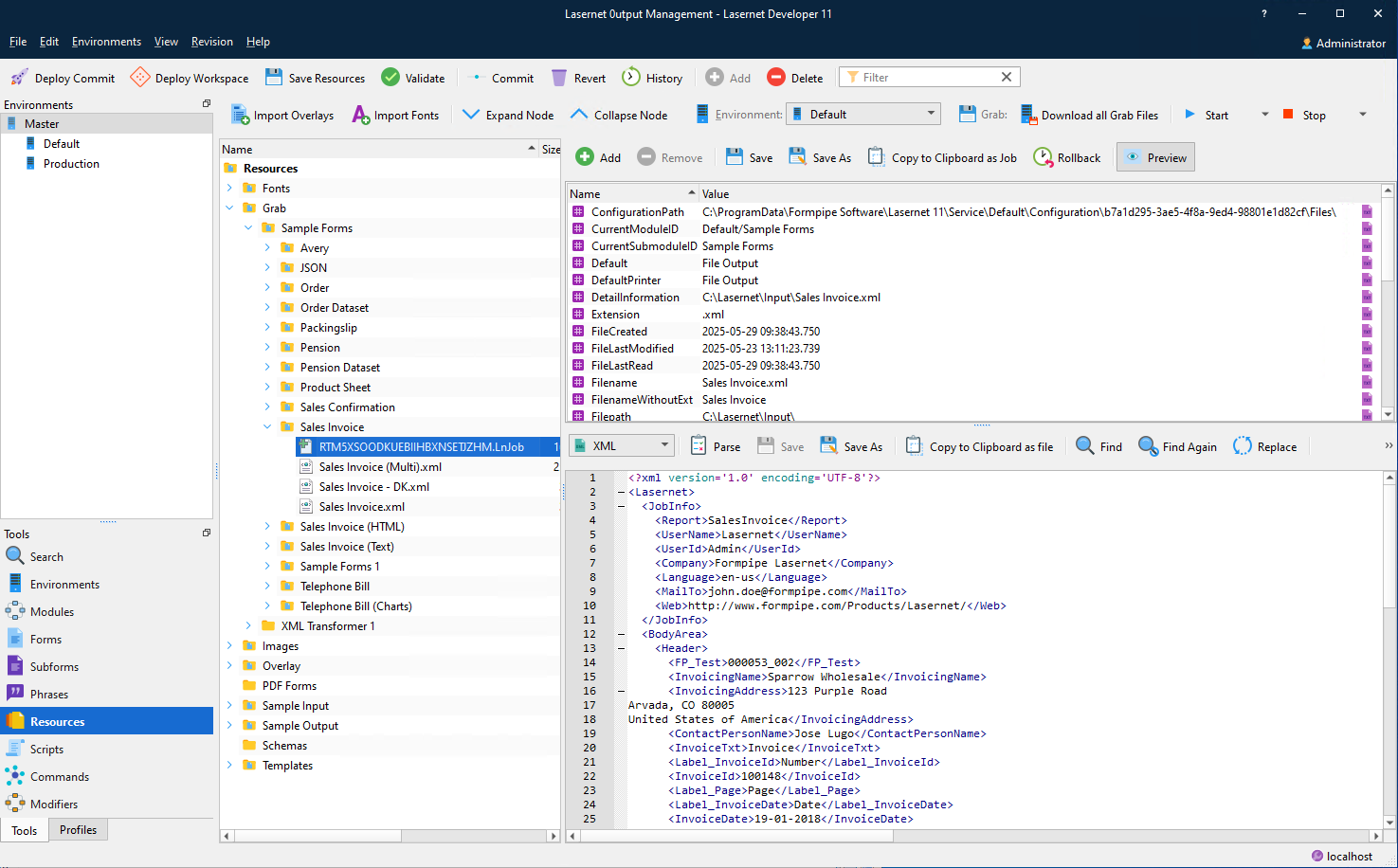
The folder structure in the Resources area contains a Grab folder, which contains a subfolder for each module that grab files are available for. Form engine subfolders contain further subfolders that organize grab files by the form that they correspond to.
For example:
A grab file captured by a File Input module (whose name is XML Input Files) will be downloaded to Resources > Grab > XML Input Files.
A grab file captured when a form engine (whose name is Sample Forms) processed a form named Sales Invoice will be downloaded to Resources > Grab > Sample Forms > Sales Invoice.
View, Edit, and Use Grab Files
After you click a grab file in the folder structure, it opens in the main area:
If the grab file is an
.lnjobfile, the upper part displays the JobInfos in the grab file. If the Preview button above the JobInfos is clicked, the lower area displays the content of JobData. JobData is a JobInfo that contains the job’s main data.For any other grab file format (such as
.xml), the main area displays the job data.
View Grab Files
You can view the grab file’s content in the main area. For .lnjob grab files, the upper area displays the JobInfos in the grab file. Scroll to view all the JobInfos.
The rest of the main area displays the job data. Scroll to view all the data that is present.
For .lnjob grab files, if necessary, select a different encoding from the list above the data.
Edit Grab Files
For .lnjob grab files, in the upper part of the main area, you can add, remove, and modify the JobInfos in the grab file.
Click Add to add a JobInfo.
Click a JobInfo then click Remove to delete it from the grab file.
Double-click a JobInfo’s name or value to modify it.
To save your changes to the JobInfos, click Save in the toolbar above the JobInfos.
In the rest of the main area, you can edit the job data (if supported by the data type). Editing job data enables you to test different data values by changing the grab file and then passing it to an input in the Lasernet Core workflow (see below).
To save your changes to the job data, click Save in the toolbar above the JobData content. The XML is validated to ensure that the data is not malformed after you edit it.
Use Grab Files
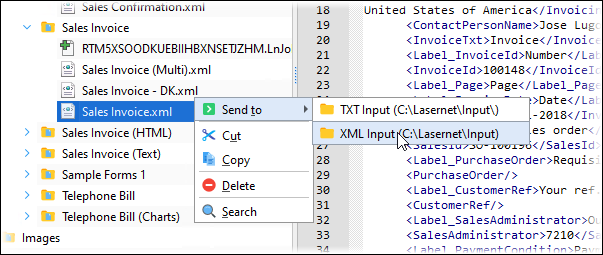
To send a grab file to an input module in the Lasernet Core workflow, right-click the grab file, click Send to, then select an input module.