
Find Your Way Around the Lasernet Core Administration Tool
- 26 May 2026
- 6 Minutes to read
- Contributors


- Print
- PDF
Find Your Way Around the Lasernet Core Administration Tool
- Updated on 26 May 2026
- 6 Minutes to read
- Contributors
- Print
- PDF
Article summary
Did you find this summary helpful?
Thank you for your feedback
The information below will help you to familiarize yourself with the administration tool.
Manage
The home page provides quick access to commonly used areas. Other parts of Manage focus on specific areas of functionality.
Home Page
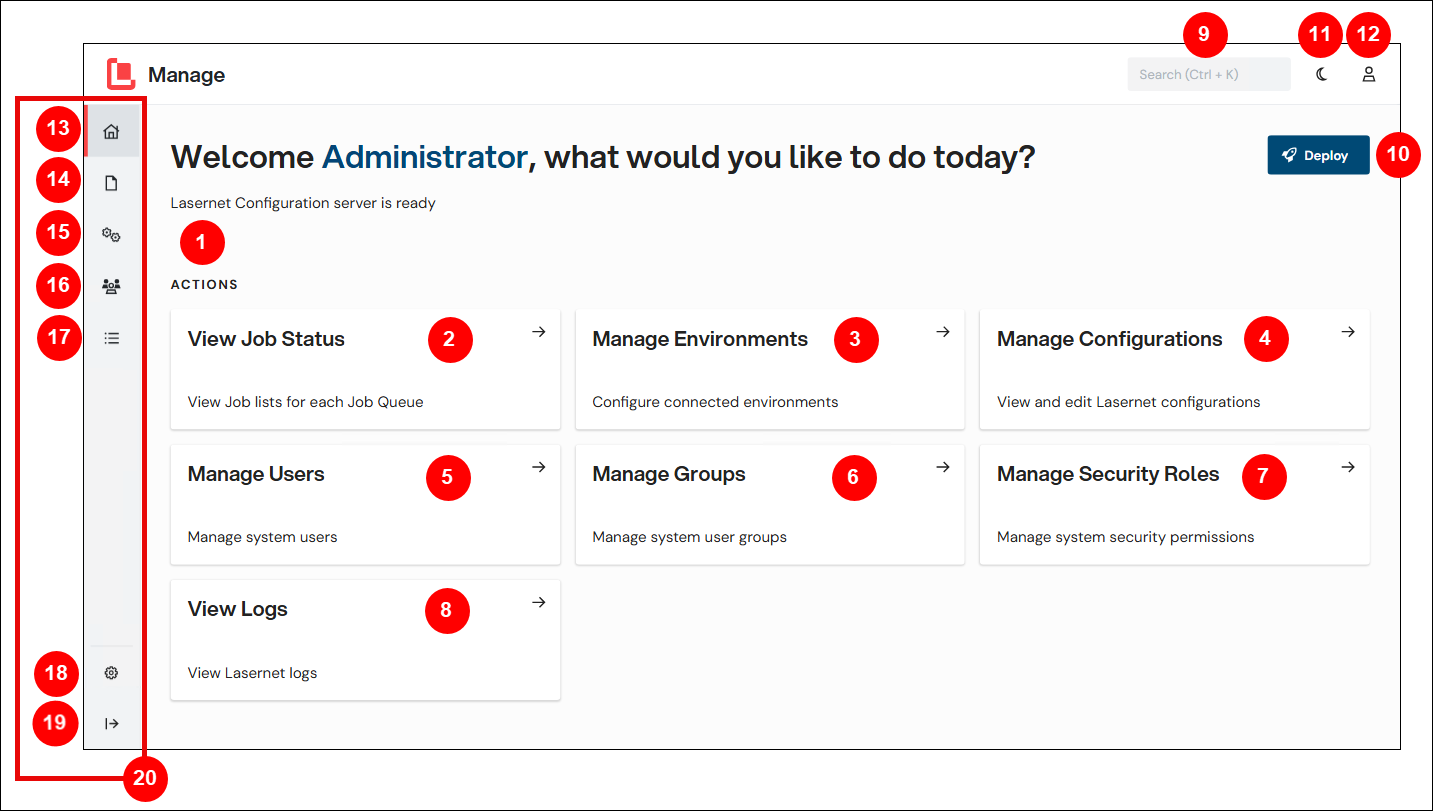
Number | Item | More information |
|---|---|---|
1 | Actions area | The tiles in this area provide access to commonly used areas of Manage. |
2 | View Job Status | Navigate to the Job Status page, where you can view job queues and perform basic job management tasks. |
3 | Manage Environments | Navigate to the Environments page, where you can perform basic environment management tasks (such as applying a license to an environment). |
4 | Manage Configurations | Navigate to the Configurations page, where you can manage the configurations that this Config Server stores in its repository. |
5 | Manage Users | Navigate to the All Users page, where you can create and manage users. |
6 | Manage Groups | Navigate to the All Groups page, where you can create and manage user groups. |
7 | Manage Security Roles | Navigate to the Security Roles page, where you can create and manage the security roles that control users’ and apps’ permitted capabilities. |
8 | View Logs | View Lasernet Core environment logs. For more information, see Lasernet Core Environment Logging. |
9 | Search box | For quick access to a Manage area (such as the license management or security role area), click the search box (or press Ctrl + K) and then enter the page name. |
10 | Deploy | Deploy a configuration to a Lasernet Core environment. For more information, see Deploy a Configuration to a Production Environment. |
11 | Dark mode switch | |
12 | Account | Opens the Account info pane, where you can change your password and sign out of Manage. |
13 | Return to home page | At any time, click Home to return to this home page. |
14 | Job Status | See View Job Status (2) above. |
15 | System Configuration menu | The items in this menu enable you to configure and administer the Lasernet Core system. |
16 | User Management menu | See Manage Users (5), Manage Groups (6), and Manage Security Roles (7) above. |
17 | Logs | See View Logs (8) above. |
18 | Settings | |
19 | Expand | To expand the left-side menu so that it displays icon names alongside icons, click Expand. |
20 | Side menu | Provides access to all areas of Manage. |
Job Status Page
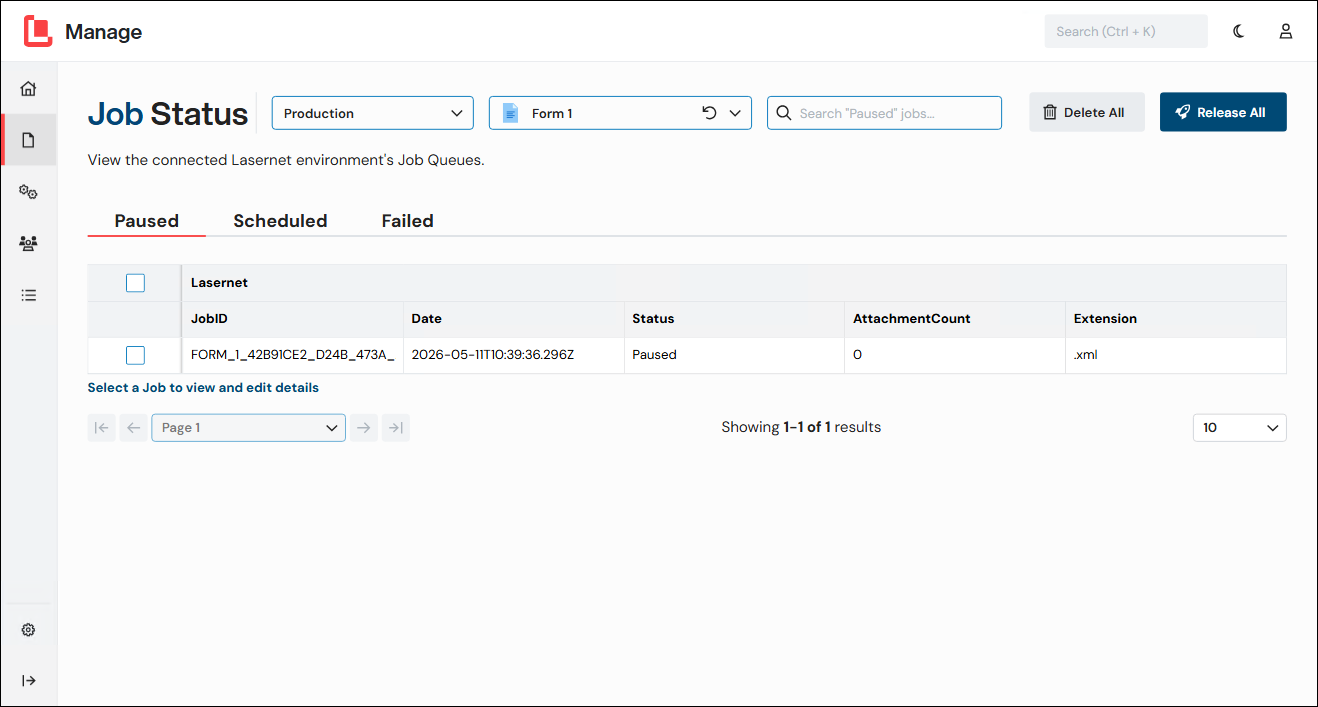
The Job Status page enables you to view job queues and perform basic tasks, such as:
Editing JobInfos.
Rescheduling, searching, viewing, and deleting jobs.
Releasing temporarily paused jobs.
For more information, see Manage Lasernet Jobs.
Environments Page
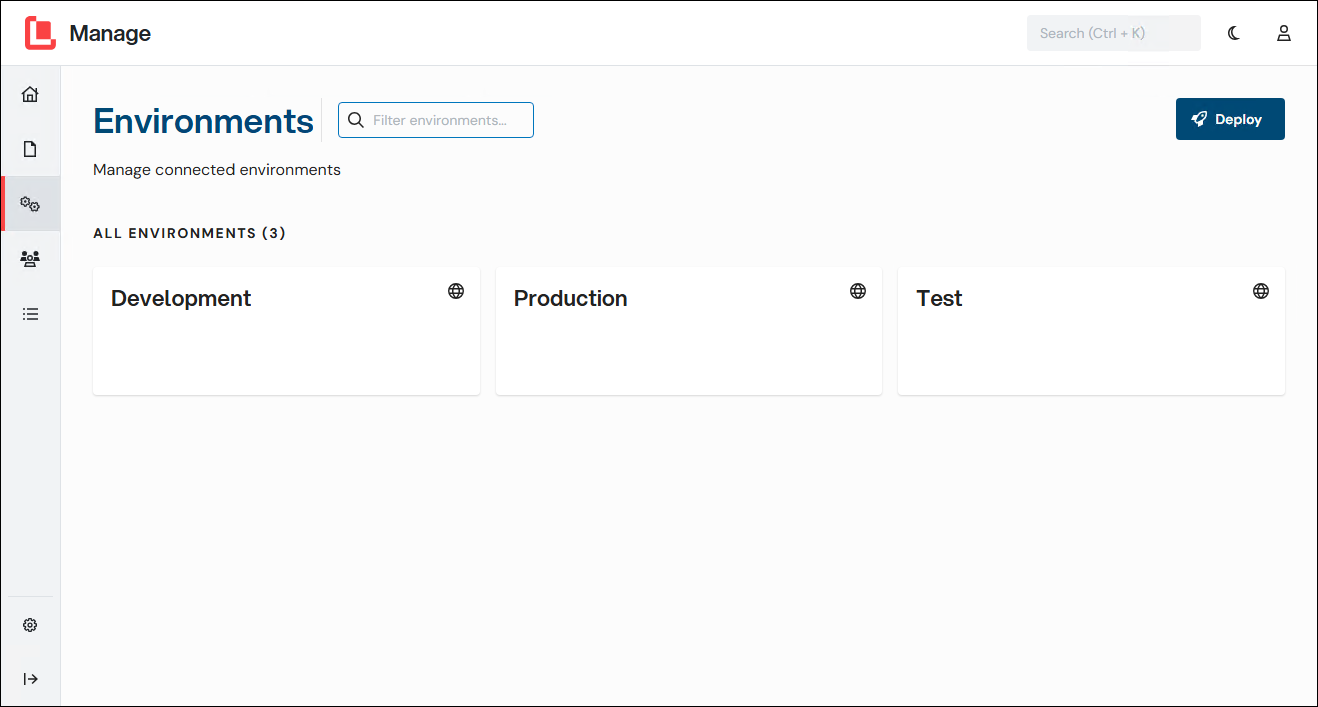
The Environments page enables you to:
Note
Environments are created and configured in Lasernet Service Manager.
Configurations Page
.png)
The Configurations page lists the Lasernet Core configurations that this Config Server stores and manages. The configurations can be deployed to the environments listed on the Environments page. For information about how to deploy the configurations that you have added, see Deploy Configurations to Lasernet Core Environments.
In the Lasernet Configuration pane that opens when you click a configuration’s tile, the Revisions area lists each revision with its number and other details, so that you can view the configuration's revision history.
You can also use the Lasernet Configuration pane to rename configurations.
All Users Page
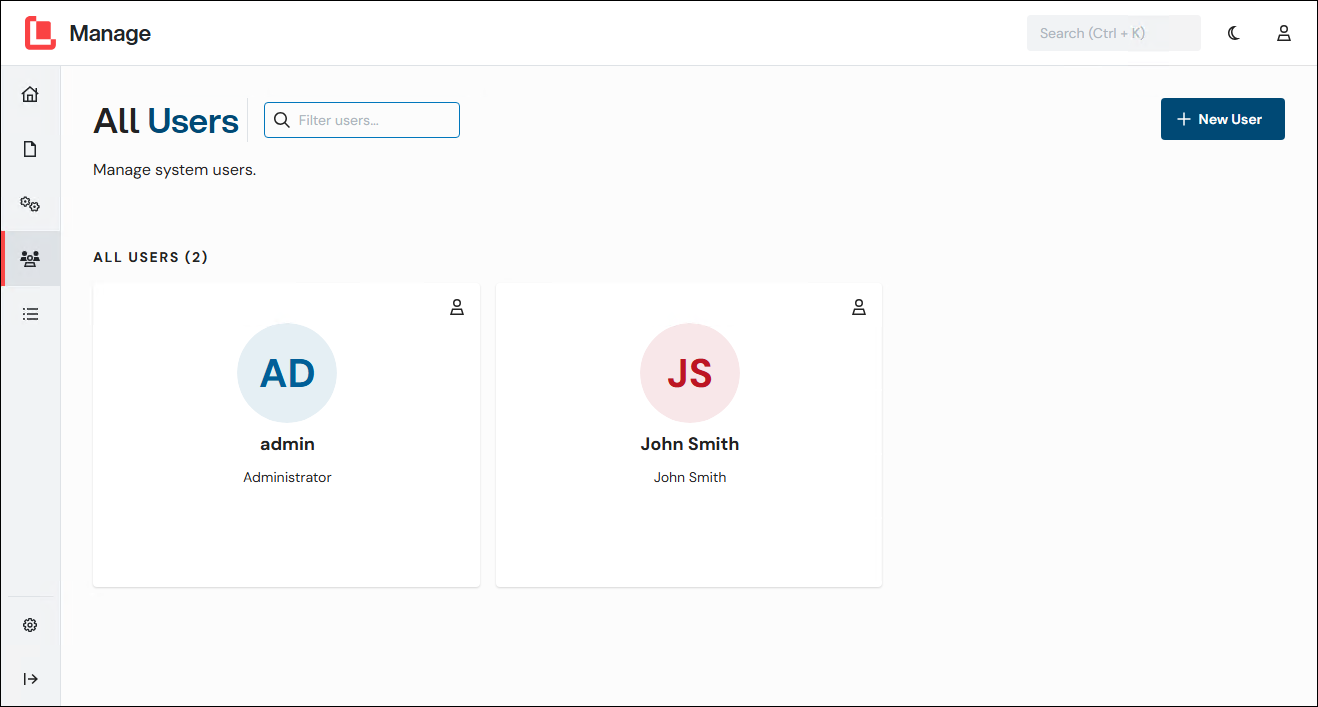
The All Users page enables you to create and manage users.
The search box enables you to find users on the page.
For more information, see Configure Users, Groups, and Security Roles.
All Groups Page
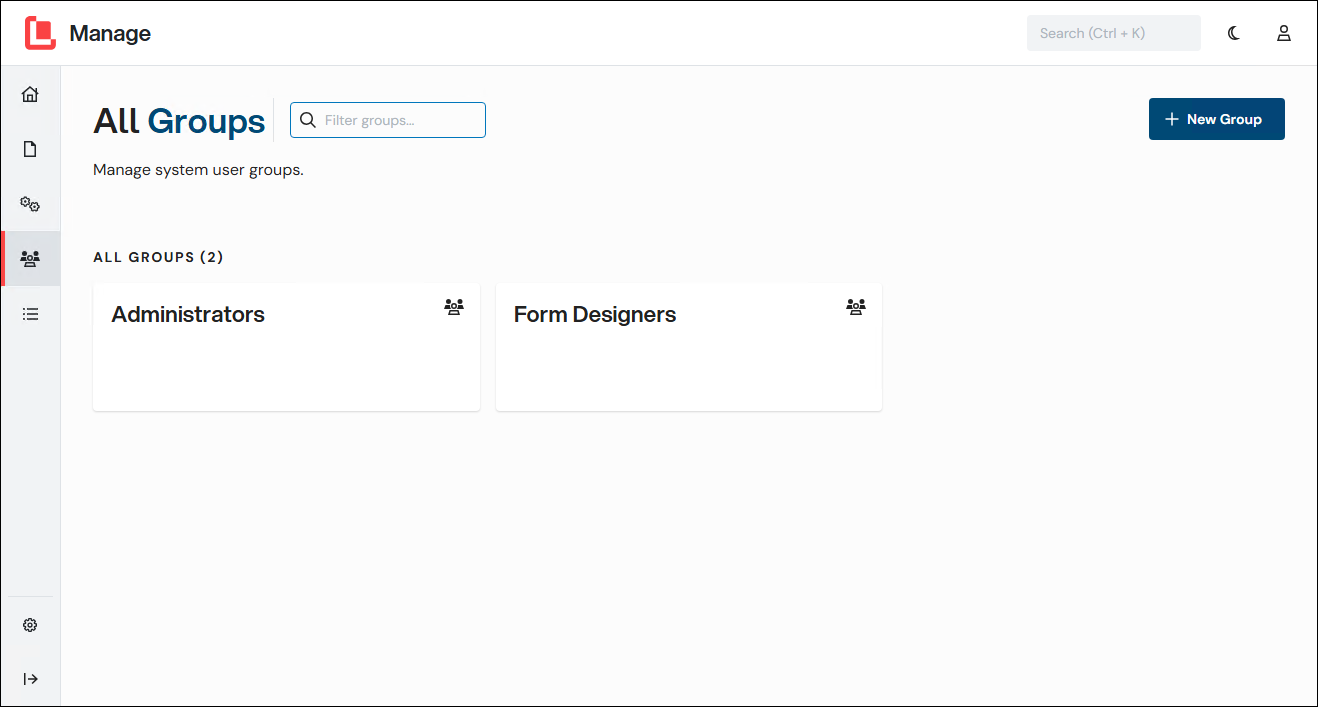
The All Groups page enables you to create and manage user groups.
The search box enables you to find user groups on the page.
For more information, see Configure Users, Groups, and Security Roles.
Security Roles Page
.png)
The Security Roles area enables you to create and manage the security roles that control users’ and apps’ permitted capabilities.
The search box enables you to find roles on the page.
For more information, see Configure Users, Groups, and Security Roles.
System Configuration Menu
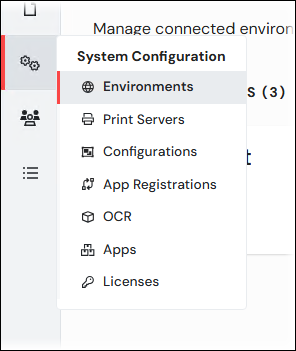
The items in this menu enable you to configure and administer the Lasernet Core system.
In addition to managing environments and configurations (see Environments Page and Configurations Page), you can:
Manage OCR form lists and OCR identifiers.
Specify CORS allowed origins.
Add Lasernet Core licenses to the Config Server, view important license information (such as current usage and expiry date), and manage licenses (for example, remove licenses or synchronize license features with the Lasernet Group license server).
For more information, see:
Account Info Pane
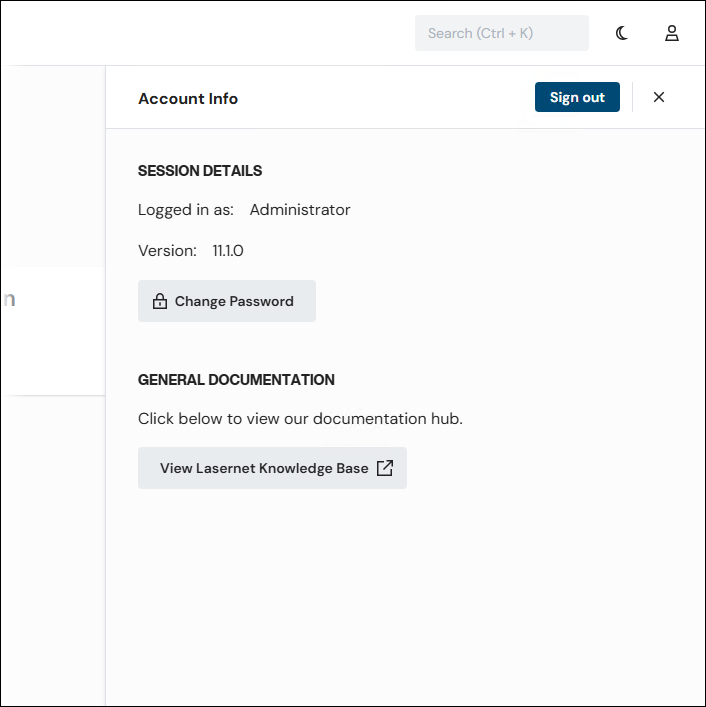
The Session Details area of the pane displays the name of the currently logged-in user and the current Lasernet Core version.
Click Change Password to change your own Lasernet Core password.
The General Documentation area provides a link to the Lasernet Knowledge Base.
Change Your Password
To change your Lasernet Core password, follow these steps:
In the Account Info pane, click Change Password.
Enter your current password into the Current Password box.
Enter your new password into the New Password and Confirm Password boxes.
Click Change Password.
When you next log in to Lasernet Core, use your new password.
Note
If Lasernet Core is using external authentication, the Change Password button is not present.
Settings
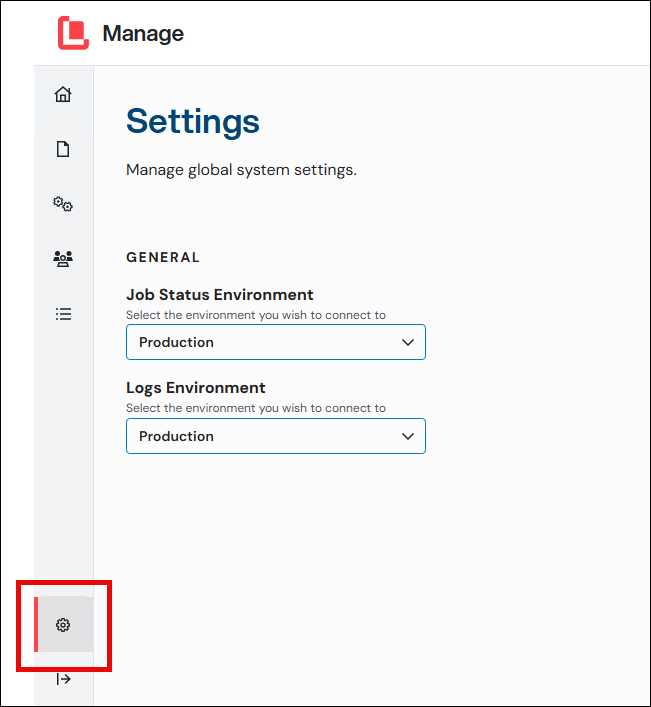
The Settings area enables you to modify Manage system settings.
Setting | Description |
|---|---|
Job Status Environment | Select which environment Manage shows you information for when you navigate to the Job Status page. |
Logs Environment | Select which environment Manage shows you information for when you navigate to the Logs pages. |
Next Steps
The next step of the Lasernet Core 11 installation and setup process is to apply licenses to Lasernet Core services.
Lasernet Config Web App
Note
The Lasernet Config web app was provided with earlier versions of Lasernet Core. It is a legacy web app and will be deprecated in a future version of Lasernet Core.
Expand for information
The information below will help you to familiarize yourself with the parts of the Lasernet Config app.
.png)
Number | Element |
|---|---|
1 | The Deploy button opens the Deploy Configuration window. In that window, you can select a Lasernet Core configuration and deploy it to one or more Lasernet Core environments. |
2 | Click Refresh to reload the data in the area of the Lasernet Config app you are working in. |
3 | The buttons that are present in this main toolbar vary depending on which area of the Lasernet Config app you are working in. For example:
|
4 | The Environments page lists the Lasernet Core environments that this Config Server manages. For each environment, the table displays relevant information, such as the configuration (with revision number) that is deployed to it. To edit an environment’s settings (for example, to turn on grab mode for it, apply a license to the environment, turn on logging, create JobInfos at Config Server level, and view configuration deployment history for that environment), select the environment in the list and then click Edit. |
5 | The Print Servers page enables you to manage the name of Windows printer servers and connection strings for printing via cloud or on-premises. |
6 | The Configurations page lists the Lasernet Core configurations that are stored in the repository of this Config Server. Users can save revisions of configurations to the repository and access these configurations when needed. The configurations can be deployed to the environments listed on the Environments page. The Revision column in the table displays the revision number of each configuration’s latest revision. |
7 | The Users and Groups page enables you to manage the users and groups defined for this Config Server. The groups defined here can be assigned to the roles defined on the Security Roles page. |
8 | The App Registrations page enables you to create app registrations that enable third-party apps to authenticate with and then integrate with Lasernet Core. |
9 | The Security Roles page enables you to manage the security roles defined for this Config Server. When you edit a role, you can assign groups (that you defined on the Users and Groups page) to the role. |
10 | The OCR page enables you to manage OCR form lists and OCR identifiers. |
11 | The Apps page enables you to manage the shortcuts that are displayed in the Apps menu (at the upper-left corner of the application). |
12 | The Licenses page enables you to add Lasernet Core licenses to the Config Server, view important license information (such as current usage and expiry date), and manage licenses (for example, remove licenses or synchronize license features with the Lasernet Group license server). For more information, see Apply Licenses to Lasernet Core Services. |
Note
The Lasernet Config app’s permissions configuration determines which parts of the Lasernet Config app are shown to each user.
For example, the Lasernet Config app can be configured to hide the Licenses page from users who are not administrators.
The next step of the Lasernet Core 11 installation and setup process is to apply licenses to Lasernet Core services.