DOCX Output (Filtering, Sorting and Grouping)
- 06 Mar 2026
- 1 Minute to read
- Contributors


- Print
- PDF
DOCX Output (Filtering, Sorting and Grouping)
- Updated on 06 Mar 2026
- 1 Minute to read
- Contributors
- Print
- PDF
Article summary
Did you find this summary helpful?
Thank you for your feedback
Applies to: Lasernet 9
In the current exercise, you are proposed to filter data in the table, sort available items, and group them by a field.
Note
This article describes a software version that is no longer supported. Although the software will no longer receive updates or technical support, existing documentation, such as this article, will be retained for reference purposes but will no longer be updated. If you have any questions, contact Lasernet Support.
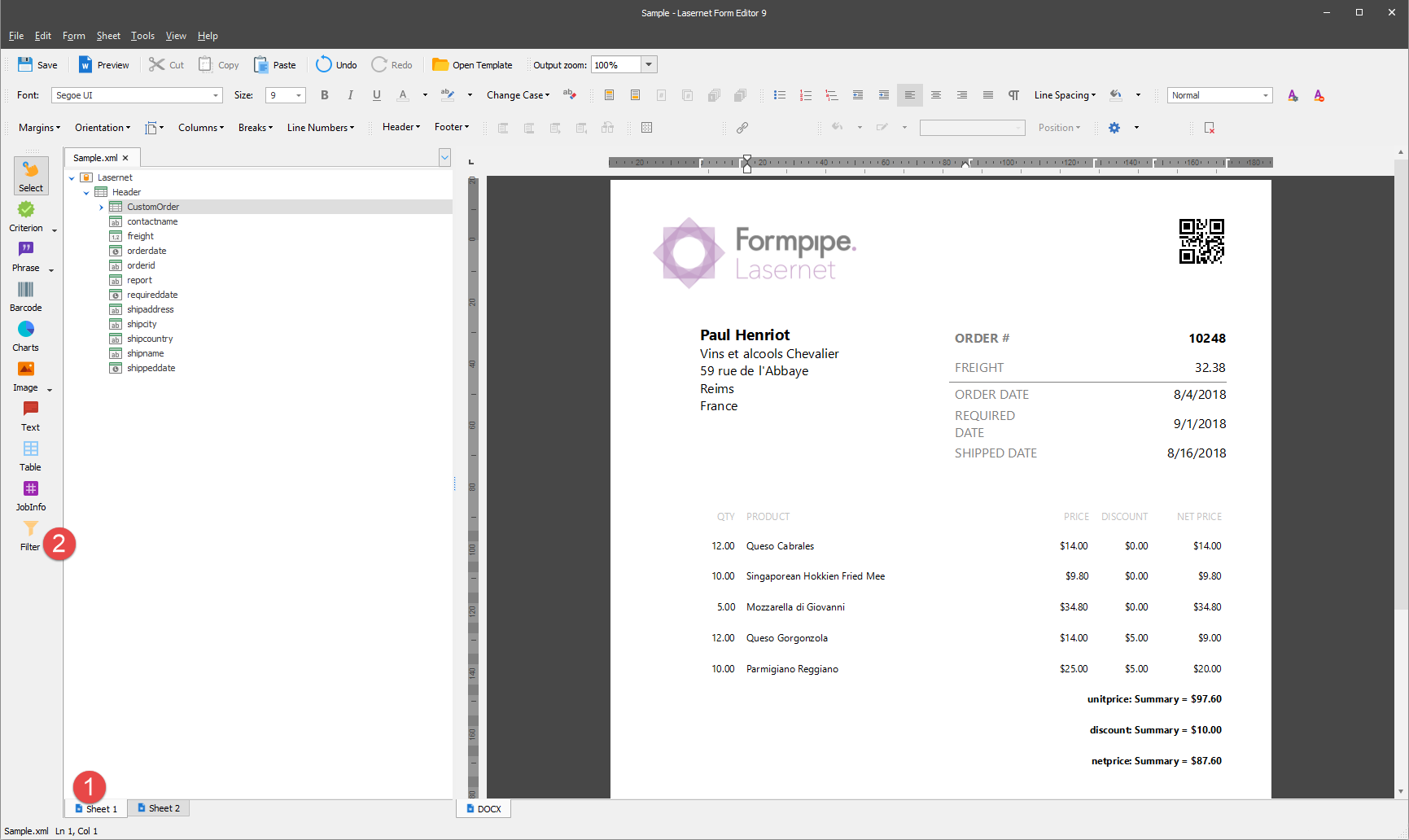
Download and import the attached configuration called 05. DOCX Output (Filtering, Sorting and Grouping) in Lasernet Developer 9. Afterward, navigate to the Forms section and open the Sample form.
In the input, switch to Sheet 1.
Click on any field of the table in the output. The Filter tool is now active on the Developer toolbar. Click it.
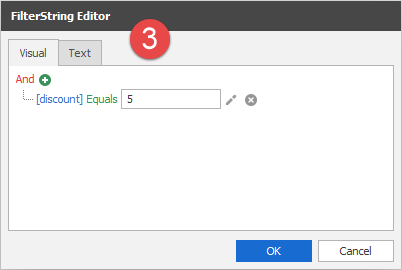
In the Filter String Editor dialog displayed, click the plus button. It is automatically prompted to create a filter for the discount values. To this end, type 5 in the <enter a value> field. Once you are done, click OK.
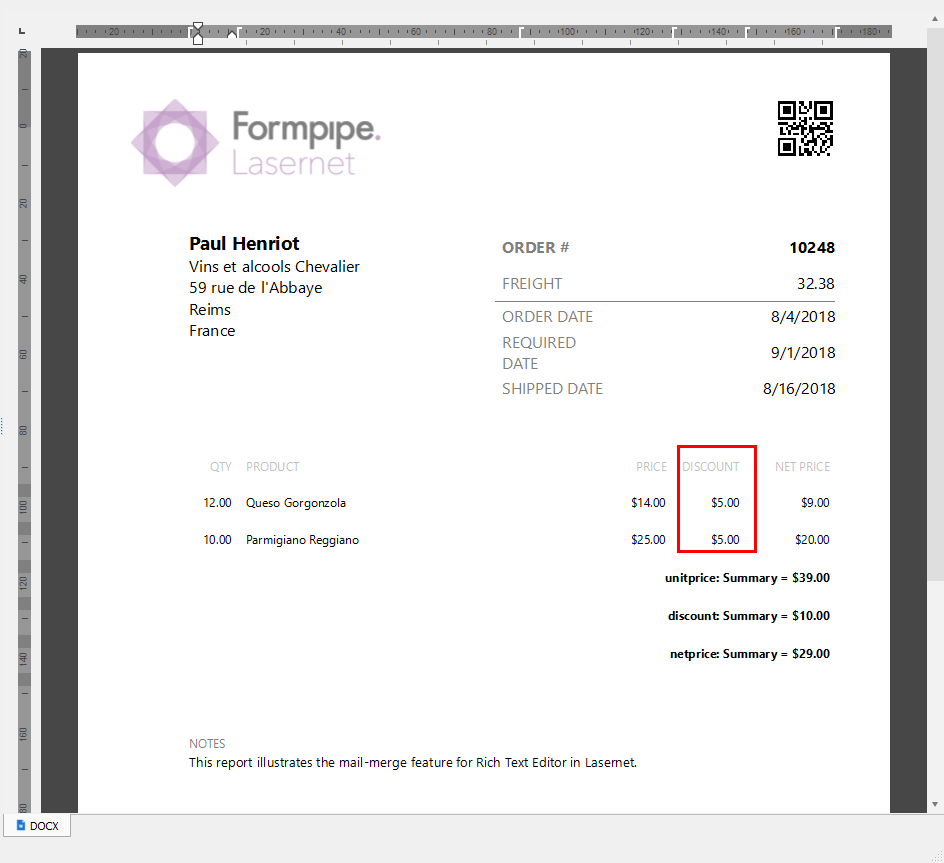
You can see data in the table filtered according to the criterion you have specified.
In the input, switch to Sheet 2.
In the output, right-click a value in the DISCOUNT column. In the context menu that appears, click Sort Descending.
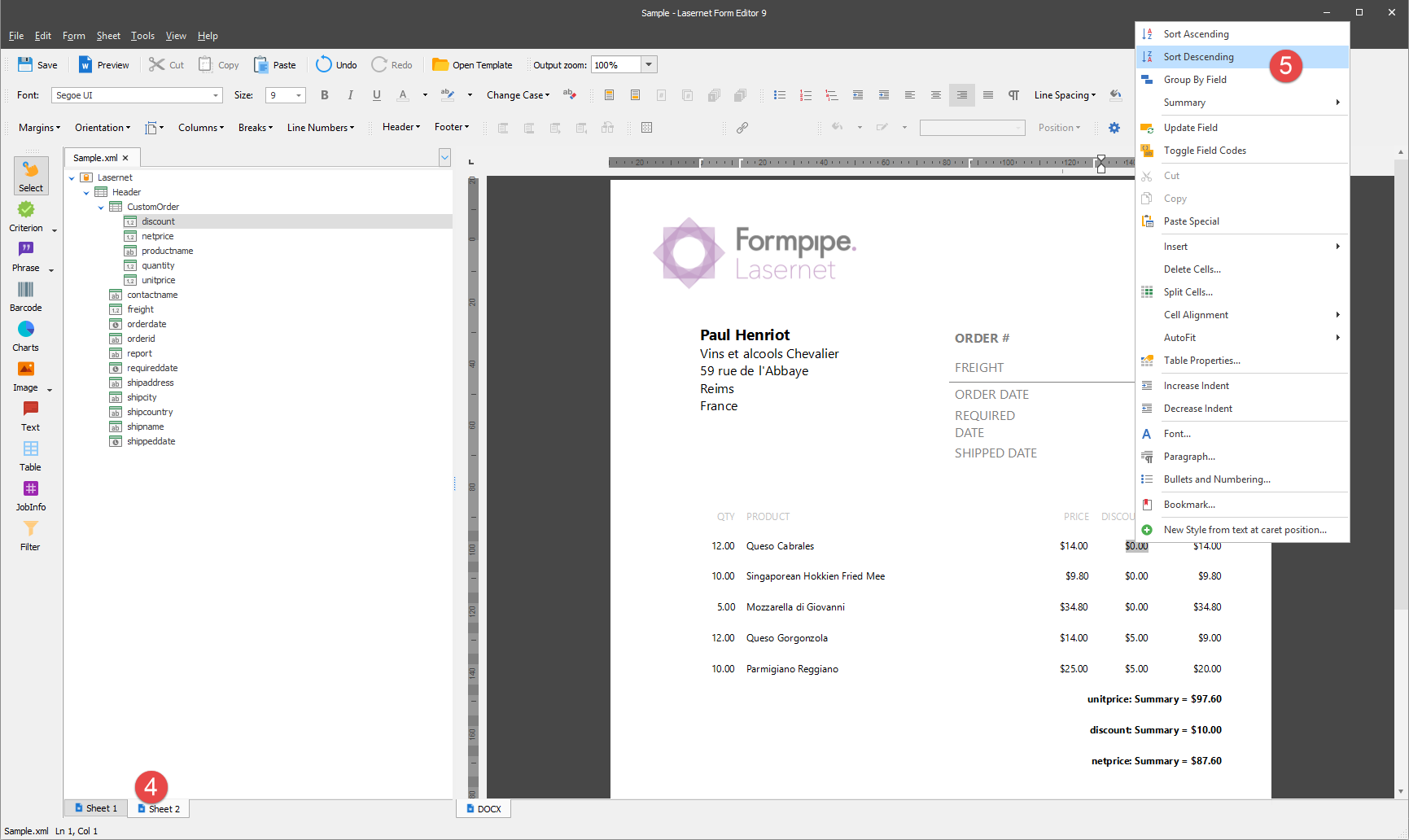
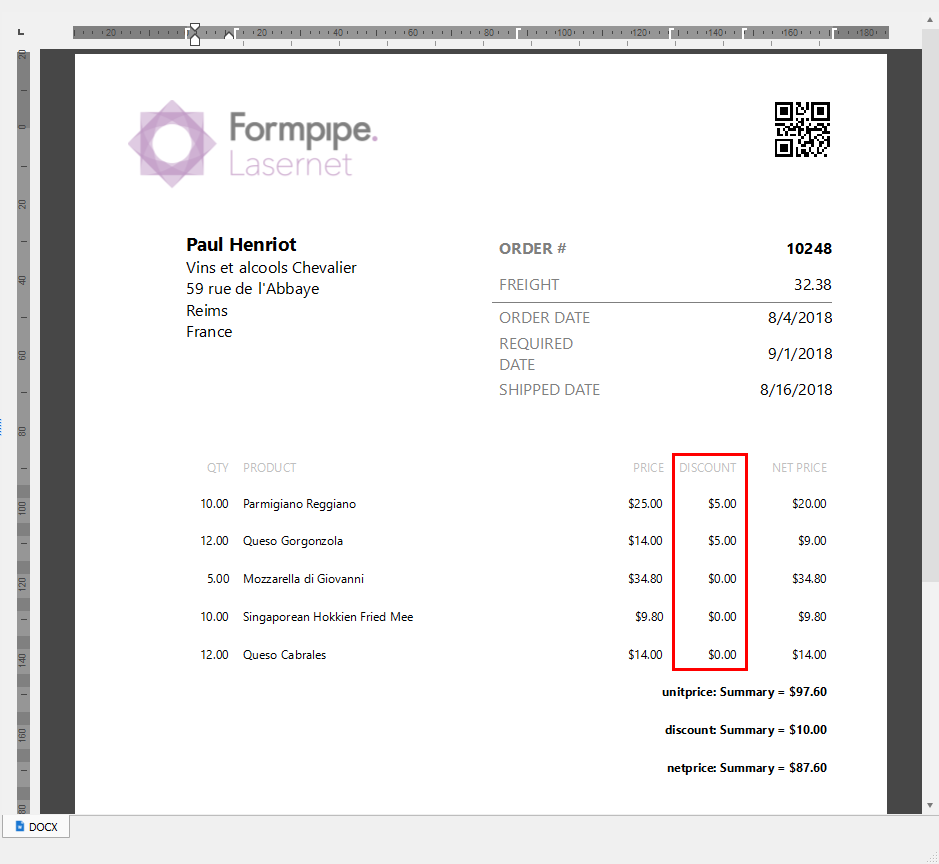
You can see data in the table sorted by the discount in descending order.
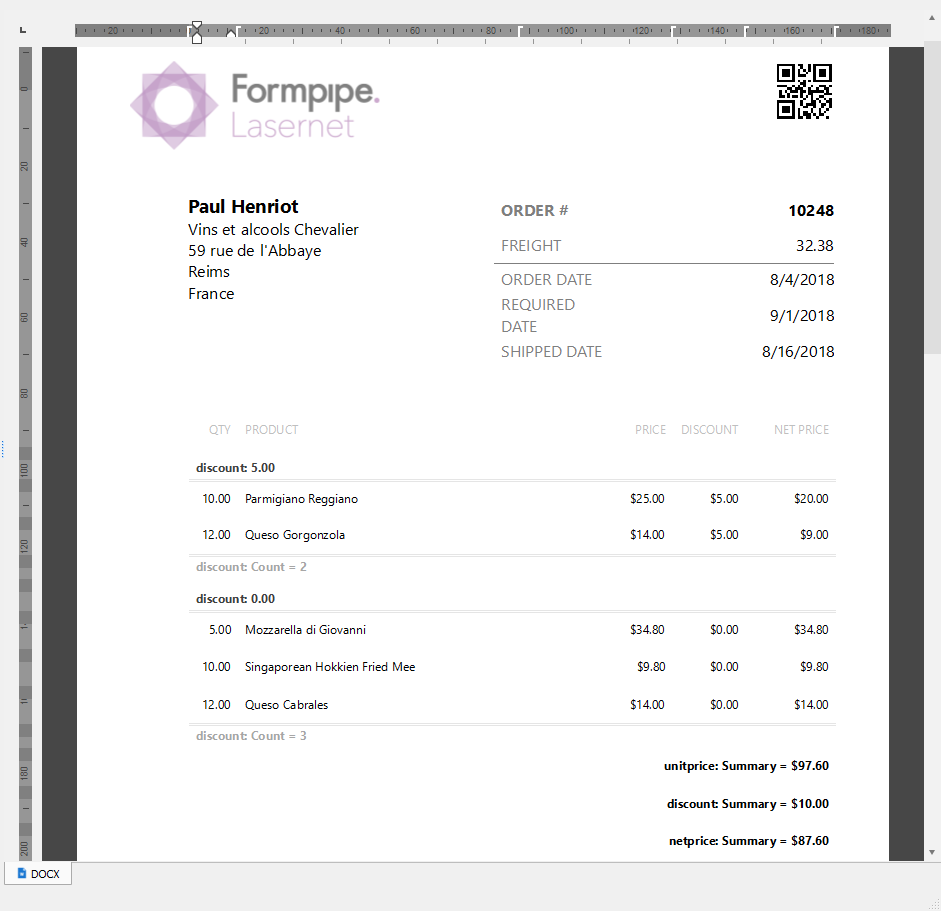
In the output, right-click a value in the DISCOUNT column. In the context menu that appears, click Group By Field.
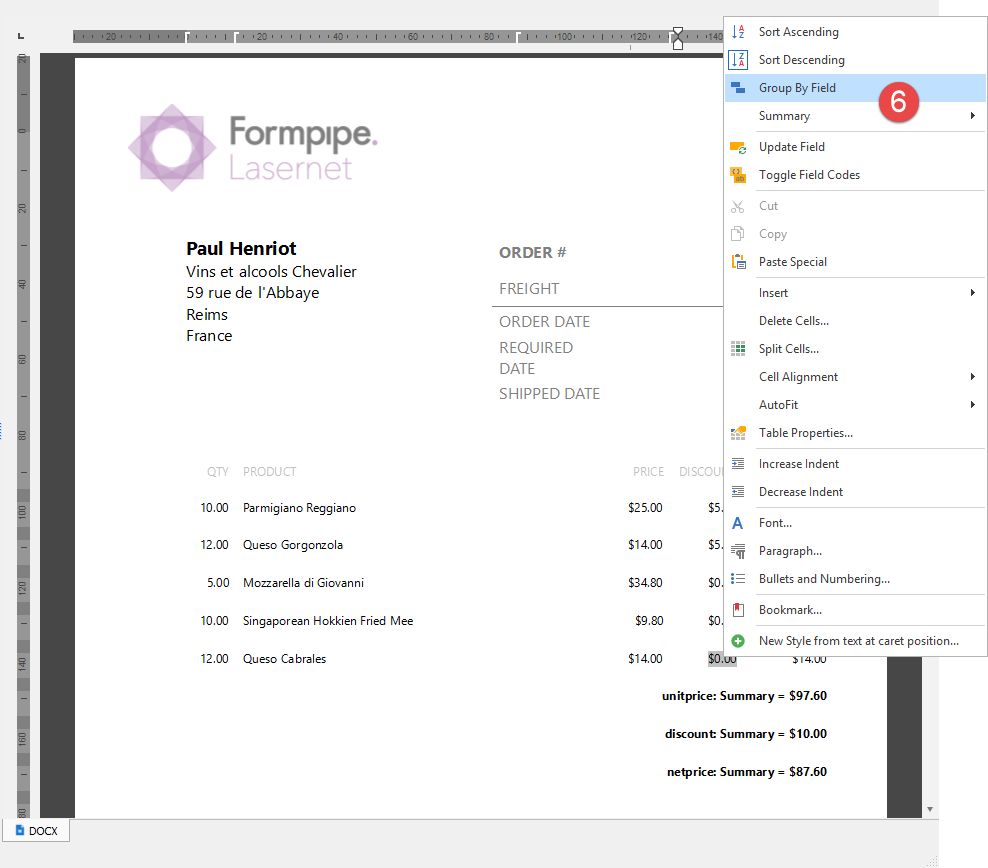
You can see data in the table grouped by the DISCOUNT field.