
Cross-Company Data Sharing
- 22 Apr 2026
- 6 Minutes to read
- Contributors

- Print
- PDF
Cross-Company Data Sharing
- Updated on 22 Apr 2026
- 6 Minutes to read
- Contributors
- Print
- PDF
Article summary
Did you find this summary helpful?
Thank you for your feedback
Microsoft provides a standard tool in Dynamics 365 Finance and Operations for sharing data across multiple entities.
Visit this link to view Microsoft’s documentation.
A Lasernet FO Connector configuration is, for the most part, legal entity-specific. Therefore, in an environment with many legal entities, keeping each one up to date can be time-consuming. Luckily, the standard Microsoft tool can make this job much easier and automatically share the Lasernet FO Connector configuration across multiple entities.
Note
If you add or delete anything in one company, this will also be added or deleted in all selected companies.
The best approach is to set up the Cross-Company Data Sharing before setting up the Lasernet FO Connector. However, if one of your companies is already using Lasernet, we recommend you perform a backup by exporting your Lasernet FO Connector module for each legal entity where the Connector is being used before configuring Cross-Company Data Sharing.
From within the legal entity that you want to back up, navigate to Lasernet > Common > Backup > Export Lasernet backup.
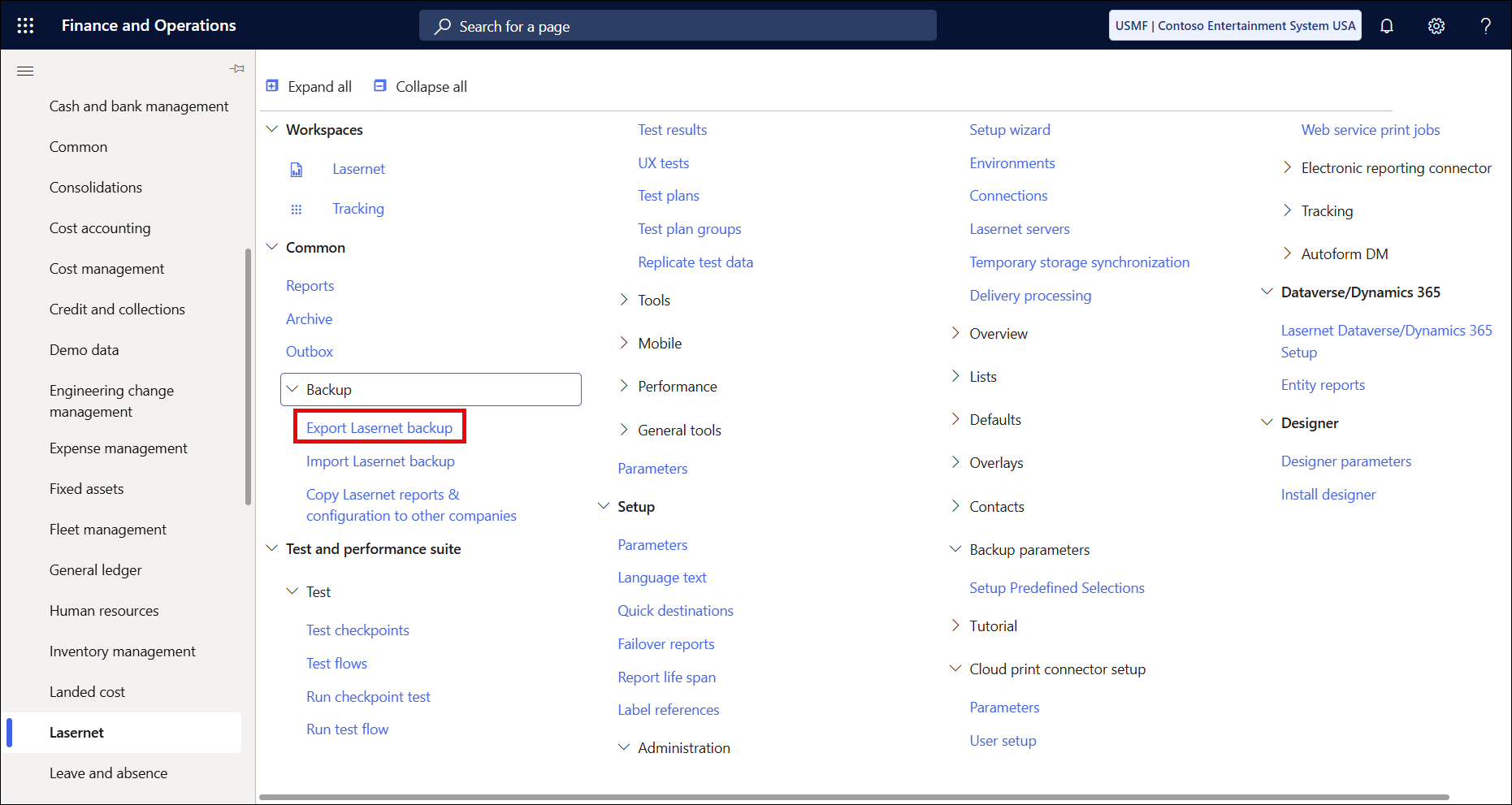
Follow the prompts and select all the reports and tables in the entity.

Click OK and save the backup file.
For more information about exporting backups from Lasernet, read this page of our guide.
Configure Cross-Company Data Sharing
To configure Cross-Company Data Sharing, we must define what data should be shared and between which companies. Follow these steps:
Navigate to System administration > Setup > Configure cross-company data sharing.

Click New on the Action pane and type a name for the group of tables you want to share across companies. Then click Save.

In the TABLES AND FIELDS TO SHARE tab, click Add and select the tables you want to share across companies.
Note
The names of all Lasernet tables includes the prefix “LAC”. See the appendix at the end of this page for a list of all the Lasernet FO Connector tables and their uses.

Select the table, accept the default settings, then click Add table and Save.

In the COMPANIES WHICH SHARE THE RECORDS IN THESE TABLES tab, click Add and select the companies that you want to share the same setup through Cross-Company Data Sharing.

Before enabling, ensure that all the tables are always toggled Active. It is especially important to remember the foreign keys as they are toggled Inactive by default on some tables. For example, on this LACReportElement table, the key is inactive by default:

Once all fields have been toggled Active, click Save, then Enable.

A warning will appear: click Yes to continue.

A window will appear: click Yes to copy data between the companies you have chosen.

Once this operation is complete, an infolog will be displayed:

Click Find sharing issues on the Action pane, then click Yes.

Click Update field value on the Action pane to change any values.

Your setup for Cross-Company Data Sharing for the selected tables is now complete.
Disable
If you do not want to share data between companies anymore, it is possible to select the group of tables you previously shared and then click Disable.

Limitations
Dynamics 365 supports replication of fewer than one million total records per job (this total is calculated as the number of shared records x the number of shared companies). The legal entity limit is 100.

More information about Microsoft Cross-Company Data Sharing is available here.
Grouping Tables
The names of all tables in Lasernet Connector start with “LAC” to make it easier to identify which tables to use.
We recommend grouping tables to get a better overview of the setup for Cross-company data sharing. The following is an example of how to group the tables.
Note
Before starting to use Cross-Company Data Sharing, always discuss with your Lasernet reseller to determine the best solution for your company.
Lasernet to Dataverse/Dynamics 365 connection setup (Lasernet > Dataverse/Dynamics 365 > Lasernet Dataverse/Dynamics 365 Setup)
Tables | Advantage | Disadvantage |
|---|---|---|
LACCRMEntityReport LACCRMEntityReportParms LACCRMSetup | CRM reports, parameters, and setups are synchronized across all selected companies. |
Custom ports (Lasernet > Setup > Lists > Custom ports)
Tables | Advantage | Disadvantage |
|---|---|---|
LACCustomPorts | Custom ports are synchronized across all selected companies and can be used when distributing the document manually. | New custom ports cannot be added for a single specific company. |
Custom properties (Lasernet > Setup > Defaults > Custom properties)
Tables | Advantage | Disadvantage |
|---|---|---|
LACCustomProperties | Custom properties are synchronized across all selected companies and can be used on all Lasernet destinations. | A new custom property cannot be added for a single specific company. |
Customer/Vendor contacts (Lasernet > Setup > Contacts > Customer/Vendor contacts)
Tables | Advantage | Disadvantage |
|---|---|---|
LACCustVendContacts LACCustVendReports | Customer and vendor contacts and reports are synchronized across all selected companies. |
LACDefaults
Tables | Advantage | Disadvantage |
|---|---|---|
LACDefaultCompanySelection LACDefaultDestination LACDefaultSelection LACDefaultTableSelection | Default selections are synchronized across all selected companies. |
Setup of Predefined Destinations (Lasernet > Setup > Overview > Destinations)
Tables | Advantage | Disadvantage |
|---|---|---|
LACReportDestination LACReportDestinationCustomProperty LACQuickDestination | Report destinations are synchronized across all selected companies. | All report destination rules must be the same across all companies. If different report destinations are required for different companies, a condition must be added to the report destination. Moreover, MailFromEmailName and MailFromEmailAddress are the same and cannot differ from company to company. |
Attachments and Document Handling
Tables | Advantage | Disadvantage |
|---|---|---|
LACDocuRefSetup | Attachments and Document Handling setup are synchronized across all selected companies. LACReports must be set up in Cross-Company Data Sharing. | All report destination rules must be the same across all selected companies. |
LACExpression
Tables | Advantage | Disadvantage |
|---|---|---|
LACExpressionFunction | The expression function is synchronized across all selected companies. |
File formats (Lasernet > Setup > Lists > File formats)
Tables | Advantage | Disadvantage |
|---|---|---|
LACFileFormats | File formats are synchronized across all selected companies. |
Language text (Lasernet > Setup > Language text)
Tables | Advantage | Disadvantage |
|---|---|---|
LACLanguageText LACLanguageTextReportGroup LACCultureInfo | All language texts are synchronized across all selected companies. | All labels must be the same across all companies. It is not possible to have different labels across different companies. |
Menu location setup on Lasernet query reports
Tables | Advantage | Disadvantage |
|---|---|---|
LACMenuTable | The menu table is synchronized across all selected companies. |
LACMetadata
Tables | Advantage | Disadvantage |
|---|---|---|
LACMetadataMapping LACMetadataTemplate | Metadata is synchronized across all selected companies. |
Hotfixes from Lasernet (System administration > Setup > Hotfixes from Lasernet)
Tables | Advantage | Disadvantage |
|---|---|---|
LACMSHotfixTable | The same Microaoft fixes are activated across all selected companies. |
Naming patterns (Lasernet > Setup > Defaults > Naming patterns)
Tables | Advantage | Disadvantage |
|---|---|---|
LACNamingPatterns | Naming patterns are synchronized across all selected companies and can be used on all Lasernet destinations. | A new custom property cannot be for a single specific company. |
Overlays (Lasernet > Setup > Overlays > Overlays)
Tables | Advantage | Disadvantage |
|---|---|---|
LACOverlayFile LACOverlaySetup LACOverlayTable | Overlays are synchronized across all selected companies. | All overlays must be the same across all companies. If different overlays or logos are required for each company, a condition must be added to the overlay rules to control them. |
Lasernet parameters (Lasernet > Setup > Parameters)
Tables | Advantage | Disadvantage |
|---|---|---|
LACParameters LACTestParameters | Lasernet parameters are synchronized across all selected companies. | Lasernet parameters are the same across all companies. |
Printers (Lasernet > Setup > Lists > Printers)
Tables | Advantage | Disadvantage |
|---|---|---|
LACPrinters LACPrinterProfiles | Printers and printer profiles are synchronized across all selected companies. |
Reports (Lasernet > Common > Reports)
Tables | Advantage | Disadvantage |
|---|---|---|
LACRelatedSources LACRelatedSourcesFields LACCopyQueryTable | All reports, extra data added with Lasernet, related sources, report parameters, and form links are synchronized across selected companies. | All reports are activated or disabled across all selected companies. Extra data added through Lasernet can be controlled by using conditions on either a section or a single element. |
LACReportFixExceptions
Tables | Advantage | Disadvantage |
|---|---|---|
LACReportFixExceptions | Report fix exceptions are synchronized across all selected companies. |
LACReportReplacementMapping
Tables | Advantage | Disadvantage |
|---|---|---|
LACReportReplacementMapping | Replacement report mappings are synchronized across all selected companies. | Available starting from Lasernet FO Connector 6.8. |
Lasernet servers (Lasernet > Setup > Administration > Lasernet servers)
Tables | Advantage | Disadvantage |
|---|---|---|
LACServer | Lasernet servers and connections are synchronized across all selected companies. | The connection setup is the same across all companies. |
LACWHSLicensePlateLabel
Tables | Advantage | Disadvantage |
|---|---|---|
LACWHSLicensePlateLabelRef LACWHSLicensePlateLabelSetup | WHS License Plate Label references and setups are synchronized across all selected companies. |
Print Buttons
Tables | Advantage | Disadvantage |
|---|---|---|
PRNAutoAddRuleNodes PRNAutoAddRuleSetup PRNFormAdjustment PRNParameters PRNPrintMediumPreset PRNReportGroup PRNReportGroupList | Print buttons are visible across selected companies. |
Culture info adjustment (Lasernet > Setup > Parameters > General > Culture info adjustment)
Tables | Advantage | Disadvantage |
|---|---|---|
CultureInfoAdjustment | Culture info adjustment across selected companies. |
Setup defaults for backup export and import
Tables | Advantage | Disadvantage |
|---|---|---|
LACDefaultSelection LACDefaultTableSelection | A default selection for import and export is copied across selected companies. |
Setup of Alert Links (Lasernet > Setup > Reports > Alert Links)
Tables | Advantage | Disadvantage |
|---|---|---|
LACEventRuleLink | Alert links are copied across selected companies. |
System functions added from Expression Editor
Tables | Advantage | Disadvantage |
|---|---|---|
LACExpressionFunction | System functions added from the Expression Editor are copied across selected companies. |
Quick destinations (Lasernet > Setup > Quick destinations)
Tables | Advantage | Disadvantage |
|---|---|---|
LACQuickDestinations | Quick destinations are copied across selected companies. |
Report life span (Lasernet > Setup > Report life span)
Tables | Advantage | Disadvantage |
|---|---|---|
LACReportLifeSpan | Report life span is copied across selected companies. |
In Dynamics 365 AOT, the table property for LACEnvironment, LACLicense, and LACTestLicense is set to be shared across all legal entities. Therefore, these tables do not need to be included in Cross-Company Data Sharing.