
How Do I Configure the WHSPickListShipping Report for Lasernet?
- 02 Mar 2026
- 2 Minutes to read
- Contributors

- Print
- PDF
How Do I Configure the WHSPickListShipping Report for Lasernet?
- Updated on 02 Mar 2026
- 2 Minutes to read
- Contributors
- Print
- PDF
Article summary
Did you find this summary helpful?
Thank you for your feedback
Introduction
This article explains how WHS (Warehouse Management) reports work in Dynamics 365 Finance and Operations, and how they interact with Lasernet.
It also provides clear steps to correctly set up WHSPickListShippingReplacement using Printer Settings Initialization and explains how this resolves common issues, such as SSRS printing or the “Main query ranges not present” error.
How WHS Reports Work
WHS reports behave differently from other FO documents because they are not generated from journals.
Instead, WHS reports use live operational warehouse data (work lines, shipment lines, loads, waves, and more), which changes frequently during warehouse processes.
Because WHS reports are not journalized, they:
Do not have a fixed or historical record.
Rebuild their data each time they run.
May not have the correct data context when triggered from a Form Link.
Can disable or hide print menu items depending on the warehouse status.
This is why Form Links do not work reliably for WHS reports.
The supported method is to use Printer Settings Initialization, which ensures the report prints correctly from standard WHS buttons.
How to Set Up WHSPickListShippingReplacement in Lasernet
To set up WHSPickListShippingReplacement in Lasernet, follow these steps:
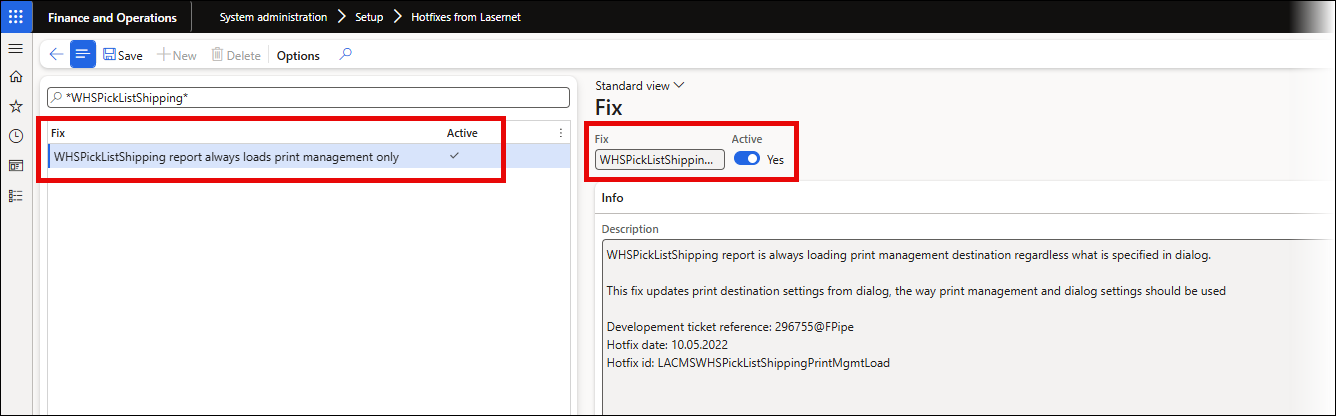
Enable the required hotfix.
To do so, navigate to System administration > Setup > Hotfixes from Lasernet.
Toggle the WHSPickListShipping report always loads print management only fix to Active. This ensures that the Lasernet version of the report is used instead of the SSRS version.
Configure the SSRS report.
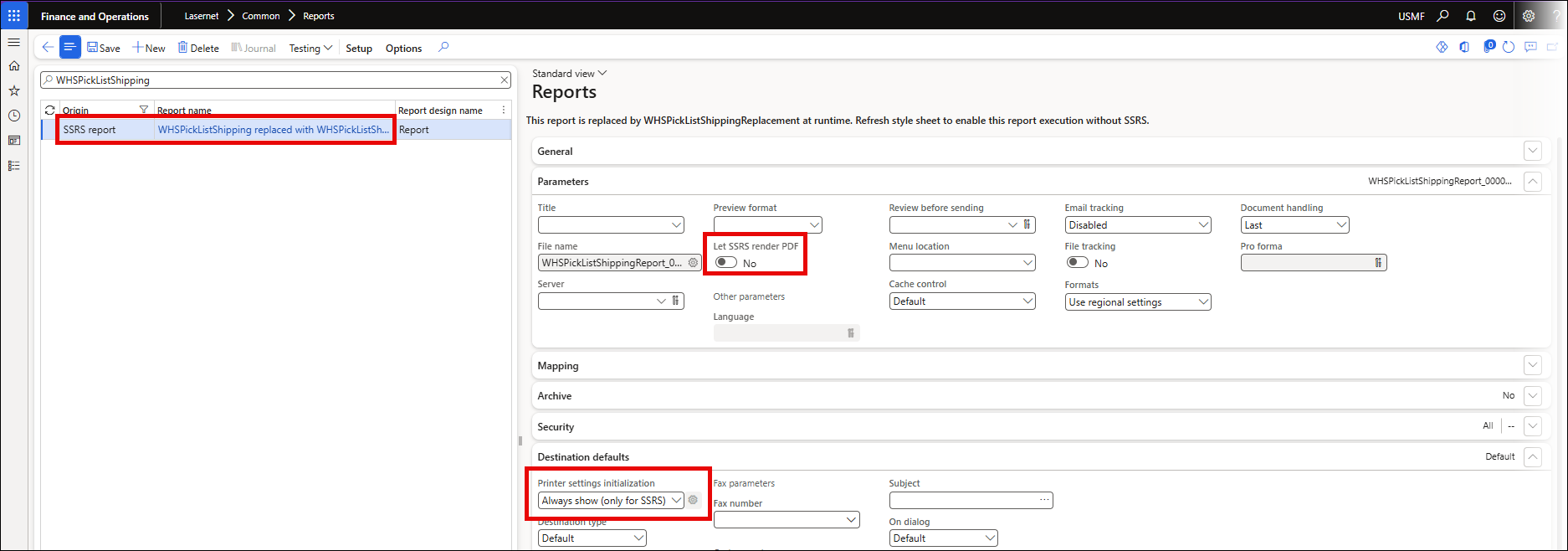
Navigate to Lasernet > Common > Reports.
Select the WHSPickListShipping SSRS report.
Set Let SSRS render PDF to No in the Parameters FastTab, and Printer settings initialization to Always show (only for SSRS) in the Destination defaults FastTab.
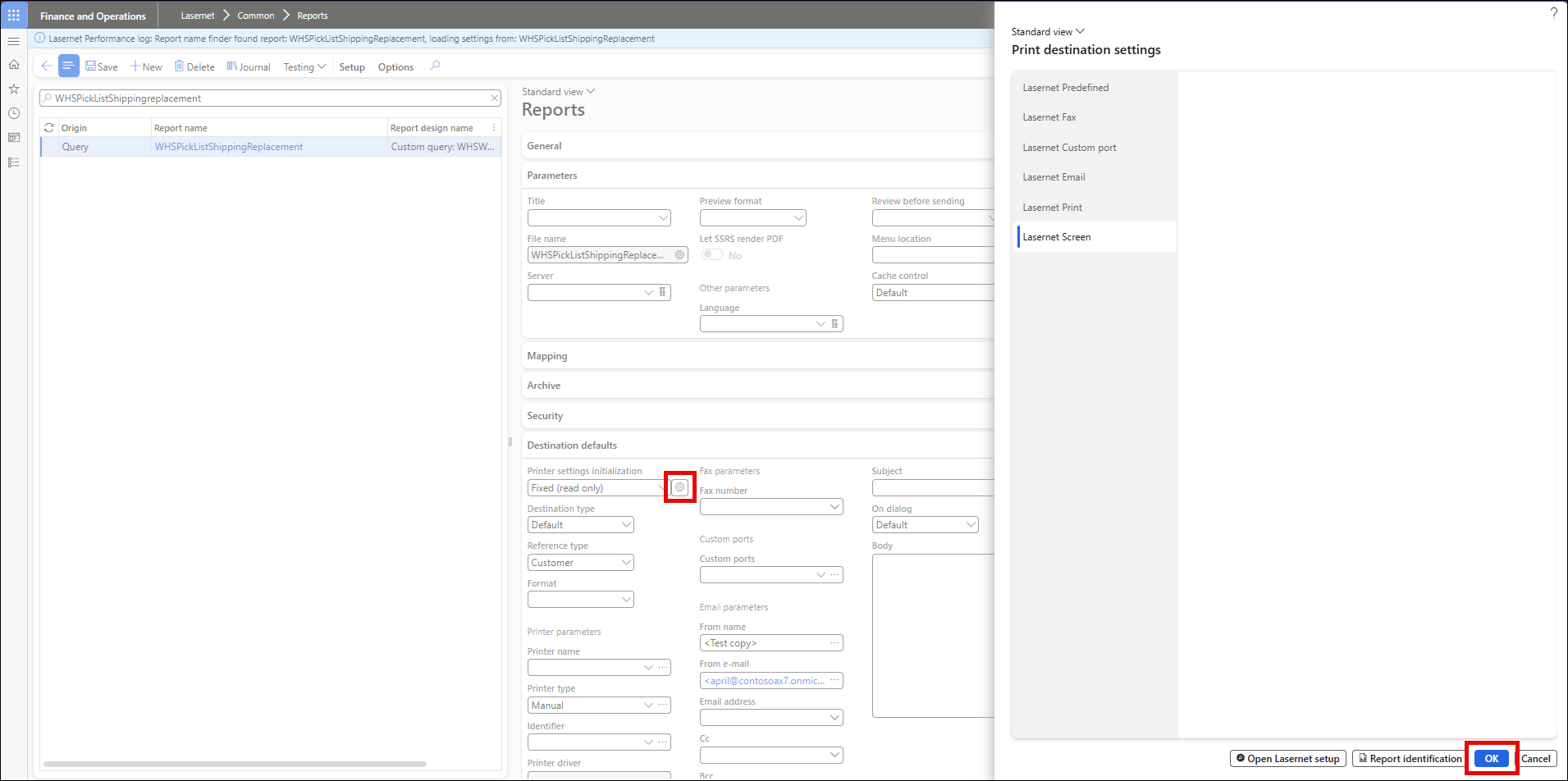
Configure the query (replacement report) by selecting the WHSPickListShippingReplacement query and choosing one of the following:
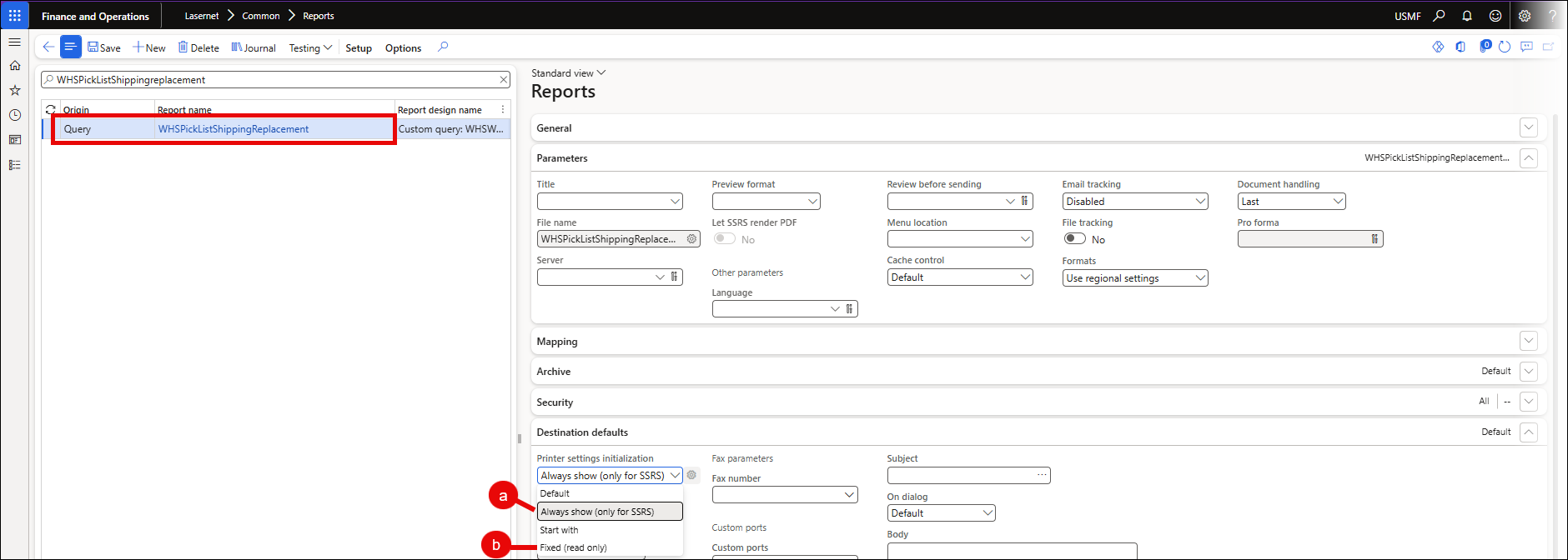
Printer settings initialization set to Always show (only for SSRS). When the user prints the report, a dialog appears enabling the user to choose the destination.
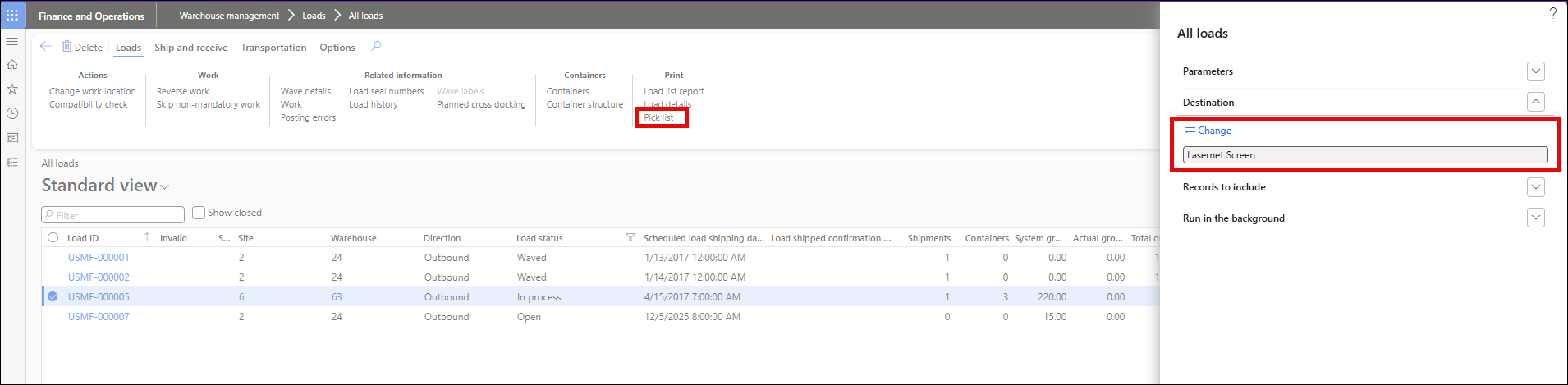
Printer settings initialization set to Fixed (read only). The report will always be printed to the specific destination defined in the Pick list. No dialog appears when the report is printed. Use the gear icon next to Printer settings initialization to configure the destination.
Common Issues This Setup Resolves
The SSRS version of the report prints instead of the Lasernet version. This is caused by a missing hotfix or incorrect SSRS report configuration. The steps described in this article force FO to use Lasernet reliably.
“Main query ranges not present” error. This occurs when a Form Link is used, but WHS data is unavailable or has not yet loaded. Using Printer Settings Initialization eliminates the need for Form Links in WHS reports.
Too many Form Links cluttering WHS screens. WHS reports often require multiple Form Links, leading to an overloaded UI. Printer Settings Initialization maintains a cleaner and more reliable user experience.
If you still experience issues after following the instructions outlined above, contact Lasernet Support.