
Configure PDF Output
- 15 Apr 2026
- 6 Minutes to read
- Contributors


- Print
- PDF
Configure PDF Output
- Updated on 15 Apr 2026
- 6 Minutes to read
- Contributors
- Print
- PDF
Article summary
Did you find this summary helpful?
Thank you for your feedback
Note
All settings are relevant to EMF-based PDF output and rich-text-based PDF output.
Note
Lasernet Core generates PDF v1.7 documents.
Note
PDF/UA is supported by Lasernet Core 10.11 and later. Lasernet Core 10.11 provided partial PDF/UA support as an option for PDF sheets.
However, Lasernet Core 10.12 and later provide increased levels of PDF/UA support, through a dedicated PDF/UA output format for sheets. To design and generate PDF/UA documents (including adjusting PDF/UA-specific settings for sheets and individual form objects), select PDF/UA as a sheet’s Output type. For more information about PDF/UA and the relevant options for sheets and form objects, see Configure PDF/UA Output.
If you want to create PDF/UA documents and are currently using Lasernet Core 10.11, upgrade to Lasernet Core 10.12 or later.
Settings
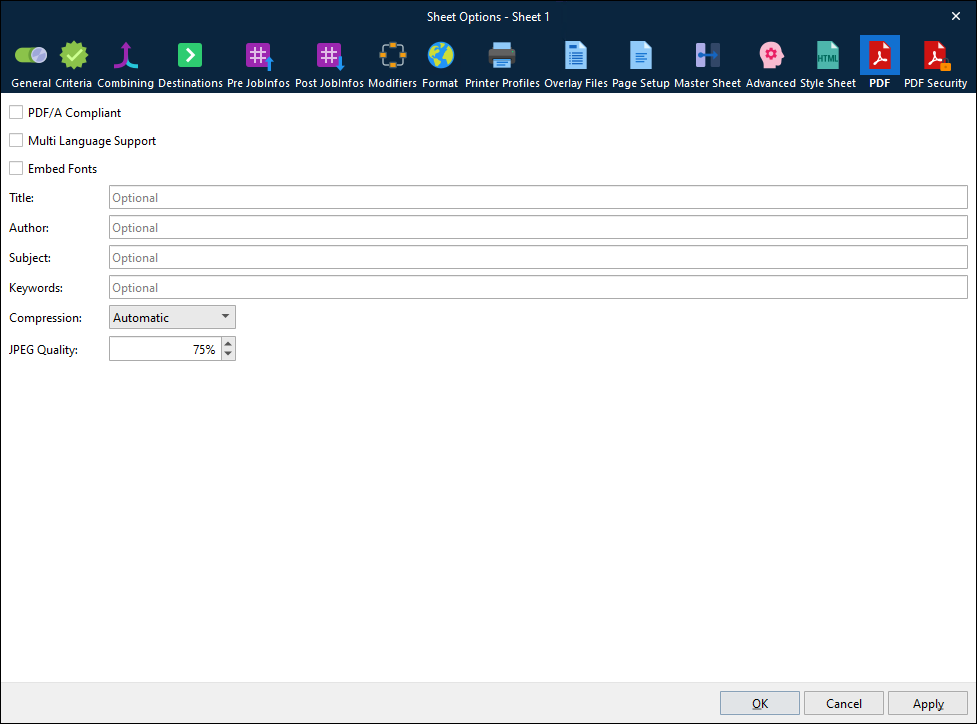
The PDF output has the following settings.
PDF/A Compliant
PDF/A is a PDF format typically used for the long-term archiving of electronic documents. Fonts and color profiles will be embedded in the PDF file.
Multi Language Support
By default, the PDF format includes 7-bit ASCII characters only. Multi-language support must be activated to support and embed additional characters and fonts.
Embed Fonts
Determines what fonts are embedded in the PDF file. Font embedding is used to ensure correct output on other client computers.
Title, Author, Subject, and Keywords
These fields provide the descriptions that will be included in the document properties of the generated PDF file.
Image Compression
Three Compression options and a JPEG Quality value (default 80%) are available for compressing images:
Option | Description |
|---|---|
Automatic | Prefers creating indexed images and uses JPEG if the image contains more than 256 colors. |
Indexed | Creates indexed images (using a palette) if the image contains no more than 256 colors, else the image is stored as a bitmap. The setting gives the best image quality, but the file size may increase. |
JPEG | Compresses all images using JPEG. The setting compromises image quality in favor of smaller file sizes. |
PDF/A-3 — Tunneling Attachment(s) into PDF
The PDF output supports PDF/A-3 (ISO 19005-3:2012, PDF1.7). It enables embedding the previous sheets (such as XML, CSV, EDI, PDF, TIFF, HTML/XHTML) into documents that conform to PDF/A standards, plus additional PDFA schemas in a metadata section.
Embedding files in a PDF requires a set of JobInfos per file to be defined before PDF creation.
JobInfo | Description |
|---|---|
PDFEmbedFilename | Defines the name of the file embedded in the PDF. |
PDFEmbedRelationship | This field must be set to either Source, Data, Alternative, or Supplement. The standard describes which value to use, depending on the embedded file’s relationship to the PDF: Source: Use if the file specification is the original source material for the associated content. Data: Use if the file specification represents information used to derive a visual presentation, such as a table or a graph. Alternative: Use if the file specification is an alternative representation of content, for example, audio. Supplement: Use if the file specification represents a supplemental representation of the original source or data that may be more easily consumable (for example, a MathML version of an equation). If no PDFEmbedRelationship is defined, or it is set to an invalid value, it defaults to Supplement. |
PDFEmbedDescription | This JobInfo contains a description of the embedded file. The field is optional. |
PDFEmbedSubType | This JobInfo must contain the MIME type of the embedded file. If not specified, it defaults to |
PDFEmbedData | This JobInfo must contain the (binary) content of the file to embed into the PDF. |
Any number of files can be embedded by creating an array of the JobInfos described above. The files are embedded at the PDF document level (it is currently not possible to embed files per page).
It is possible to embed files when using regular PDFs and PDF/As. If PDF/A is enabled, Lasernet Core will generate PDF/A-3B instead of PDF/A-1B.
Embedding PDF/A Extension Schemas and Additional Metadata Elements in a PDF/A File
Additional PDF/A Extension Schemas and additional XMP Metadata can be embedded in the PDF. Certain formats, such as ZUGFeRD, used for electronic invoicing in Germany, require both features.
The PDFEmbedPDFAExtensionSchema JobInfo is used for PDF/A Extension Schemas. Any number of schemas can be embedded by creating an array. Each entry must be valid XML.
The PDFEmbedAdditionalMetadataElement JobInfo allows you to embed any number of additional XML metadata elements in the PDF by creating an array. Each entry must be valid XML.
XMP Metadata (and PDF/A extension schemas) are only included in the PDF when using PDF/A.
PDF Security
Applies to: Lasernet Core 11 and 10 (not Lasernet Essentials / Professional / Advanced)
The PDF security features enable you to set PDF protection to prevent others from changing content, printing, copying content, adding notes, modifying form fields, or signing.
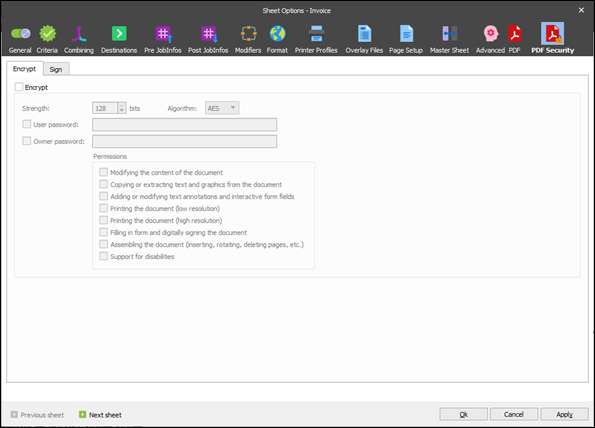
Encrypt
PDF encryption enables you to secure the contents of your PDF with a password and define which actions the user reading the PDF is allowed to do.
The user and owner password created for the PDF document can be overwritten at runtime by setting the following JobInfos:
PDFOwnerPassword
PDFUserPassword
Note
Encryption is not available when working with PDF/A (ISO 19005-1-2005).
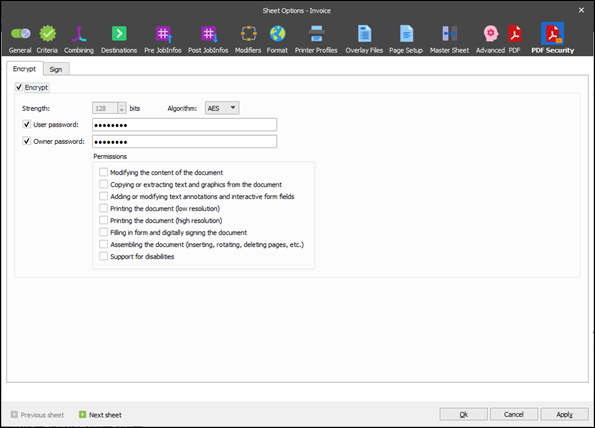
Algorithm choice
The following algorithms can be used to encrypt the PDF. Each algorithm has its own advantages and disadvantages, which should be taken into consideration when deciding which one to use.
Algorithm | Description |
|---|---|
AES | The AES algorithm provides better security than RC4. AES encryption was introduced in PDF 1.6 (Acrobat Reader 7.0) and only supports a key length of 128 bits. |
RC4 | The RC4 algorithm is supported from PDF 1.1 (Acrobat Reader 2.0). It supports key lengths ranging from 40 bits to 128 bits in 8-bit increments. Key lengths longer than 40 bits are supported from PDF 1.4 (Acrobat Reader 5.0).
|
Passwords
Two passwords are defined when enabling encryption. The user password must be supplied to the recipient of the PDF. When opening the PDF with the user password, the restrictions defined in the document permissions are enforced.
Opening the PDF with the owner password overrides any document restrictions. You will also be able to change the operations allowed by the recipient.
If the user password and the owner password are the same, the user password has priority, which means you will not be able to circumvent the restrictions defined in the document permissions.
Permissions
You can define which actions will be allowed when opening the encrypted PDF with the user password. This allows you to prevent the document from being modified, printed or copied from.
Sign
By signing your PDF with a digital certificate, you enable the recipient to verify the document's origin and integrity, so that they can be sure that it came from your organization and has not been changed since it was created. Digital signatures are supported from PDF 1.3 (Acrobat Reader 4.0) and are allowed in PDF/A.
Certificate
To sign the PDF using a digital signature, you must have a valid and appropriate certificate installed for the user account under which the Lasernet Core service is running.
SHA1 Fingerprint
The SHA1 fingerprint is used to verify that the signed file is unaltered. The checksum is created before the file is transmitted, and then once again it reaches its destination.
Rectangle (X, Y, Width, Height)
Specify the location (X and Y) and size (Width and Height) of the overlay that is added to the document.
Reason
The Reason field enables you to enter a text string that is displayed when viewing the signed PDF. This provides the user with a visual representation of the signature. You can enter text and select a background colour for the text field.
Location
The physical location where the signature is added, for example, “Zurich, Switzerland”. If this property is set to an empty string, no entry is created.
Timestamp
By signing your PDF with a timestamp provided by a trusted source, you can ensure that the PDF will still display a valid signature after your certificate expires. If you choose not to timestamp your PDF, the recipient will see a warning that the certificate used to sign the PDF has expired.