
Configure Additional User Permissions in Microsoft Entra ID and Lasernet
- 30 Jan 2026
- 3 Minutes to read
- Contributors

- Print
- PDF
Configure Additional User Permissions in Microsoft Entra ID and Lasernet
- Updated on 30 Jan 2026
- 3 Minutes to read
- Contributors
- Print
- PDF
Article summary
Did you find this summary helpful?
Thank you for your feedback
Applies to: Lasernet 11
Lasernet uses “security roles” to manage permissions for users. Lasernet security roles are bound to app roles in Microsoft Entra ID through “external roles” in Lasernet. Microsoft Entra ID users and groups can be assigned any number of app roles (that correspond to Lasernet external roles), thereby enabling granular permission management directly in Microsoft Entra ID.
Note
For more information about Lasernet users, groups, and security roles, see Configure Users, Groups, and Security Roles.
The process of binding users to specific permissions requires the following steps:
Add an app role to the app registration in Microsoft Entra ID.
Add and configure a security role in Lasernet (if necessary).
Add the external role to one or more security roles in Lasernet.
The following sections describe how to complete each stage of this process. The example described in the following sections involves configuring Lasernet and Microsoft Entra ID to allow specific users to only edit forms in Lasernet Developer.
Add a New App Role to the Azure App Registration
Follow these steps:
Navigate to the app registration for Lasernet by going to Azure Portal > Microsoft Entra ID > App registrations.
Go to the App Roles tab and click Create app role.
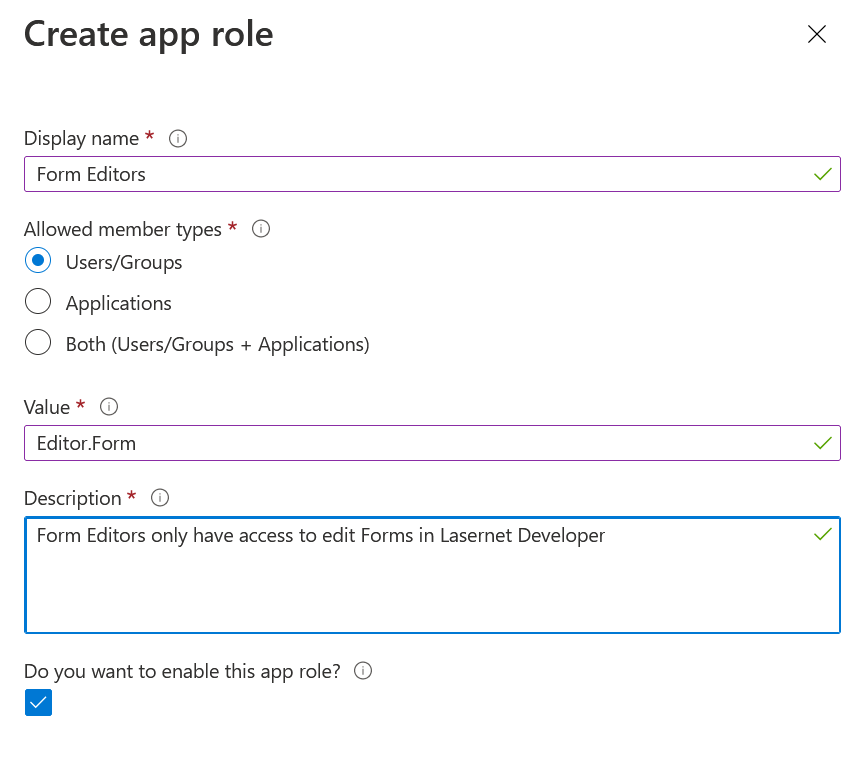
Fill in the information as shown.
Note
The name you enter into the Value field must match the name that you enter when you later add an external role in Lasernet.
Click Apply.
Assign Users and Groups to the New App Role
Follow these steps:
Navigate to Azure Portal > Microsoft Entra ID > Enterprise applications.
Use the search function to locate the Lasernet enterprise application.
Click the Lasernet enterprise application to modify it.
Click Manage > Users and groups, then click Add user/group.
Select the users and groups that you want to allow to edit forms in Lasernet.
Select the Form Editors role.
Click Assign.
Add a New External Role in Lasernet
The “external role” in Lasernet is the glue that binds Azure app roles to Lasernet security roles. Every app role you define in the Azure app registration must have a corresponding external role in Lasernet. The binding between an Azure app role and a Lasernet external role is done by name, so it is important that the Name field of the Lasernet external role matches the Value field of the corresponding Azure app role.
An external role can be assigned to one or more security roles.
To add an external role, follow these steps:
Navigate and log in to the Lasernet Config Server web app.
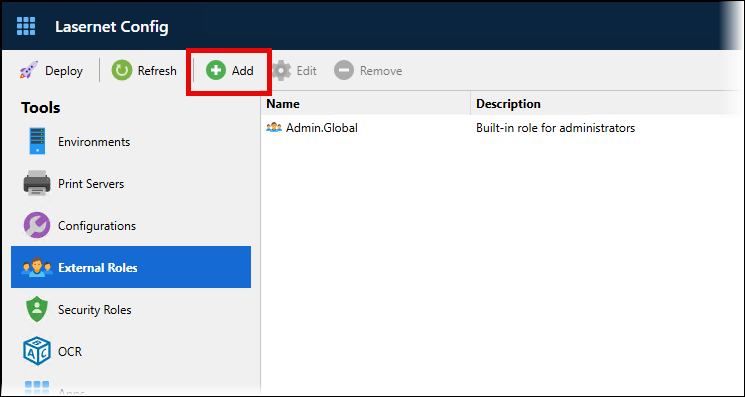
Go to the External Roles page then click Add.
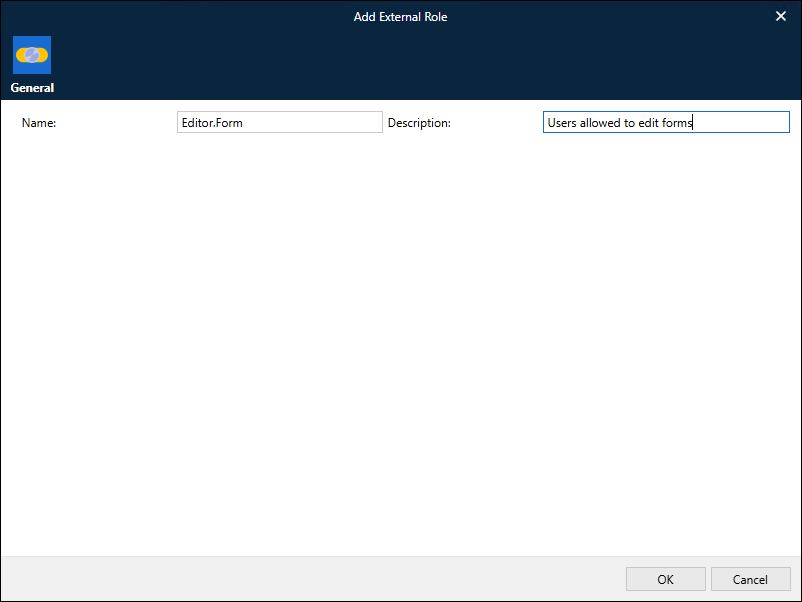
Add a Name and Description for the external role.
Important
Ensure that Name matches the Value that you entered when you created the app role.
Click OK.
Add a New Security Role in Lasernet
A security role defines which permissions are granted to its members. Security roles are separated into areas corresponding to the different Lasernet applications.
Go to the Security Roles page, click Config Server and Developer, then click Add.
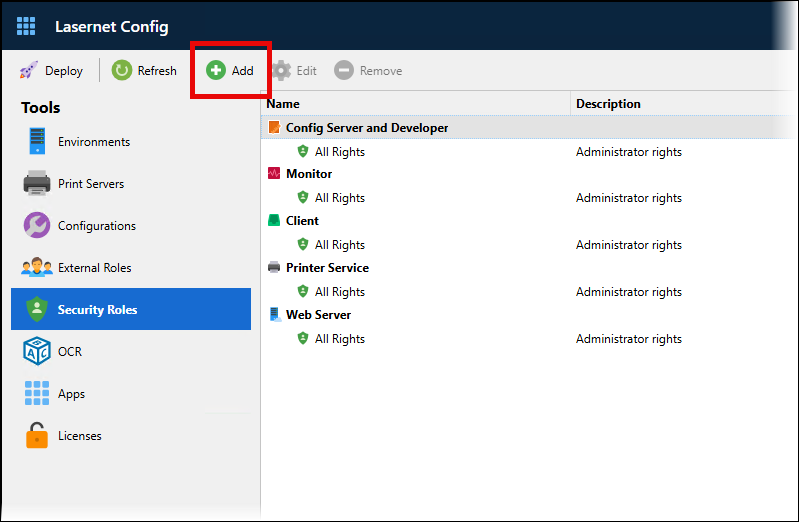
Enter a Name and Description for the role.
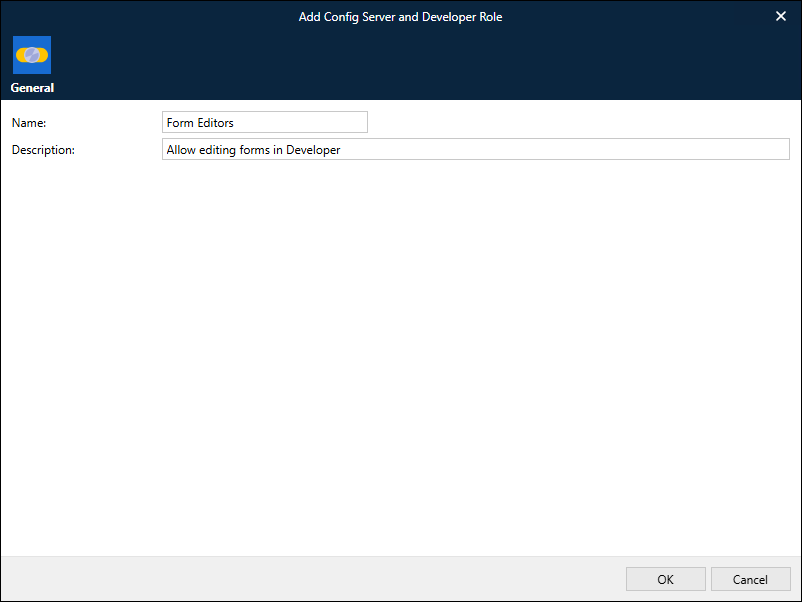
Click OK.
Configure New Security Role
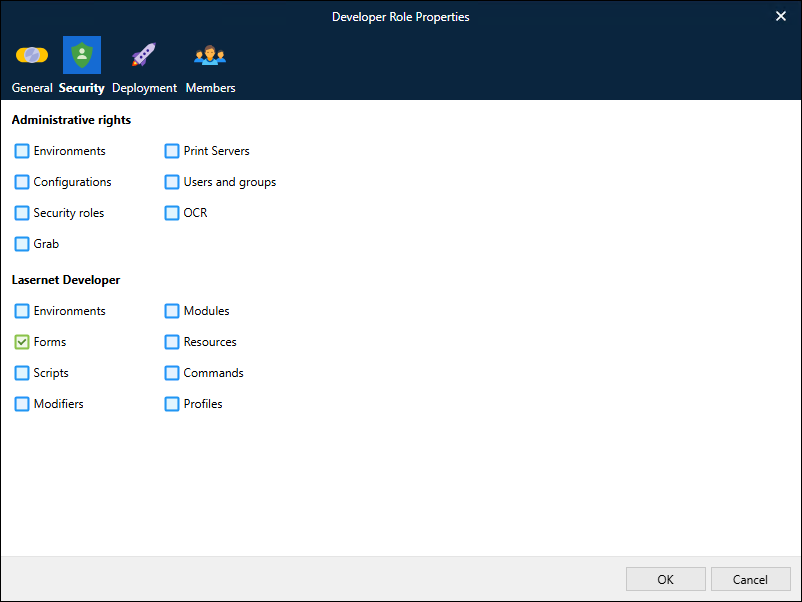
The newly created security role must be configured to only allow access to edit forms. In this example, the users assigned this role will be able to edit forms, but will be unable to do tasks in the Lasernet Config web app, and will be unable deploy configurations to environments. They will also be unable to access any part of a configuration in the Lasernet Developer other than the forms (in that configuration).
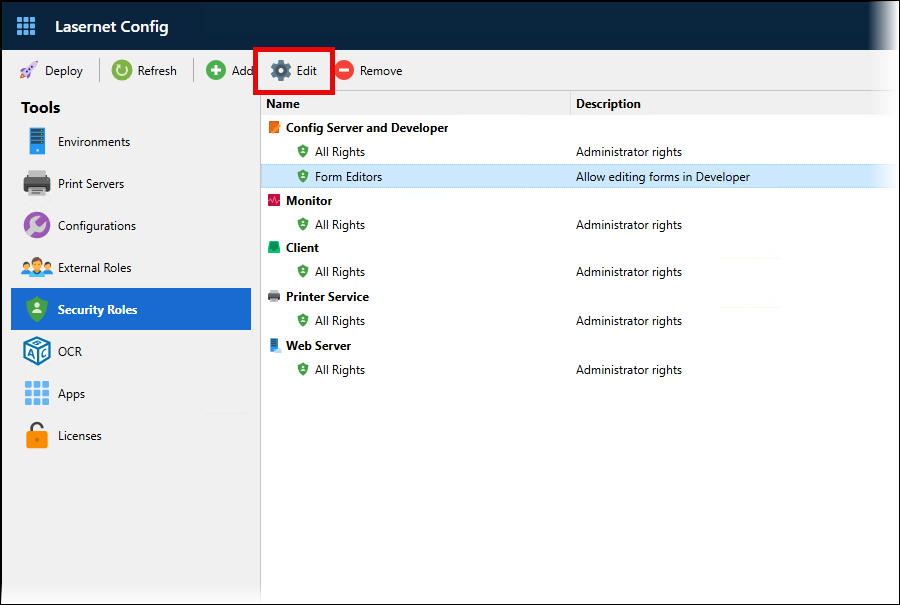
Select the newly added security role, then click Edit.
On the Security tab, clear all checkboxes except Forms.
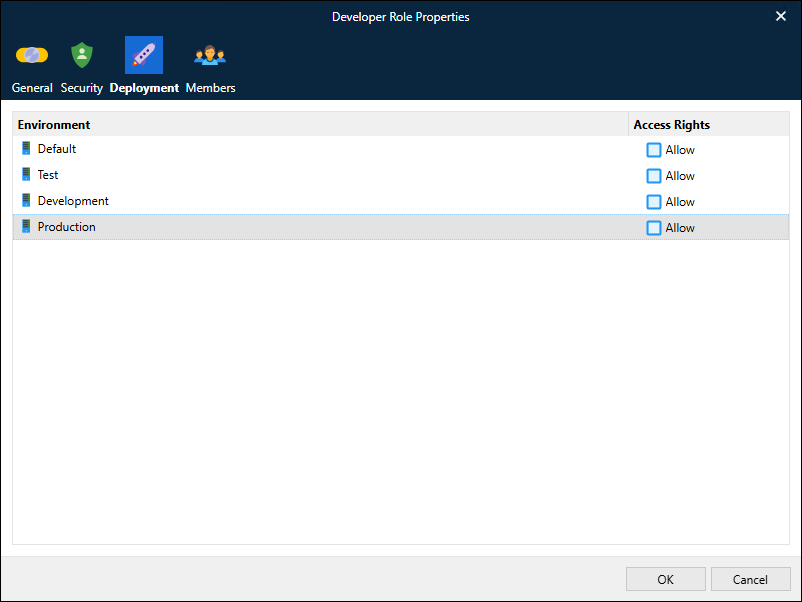
On the Deployment tab, clear all checkboxes.
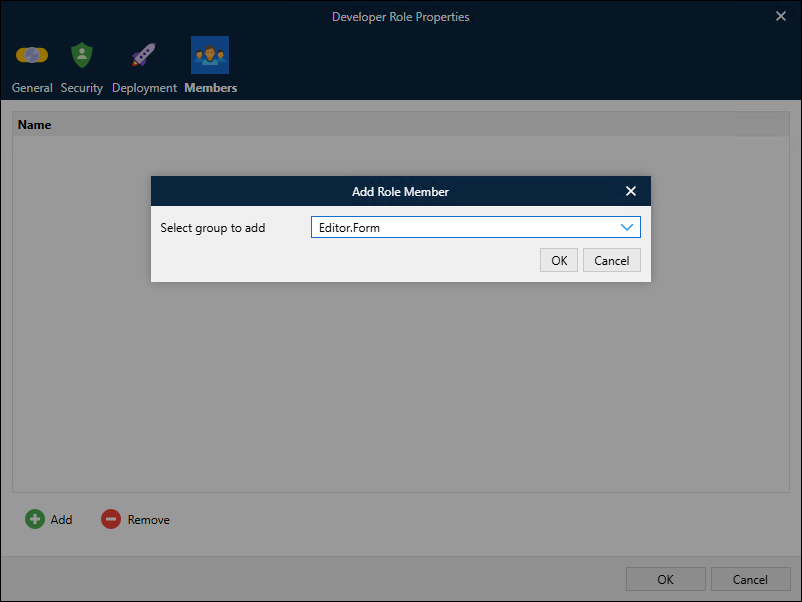
On the Members tab:
Click Add
Select Editor.Form (the newly created Lasernet external role) from the Select group to add list.
Click OK.
Click OK in the security role editing window to save your changes to the security role.
The users that you selected when you assigned users and groups to the new app role will now be asked for their Microsoft Entra ID credentials when they start Lasernet Developer. After they sign in, they will be able to edit forms.