
How Do I Add an Additional Azure Service Bus for a Specific Report?
- 05 Feb 2026
- 1 Minute to read
- Contributors

- Print
- PDF
How Do I Add an Additional Azure Service Bus for a Specific Report?
- Updated on 05 Feb 2026
- 1 Minute to read
- Contributors
- Print
- PDF
Article summary
Did you find this summary helpful?
Thank you for your feedback
This article demonstrates how to add another Azure Service Bus for a specific report. Follow these steps:
Create a new queue in Service Bus Explorer. In the example (FlemmingTest),
Transport Typeis located at the end of the string when selected.
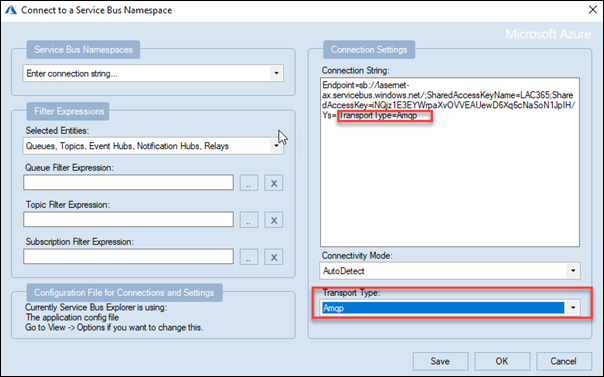
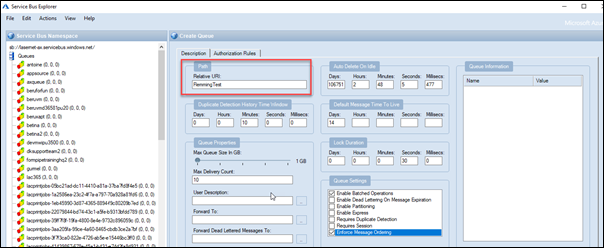
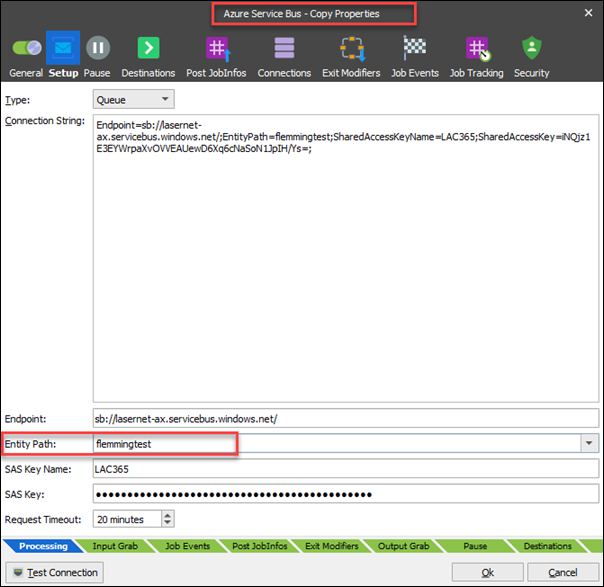
Create a new Azure Service Bus Input Port in Lasernet Developer. In the example, we have duplicated the existing one. The new one is called “Azure Service Bus – Copy”.
Commit/Deploy to make it available.
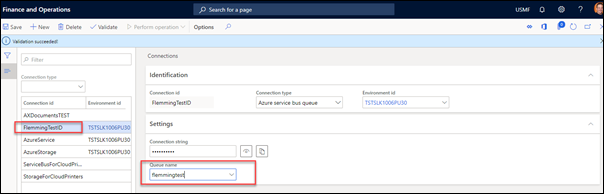
Create a new Connection in Lasernet FO Connector. In the example, it is called “FlemmingTestID”.
Create a new server in Lasernet FO Connector and reference the new connection. In the example, the new server’s name is the same as the connection’s, with
_bappended.
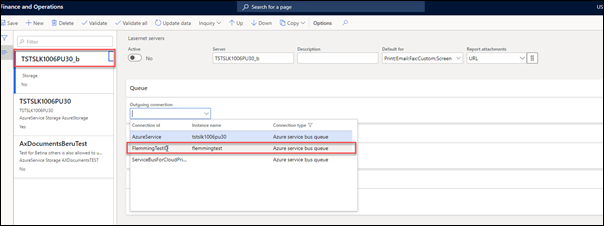
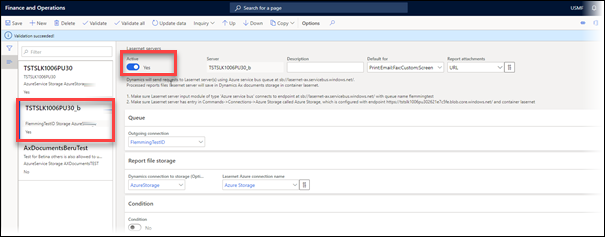
Ensure the new server is placed after the default server (at the top) and toggle the Active button to Yes.
Select the report where you will run the batch, and set the new server as your choice. In the following example, the report is SalesConfirmReplacement, to which the new server is attached. All the other reports do not include a server selection, so they will use the default server.
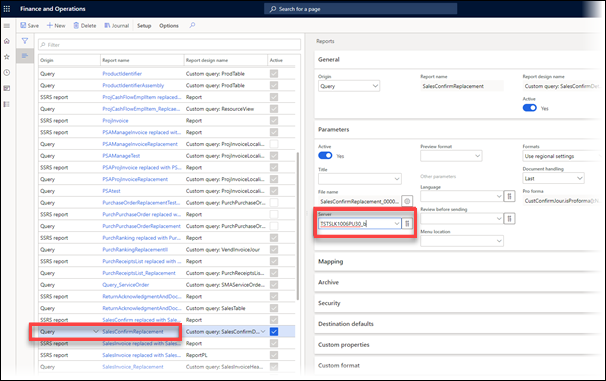
This report will now use this Azure Service Bus, while the others will use the original one.